> ## Documentation Index
> Fetch the complete documentation index at: https://docs.levelblue.com/llms.txt
> Use this file to discover all available pages before exploring further.
# Manage
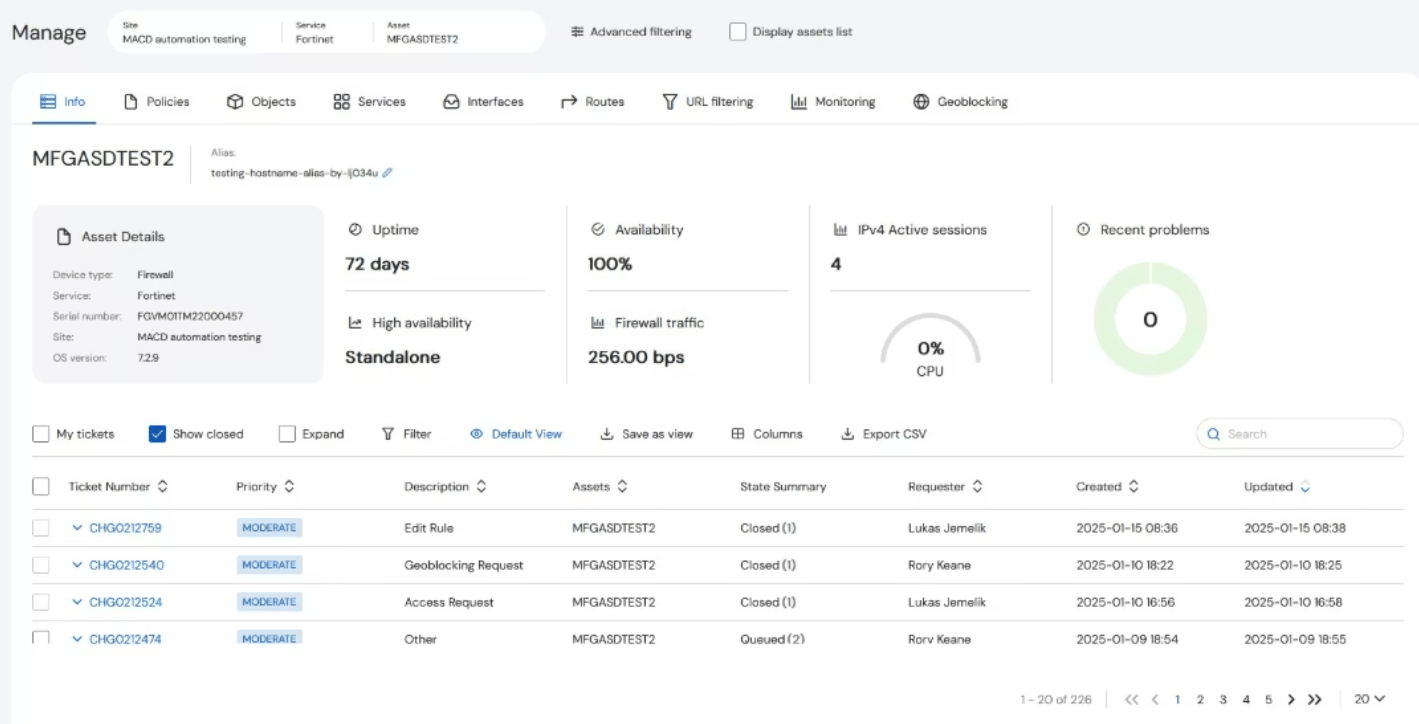
The **Manage** page enables you to view more information about a specific asset.
 ### Asset Selection
To select which asset to see details about, click the **Display assets list** checkbox.
### Asset Selection
To select which asset to see details about, click the **Display assets list** checkbox.
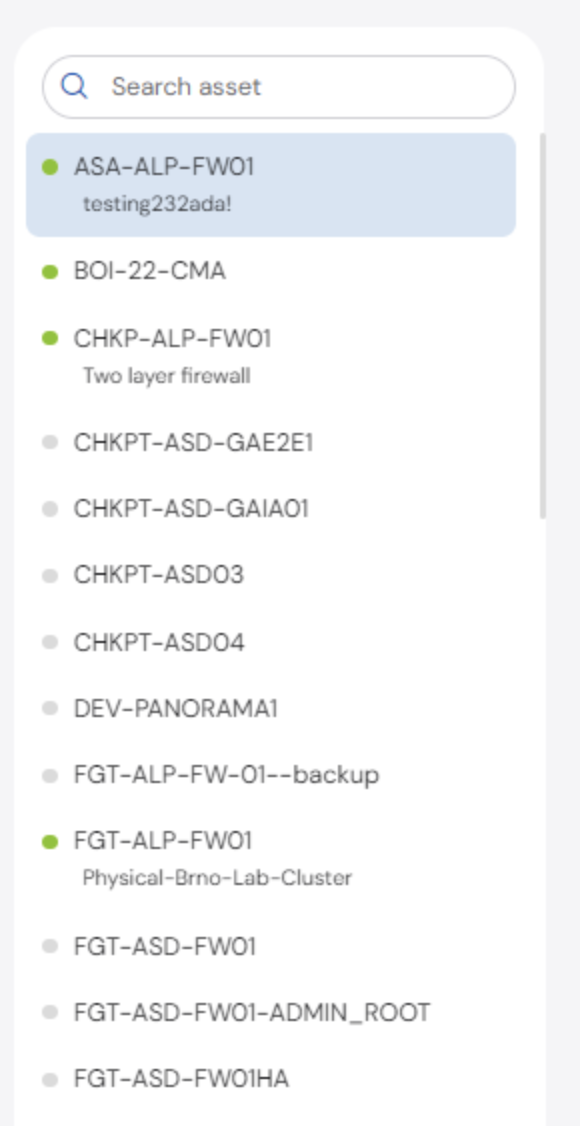
 A list appears on the left side of the table, which you can scroll through the list to find the asset you want, or you can also search in the **Search Asset** bar at the top of the panel. The dot next to the Asset name indicates if the device is online or not. When the dot is green, the asset supports automated features.
 ### Advanced Filtering
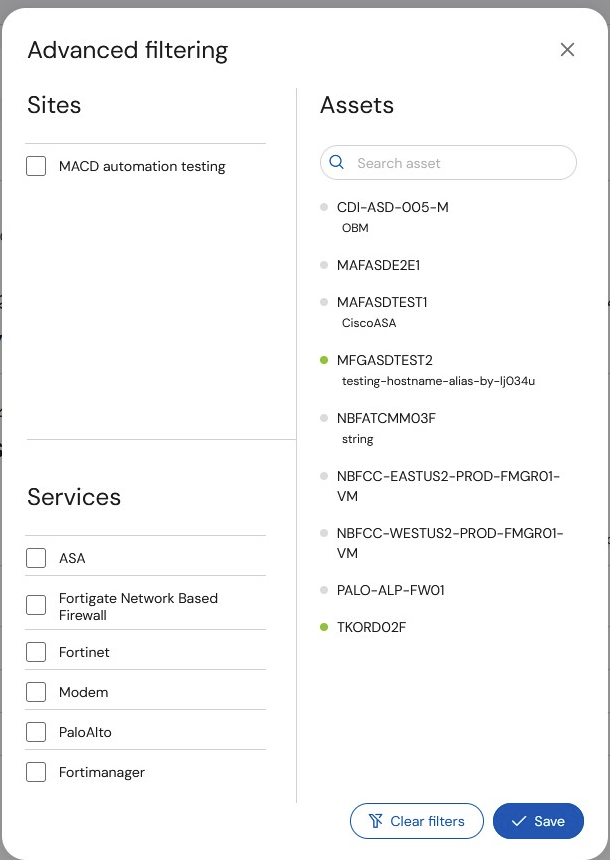
If you need to expand the asset list to another Site or Service to see different assets, click **Advanced Filtering**.
### Advanced Filtering
If you need to expand the asset list to another Site or Service to see different assets, click **Advanced Filtering**.
 The Advanced Filtering dialog box opens, allowing you to select from all of the **Sites**, **Services**, and **Assets** in your environment.
 The following sub-topics are covered in this section:
* [Asset Info](/documentation/policy-manager/manage/asset-info)
* [Policies](/documentation/policy-manager/manage/policies)
* [Objects](/documentation/policy-manager/manage/objects)
* [Services](/documentation/policy-manager/manage/services)
* [Interfaces](/documentation/policy-manager/manage/interfaces)
* [Routes](/documentation/policy-manager/manage/routes)
* [URL Filtering](/documentation/policy-manager/manage/url-filtering)
* [Monitoring](/documentation/policy-manager/manage/monitoring)
* [Geoblocking](/documentation/policy-manager/manage/geoblocking)
The following sub-topics are covered in this section:
* [Asset Info](/documentation/policy-manager/manage/asset-info)
* [Policies](/documentation/policy-manager/manage/policies)
* [Objects](/documentation/policy-manager/manage/objects)
* [Services](/documentation/policy-manager/manage/services)
* [Interfaces](/documentation/policy-manager/manage/interfaces)
* [Routes](/documentation/policy-manager/manage/routes)
* [URL Filtering](/documentation/policy-manager/manage/url-filtering)
* [Monitoring](/documentation/policy-manager/manage/monitoring)
* [Geoblocking](/documentation/policy-manager/manage/geoblocking)