> ## Documentation Index
> Fetch the complete documentation index at: https://docs.levelblue.com/llms.txt
> Use this file to discover all available pages before exploring further.
# Asset Info
To view more details about an asset, select the name of the specific **Asset** from the **Manage** page to view the **Asset Details** page. The **Info** tab is shown by default, which allows you to view the details and tickets associated with an asset.
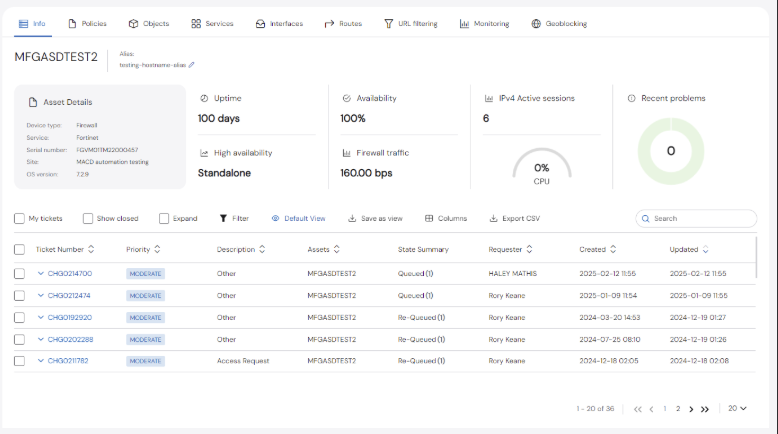 On the left side, you can see the details of the device including the **Device Type, Service, Model, Serial number**, and **Site name**. Next to the device details, there are additional health metrics about the device, including: **Operating System, Uptime, High availability, Availability, Firewall Traffic, IPv4, Active Sessions, CPU,** and **Recent Problems.**
### Setting an Alias
You can set an alias for your assets for easier reference.
**To set an alias for an asset:**
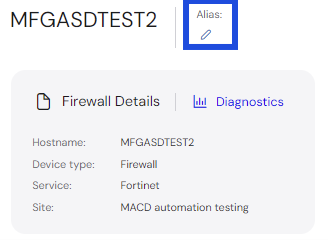
1. In the **Firewall Details** section, click the pencil icon below the **Alias** field.
On the left side, you can see the details of the device including the **Device Type, Service, Model, Serial number**, and **Site name**. Next to the device details, there are additional health metrics about the device, including: **Operating System, Uptime, High availability, Availability, Firewall Traffic, IPv4, Active Sessions, CPU,** and **Recent Problems.**
### Setting an Alias
You can set an alias for your assets for easier reference.
**To set an alias for an asset:**
1. In the **Firewall Details** section, click the pencil icon below the **Alias** field.
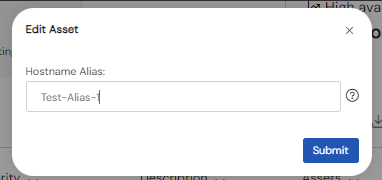
 2. Enter the **Hostname Alias**, and then click **Submit**.
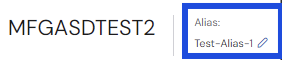
 The Alis is now displayed next to the Asset name.
 ### Tickets
In the **Tickets** table, all of the change tickets that have been opened for the selected asset are listed in a table format. There is a **search box** provided on the right that allows the user to enter a search. The ticket table is automatically filtered based on the input, which is matched to the text in any of the columns. For additional information about the ticket, the user can click on a specific ticket number.
The view of the table can be changed using the options across the top:
### Tickets
In the **Tickets** table, all of the change tickets that have been opened for the selected asset are listed in a table format. There is a **search box** provided on the right that allows the user to enter a search. The ticket table is automatically filtered based on the input, which is matched to the text in any of the columns. For additional information about the ticket, the user can click on a specific ticket number.
The view of the table can be changed using the options across the top:
 * **My tickets** – Filters the table to only display the tickets submitted the active user
* **Show closed** – Includes all closed tickets in the table (The table defaults to only show open tickets.)
* **Expand** – Shows additional details about the ticket
* **My tickets** – Filters the table to only display the tickets submitted the active user
* **Show closed** – Includes all closed tickets in the table (The table defaults to only show open tickets.)
* **Expand** – Shows additional details about the ticket