> ## Documentation Index
> Fetch the complete documentation index at: https://docs.levelblue.com/llms.txt
> Use this file to discover all available pages before exploring further.
# Assets
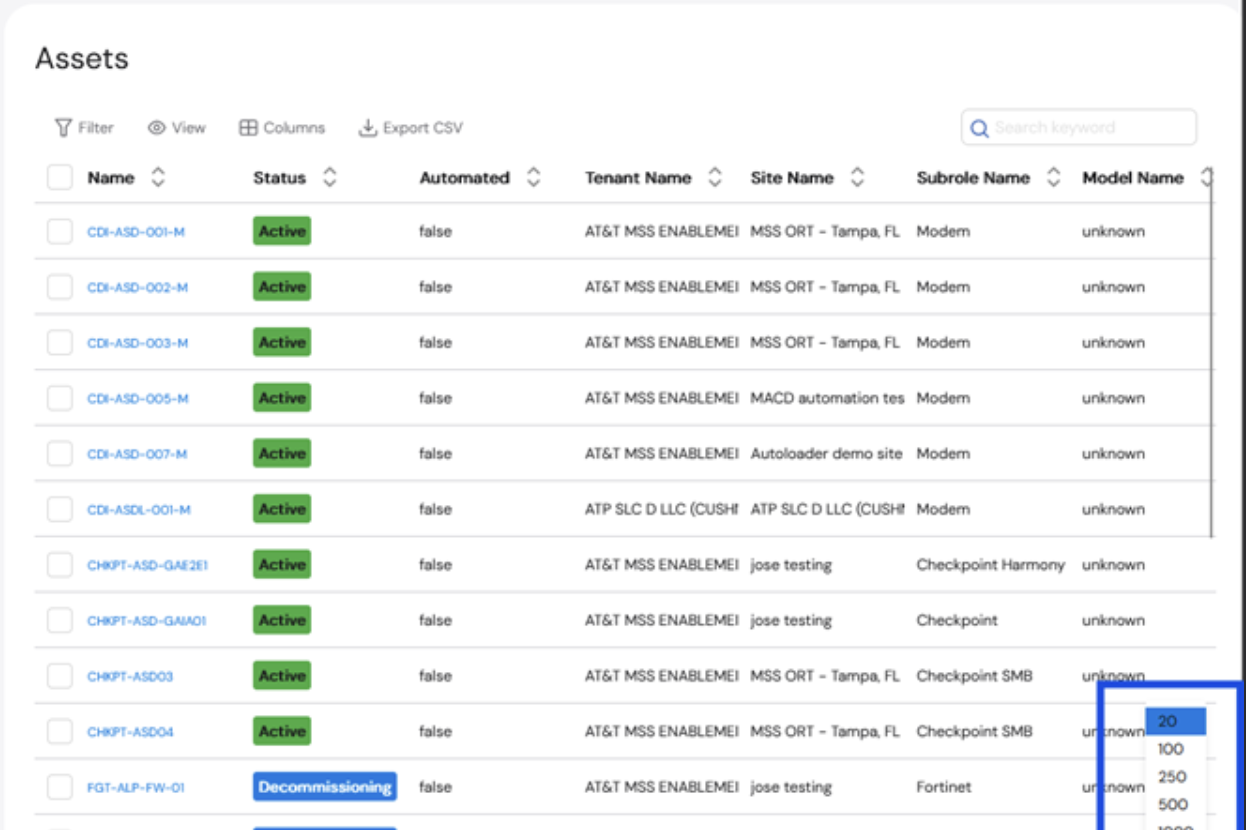
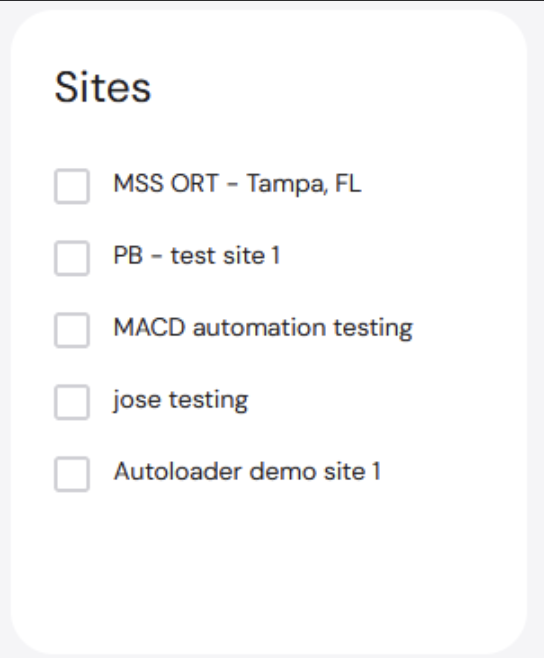
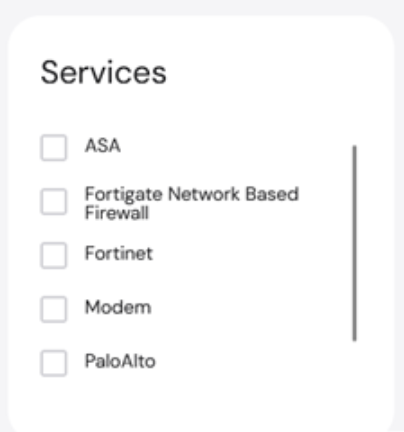
The **Assets** page allows you to view all of the assets in the environment. You can filter the assets on the left-hand side by both **Site** and **Services**. You can also select one or multiple sites and services to filter the table. For more information on a specific asset, click on the **Asset Name** and you will be directed to the **Asset Info** tab on the **Manage** page.
 You can change what is displayed on the **Assets** table by filtering the fields, using pre-defined views, or modifying the columns.
### Filter
Applying filters to the table further narrows down the asset list.
**To filter the fields:**
1. Click **Filter**.
You can change what is displayed on the **Assets** table by filtering the fields, using pre-defined views, or modifying the columns.
### Filter
Applying filters to the table further narrows down the asset list.
**To filter the fields:**
1. Click **Filter**.
 2. Click **+Add a filter**. A list of fields is shown, including **ID**, **Name**, **Status**, **Site Name**, etc.
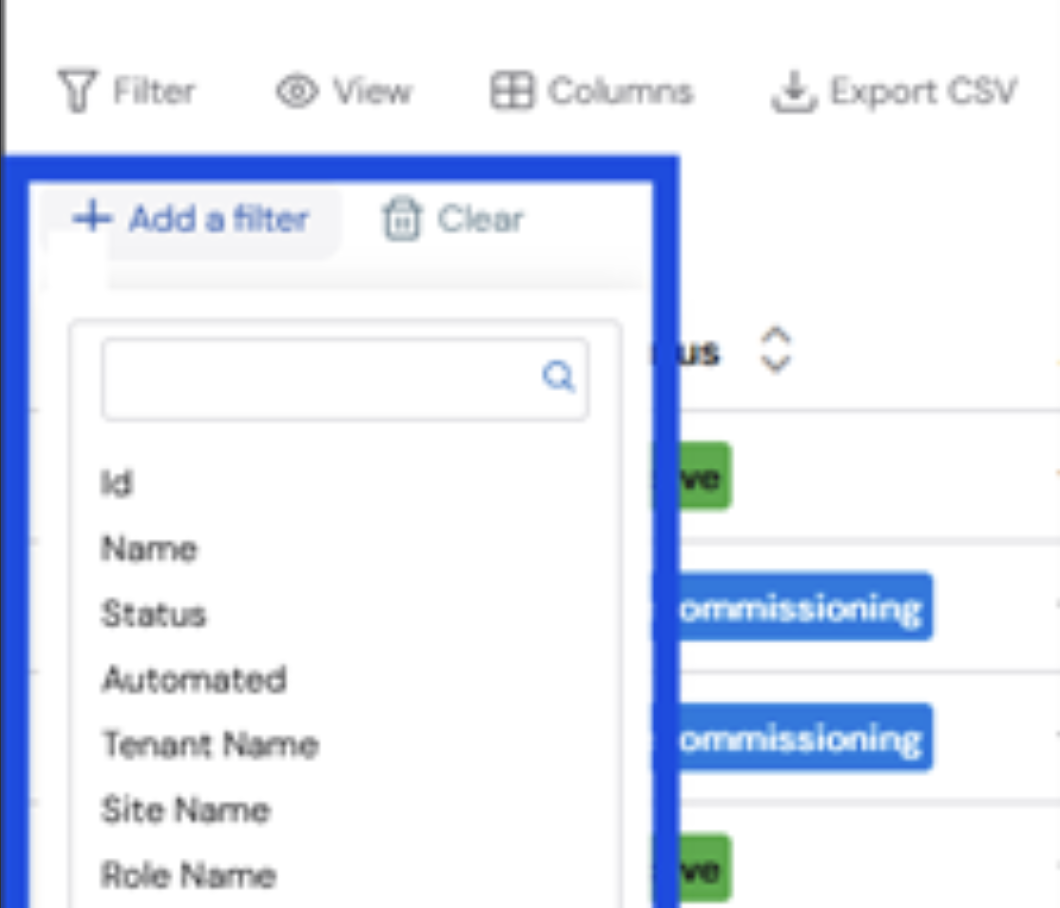 3. Select the field to be added as a filter.
Click **Clear** to remove the selected filters.
### Views
Click **View** to select from different pre-defined views, including OS Upgrades.
3. Select the field to be added as a filter.
Click **Clear** to remove the selected filters.
### Views
Click **View** to select from different pre-defined views, including OS Upgrades.
 ### Columns
**To add or remove columns:**
1. Click **Columns**. A dropdown list appears with a list of all available columns.
### Columns
**To add or remove columns:**
1. Click **Columns**. A dropdown list appears with a list of all available columns.

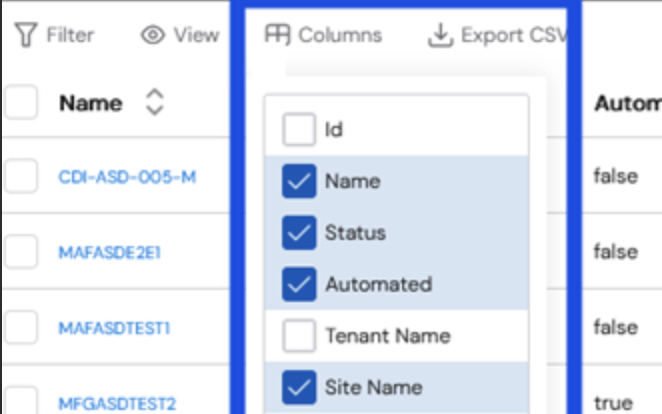 2. Select the checkboxes of the columns you would like to add. The table changes automatically to reflect the modifications.
### Export
You can export the current view of the Asset table in CSV format. The exported file will include everything that is currently displayed on the screen.
* To change the columns on the table to be exported, use the **Columns** function exporting the table.
* To change the number of assets on the table to be exported, change the number at the bottom of the table.
2. Select the checkboxes of the columns you would like to add. The table changes automatically to reflect the modifications.
### Export
You can export the current view of the Asset table in CSV format. The exported file will include everything that is currently displayed on the screen.
* To change the columns on the table to be exported, use the **Columns** function exporting the table.
* To change the number of assets on the table to be exported, change the number at the bottom of the table.