> ## Documentation Index
> Fetch the complete documentation index at: https://docs.levelblue.com/llms.txt
> Use this file to discover all available pages before exploring further.
# Monitoring
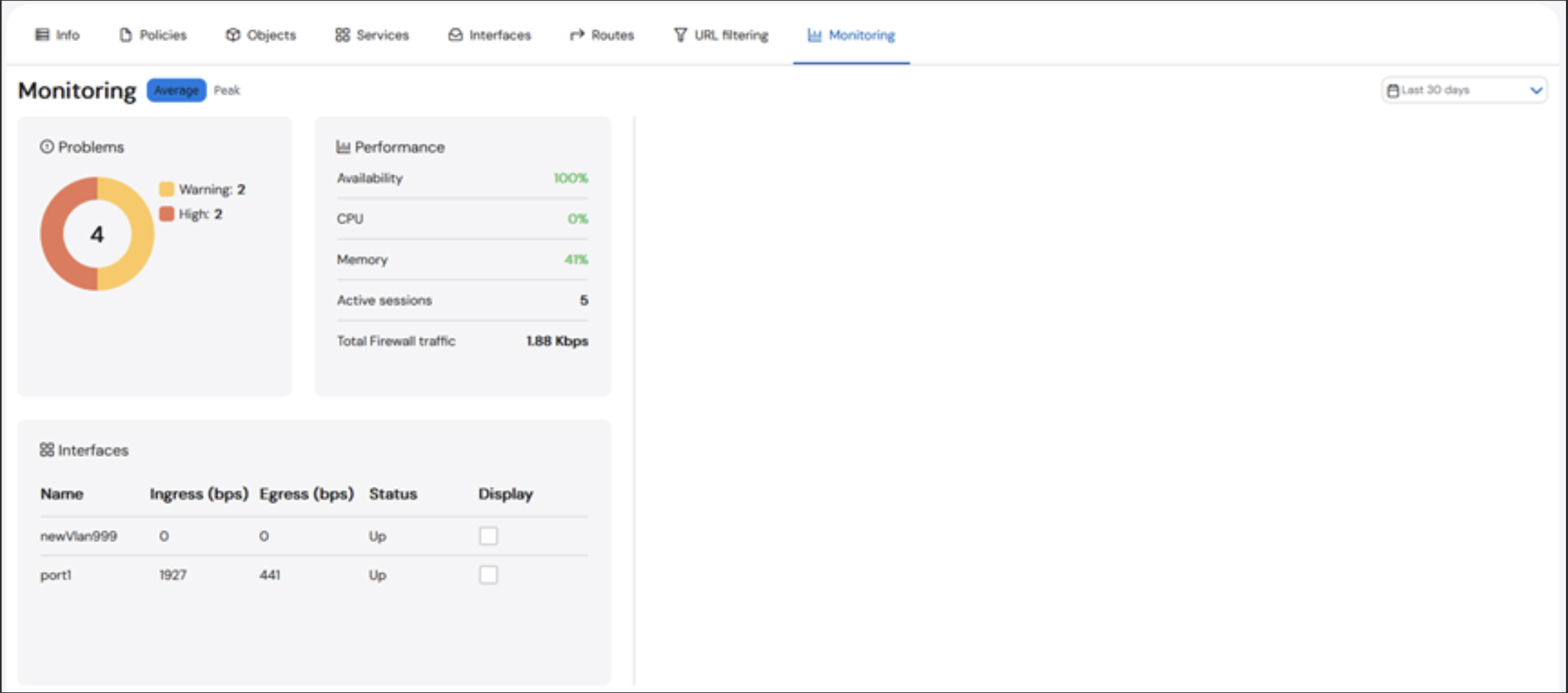
The **Monitoring** tab provides an overview of the status of an asset.
 ### Changing the Date Range
You can select the timeframe from which the data is being displayed. The default time frame is **Current**.
The larger the time range, the longer it will take for the data to be displayed.
**To change the date range:**
1. Click the **Current** dropdown. The **Time Range** options are displayed.
### Changing the Date Range
You can select the timeframe from which the data is being displayed. The default time frame is **Current**.
The larger the time range, the longer it will take for the data to be displayed.
**To change the date range:**
1. Click the **Current** dropdown. The **Time Range** options are displayed.
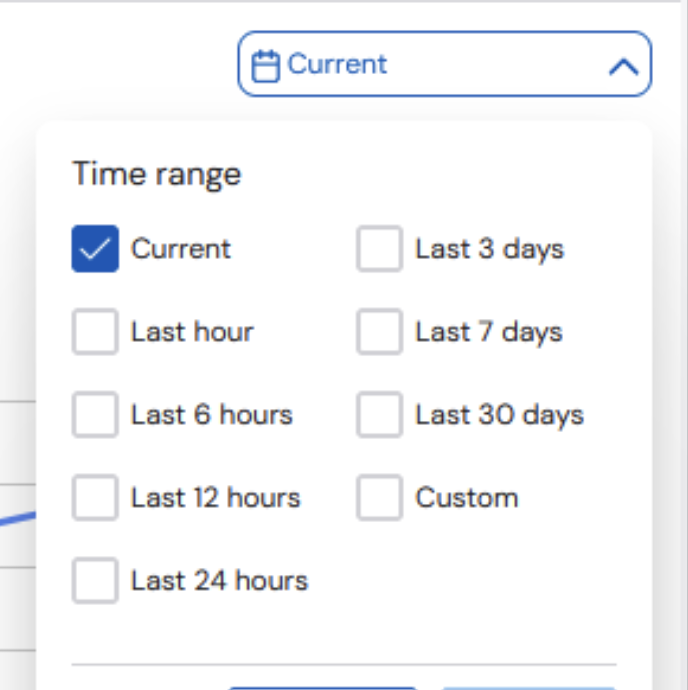 2. Select the checkbox of the timeframe you prefer. You may also select the **Custom** checkbox to specify a specific date and time range.
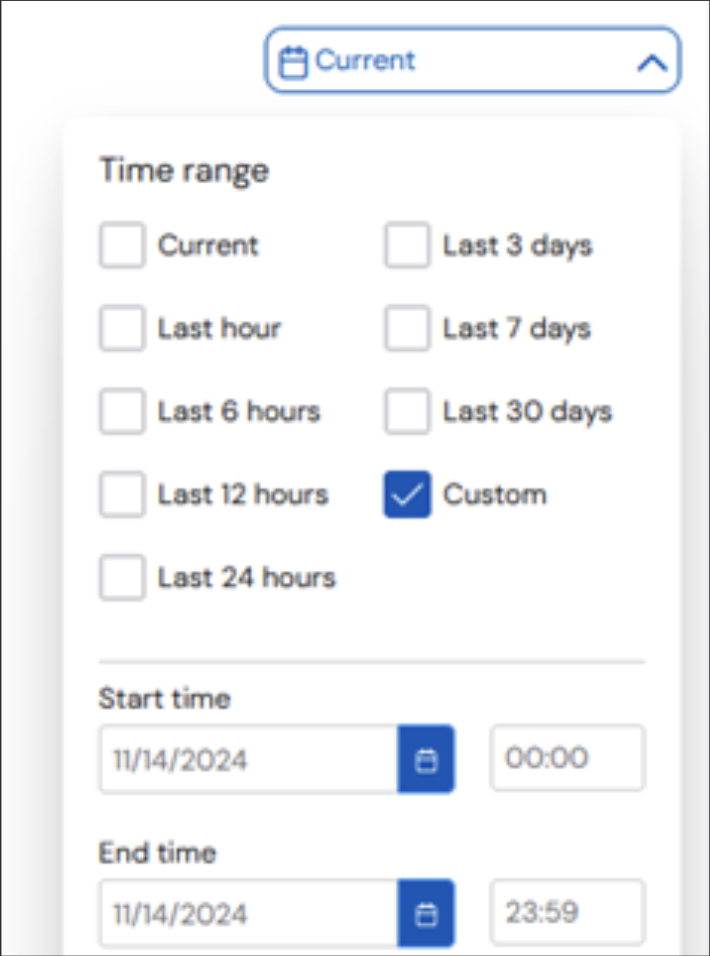 Click the **blue calendar** icon to open the calendar widget and select a date.
3. Click **Apply**.
### Problems
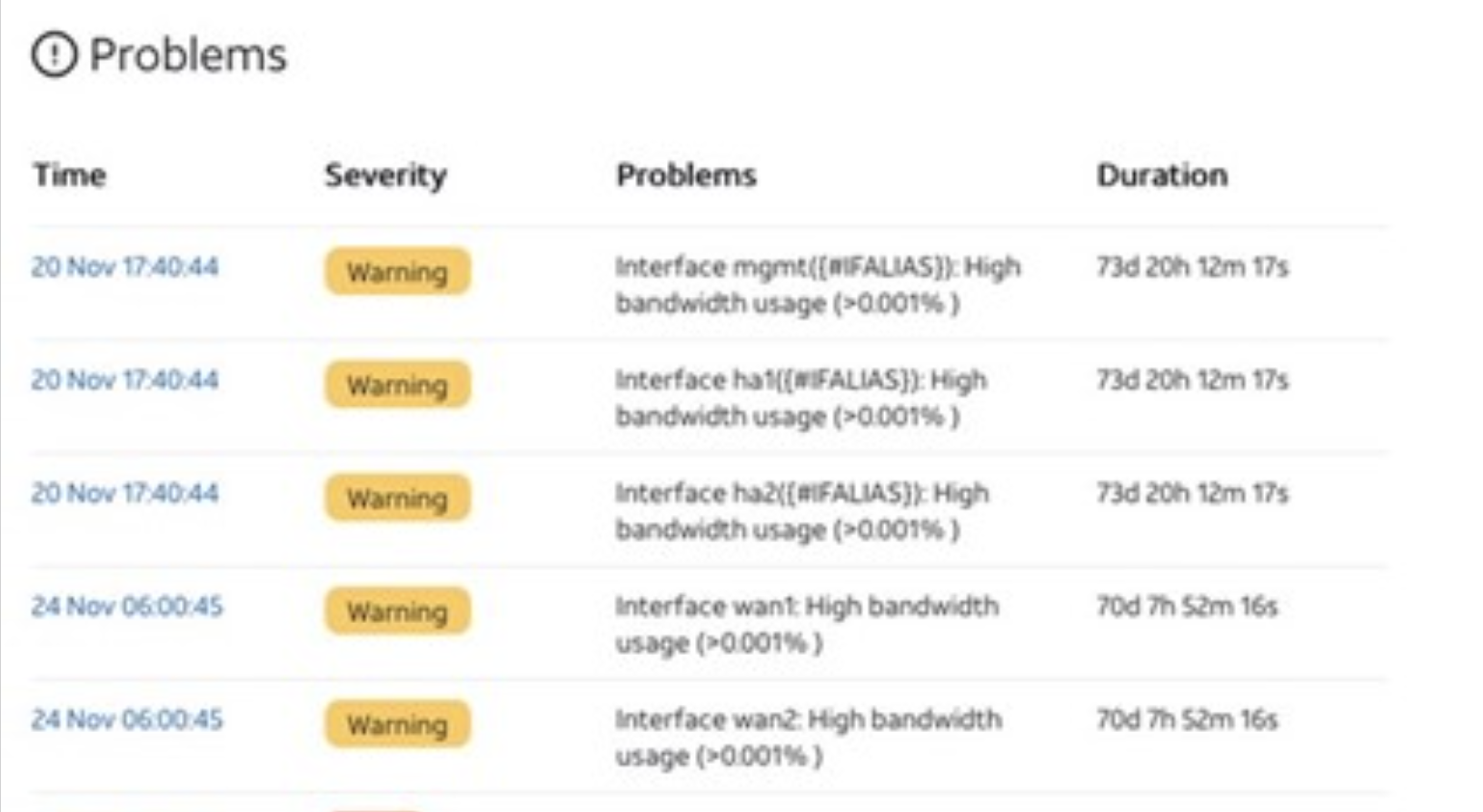
The **Problems** section shows a list of the total number of current problems detected by the solution monitoring tools. You can click the entry link to view more details about the problem, including the time it occurred, severity, details of the issue, and duration of the problem.
The **Duration** time will only be updated when the browser window is refreshed.
Click the **blue calendar** icon to open the calendar widget and select a date.
3. Click **Apply**.
### Problems
The **Problems** section shows a list of the total number of current problems detected by the solution monitoring tools. You can click the entry link to view more details about the problem, including the time it occurred, severity, details of the issue, and duration of the problem.
The **Duration** time will only be updated when the browser window is refreshed.
 ### Performance
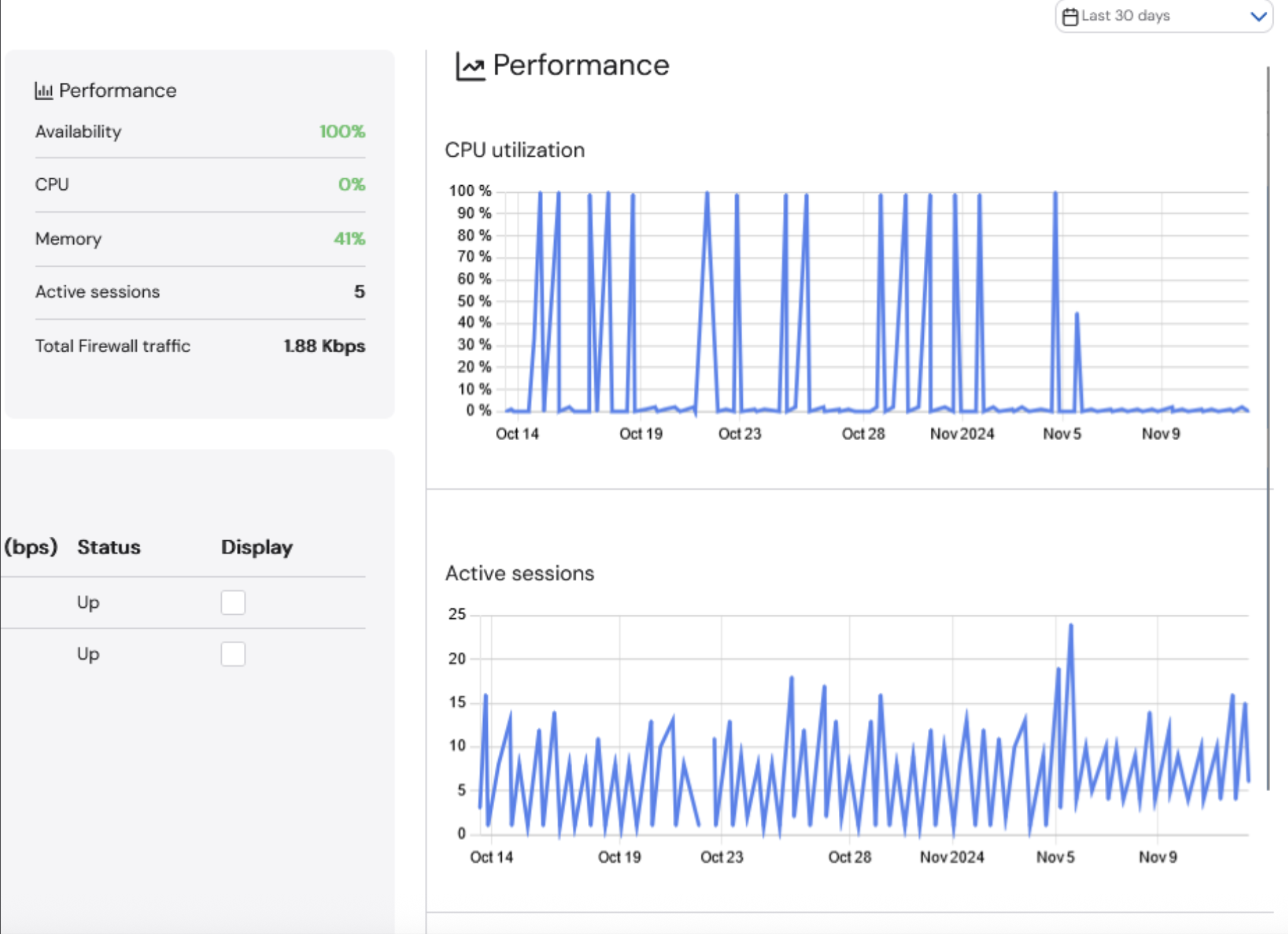
The **Performance** section provides information about the performance of the device, including the availability, CPU, memory, number of active sessions, and total firewall traffic. You can click on any of the values to see graphs of the data.
CPU utilization is an average of all CPU cores at a given time.
### Performance
The **Performance** section provides information about the performance of the device, including the availability, CPU, memory, number of active sessions, and total firewall traffic. You can click on any of the values to see graphs of the data.
CPU utilization is an average of all CPU cores at a given time.
 ### Interfaces
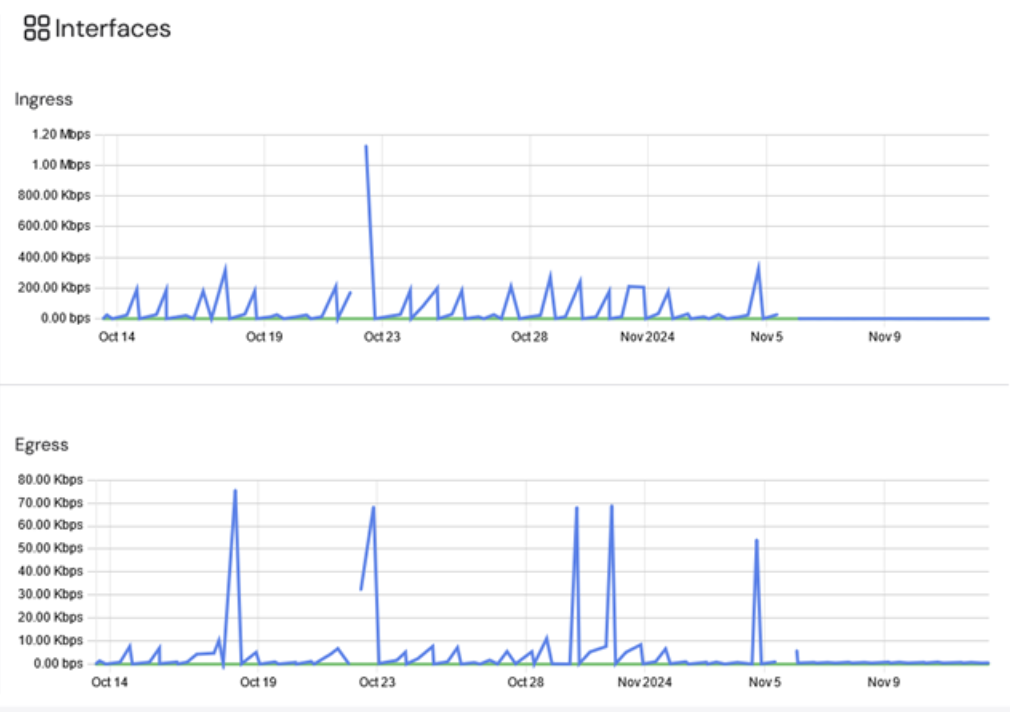
The **Interfaces** section provides details for the **Ingress** and **Egress** for all of the interfaces associated with the selected asset. To display a graph of the traffic, select the checkbox next to the designated interface.
### Interfaces
The **Interfaces** section provides details for the **Ingress** and **Egress** for all of the interfaces associated with the selected asset. To display a graph of the traffic, select the checkbox next to the designated interface.