> ## Documentation Index
> Fetch the complete documentation index at: https://docs.levelblue.com/llms.txt
> Use this file to discover all available pages before exploring further.
# Policies
The **Policies** tab allows you to view and modify the firewall policies configured on the selected asset.
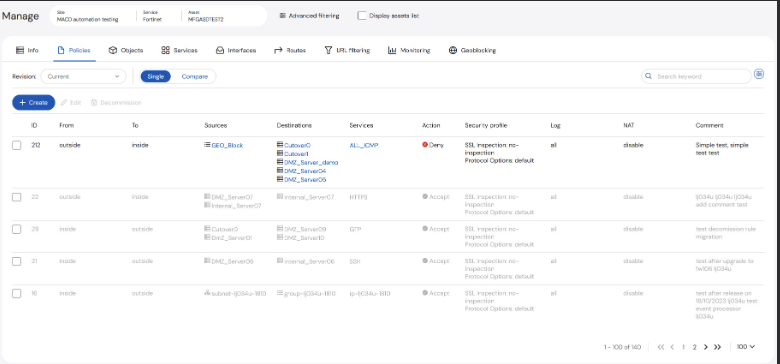 By default, the initial view is a display of all the firewall rules ordered by sequence number and default set of columns is displayed for each vendor. The black lines are active rules while the greyed-out lines have been disabled. Users can display additional columns by selecting the Slider Button to the right of the search box.
 ### Viewing Previous Revisions
**To view previous revisions:**
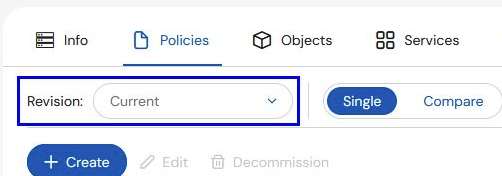
1. Select the dropdown beside **Revision**.
### Viewing Previous Revisions
**To view previous revisions:**
1. Select the dropdown beside **Revision**.
 All of the previous revisions are time-stamped and shown on a list.
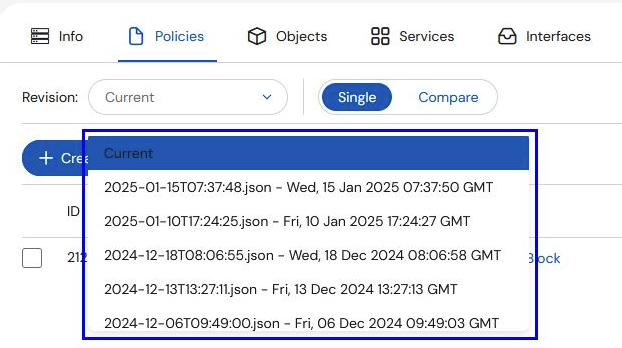 2. Select any of the previous revisioni to display that version.
3. To revert to the current version, select **Current** from the list.
### Comparing Revisions
You can compare different versions of policy on an asset.
**To compare policy revisions:**
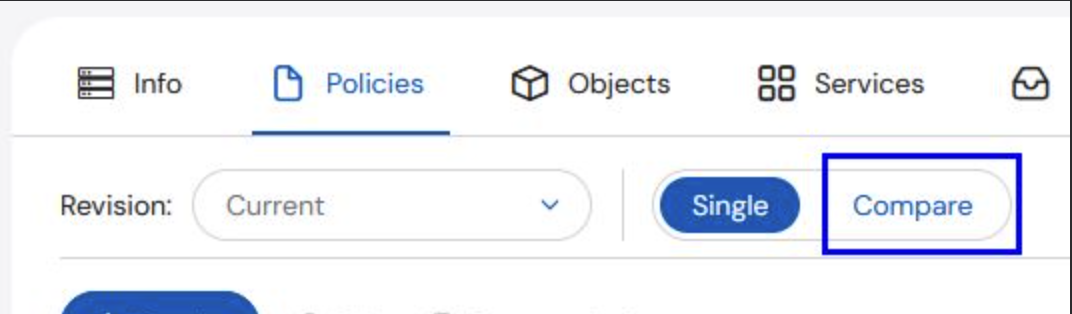
1. Click on the **Compare** toggle.
2. Select any of the previous revisioni to display that version.
3. To revert to the current version, select **Current** from the list.
### Comparing Revisions
You can compare different versions of policy on an asset.
**To compare policy revisions:**
1. Click on the **Compare** toggle.
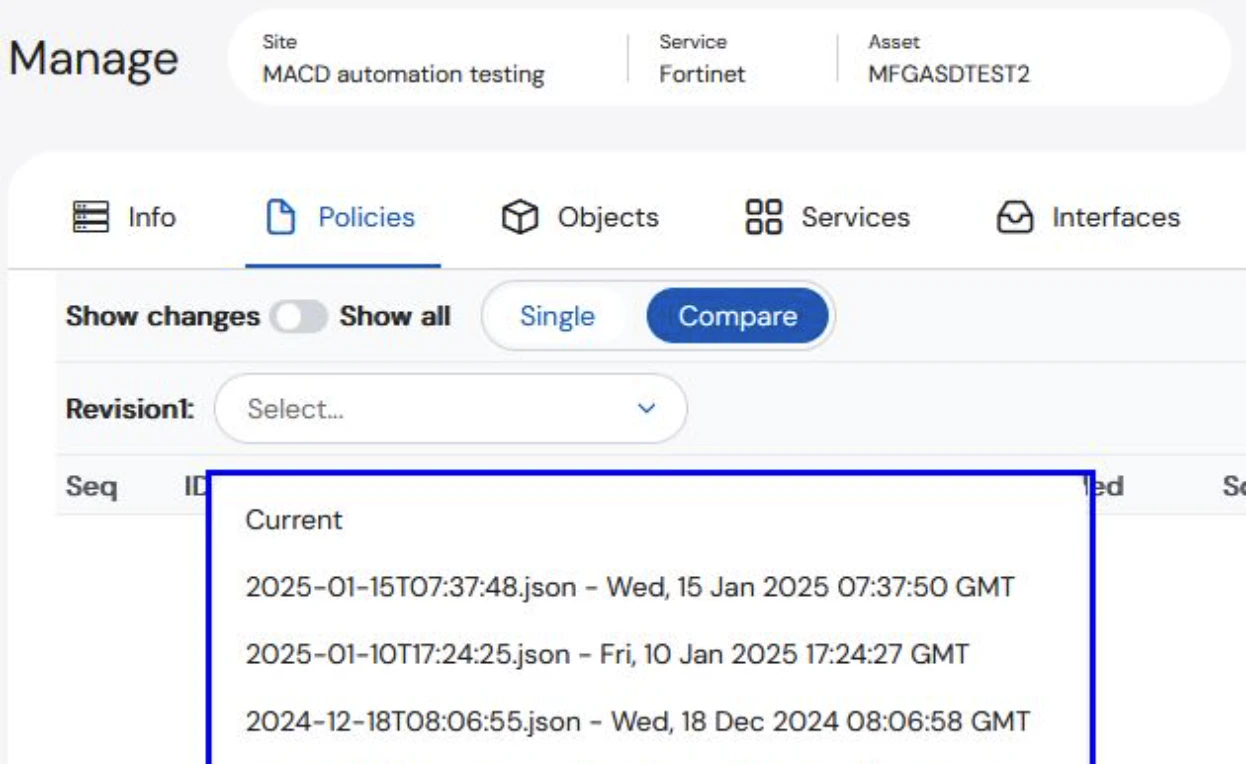
 2. Select the first revision you would like to compare.
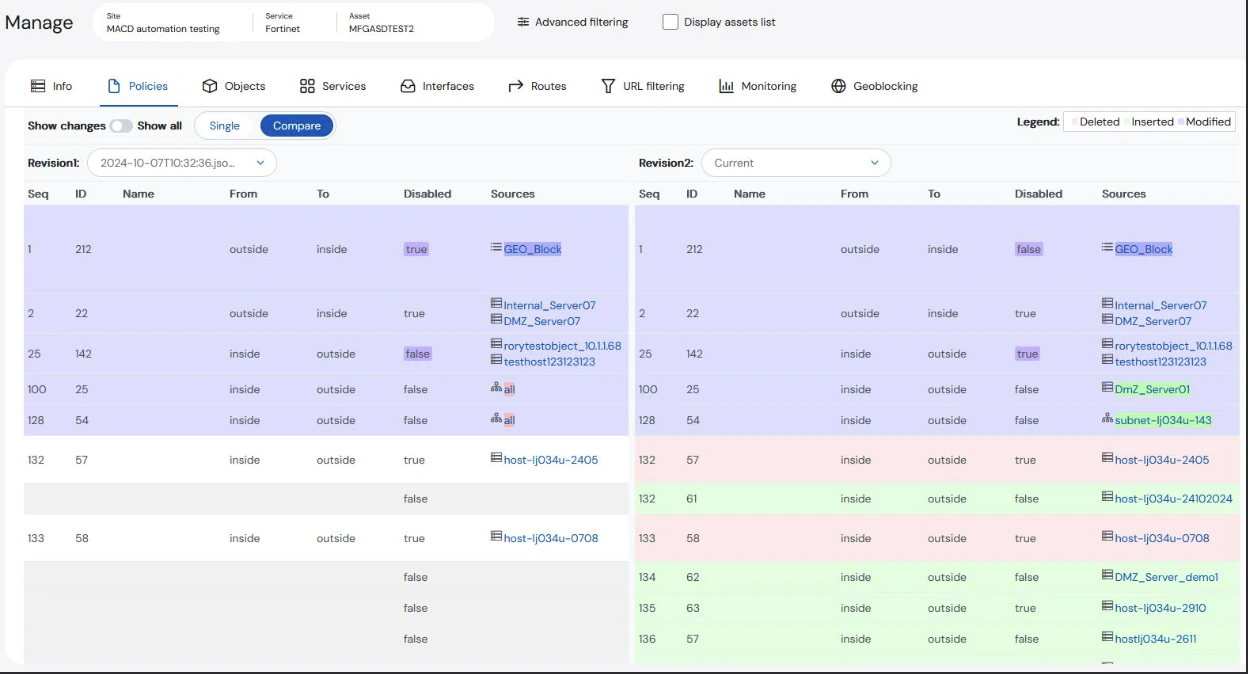
 **Revision2** will always default to the Single view that is displayed when the Compare toggle has been selected. The table will populate the differences.
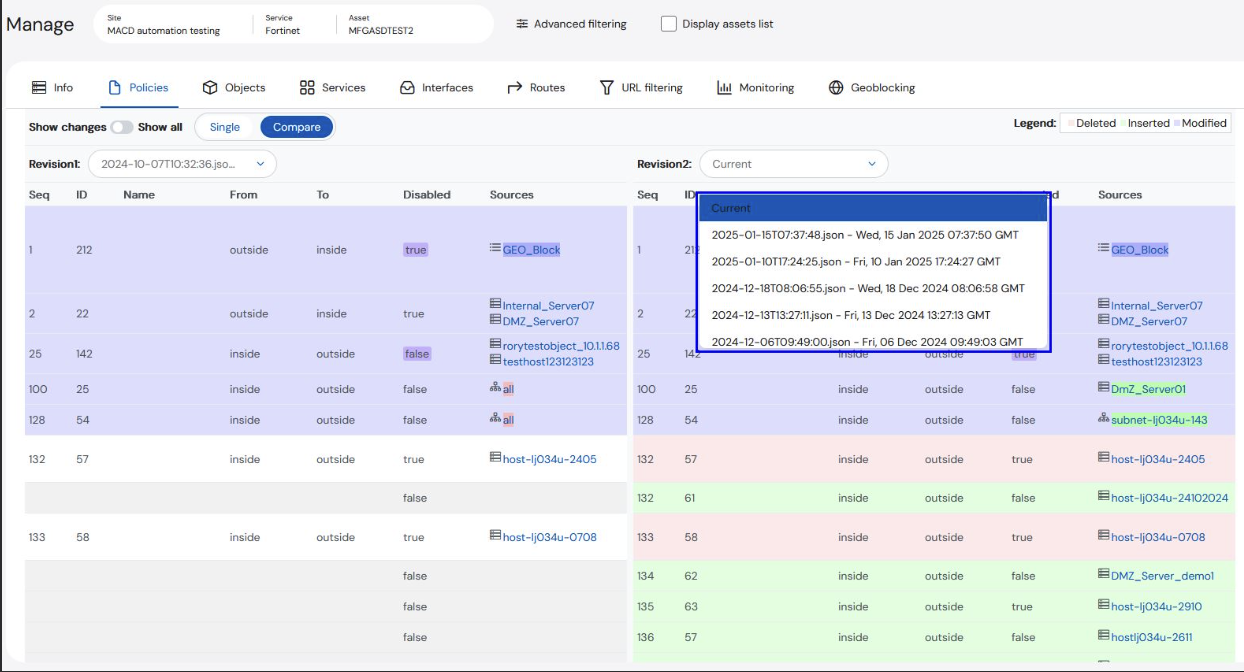
 3. **(OPTIONAL)** To change Revision2, select the preferred Revision from the drop-down list.
 ### Adding New Firewall Rules
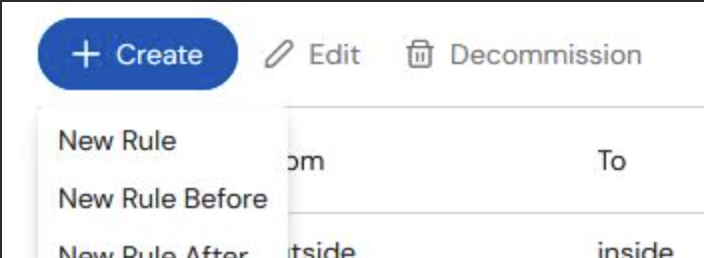
You can add a rule in multiple ways: **Create New Rule**, **Create New Rule Before**, and **Create New Rule After**.
**To create a new firewall rule:**
1. Click **+Create**.
2. Select from the drop-down menu: **New Rule**, **New Rule Before**, or **New Rule After**.
To create a new rule before or after, an existing rule must be selected.
### Adding New Firewall Rules
You can add a rule in multiple ways: **Create New Rule**, **Create New Rule Before**, and **Create New Rule After**.
**To create a new firewall rule:**
1. Click **+Create**.
2. Select from the drop-down menu: **New Rule**, **New Rule Before**, or **New Rule After**.
To create a new rule before or after, an existing rule must be selected.
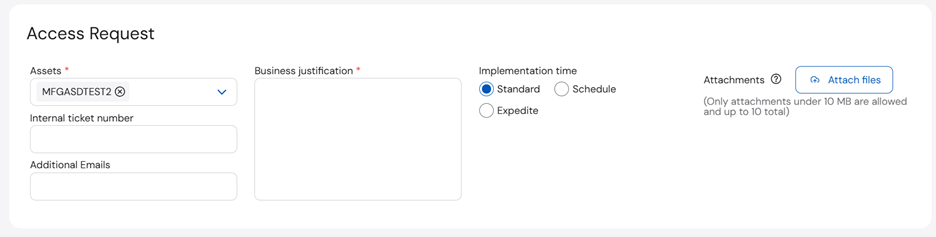
 3. Complete the required fields on the top of the form: **Assets**, **Business Justification**, and **Implementation Time**.
 4. Enter the Policy information at the bottom of the form: **Rule Location**, **From**, **To**, **Sources**, **Destinations**, **Services**, **Action**, and **Comments** (optional).
 5. Submit the form.
### Defining Objects and Groups
You can define new objects and groups using the **Objects** tab on the **Access Request** page. This page allows for the addition of new objects and groups, as well as addition of objects to existing groups. Submitting this rule schedules an internal job to add the rule to the target firewall devices in a few minutes. It is advisable to check back to ensure the new object is shown under the Objects tab, confirming the rule is now activated on the firewall.
**To define an object and group:**
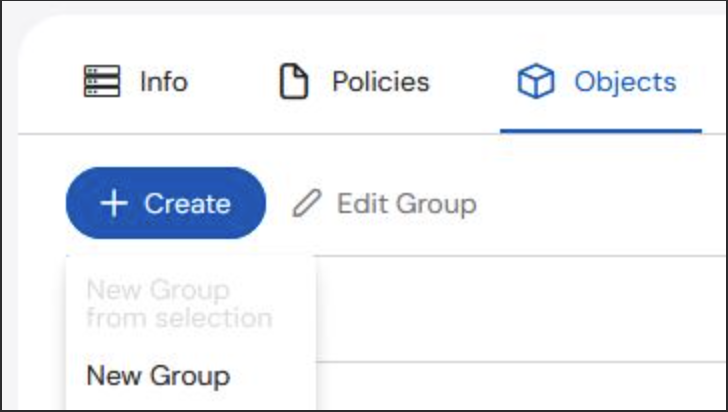
1. Click **+Create**.
2. Select from the drop-down menu: **New Object** or **New Group**.
5. Submit the form.
### Defining Objects and Groups
You can define new objects and groups using the **Objects** tab on the **Access Request** page. This page allows for the addition of new objects and groups, as well as addition of objects to existing groups. Submitting this rule schedules an internal job to add the rule to the target firewall devices in a few minutes. It is advisable to check back to ensure the new object is shown under the Objects tab, confirming the rule is now activated on the firewall.
**To define an object and group:**
1. Click **+Create**.
2. Select from the drop-down menu: **New Object** or **New Group**.
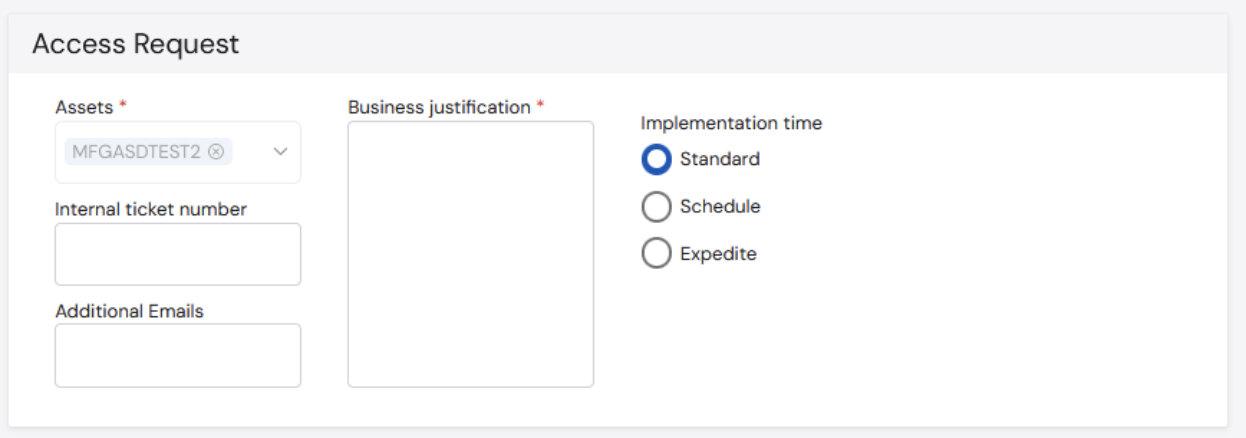
 3. Complete the required fields on the top of the form: **Assets**, **Business Justification**, and **Implementation Time**.
 4. Click **Create object** or **Create group**.
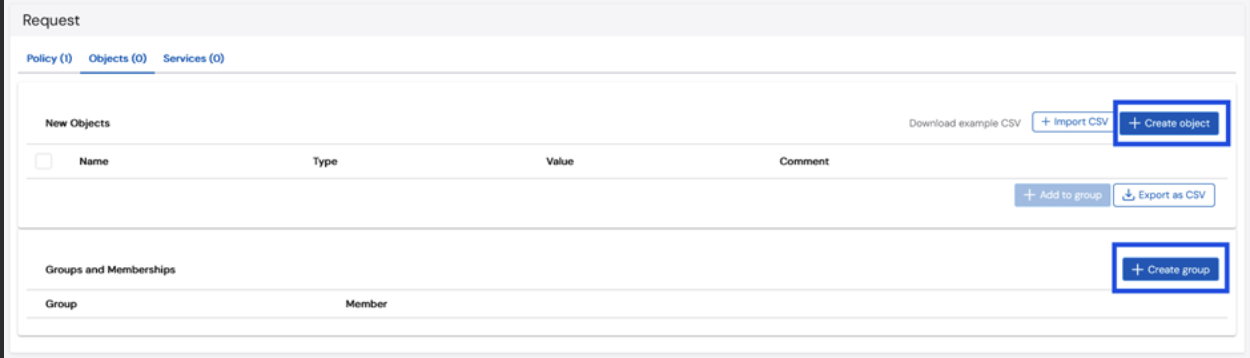 5. Enter the object or group information at the bottom of the form.
6. Click **Create**.
5. Enter the object or group information at the bottom of the form.
6. Click **Create**.
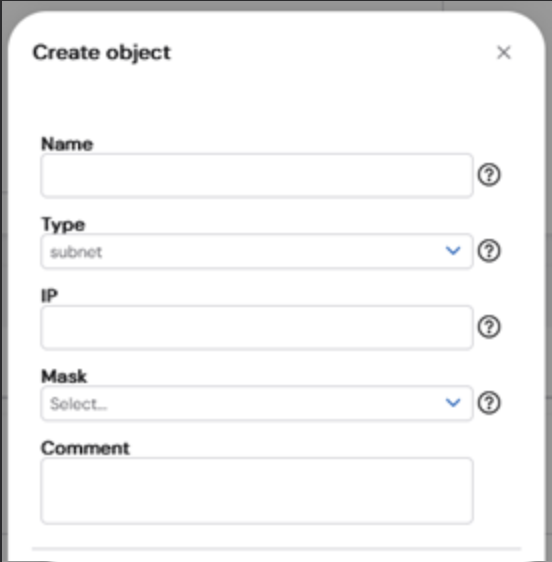 7. Submit the form.
### Editing or Decommissioning Rules
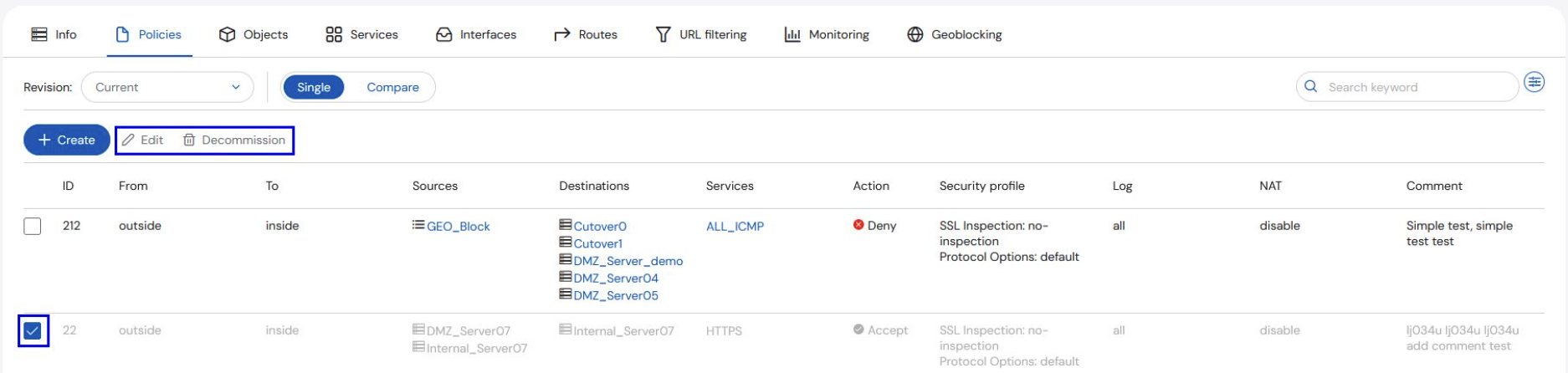
To edit or decommission a rule, select the rule(s) to be edited by selecting the checkbox beside each entry on the **Manage** page, then select **Edit** or **Decommission**. This opens the page with the details for the existing rule.
7. Submit the form.
### Editing or Decommissioning Rules
To edit or decommission a rule, select the rule(s) to be edited by selecting the checkbox beside each entry on the **Manage** page, then select **Edit** or **Decommission**. This opens the page with the details for the existing rule.