> ## Documentation Index
> Fetch the complete documentation index at: https://docs.levelblue.com/llms.txt
> Use this file to discover all available pages before exploring further.
# URL Filtering
URL filtering allows you to configure how people can access webpages through its network. There are some variations in terms of the view based on the vendor. The sections below present more information on the vendors.
### Viewing URL Filters of Specific Assets
Viewing URL filters associated with specific assets is vendor specific. **Fortinet**, **Palo Alto**, and **Checkpoint** filtering are covered separately below.
### Fortinet Filtering
To view URL filters on a specific asset, go to **Manage** > **Policies** tab. The URL filters appear in the **Security Profile** column of the \*\*Policies \*\*table. When a filter exists, it is listed as **Web Filter** within the Security Profile column (as shown on the screenshot below).
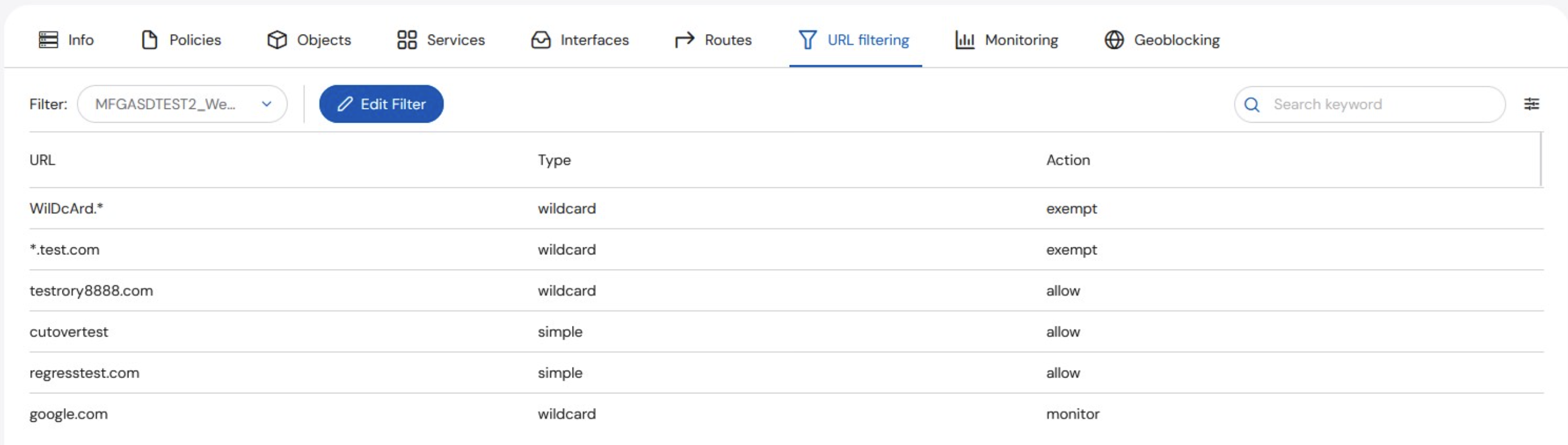
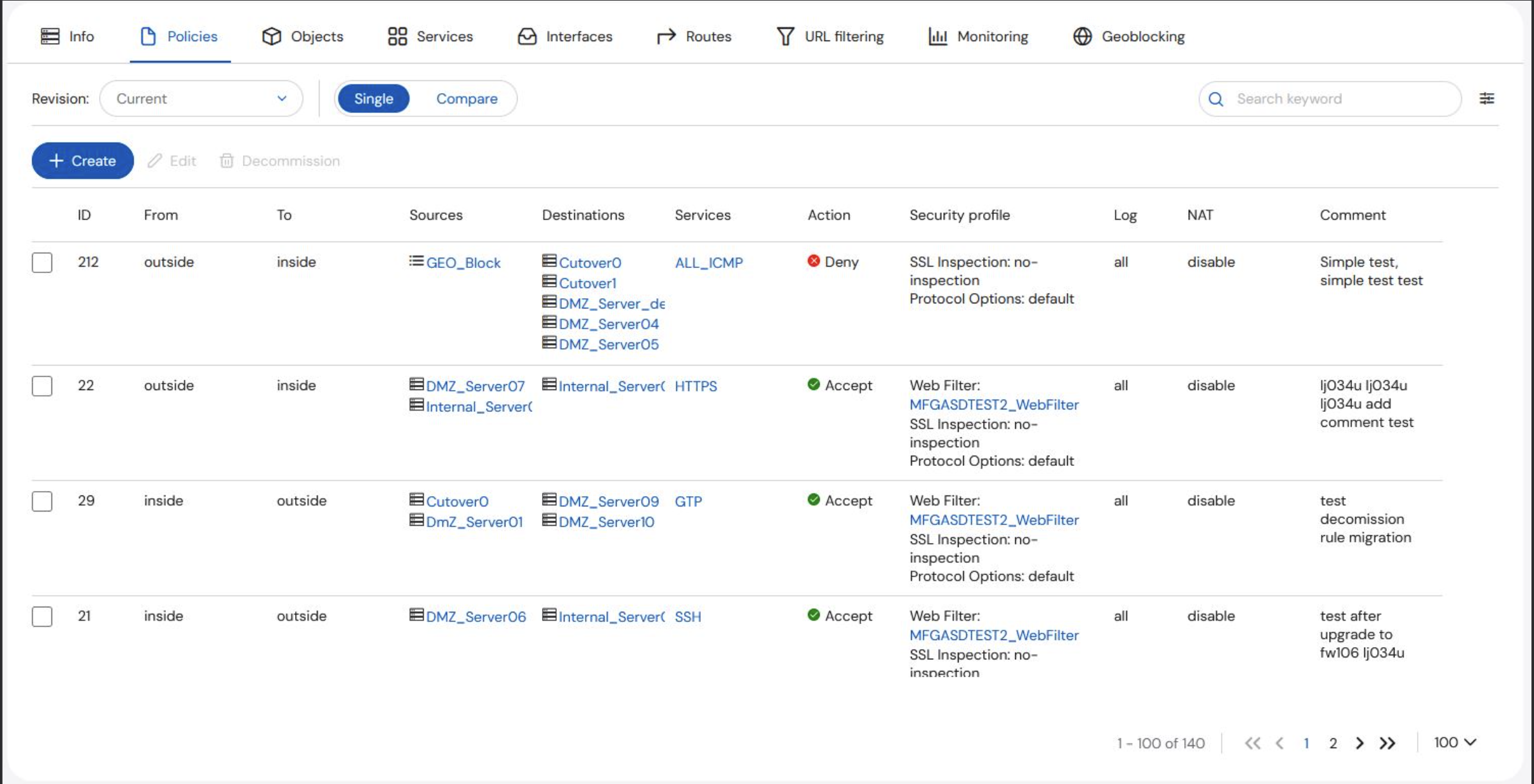 To view the details of the filter, click on the blue hyperlink next to Web Filter. You will then be redirected to the **URL Filtering** tab.
The **URL** table shown below includes the **URL, Type**, and **Action** for each filter.
To view the details of the filter, click on the blue hyperlink next to Web Filter. You will then be redirected to the **URL Filtering** tab.
The **URL** table shown below includes the **URL, Type**, and **Action** for each filter.
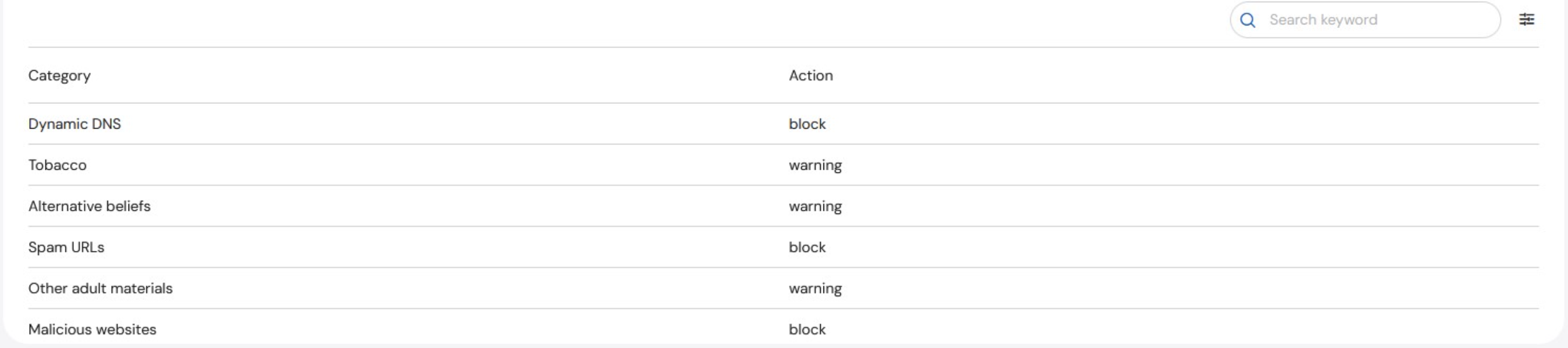
 The **Category** table is displayed below the URL table and is read-only.
 To edit a filter, click **Edit Filter** to display the **URL Filtering** form. See **Editing URL Filters** for details.
### Palo Alto Filtering
To view URL filters on a specific asset, go to **Manage > Policies** tab. URL filters appear in the **Custom Filters** column of the **Policies** table. They are categorized into **Alert**, **Allow**, and **Block**. Clicking a link displays the URLs listed for the associated action.
To edit a filter, click **Edit Filter** to display the **URL Filtering** form. See **Editing URL Filters** for details.
### Palo Alto Filtering
To view URL filters on a specific asset, go to **Manage > Policies** tab. URL filters appear in the **Custom Filters** column of the **Policies** table. They are categorized into **Alert**, **Allow**, and **Block**. Clicking a link displays the URLs listed for the associated action.
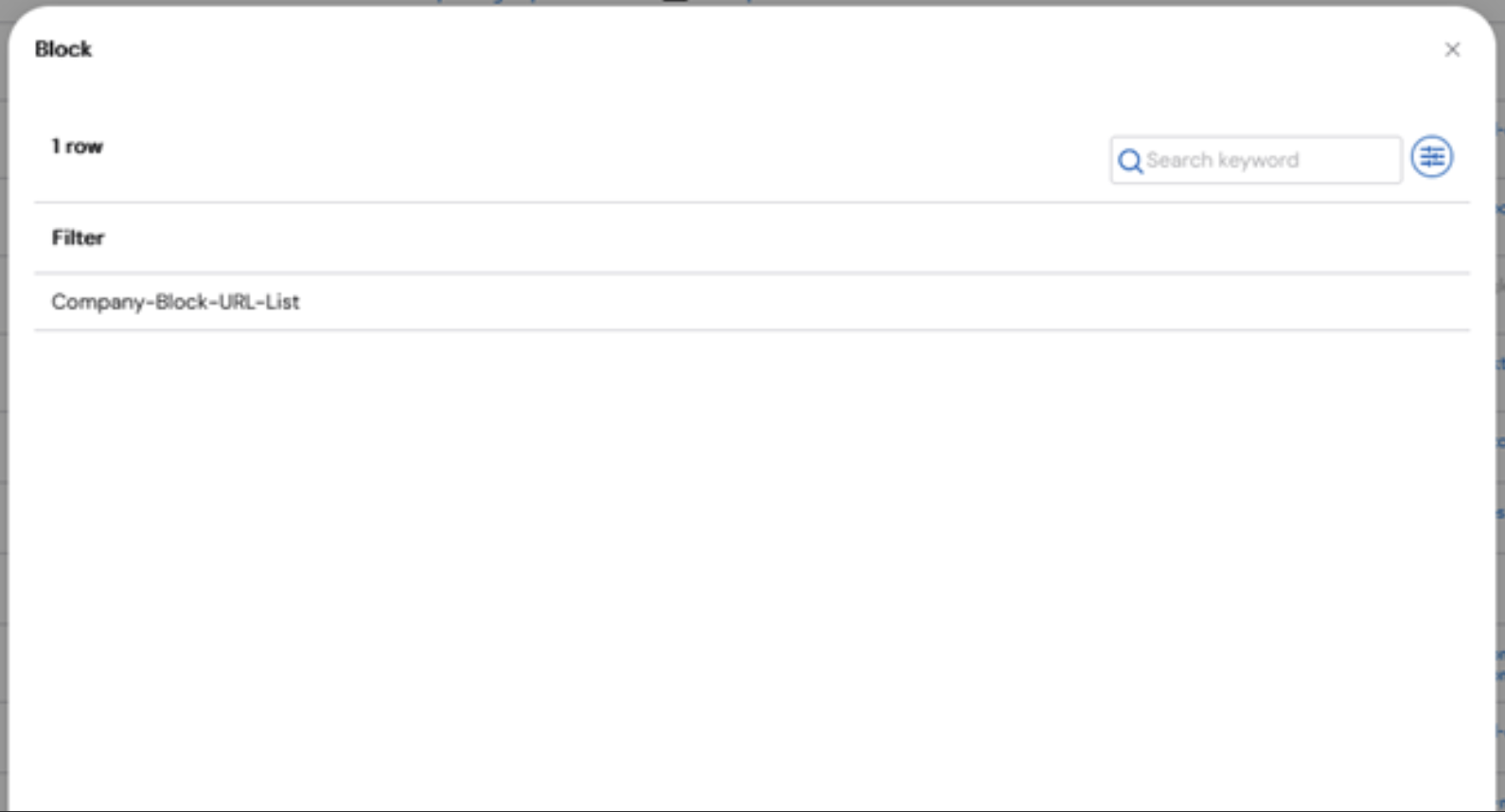
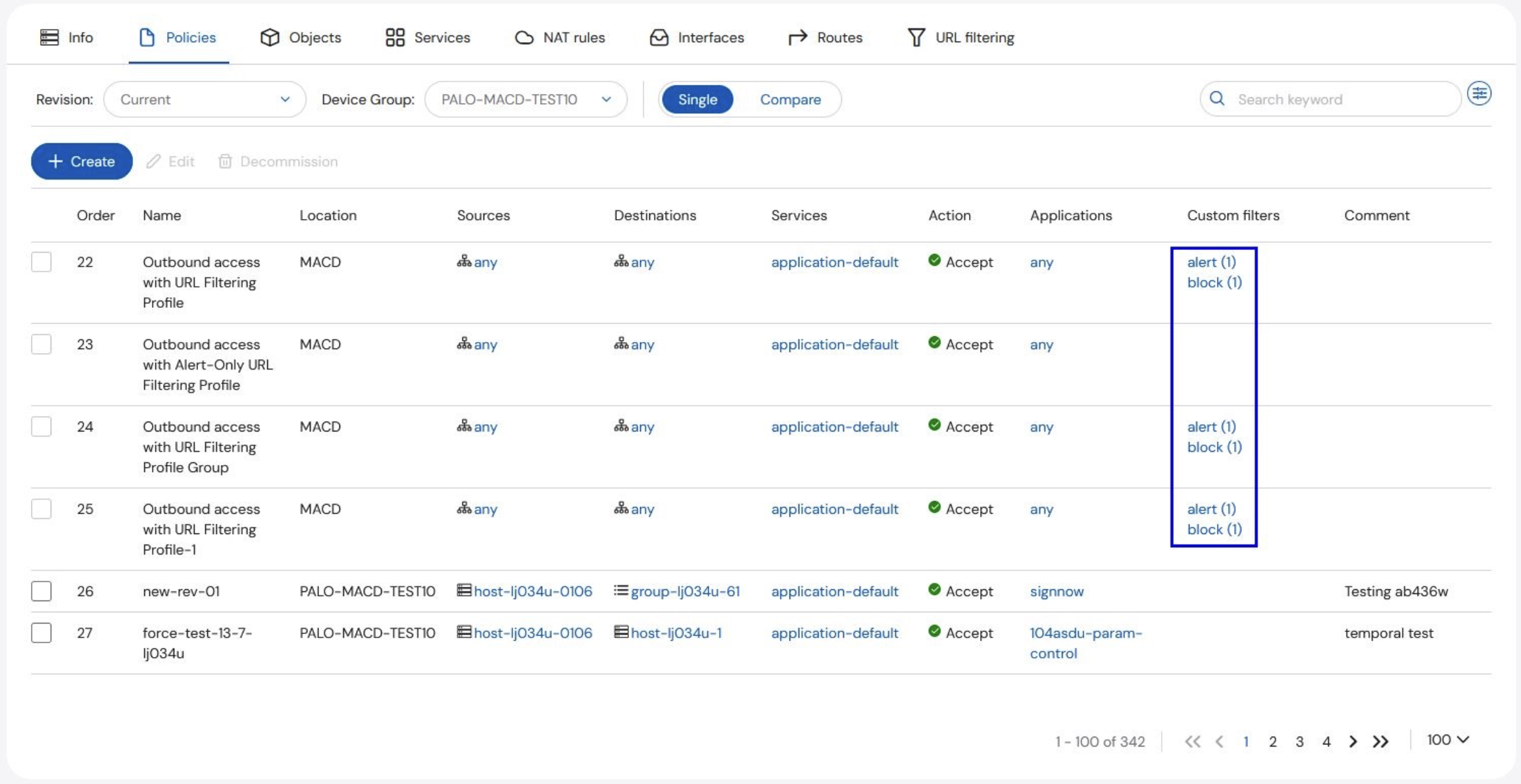 For example, clicking the block link displays a pop-up window displaying the list of blocked URLs.
 Click the **URL Filtering** tab to display all filtered URLs.
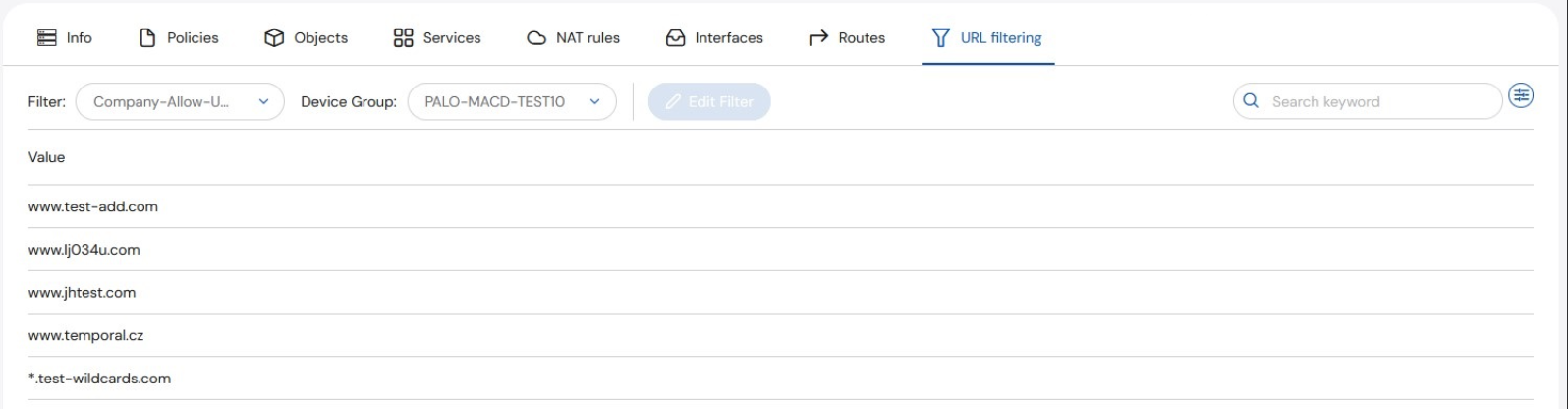 URL filters may be edited from this screen by clicking the **Edit Filter** button.
* If **Edit Filter** function is greyed out, select the appropriate **Device Group** from the dropdown.
URL filters may be edited from this screen by clicking the **Edit Filter** button.
* If **Edit Filter** function is greyed out, select the appropriate **Device Group** from the dropdown.
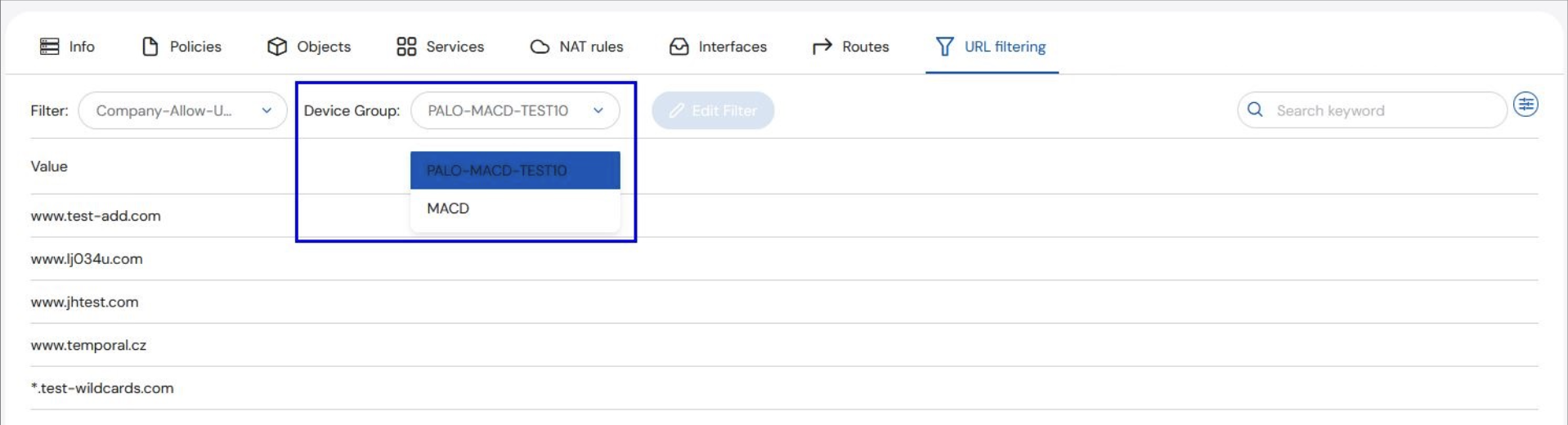
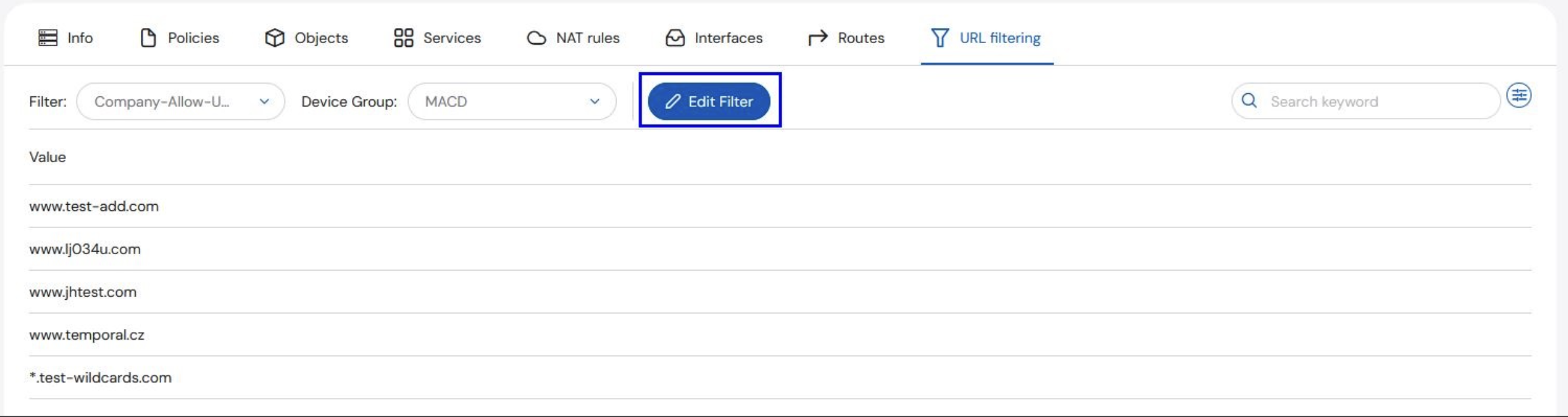 * If the **Edit Filter** function remains greyed out after selecting the appropriate **Device Group**, the filter may be shared. Shared filters cannot be edited from the portal. You need to create a request to have this edited manually.
### Checkpoint Filtering
To view URL filters on a specific asset, go to **Manage > Policies** tab. URL filters are displayed in the **URL Filters** column in the **Policies** table when the **Application Layer** option is selected. Whether the filter blocks or allows traffic is defined by the **Action** of the rule.
* If the **Edit Filter** function remains greyed out after selecting the appropriate **Device Group**, the filter may be shared. Shared filters cannot be edited from the portal. You need to create a request to have this edited manually.
### Checkpoint Filtering
To view URL filters on a specific asset, go to **Manage > Policies** tab. URL filters are displayed in the **URL Filters** column in the **Policies** table when the **Application Layer** option is selected. Whether the filter blocks or allows traffic is defined by the **Action** of the rule.
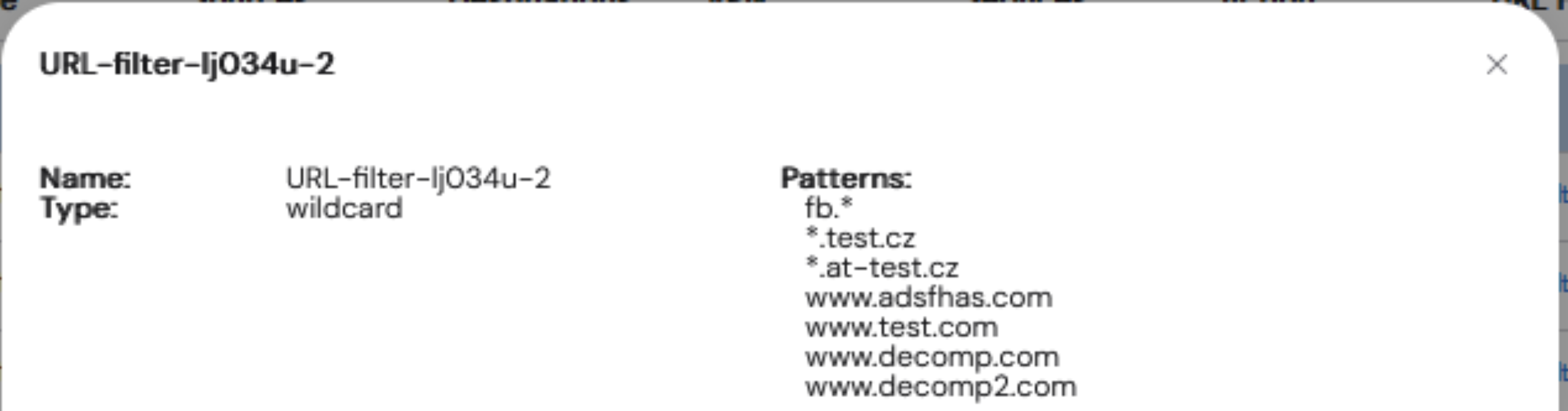
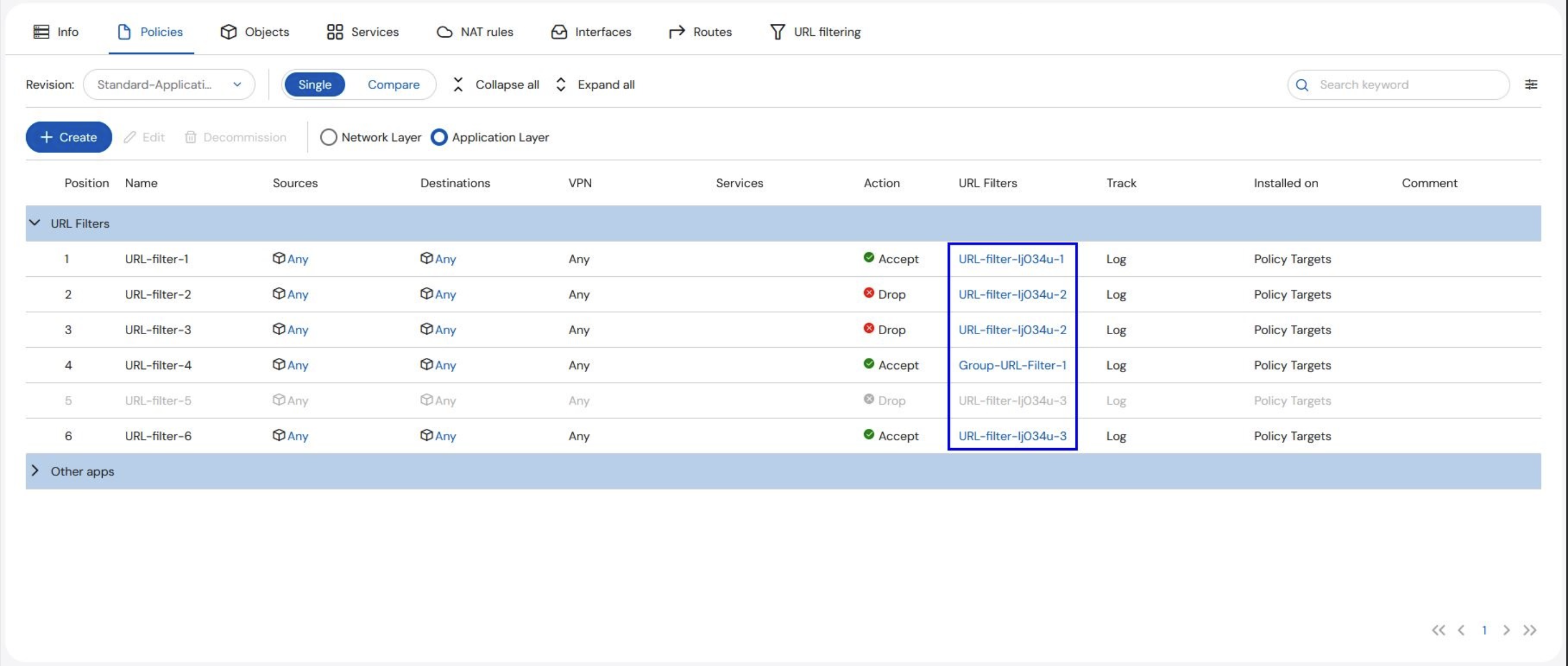 Clicking on the **URL Filter** name displays the filter details.
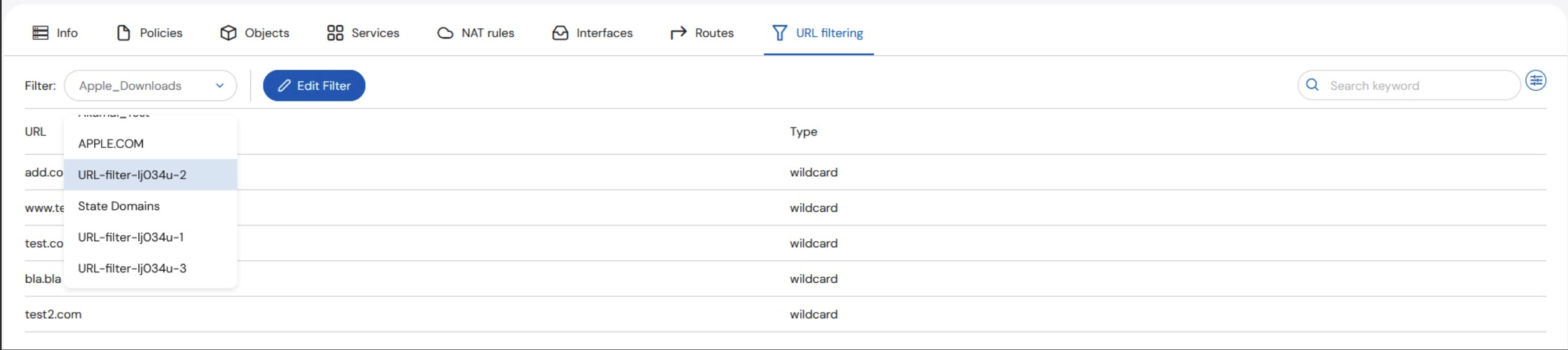
 To view and edit filters, click on the **URL Filtering** tab. Select a filter from the dropdown menu.
 ### Editing URL Filters
To edit a filter, click **Edit Filter** to display the **URL Filtering** form. Enter the relevant details and select an implementation time to schedule the change.
**To edit a filter:**
1. Click **Edit Filter**. You will be directed to the URL Filtering form.
2. Enter the required information: **Assets**, **Business Justification**, **Implementation Time**, **Request Details** (optional), **Additional Emails** (optional), and **Internal Ticket Number** (optional).
### Editing URL Filters
To edit a filter, click **Edit Filter** to display the **URL Filtering** form. Enter the relevant details and select an implementation time to schedule the change.
**To edit a filter:**
1. Click **Edit Filter**. You will be directed to the URL Filtering form.
2. Enter the required information: **Assets**, **Business Justification**, **Implementation Time**, **Request Details** (optional), **Additional Emails** (optional), and **Internal Ticket Number** (optional).
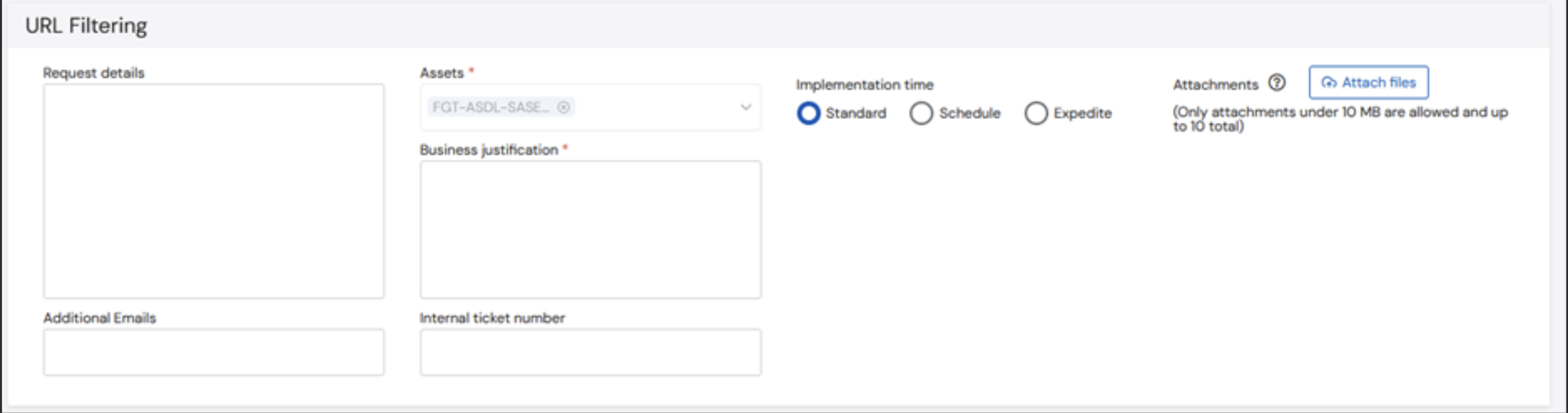 3. Enter the required information in the **Request** section of the form.
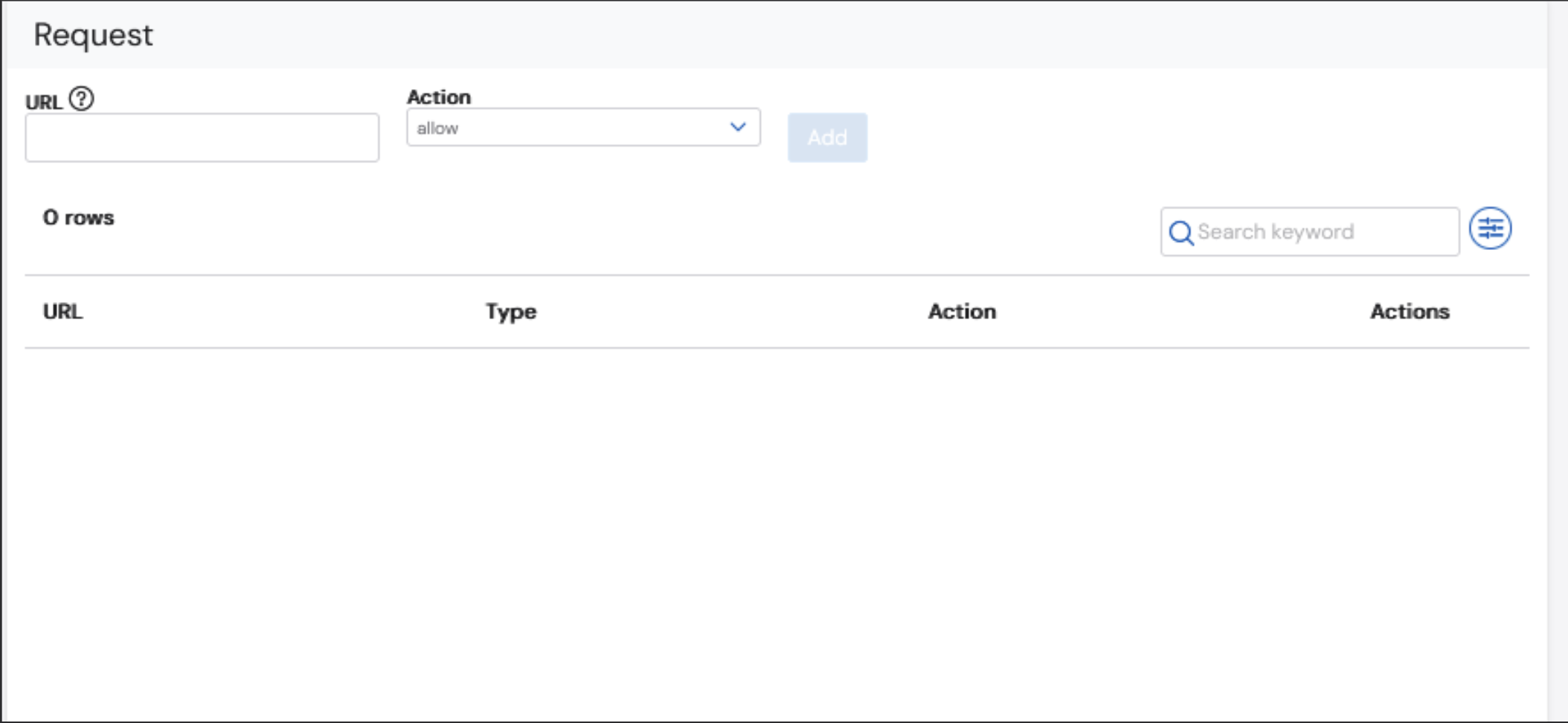 4. Enter the **URL** to filter.
 5. Select the **Action** to implement, and then click **Add**.
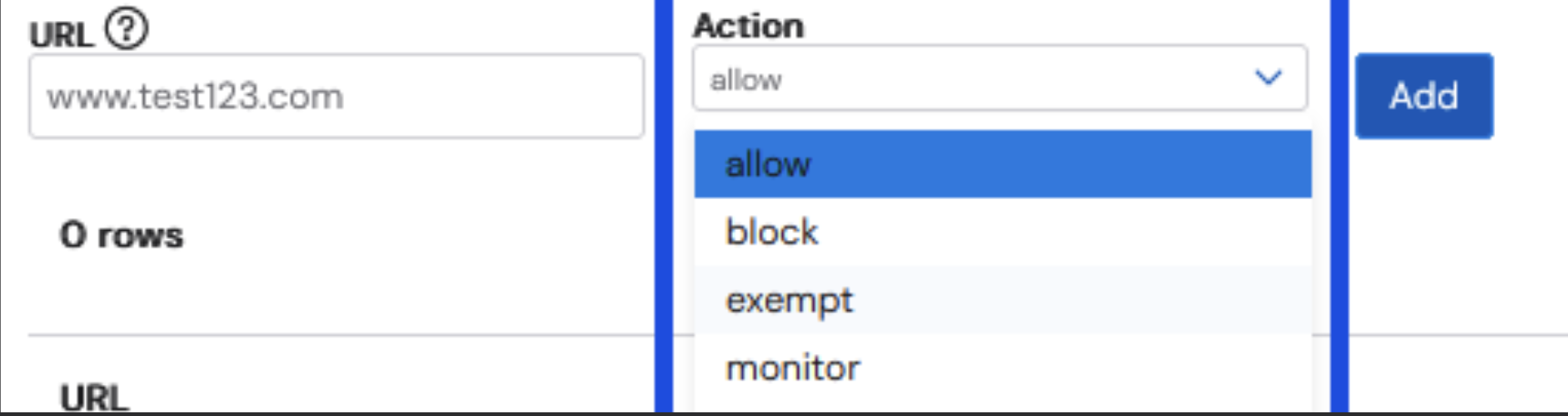 Multiple URLs can be processed at once.
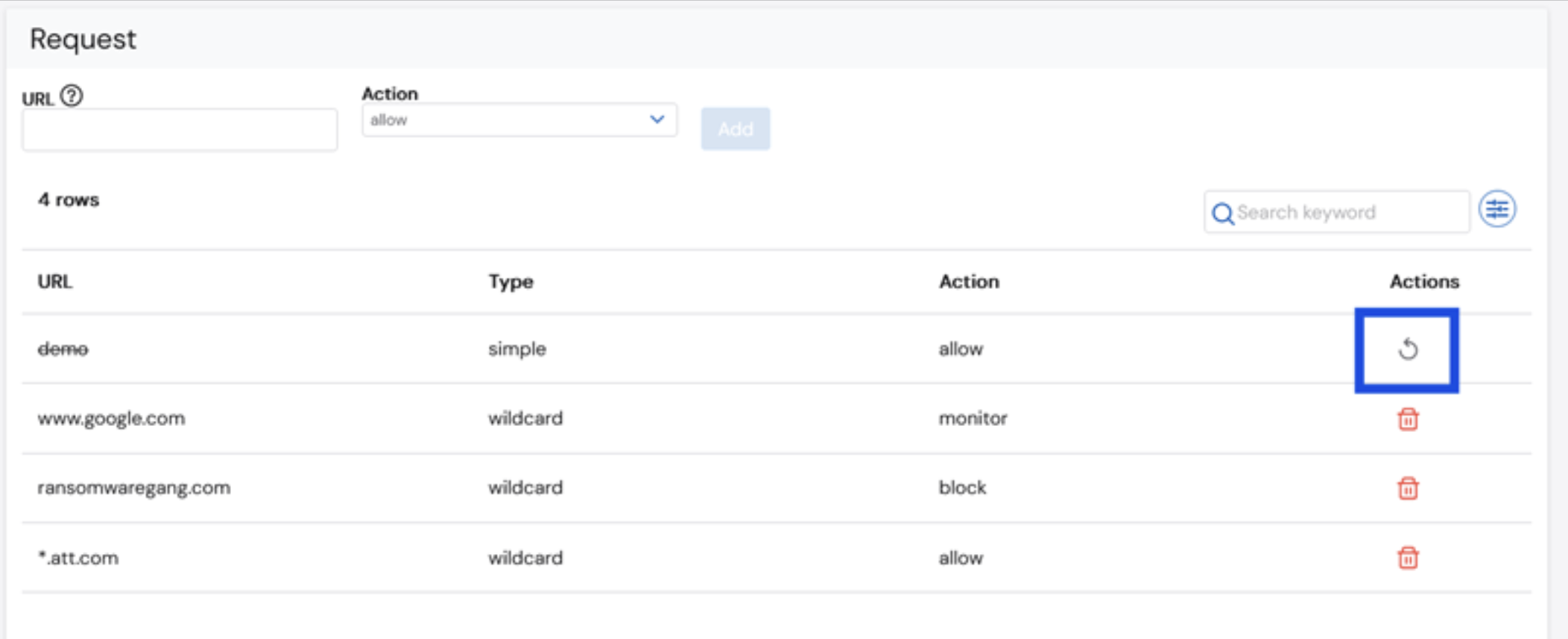
Click the trash bin icon to delete the URL request. Deleted entries will appear with a strike through. However, if you want to undo the delete action, click the revert icon.
Multiple URLs can be processed at once.
Click the trash bin icon to delete the URL request. Deleted entries will appear with a strike through. However, if you want to undo the delete action, click the revert icon.
 6. Once done, click **Submit** to create a ticket to be automatically processed.