> ## Documentation Index
> Fetch the complete documentation index at: https://docs.levelblue.com/llms.txt
> Use this file to discover all available pages before exploring further.
# Reports
You may download the Monitoring Data for your devices through the **Reports** page. Every time you generate a report, it is stored on the Reports page for future reference.
### Generating a Report
**To generate a report:**
1. Click **Reports** from the left navigation panel. The **Reports** page opens.
2. Click **Generate**.
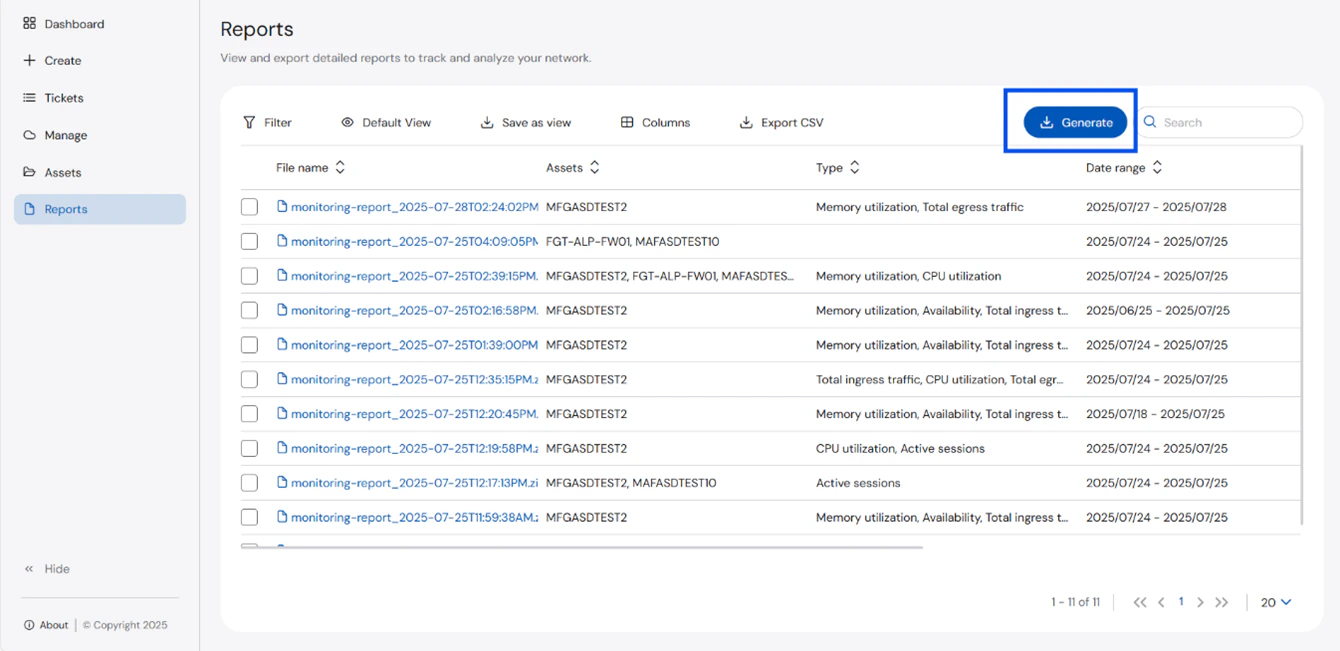 3. Select the **Time Range** for the report. You may choose as early as the **Last Hour** up to the **Last 30 days**. You may also choose a **Custom** time range.
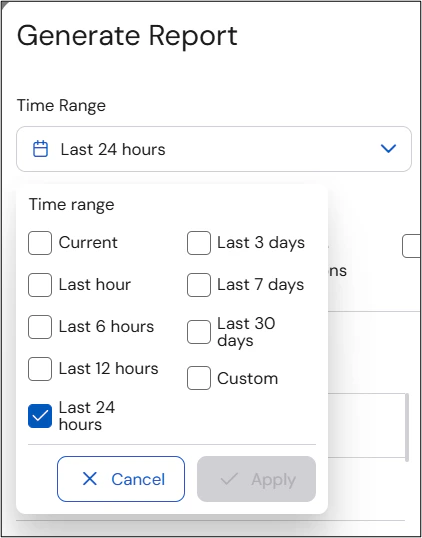 4. Click **Apply**.
5. Select the **Type** of report you want to generate.
4. Click **Apply**.
5. Select the **Type** of report you want to generate.
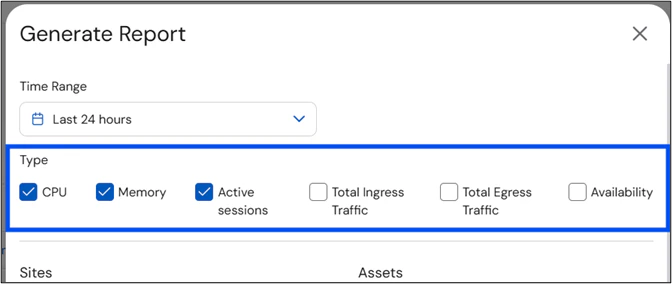 6. Select the **Assets** that you want to include in the report.
 The **Assets** lists only shows devices where data monitoring is available.
7. Click Generate.
### Downloading a Report
**To download a report:**
1. Click **Reports** from the left navigation panel. The **Reports** page opens.
2. Select the checkboxes of the reports you want to download.
The **Assets** lists only shows devices where data monitoring is available.
7. Click Generate.
### Downloading a Report
**To download a report:**
1. Click **Reports** from the left navigation panel. The **Reports** page opens.
2. Select the checkboxes of the reports you want to download.
 A maximum of 10 reports can be downloaded at a time.
3. Click **Download**.
4. Once done, open the downloaded zip folder.
A maximum of 10 reports can be downloaded at a time.
3. Click **Download**.
4. Once done, open the downloaded zip folder.
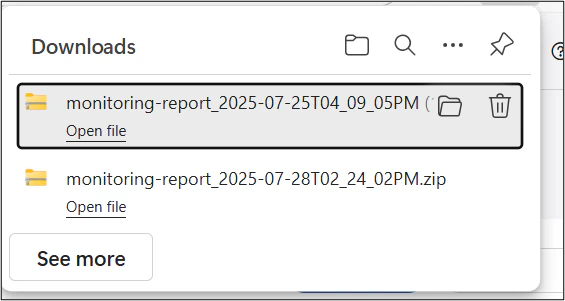 5. Extract the zip files prior to opening them.
 The files will not open unless they have been extracted.
6. Select and open the report you need.
The files will not open unless they have been extracted.
6. Select and open the report you need.