> ## Documentation Index
> Fetch the complete documentation index at: https://docs.levelblue.com/llms.txt
> Use this file to discover all available pages before exploring further.

# Assign Assets to BlueApps

USM Anywhere receives <Tooltip tip="An industry standard message logging system that is used on many devices and platforms.">syslog</Tooltip> log data from external data sources: devices, applications, or operation systems. If that data is not automatically matched with an BlueApp through hints (see [Data Sources: Auto Discovered or Not](blueapps-data-sources)), you must manually associate the BlueApp with an asset in USM Anywhere. There are two methods for creating these associations:

By assigning one or more assets to the BlueApp (this document).
By adding one or more BlueApps to the asset. See Adding BlueApps to an Asset for details.
You can use a combination of these methods to ensure that USM Anywhere can identify the correct BlueApps for the log data it receives from an asset.

<Warning>
  **Important:** Assigning an BlueApp to an asset disables the usage of hints for the logs coming from this asset; therefore, USM Anywhere only uses the assigned BlueApps to parse and normalize those logs.

  If you use a log-forwarding software (such as Splunk or Loggly) to send logs to USM Anywhere, LevelBlue recommends that you use at least two such forwarders: one forwarder for all the auto-discoverable BlueApps, and the other for the non-auto-discoverable BlueApps. In the latter case, you must create an asset in USM Anywhere to denote the forwarder and assign it to the non-auto-discoverable BlueApps. This ensures that USM Anywhere uses the correct BlueApp to parse your logs.
</Warning>

**To assign an asset to an BlueApp**

1. Go to **Data Sources > BlueApps > Available Apps**.

2. Look for the BlueApp you want to use and click the tile.

3. After the page finishes reloading, click **Assign Asset**.

4. Select the asset you want to assign. Click **Create Asset** to add an asset if it is not yet in USM Anywhere.

5. Click **Assign**.

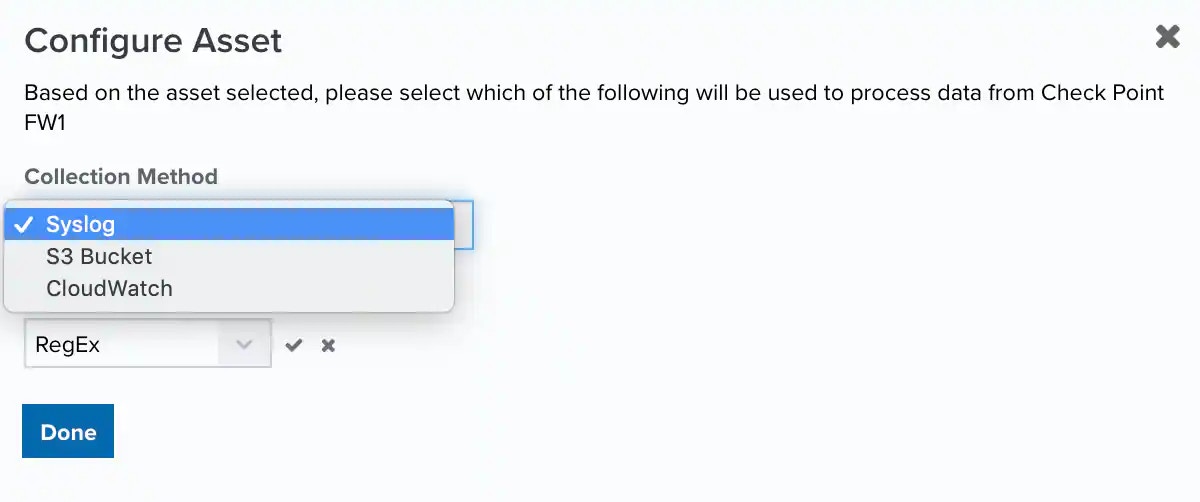
6. When applicable, select the collection method you want to use.

   <Frame>
     <img src="https://mintcdn.com/levelblue-5324744e/saQsJL5uxJZR1Kxa/images/usm-anywhere/alienapps/collectionmethod.webp?fit=max&auto=format&n=saQsJL5uxJZR1Kxa&q=85&s=aa38310ba0a750050401735ed8751de0" width="1200" height="502" data-path="images/usm-anywhere/alienapps/collectionmethod.webp" />
   </Frame>

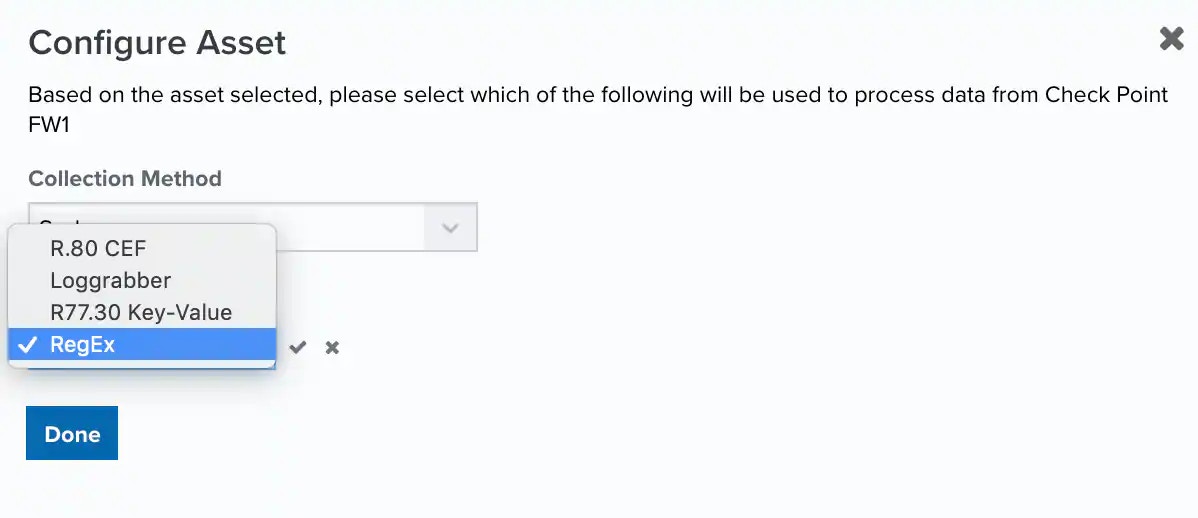
7. When applicable, select the format. See [BlueApps Supported Log Formats](blueapps-assign-assets#blueapps-supported-log-formats) for more information.
   <Frame>
     <img src="https://mintcdn.com/levelblue-5324744e/saQsJL5uxJZR1Kxa/images/usm-anywhere/alienapps/format.webp?fit=max&auto=format&n=saQsJL5uxJZR1Kxa&q=85&s=43d7c6ad4d7f767a4e250293d09c2dd3" width="1198" height="518" data-path="images/usm-anywhere/alienapps/format.webp" />
   </Frame>

8. Click the <img src="https://mintcdn.com/levelblue-5324744e/jZ2ECZwEPoyrYIbL/images/central-any-app/buttons/check-blue.svg?fit=max&auto=format&n=jZ2ECZwEPoyrYIbL&q=85&s=9322debf7f319cc0b4a0bb0e5f83a2ab" style={{ height: "1em", verticalAlign: "middle", display: "inline-block", margin: "0 0.25em" }} width="20" height="20" data-path="images/central-any-app/buttons/check-blue.svg" /> icon to confirm.

9. Click **Done**.

**To remove an asset from an BlueApp**

1. Go to **Data Sources > BlueApps > Available Apps**.

2. Look for the BlueApp from which you want to remove the asset and click the tile.

3. Click the <img src="https://mintcdn.com/levelblue-5324744e/jTImDFBjBH7kNNGB/images/central-any-app/buttons/trash-alt.svg?fit=max&auto=format&n=jTImDFBjBH7kNNGB&q=85&s=7fcb12066bec17b51a7ebd4cad626542" style={{ height: "1em", verticalAlign: "middle", display: "inline-block", margin: "0 0.25em" }} width="24" height="24" data-path="images/central-any-app/buttons/trash-alt.svg" /> icon.

   <Frame>
     <img src="https://mintcdn.com/levelblue-5324744e/saQsJL5uxJZR1Kxa/images/usm-anywhere/alienapps/deleteasset.webp?fit=max&auto=format&n=saQsJL5uxJZR1Kxa&q=85&s=b24c89d64625f2decc99fbb879cdd31f" width="1962" height="466" data-path="images/usm-anywhere/alienapps/deleteasset.webp" />
   </Frame>

4. Click **Accept** to confirm.

**To modify an assigned format**

1. Go to **Data Sources > BlueApps > Available Apps**.

2. Look for the BlueApp you want to modify and click the tile.

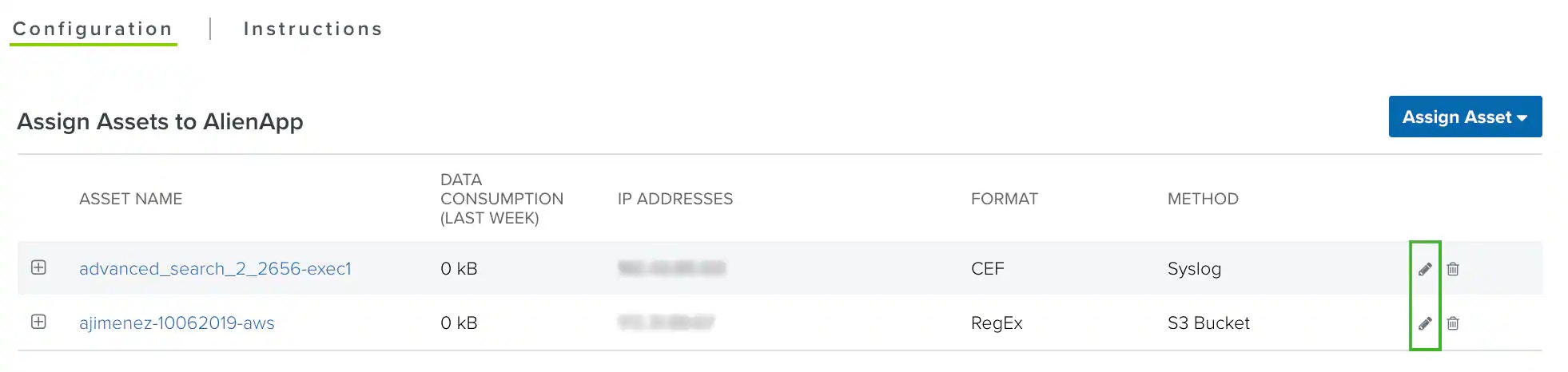
3. Click the <img src="https://mintcdn.com/levelblue-5324744e/T1hrc0hK0aza_DCc/images/central-any-app/buttons/pencil-new.svg?fit=max&auto=format&n=T1hrc0hK0aza_DCc&q=85&s=98e40a5a6b1c2795a0f42a417bc7756f" style={{ height: "1em", verticalAlign: "middle", display: "inline-block", margin: "0 0.25em" }} width="24" height="24" data-path="images/central-any-app/buttons/pencil-new.svg" /> icon of the asset.

   <Frame>
     <img src="https://mintcdn.com/levelblue-5324744e/ElsAVGG4IM3pFRzT/images/usm-anywhere/alienapps/modifyasset.webp?fit=max&auto=format&n=ElsAVGG4IM3pFRzT&q=85&s=51640e4a6f30d5dd9910e1bbfa796a64" width="1962" height="466" data-path="images/usm-anywhere/alienapps/modifyasset.webp" />
   </Frame>

4. Select the new format you want to use.

5. Click the <img src="https://mintlify.s3.us-west-1.amazonaws.com/levelblue-5324744e/documentation/usm-anywhere/alienapps-guide/s/images/central-any-app/buttons/check-blue.svg" style={{ height: "1em", verticalAlign: "middle", display: "inline-block", margin: "0 0.25em" }} /> icon to confirm.

6. Click **Done**.

## BlueApps Supported Log Formats

Some BlueApps in USM Anywhere support multiple formats, giving you the option to select the format suitable to your environment. The following table lists the log formats and provides a sample log line for each one.

**Log Formats Supported by BlueApps**

<table>
  <thead>
    <tr>
      <th>Format</th>

      <th>
        <p>Description</p>
      </th>

      <th>
        <p>Sample Log </p>
      </th>
    </tr>
  </thead>

  <tbody>
    <tr>
      <td>CEF</td>
      <td>ArcSight Common Event Format</td>

      <td>
        <p>CEF:Version|Device Vendor|Device Product|Device Version|Device Event Class ID|Name|Severity|\[Extension]</p>
        <p>CEF:0|Security|threatmanager|1.0|100|worm successfully stopped|10| src=10.0.0.1 dst=2.1.2.2 spt=1232</p>
      </td>
    </tr>

    <tr>
      <td>CLF</td>
      <td>NCSA Common Log Format</td>
      <td>125.0.0.1 user - identifier sjones \[10/Oct/2011:13:55:36 -0700] "GET /examp\_alt.png HTTP/1.0" 200 10801</td>
    </tr>

    <tr>
      <td>CSV</td>
      <td>Comma-Separated Values</td>
      <td>2,398778306028,eni-abc,1.1.1.1,2.2.2.2,52392,443,6,11,1935,1461792267,1461792322,ACCEPT,OK</td>
    </tr>

    <tr>
      <td>GELF</td>
      <td>Graylog Extended Log Format</td>
      <td>\{ "version": "1.1", "host": "example.org", "short\_message": "A short message", "level": 5, "\_some\_info": "foo" }</td>
    </tr>

    <tr>
      <td>JSON</td>
      <td>JavaScript Object Notation</td>
      <td>\{"DateTime":1438189080000,"UsersName":"Dev","UsersEmail":"[dev@blah.com](mailto:dev@blah.com)","IPAddress":"1.1.1.1","Action":Test"}</td>
    </tr>

    <tr>
      <td>Key‑Value</td>
      <td>A key and value pair </td>
      <td>id=”0001” severity=”info” name=”http access” action=”pass” method=”GET” srcip=”1.1.1.1” dstip=“2.2.2.2” user=“myuser”</td>
    </tr>

    <tr>
      <td>LEEF</td>
      <td>Log Event Extended Format</td>

      <td>
        <p>LEEF:Version|Device Vendor|Device Product|Device Version|Event ID|Name| Severity|key=value\<tab>key=value\<tab>key=value\<tab>key=value</p>
        <p>LEEF:0|Security|threatmanager|1.0|100|worm successfully stopped|10| src=10.0.0.1    dst=2.1.2.2    spt=1232</p>
      </td>
    </tr>

    <tr>
      <td>RegEx</td>
      <td>Regular Expression</td>
      <td>sshd\[1097]: Failed password for invalid user ben from 1.1.1.1 port 43312 ssh2</td>
    </tr>

    <tr>
      <td>Split</td>
      <td>The fields are separated using a character other than comma</td>
      <td>200|939|3934|1.1.1.1|-|1.1.1.1|"'Technology & Telecommunication’"|"test\test"|false|allowed|2.2.2.2</td>
    </tr>

    <tr>
      <td>W3C</td>
      <td>Extended Log File Format from W3C</td>

      <td>
        <p>#Fields: time cs-method cs-uri</p>
        <p> </p>
        <p>00:34:23 GET /foo/bar.html</p>
      </td>
    </tr>

    <tr>
      <td>XML</td>
      <td>Extensible Markup Language</td>
      <td>\<Root>\<EventID>90060\</EventID>\<Priority>4\</Priority>\<Message>Application - End\</ Message>\<Category>AUDIT\</Category>\</Root></td>
    </tr>
  </tbody>
</table>