 ## My Apps
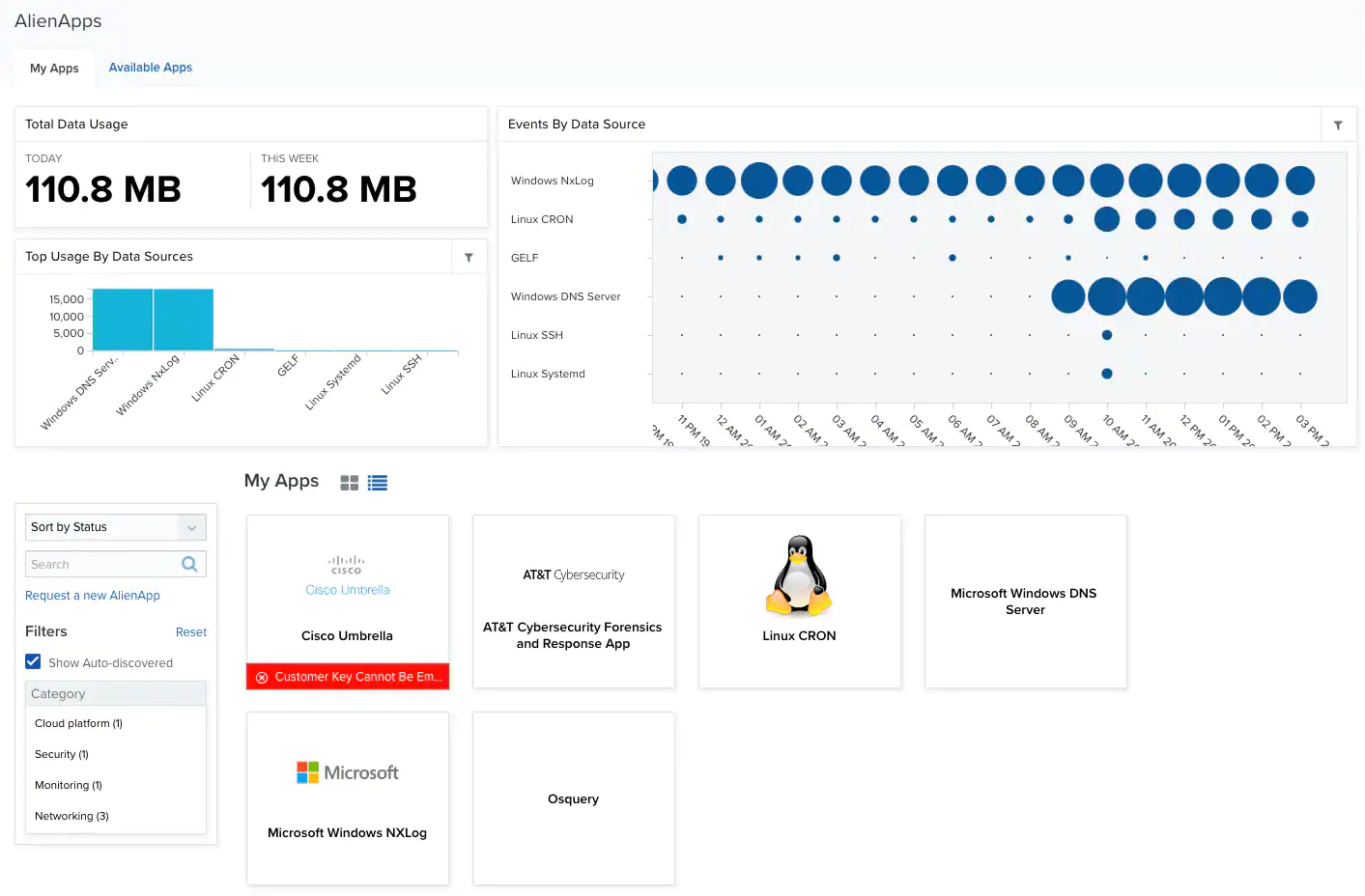
The My Apps tab gives you information about the apps you have configured in your environment:
* **Total Data Usage**: Total data usage for the current day and for the current week.
* **Top Usage By Data Sources**: List of top data usage by BlueApps.
* **Events By Data Source**: Events correlated by BlueApps. The size of the bubbles depends on the number of issues.
You can see your apps in a list view (
## My Apps
The My Apps tab gives you information about the apps you have configured in your environment:
* **Total Data Usage**: Total data usage for the current day and for the current week.
* **Top Usage By Data Sources**: List of top data usage by BlueApps.
* **Events By Data Source**: Events correlated by BlueApps. The size of the bubbles depends on the number of issues.
You can see your apps in a list view ( ) or in a grid view (
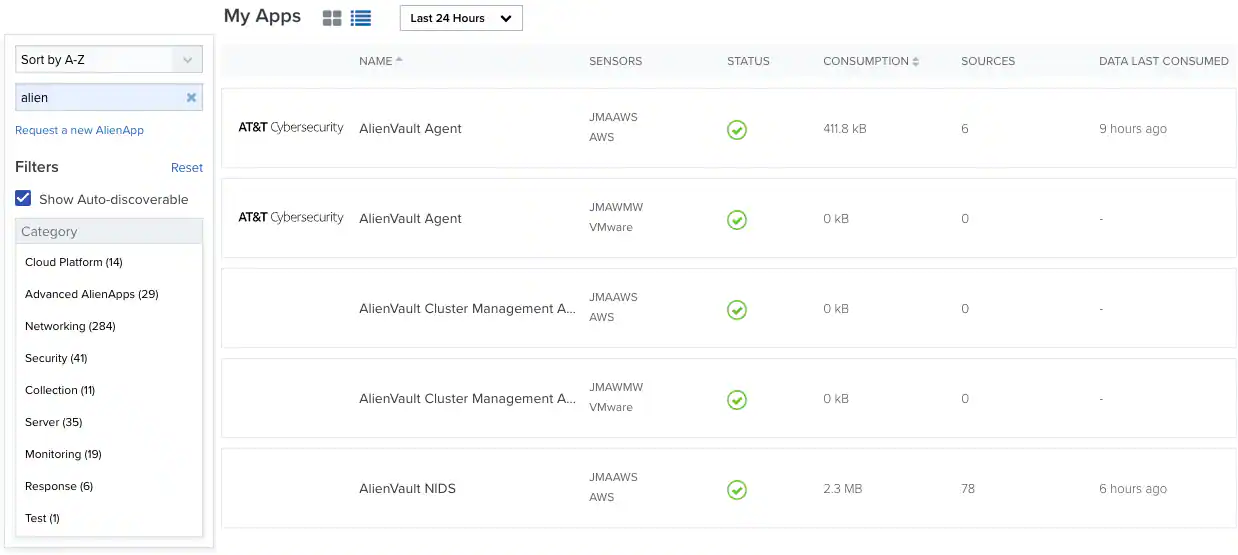
 ). When you choose the list view, you can use the time filter to limit the display of enabled apps.
 The table below summarizes the columns displayed in the list view.
**Columns in the My Apps List View**
The table below summarizes the columns displayed in the list view.
**Columns in the My Apps List View**
| Name | Description |
|---|---|
| Name | Name of the BlueApp. |
| Sensors | Name of the sensor where the BlueApp has been configured. |
| Status | Status of the BlueApp. |
| Consumption | Data received by the BlueApp since deployment. |
| Sources | Number of data sources. |
| Data Last Consumed | Data received by the BlueApp since last consumption. |
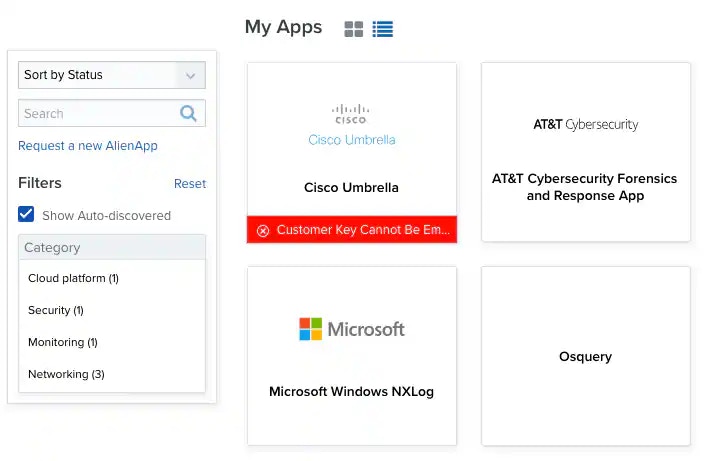 You can click a tile to open the specific page for that BlueApp. Sometimes, at the bottom of the tile, you see information about the status of that BlueApp, as shown in the screenshot. You can click the tile to configure the needed data. See [Advanced BlueApps](blueapps-orchestration) for more information.
## Available Apps
The Available Apps tab lists all the apps you can configure in your environment.
You can click a tile to open the specific page for that BlueApp. Sometimes, at the bottom of the tile, you see information about the status of that BlueApp, as shown in the screenshot. You can click the tile to configure the needed data. See [Advanced BlueApps](blueapps-orchestration) for more information.
## Available Apps
The Available Apps tab lists all the apps you can configure in your environment.
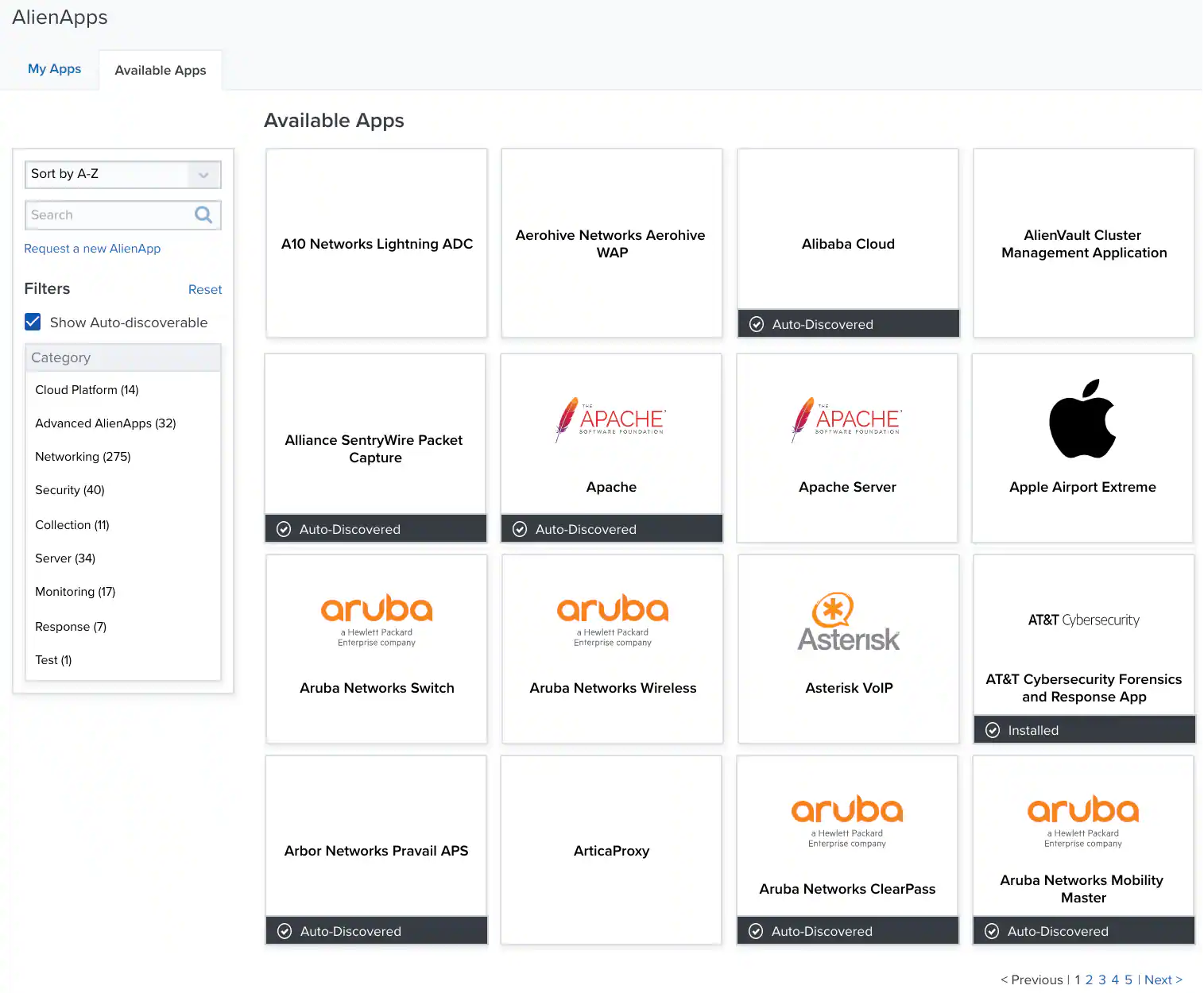 Through the menu on the left, you can do the following:
* Sort the BlueApps in ascending or descending order.
* Search for an BlueApp by its name.
* Choose whether or not to include auto-discovered BlueApps
* Filter the BlueApps by these categories:
* Advanced AlienApps
* Cloud platform
* Collection
* Monitoring
* Networking
* Notification
* Response
* Security
* Server
The number between brackets displayed next to each filter indicates the number of total BlueApps available in your environment.
Click the **Reset** button to remove the selected filters. You can also remove a filter if you click the
Through the menu on the left, you can do the following:
* Sort the BlueApps in ascending or descending order.
* Search for an BlueApp by its name.
* Choose whether or not to include auto-discovered BlueApps
* Filter the BlueApps by these categories:
* Advanced AlienApps
* Cloud platform
* Collection
* Monitoring
* Networking
* Notification
* Response
* Security
* Server
The number between brackets displayed next to each filter indicates the number of total BlueApps available in your environment.
Click the **Reset** button to remove the selected filters. You can also remove a filter if you click the  icon next to the filter.
On the bottom right corner of the page, you can navigate through the BlueApps and go to the previous or next pages.
icon next to the filter.
On the bottom right corner of the page, you can navigate through the BlueApps and go to the previous or next pages.