> ## Documentation Index
> Fetch the complete documentation index at: https://docs.levelblue.com/llms.txt
> Use this file to discover all available pages before exploring further.
# Creating Check Point Response Action Rules
Use the BlueApp for Check Point to access the Check Point response actions, which enable you to quickly respond to threats identified by USM Anywhere. You can create response action rules in USM Anywhere that automatically trigger when alarms or events match the criteria that you specify.
After you create a rule, new events or alarms that match the rule will trigger the Check Point action to tag to the associated source or the destination host. The rule does not trigger for your existing alarms or events.
You can create a new rule as follows:
* **From the Rules page**: The Rules page provides access to all of your orchestration rules. The Orchestration Rules list includes suppression rules, alarm rules, event rules, filtering rules, notification rules, and response action rules. You can create new rules using the specific matching conditions that you define, as well as edit, delete, and enable or disable rules. See [Orchestration Rules](../../user-guide/rules-management/orchestration-rules) for more information about managing orchestration rules.
Go to **Settings > Rules** and select **Response Action Rules** on the left navigation pane. Then click **Create Response Action Rule** to define the new rule.
**To define a new Check Point response action rule**
1. Enter a name for the rule.
2. Select the action you want to launch from the **Action** drop-down menu.
You can launch an action to tag the destination host or source for an alarm or an event.
3. At the bottom of the dialog box, set the rule condition parameters to specify the criteria for a matching alarm or event to trigger the rule.
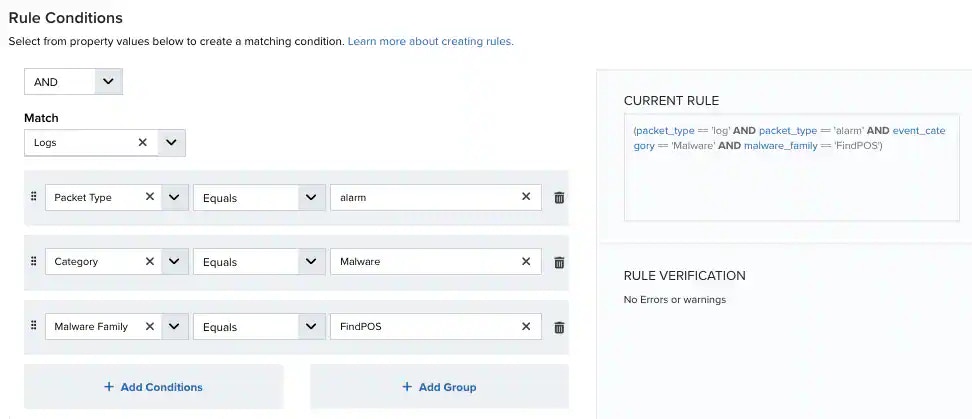 * If you create the rule from an applied action, this section provides suggested property/value pairs from the selected alarm or event that you can use as conditions for the rule. Click the
  icon to delete the items that you do not want to include in the matching conditions. You can also add other conditions that are not suggested.
* If you create the rule from the Rules page, you must use the Add Condition and Add Group functions to define the property/value pairs that you want to use as conditions for the rule.
* At the bottom of the dialog box, click **More** to display the optional multiple occurrence and window length parameters.
Select an operator and add one or more conditions to form the conditional expression. You can include a condition group to evaluate a subset of conditions. The Current Rule pane displays the constructed expression in standard syntax. The box displays a red border if the expression is syntactically invalid as currently specified. A valid expression is required to save the rule definition.
Select the operator used to determine the match for multiple conditions:
* **AND**: Match all conditions.
* **OR**: Match any one condition.
* **AND NOT**: Exclude items matching all conditions after the first.
* **OR NOT**: Include all items that do not match any conditions after the first.
Click **Add Condition** to add a condition. For each condition, specify the field name, evaluator, and value. If the evaluation returns true for the condition, it is a match.
Click **Add Group** to add a condition group. A new group includes a condition and its own operator used to match the conditions within the group. You can nest condition groups.
Specify the number of event or alarm occurrences that produce a match on the conditional expression to trigger the rule. The default value is 1. You can enter the number of occurrences or use the arrow to scroll the value up or down.
USM Anywhere uses this in conjunction with the Length option to specify the number of occurrences within a time period that will trigger the rule. For example, you can define a rule to trigger for an unauthorized access attempt when a failed SSH login occurs three times within a five-minute window.
Specify the length of the window to identify a match for multiple occurrences. Enter the number and choose a time unit value of seconds, minutes, or hours. This time period identifies the amount of time that transpires from the first occurrence to the last occurrence. If the number of occurrences is not met within this period, the rule does not trigger.
4. Click **Save Rule**.
5. Click **OK** in the confirmation dialog box.
icon to delete the items that you do not want to include in the matching conditions. You can also add other conditions that are not suggested.
* If you create the rule from the Rules page, you must use the Add Condition and Add Group functions to define the property/value pairs that you want to use as conditions for the rule.
* At the bottom of the dialog box, click **More** to display the optional multiple occurrence and window length parameters.
Select an operator and add one or more conditions to form the conditional expression. You can include a condition group to evaluate a subset of conditions. The Current Rule pane displays the constructed expression in standard syntax. The box displays a red border if the expression is syntactically invalid as currently specified. A valid expression is required to save the rule definition.
Select the operator used to determine the match for multiple conditions:
* **AND**: Match all conditions.
* **OR**: Match any one condition.
* **AND NOT**: Exclude items matching all conditions after the first.
* **OR NOT**: Include all items that do not match any conditions after the first.
Click **Add Condition** to add a condition. For each condition, specify the field name, evaluator, and value. If the evaluation returns true for the condition, it is a match.
Click **Add Group** to add a condition group. A new group includes a condition and its own operator used to match the conditions within the group. You can nest condition groups.
Specify the number of event or alarm occurrences that produce a match on the conditional expression to trigger the rule. The default value is 1. You can enter the number of occurrences or use the arrow to scroll the value up or down.
USM Anywhere uses this in conjunction with the Length option to specify the number of occurrences within a time period that will trigger the rule. For example, you can define a rule to trigger for an unauthorized access attempt when a failed SSH login occurs three times within a five-minute window.
Specify the length of the window to identify a match for multiple occurrences. Enter the number and choose a time unit value of seconds, minutes, or hours. This time period identifies the amount of time that transpires from the first occurrence to the last occurrence. If the number of occurrences is not met within this period, the rule does not trigger.
4. Click **Save Rule**.
5. Click **OK** in the confirmation dialog box.