> ## Documentation Index
> Fetch the complete documentation index at: https://docs.levelblue.com/llms.txt
> Use this file to discover all available pages before exploring further.
# Viewing Alarms with Applied Cisco Umbrella Response Actions
USM Anywhere uses labels as a mechanism to classify alarms. These labels make it easy to filter items by an applied label so that you can locate them easily and track their status. When the BlueApp for Cisco Umbrella executes a response action for an alarm, it automatically applies the **Cisco Umbrella** label to it. You can select this label as a filter so that a page displays data for only the items related to an BlueApp for Cisco Umbrella response action.
**To view alarms with applied Cisco Umbrella response actions**
1. Open the [Alarms page](../../user-guide/alarms/alarms-list-view).
2. If the Search & Filters panel is not displayed, click the  icon to expand it.
USM Anywhere includes several filters displayed by default.
3. Locate the Labels filter and select the **Cisco Umbrella** label.
icon to expand it.
USM Anywhere includes several filters displayed by default.
3. Locate the Labels filter and select the **Cisco Umbrella** label.
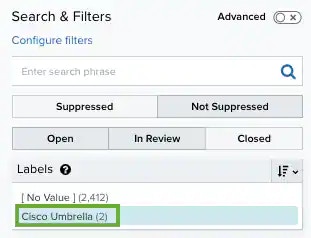 If the Labels filter is not displayed, click **Configure Filters** at the bottom of the Search & Filters pane to configure filters for the page. See [Managing Filters](../../user-guide/asset-management/asset-administration/managing-filters) for more information about configuring filters for the page display.
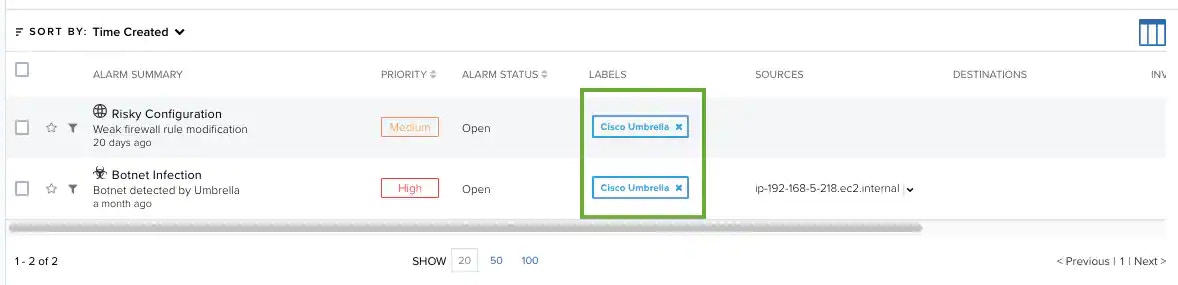
In the displayed list, you can scroll the list to the right and view the Labels column.
If the Labels filter is not displayed, click **Configure Filters** at the bottom of the Search & Filters pane to configure filters for the page. See [Managing Filters](../../user-guide/asset-management/asset-administration/managing-filters) for more information about configuring filters for the page display.
In the displayed list, you can scroll the list to the right and view the Labels column.