> ## Documentation Index
> Fetch the complete documentation index at: https://docs.levelblue.com/llms.txt
> Use this file to discover all available pages before exploring further.
# Managing Your Cloudflare Data Collection and Events
After you [configure the BlueApp for Cloudflare](config-alienapp-cloudflare) and have a successful connection, you should make sure that the scheduled collection job is enabled. For each deployed sensor, USM Anywhere includes an out-of-the-box log collection job to support BlueApp for Cloudflare data collection. You can then use rules to manage the events that USM Anywhere generates and stores, as well as the alarms that it generates from specific types of events.
**Important:** The Cloudflare service can generate numerous log messages, depending on the traffic and number of the website assets it manages. When you have BlueApp for Cloudflare configured, and the log collection job enabled, the number of events produced in USM Anywhere could be excessive and consume large amounts of data storage. To address this, you should add the [suggested filtering rule](jobs-alienapp-cloudflare) to eliminate standard "HTTP OK" events.
You can view log collection jobs in the Job Scheduler page and make sure that the job is enabled for the sensor where you configured the BlueApp for Cloudflare.
**To verify the Cloudflare collection job**
1. Go to **Settings > Scheduler** to open the Job Scheduler page.
2. In the `Filter by` field at the top of the list, enter **Cloudflare** to filter the displayed list for the Cloudflare App jobs.
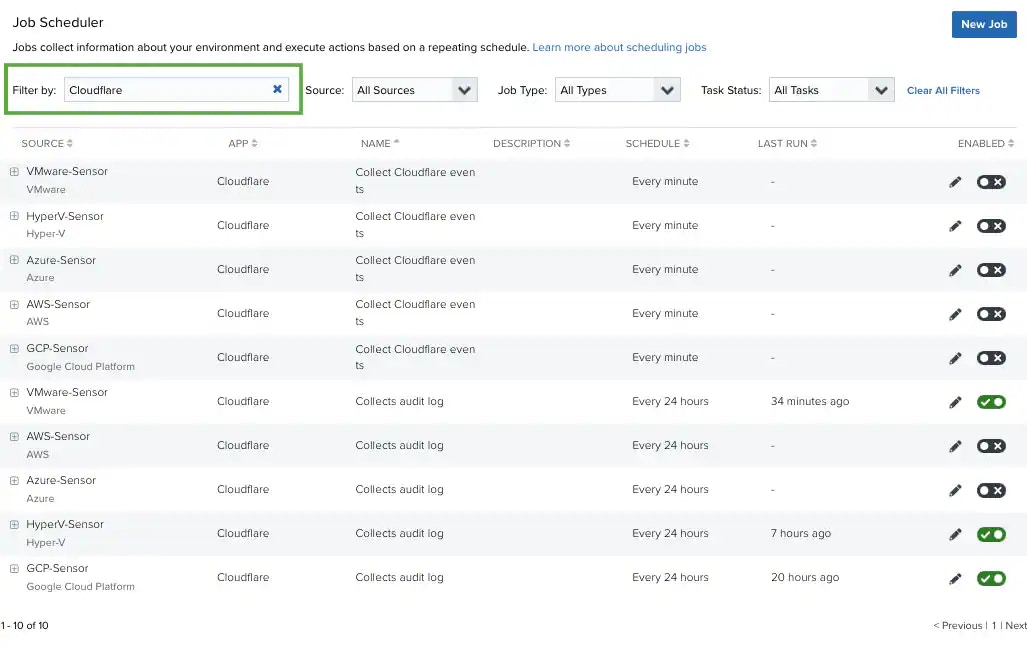 Jobs that are currently enabled display the
  icon.
3. If the jobs for the sensor are not enabled, click the
icon.
3. If the jobs for the sensor are not enabled, click the  icon to toggle it.
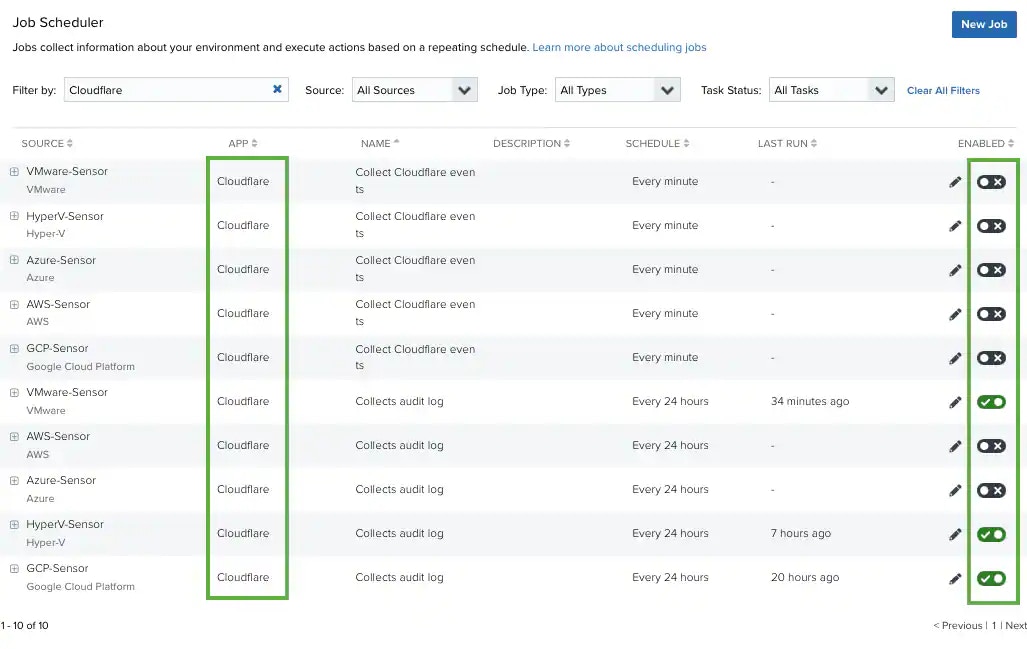 After the collection job runs a few times, you can select the job to view detailed information about the data collected for each job execution. This includes the number of zones scanned, the number of events retrieved per zone, and if the zones were completed or not.
**Note:** A job run may not be able to complete a zone if the BlueApp for Cloudflare hits the Cloudflare API connection limitation during collection. If a zone is not completed, the next job run will prioritize that zone to collect the missed data. However, if there are incomplete zones in successive jobs, there could be missed events.
After the collection job runs a few times, you can select the job to view detailed information about the data collected for each job execution. This includes the number of zones scanned, the number of events retrieved per zone, and if the zones were completed or not.
**Note:** A job run may not be able to complete a zone if the BlueApp for Cloudflare hits the Cloudflare API connection limitation during collection. If a zone is not completed, the next job run will prioritize that zone to collect the missed data. However, if there are incomplete zones in successive jobs, there could be missed events.
 In USM Anywhere, a filtering rule instructs your deployed sensors to drop future events that match the specified criteria. The matching events are neither correlated nor stored. Filtering rules enable you to control the event data that you are going to store in USM Anywhere and manage the data consumption associated with your subscription.
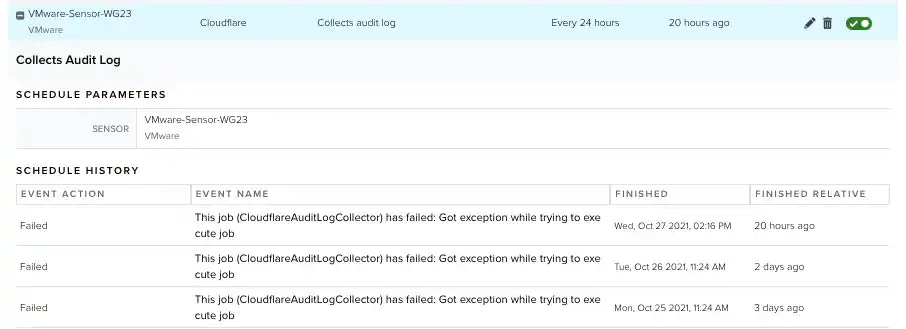
The Rules tab of the BlueApp for Cloudflare page provides a suggested rule as the basis for a Cloudflare filtering rule. This suggested rule automatically includes a set of matching criteria for eliminating standard "HTTP OK" log messages to reduce noise and data storage consumption.
**Important:** Filtering rules are not retroactive, the new rule will apply only to new events and does not eliminate existing events that are a match for the rule.
**To add the suggested Cloudflare filtering rule**
1. In USM Anywhere, go to **Data Sources > BlueApps**.
2. Click the **Available Apps** tab.
3. Search for the BlueApp, and then click the tile.
4. Click the **Rules** tab.
In USM Anywhere, a filtering rule instructs your deployed sensors to drop future events that match the specified criteria. The matching events are neither correlated nor stored. Filtering rules enable you to control the event data that you are going to store in USM Anywhere and manage the data consumption associated with your subscription.
The Rules tab of the BlueApp for Cloudflare page provides a suggested rule as the basis for a Cloudflare filtering rule. This suggested rule automatically includes a set of matching criteria for eliminating standard "HTTP OK" log messages to reduce noise and data storage consumption.
**Important:** Filtering rules are not retroactive, the new rule will apply only to new events and does not eliminate existing events that are a match for the rule.
**To add the suggested Cloudflare filtering rule**
1. In USM Anywhere, go to **Data Sources > BlueApps**.
2. Click the **Available Apps** tab.
3. Search for the BlueApp, and then click the tile.
4. Click the **Rules** tab.
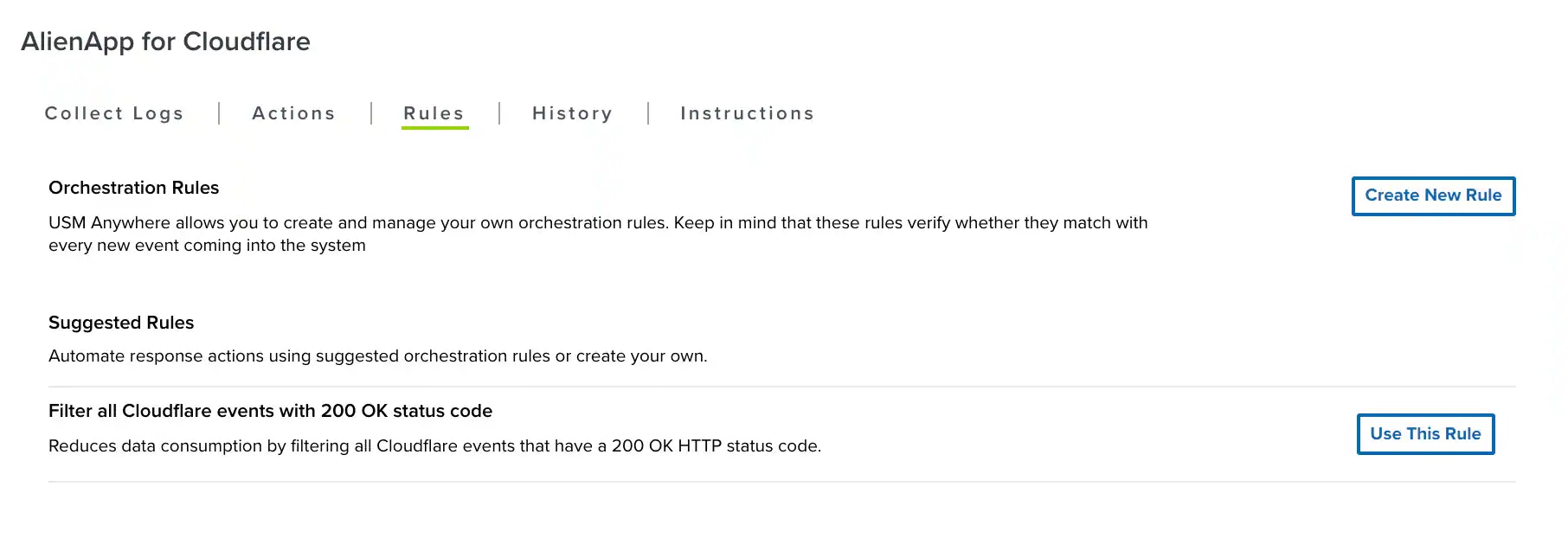 5. Click **Use This Rule**.
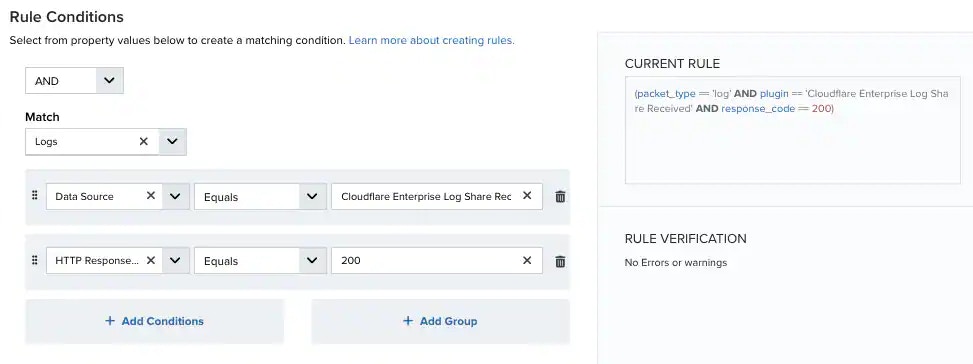
This opens the Create Filtering Rule dialog box with preconfigured options for the new rule. You can keep these options exactly as they are, or make some changes according to your specific needs.
5. Click **Use This Rule**.
This opens the Create Filtering Rule dialog box with preconfigured options for the new rule. You can keep these options exactly as they are, or make some changes according to your specific needs.
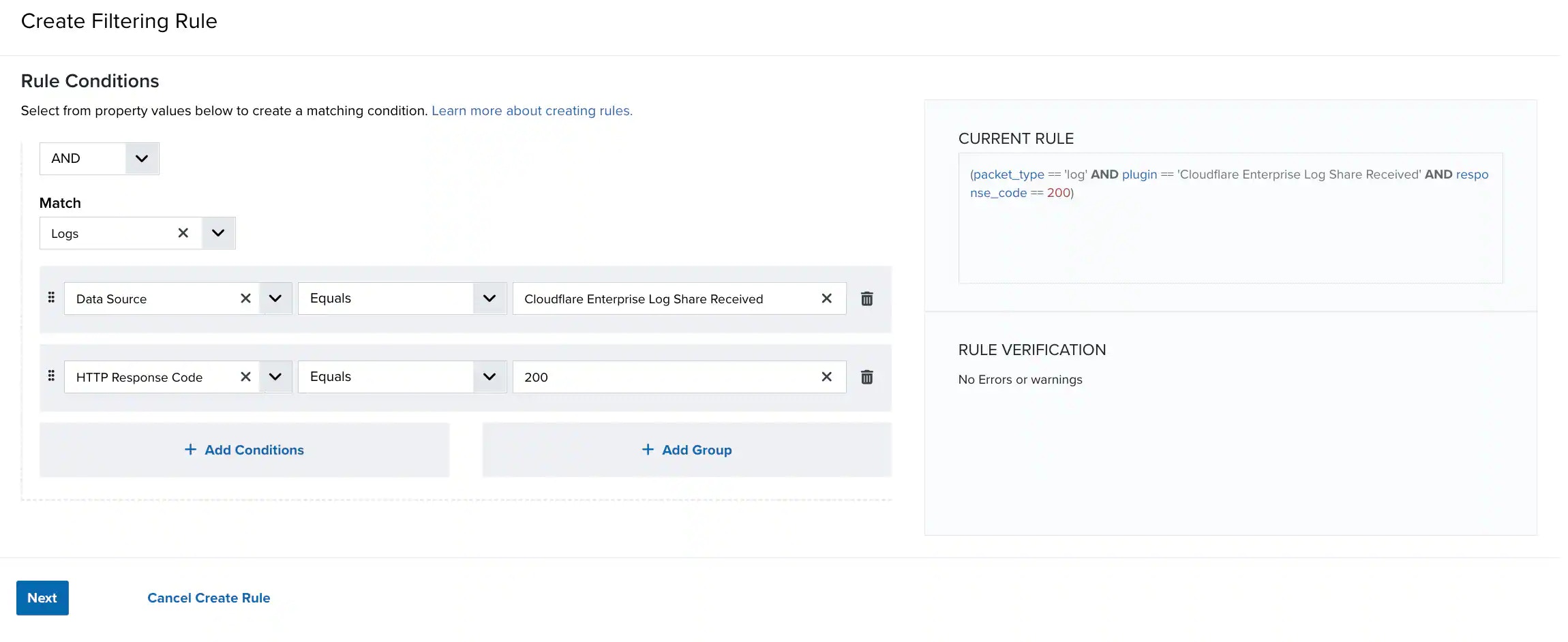 **Important:** If you choose to modify the conditions, the rule may not effectively reduce data storage for Cloudflare events. Excessive events could cause you to go over the storage tier for your subscription.
6. Click **Next**.
7. Add a name for the rule (for example, Filter all Cloudflare events with 200 OK status code).
8. (Optional) Enter a description for identifying this rule.
9. Click **Save**.
There are no out-of-the-box correlation rules that produce alarms from identified Cloudflare events. However, you can create your own alarm rules to generate alarms from Cloudflare events according to your specified criteria. The easiest way to do this is from an event. When you see a Cloudflare event that indicates a potential threat or something that requires high-visibility for you or your team, you can quickly create a new alarm rule from the event so that USM Anywhere generates alarms from similar events in the future.
See [Creating Alarm Rules from the Events Page](../../user-guide/events/alarm-rules) for detailed information about creating an alarm rule.
When you set the conditions for the alarm rule, make sure to select **Data Source**, **Equals**, and **Cloudflare Enterprise Log Share Received** respectively, to create alarms that are specific to events from the BlueApp for Cloudflare.
**Important:** If you choose to modify the conditions, the rule may not effectively reduce data storage for Cloudflare events. Excessive events could cause you to go over the storage tier for your subscription.
6. Click **Next**.
7. Add a name for the rule (for example, Filter all Cloudflare events with 200 OK status code).
8. (Optional) Enter a description for identifying this rule.
9. Click **Save**.
There are no out-of-the-box correlation rules that produce alarms from identified Cloudflare events. However, you can create your own alarm rules to generate alarms from Cloudflare events according to your specified criteria. The easiest way to do this is from an event. When you see a Cloudflare event that indicates a potential threat or something that requires high-visibility for you or your team, you can quickly create a new alarm rule from the event so that USM Anywhere generates alarms from similar events in the future.
See [Creating Alarm Rules from the Events Page](../../user-guide/events/alarm-rules) for detailed information about creating an alarm rule.
When you set the conditions for the alarm rule, make sure to select **Data Source**, **Equals**, and **Cloudflare Enterprise Log Share Received** respectively, to create alarms that are specific to events from the BlueApp for Cloudflare.