> ## Documentation Index
> Fetch the complete documentation index at: https://docs.levelblue.com/llms.txt
> Use this file to discover all available pages before exploring further.
# Accessing USM Anywhere Asset Information in ConnectWise Manage
With a successful connection to your ConnectWise Manage environment, the BlueApp for ConnectWise provides a scheduled job to update the ConnectWise Manage Configurations catalog to reflect the assets identified by USM Anywhere. You can manage these configurations in the ConnectWise Manage user interface (UI) according to your established practices.
When USM Anywhere detects changes to an asset during an asset scan, the next execution of the job updates the associated configuration in ConnectWise Manage. If an asset that USM Anywhere previously discovered is no longer present in the most recent asset scan, the status changes to *inactive*. If it discovers the asset in another future scan, the status changes to *active* in the next job. Because this job runs every 60 minutes, there will be a delay in seeing these changes in the ConnectWise Manage UI.
Important: Currently, changing parameters of a configuration in ConnectWise Manage does not result in a change for the asset in USM Anywhere.
ConnectWise Manage provides multiple ways to access configurations (assets) for your customers. The following procedure outlines one of the most common methods for investigating configurations for a managed company.
**To access USM Anywhere-reported configurations in the ConnectWise Manage UI**
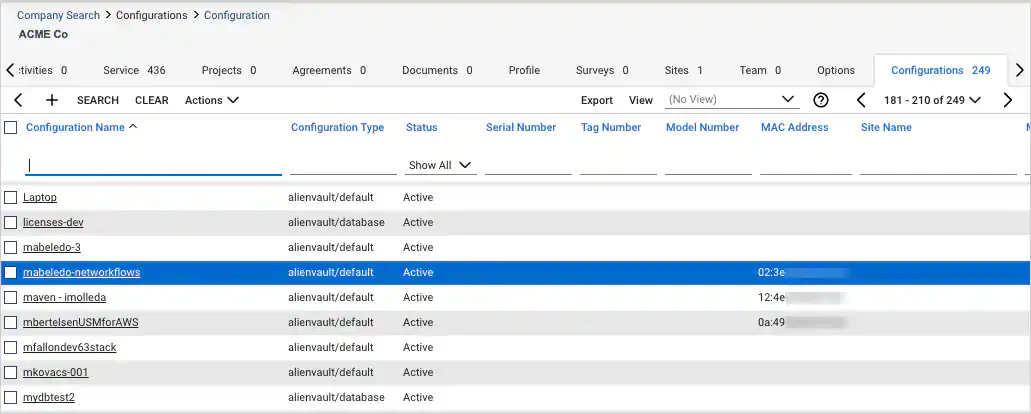
1. In ConnectWise Manage, open the page for the managed company (customer).
2. Click the **Configurations** tab.
3. Select the configuration item in the list to view the details.
 4. Review the information for the configuration.
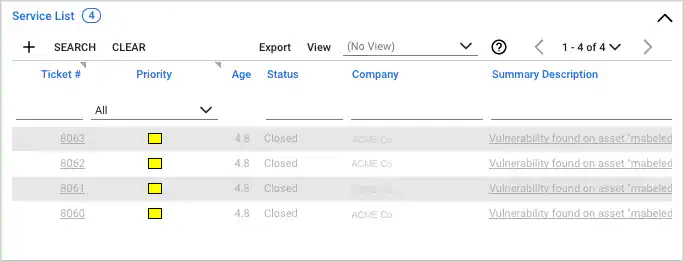
You can scroll through the configuration record to the Service List section and view the tickets generated by USM Anywhere for alarms or vulnerabilities associated with the asset.
4. Review the information for the configuration.
You can scroll through the configuration record to the Service List section and view the tickets generated by USM Anywhere for alarms or vulnerabilities associated with the asset.