> ## Documentation Index
> Fetch the complete documentation index at: https://docs.levelblue.com/llms.txt
> Use this file to discover all available pages before exploring further.
# Collecting Your Historical Breach Events
Role Availability | ❌ Read-Only ❌ Investigator ✔️ Analyst ✔️ Manager
Upon configuration of the BlueApp for SpyCloud Dark Web Monitoring, the SpyCloud Dark Web Monitoring scheduler job collects new records every 24 hours for all validated watchlist items. The BlueApp for SpyCloud Dark Web Monitoring also supports a manual action that you can use to collect all historical records for your watchlist items.
If you run this action after the automated collection job has already collected SpyCloud database records or if you have run this action before, it will result in duplicate events and alarms within USM Anywhere.
**To collect the historical breach records**
1. In USM Anywhere, go to **Data Sources > BlueApps**.
2. Click the **Available Apps** tab.
3. Search for the BlueApp, and then click the tile.
4. Click the **Actions** tab.
5. Click **Run** to execute the action.
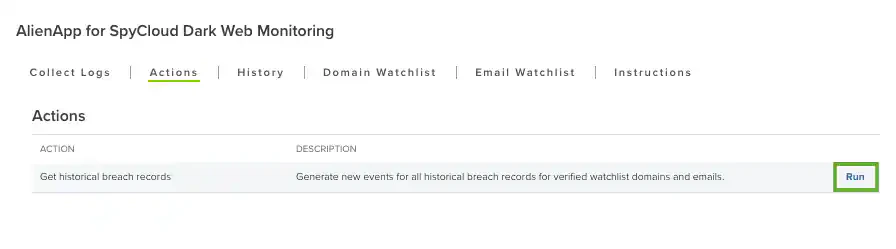 6. Verify the selected action type and action, and then click **Run**.
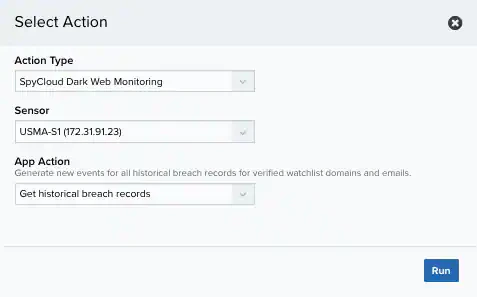 7. A record of this action displayed on the History tab. You can view these events under Activity > Events.