> ## Documentation Index
> Fetch the complete documentation index at: https://docs.levelblue.com/llms.txt
> Use this file to discover all available pages before exploring further.
# Events Created When BlueApps Stop Receiving Data
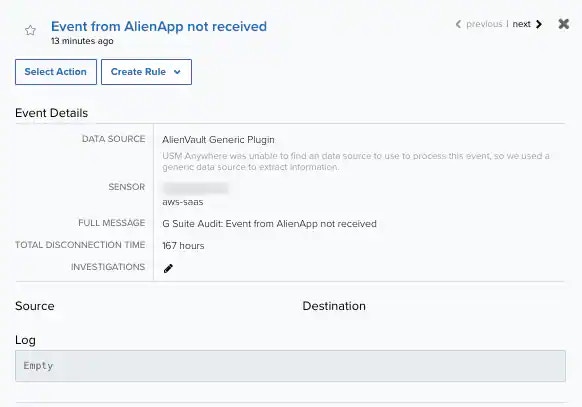
USM Anywhere gives you the option to set a threshold of time after which BlueApp inactivity is a concern and you should be alerted. When a BlueApp has not received data from your environment within the configured period of time, USM Anywhere generates monitoring events that display in the Events List View (Activity > Events). Since these events are not tied to any USM Anywhere Sensor that you have deployed, you will see a new sensor with the name of your USM Anywhere subdomain tied to these events. USM Anywhere will generate new monitoring events until the BlueApp starts receiving data again.
**Warning:** Monitoring events are generated when your BlueApp has not received data from a data source either because the data source is not sending data or because of a filtering rule. If you have a rule that filters data coming from a data source, from the perspective of USM Anywhere, that data source is not sending data.
**Warning:** Currently, the *Event created when BlueApps stop receiving data event* is generated at the same time as the regular event and system event. Soon, this event will be generated only as a system event. See [Regular Events and System Events](../user-guide/system-events/rules-for-system-events) and [Orchestration Rule for the "Event from BlueApp Not Received" System Event](../user-guide/system-events/event-alienapp-not-received) for more information.
**To configure the period of time**
1. Go to **Data Sources > BlueApps**.
2. Navigate to your BlueApp and scroll to the bottom of the page.
3. On the bottom of the page, set a period of time in the Create Events If the BlueApp Stops Consuming Data field by clicking the drop-down list.
You can select a predefined value of None, 30 minutes, 1 hour, 2 hours, 4 hours, 6 hours, 8 hours, 12 hours, 24 hours, 72 hours, 1 week, or 2 weeks.
 **Note:** By defualt this field is set to None.
The events are displayed in the [Events List View](../user-guide/events/events-list-view) page.
**To configure the period of time for all BlueApps**
**Important:** If you configure a global time threshold events will only be generated for any BlueApp that has previously received data. No event will be generated for an app that has not yet received data.
1. Go to **Settings > System**.
2. In the left navigation pane, click **BlueApps Settings** to open the page.
3. Set a period of time in the Create Events If the BlueApps Stop Consuming Data field by clicking the drop-down list. You can select a predefined value from the options provided.
**Note:** By defualt this field is set to None.
The events are displayed in the [Events List View](../user-guide/events/events-list-view) page.
**To configure the period of time for all BlueApps**
**Important:** If you configure a global time threshold events will only be generated for any BlueApp that has previously received data. No event will be generated for an app that has not yet received data.
1. Go to **Settings > System**.
2. In the left navigation pane, click **BlueApps Settings** to open the page.
3. Set a period of time in the Create Events If the BlueApps Stop Consuming Data field by clicking the drop-down list. You can select a predefined value from the options provided.
 **Note:** By default this field is set to None.
**To see events created when your BlueApp stops receiving data**
1. Go to **Activity > Events**.
2. In the Event Name filter, select **Event from BlueApp not received**.
**Note:** By default this field is set to None.
**To see events created when your BlueApp stops receiving data**
1. Go to **Activity > Events**.
2. In the Event Name filter, select **Event from BlueApp not received**.
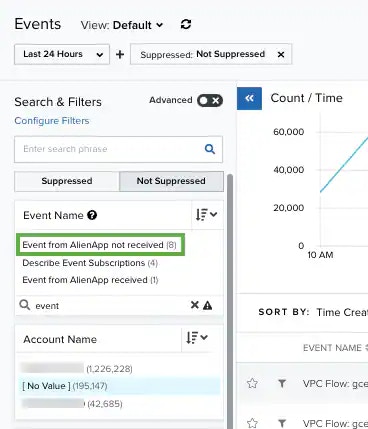 The results are shown with the filtered events.
3. Click the event to see its details.
The results are shown with the filtered events.
3. Click the event to see its details.