> ## Documentation Index
> Fetch the complete documentation index at: https://docs.levelblue.com/llms.txt
> Use this file to discover all available pages before exploring further.
# Viewing Forensics and Response Events and Alarms
The BlueApp for LevelBlue Forensics and Response translates the data it retrieves into normalized events for analysis. After you enable this BlueApp, events are displayed in the [Events page](../../user-guide/events/events-list-view), where you can view information about the collected forensic information. These events can trigger alarms to alert your team about a system compromise.
**To view BlueApp for LevelBlue Forensics and Response events**
1. Select **Activity > Events** to open the events page.
2. If the Search & Filters panel is not displayed, click the  icon to expand it.
USM Anywhere includes several filters displayed by default.
3. Scroll down to the Data Source filter and select **LevelBlue Forensics and Response App** to display only those events on the page.
icon to expand it.
USM Anywhere includes several filters displayed by default.
3. Scroll down to the Data Source filter and select **LevelBlue Forensics and Response App** to display only those events on the page.
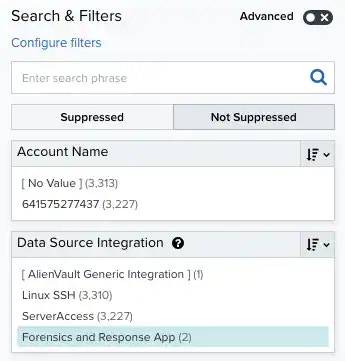 If this filter is not displayed, click the **Configure filters** link, which is in the upper left corner of the page, to configure filters for the page. See [Managing Filters](../../user-guide/asset-management/asset-administration/managing-filters) for more information about configuring filters for pages.
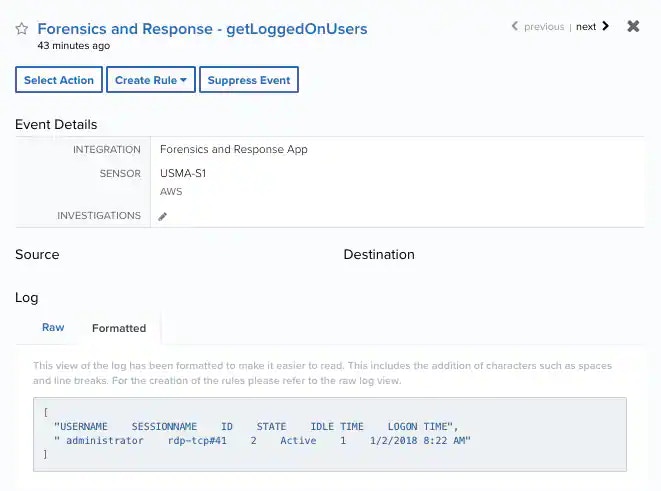
4. Select an event in the list to view detailed information.
If this filter is not displayed, click the **Configure filters** link, which is in the upper left corner of the page, to configure filters for the page. See [Managing Filters](../../user-guide/asset-management/asset-administration/managing-filters) for more information about configuring filters for pages.
4. Select an event in the list to view detailed information.
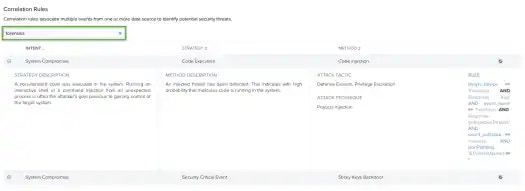
 USM Anywhere includes built-in correlation rules that generate an alarm from one or more of these events. These rules analyze the events for patterns that indicate a code injection or Sticky Keys compromise for an asset. You can view the specifics of these rules on the [Correlation Rules](../../user-guide/rules-management/correlation-rules) page by entering `forensics` in the Search field.
 If you want to generate an alarm for other types of Forensics and Response events, you can [create your own custom alarm rules](../../user-guide/rules-management/alarm-rules) and define the matching conditions to fit your criteria.