> ## Documentation Index
> Fetch the complete documentation index at: https://docs.levelblue.com/llms.txt
> Use this file to discover all available pages before exploring further.
# Launching a Forensics and Response Action from an Event or Alarm
When you review the information in the [Alarm Details](../../user-guide/alarms/viewing-alarms-details) or [Event Details](../../user-guide/events/viewing-events-details), you can easily launch a Forensics and Response action. If you want to apply the action to similar items that occur in the future, you can also create an orchestration rule directly from the executed action.
Review the information in [Supported Actions](actions-blueapp-forensics-resp) to determine the action that you want to launch.
**To launch a Forensics and Response action from an alarm or event**
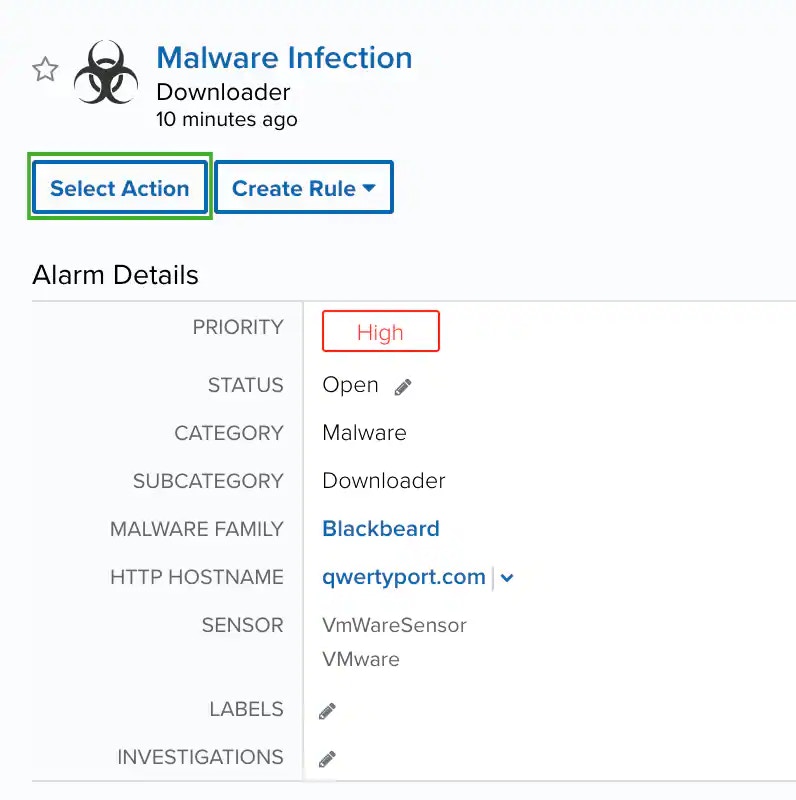
1. Go to **Activity > Alarms** or **Activity > Events**.
2. Click the alarm or event to open the details.
3. Click **Select Action**.
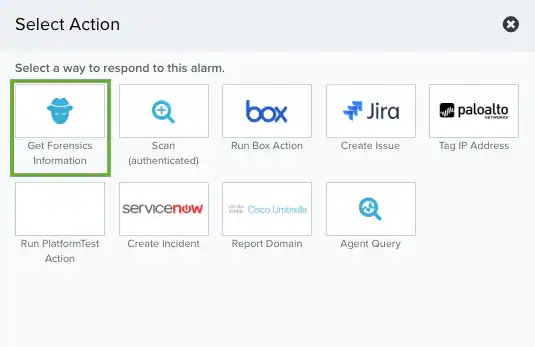
 4. In the Select Action dialog box, select the **Get Forensics Information** tile.
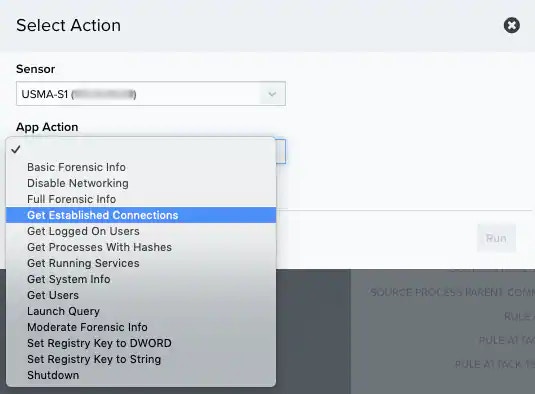
 5. If you have more than one deployed USM Anywhere Sensor, select the sensor associated with the asset that you want to use as the target for the action.
6. Click the App Action list and select the action you want to run for the asset.
5. If you have more than one deployed USM Anywhere Sensor, select the sensor associated with the asset that you want to use as the target for the action.
6. Click the App Action list and select the action you want to run for the asset.
 7. Specify the asset that you want to use as a target for the action.
You can enter the name or IP address of the asset in the field to display matching items that you can select. Or you can click **Browse Assets** to open the Select Asset dialog box and browse the asset list to make your selection.
8. Click **Run**.
After USM Anywhere initiates the action, it displays a confirmation dialog box.
7. Specify the asset that you want to use as a target for the action.
You can enter the name or IP address of the asset in the field to display matching items that you can select. Or you can click **Browse Assets** to open the Select Asset dialog box and browse the asset list to make your selection.
8. Click **Run**.
After USM Anywhere initiates the action, it displays a confirmation dialog box.
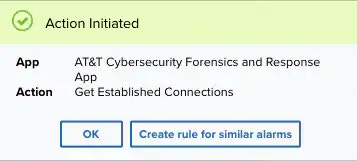 If you want to create a rule to apply the action to similar items that occur in the future, click **Create rule for similar alarms** or **Create rule for similar events** and [define the new rule](rule-blueapp-forensics-resp). If not, click **OK**.