> ## Documentation Index
> Fetch the complete documentation index at: https://docs.levelblue.com/llms.txt
> Use this file to discover all available pages before exploring further.
# Verifying the BlueApp for Sophos Central Collection Jobs
Role Availability | ❌ Read-Only ❌ Investigator ✔️ Analyst ✔️ Manager
After you [configure the BlueApp for Sophos Central](/documentation/usm-anywhere/alienapps-guide/sophos/config-alienapp-sophos) and have a successful connection, you should verify that the scheduled collection jobs are enabled. For each deployed sensor, USM Anywhere includes two out-of-the-box log jobs to support BlueApp for Sophos Central data collection. You can view these jobs in the Job Scheduler page and make sure that these jobs are enabled for the sensor where you configured the BlueApp for Sophos Central.
**To verify the Sophos Central collection jobs**
1. Go to Settings > Scheduler to open the Job Scheduler page.
2. In the Filter by option at the top of the list, enter Sophos to filter the displayed list for the Sophos Central app jobs.
 3. Locate the jobs you want to verify for the collection of alerts, events, or both:
* Collect Sophos Central alerts
* Collect Sophos Central events
If you have enabled both data collection options in the BlueApp for Sophos Central configuration, you should verify both collection jobs for the sensor. If only one of these options is configured, you can verify the one that matches the selected option.
3. Locate the jobs you want to verify for the collection of alerts, events, or both:
* Collect Sophos Central alerts
* Collect Sophos Central events
If you have enabled both data collection options in the BlueApp for Sophos Central configuration, you should verify both collection jobs for the sensor. If only one of these options is configured, you can verify the one that matches the selected option.
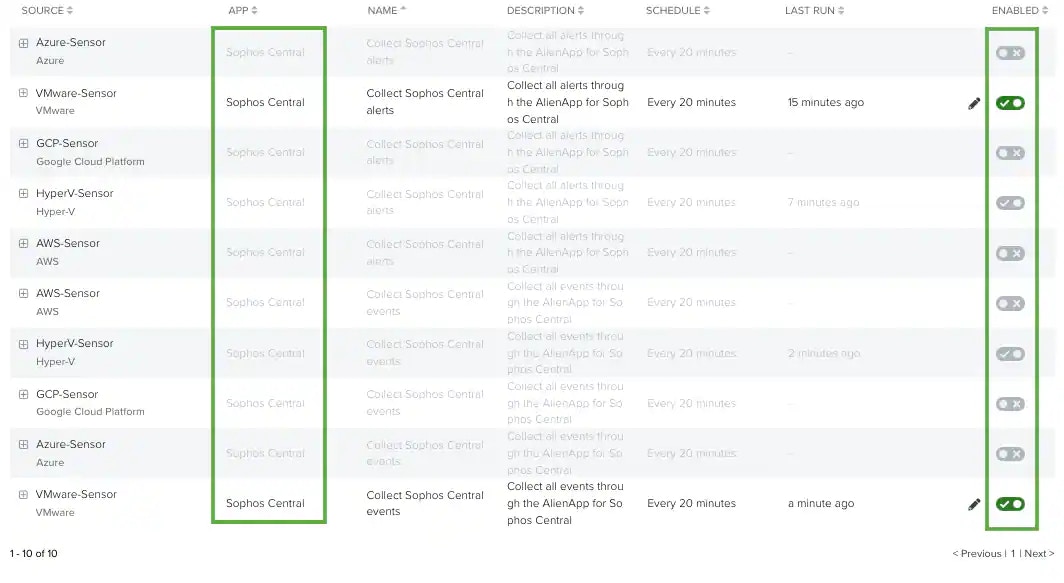 Jobs that are currently enabled display the
  icon.
4. If one or both jobs for the sensor are not enabled, click the
icon.
4. If one or both jobs for the sensor are not enabled, click the  icon to toggle it.