> ## Documentation Index
> Fetch the complete documentation index at: https://docs.levelblue.com/llms.txt
> Use this file to discover all available pages before exploring further.
# Viewing Your Sophos Central Events and Alarms
Role Availability | ❌ Read-Only ❌ Investigator ✔️ Analyst ✔️ Manager
BlueApp for Sophos Central translates the Sophos event and alert data collected through the USM Anywhere Sensor into normalized events for analysis. These normalized events are accessible from the [Events page](/documentation/usm-anywhere/user-guide/events/events-list-view).
A [correlation rule](/documentation/usm-anywhere/user-guide/rules-management/correlation-rules) automatically identifies Sophos Central alerts where there is a threat detected for malware on an endpoint, and it generates a USM Anywhere alarm. If you want to generate an alarm for other types of Sophos Central events or alerts, you can [create your own custom alarm rules](/documentation/usm-anywhere/user-guide/rules-management/alarm-rules) and define the matching conditions to fit your criteria.
**To view Sophos Central events**
1. Select **Activity > Events** to open the events page.
2. If the Search & Filters panel is not displayed, click the  icon to expand it.
USM Anywhere includes several filters displayed by default.
3. Scroll down to the Data Source filter and select **Sophos Central JSON** to display only those events on the page.
icon to expand it.
USM Anywhere includes several filters displayed by default.
3. Scroll down to the Data Source filter and select **Sophos Central JSON** to display only those events on the page.
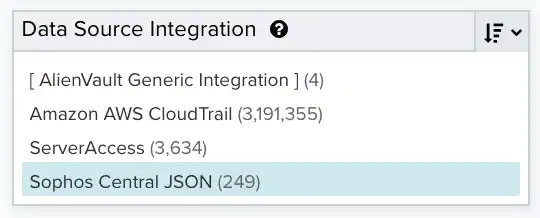 If this filter is not displayed, click the **Configure filters** link, which is in the upper left corner of the page, to configure filters for the page. See [Managing Filters](/documentation/usm-anywhere/user-guide/asset-management/asset-administration/managing-filters) for more information about configuring filters for pages.
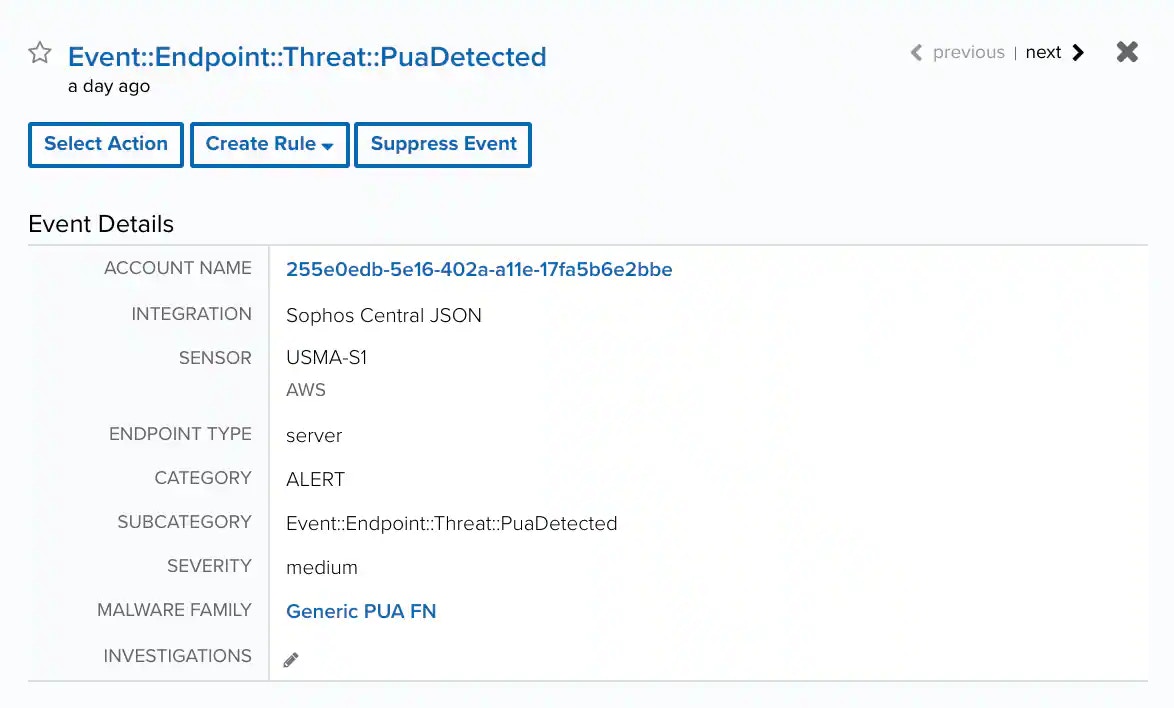
4. Select an event in the list to view detailed information.
If this filter is not displayed, click the **Configure filters** link, which is in the upper left corner of the page, to configure filters for the page. See [Managing Filters](/documentation/usm-anywhere/user-guide/asset-management/asset-administration/managing-filters) for more information about configuring filters for pages.
4. Select an event in the list to view detailed information.