> ## Documentation Index
> Fetch the complete documentation index at: https://docs.levelblue.com/llms.txt
> Use this file to discover all available pages before exploring further.
# Collecting Debug Information
When you open a ticket with LevelBlue Technical Support, you can include collected debug information to assist the support engineer with diagnosing your issue. The USM Anywhere Sensor console provides a function that you can use to collect this information. When enabled, the sensor rotates the debug logs when they exceed 100 megabytes (MB), and keeps up to 7 rotated files afterward.
**To collect debug information for the sensor**
1. Open your virtualization management console and connect to the USM Anywhere Sensor virtual machine (VM).
**Important:** Alternatively, you can open an SSH session to the sensor VM. When using an SSH session, the default username is *sysadmin*.
If you are accessing a Microsoft Azure Sensor through SSH and you specified a username other than the default (*sysadmin*) for your SSH access, you must use the following commands at the command line to "sudo up" and access the sensor console:
```
# sudo su – sysadmin
```
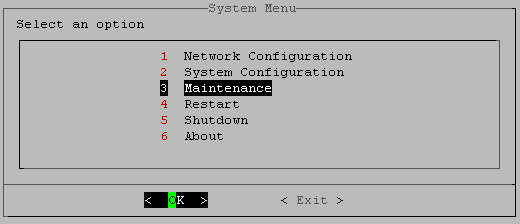
2. From the USM Anywhere Sensor console System Menu, select **Maintenance** and press **Enter**.
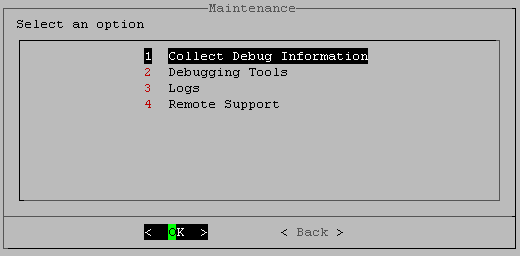
 3. From the Maintenance menu, select **Collect Debug Information** and press **Enter**.
 4. In the confirmation screen, select **Yes** and press **Enter**.
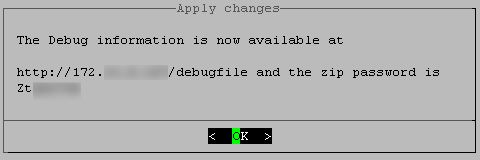
When the collection process is complete, you see an alert message. This provides the URL for the file and the password.
4. In the confirmation screen, select **Yes** and press **Enter**.
When the collection process is complete, you see an alert message. This provides the URL for the file and the password.
 5. Press **Enter**.
6. Download the debug file and attach it to your support case.
Make sure to update the support case information to include the file password.
5. Press **Enter**.
6. Download the debug file and attach it to your support case.
Make sure to update the support case information to include the file password.