> ## Documentation Index
> Fetch the complete documentation index at: https://docs.levelblue.com/llms.txt
> Use this file to discover all available pages before exploring further.
# Checking Connectivity to the Remote Server
Before you can remotely connect with LevelBlue Technical Support, you need to verify your connection to the Remote Support server from the sensor. The USM Anywhere Sensor uses port 22 and 443 for SSH communications with the USM Anywhere Remote Support server. If there is an issue with your connectivity, make sure that port 22 and 443 are open to `prod-usm-saas-tractorbeam.alienvault.cloud` or `prod-gov-usm-saas-tractorbeam.gov.alienvault.us` (for LevelBlue TDR for Gov). If the ports are open and *you still have no connectivity*, check for any other physical problem on your side. If none are found, contact LevelBlue Technical Support to find out if their server is temporarily down.
**To check the network connectivity for the sensor**
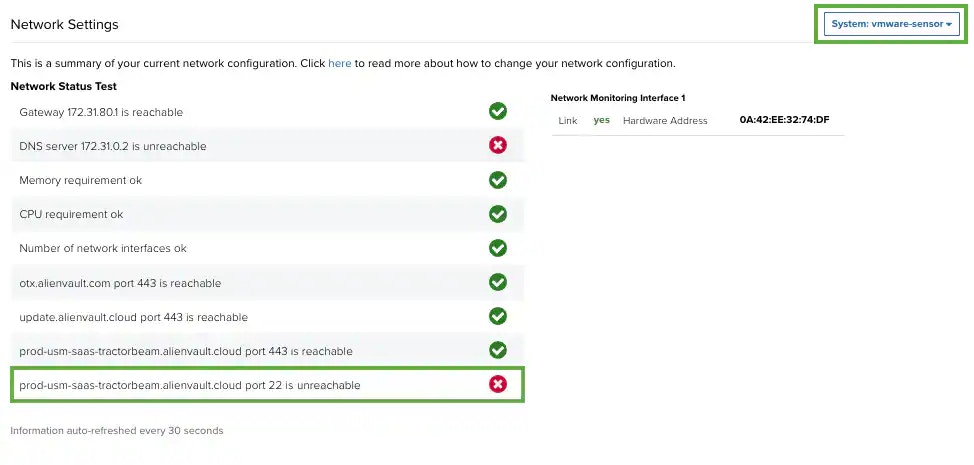
1. While logged in to USM Anywhere, check your networking status by going to **Settings > System**.
2. If you have more than one deployed sensor, select the one that you want to verify.
If the page reports that this endpoint is unreachable, you may have a problem.
 **To verify remote support connectivity directly on the USM Anywhere Sensor**
1. Open your virtualization management console and connect to the USM Anywhere Sensor virtual machine (VM).
**Important:** Alternatively, you can open an SSH session to the sensor VM. When using an SSH session, the default username is *sysadmin*.
If you are accessing a Microsoft Azure Sensor through SSH and you specified a username other than the default (*sysadmin*) for your SSH access, you must use the following commands at the command line to "sudo up" and access the sensor console:
```
# sudo su – sysadmin
```
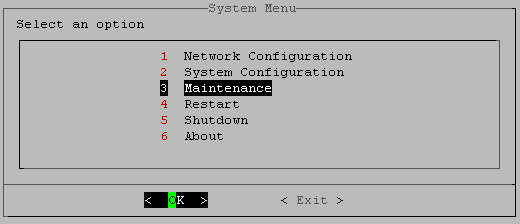
2. From the USM Anywhere Sensor console System Menu, select **Maintenance** and press **Enter**.
**To verify remote support connectivity directly on the USM Anywhere Sensor**
1. Open your virtualization management console and connect to the USM Anywhere Sensor virtual machine (VM).
**Important:** Alternatively, you can open an SSH session to the sensor VM. When using an SSH session, the default username is *sysadmin*.
If you are accessing a Microsoft Azure Sensor through SSH and you specified a username other than the default (*sysadmin*) for your SSH access, you must use the following commands at the command line to "sudo up" and access the sensor console:
```
# sudo su – sysadmin
```
2. From the USM Anywhere Sensor console System Menu, select **Maintenance** and press **Enter**.
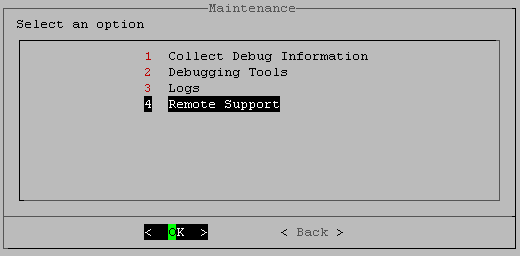
 3. From the Maintenance menu, select **Remote Support** and press **Enter**.
 4. From the Remote Support menu, select **Show Remote Support Status**, press the arrow-down (↓) key, and then **Enter**.
The system displays an alert message that the check is in progress.
4. From the Remote Support menu, select **Show Remote Support Status**, press the arrow-down (↓) key, and then **Enter**.
The system displays an alert message that the check is in progress.
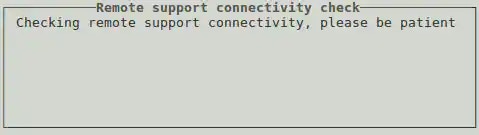 When the check is complete with a connection, you see a success alert.
If there's no connection, the system displays an alert message that the remote server is unreachable.
When the check is complete with a connection, you see a success alert.
If there's no connection, the system displays an alert message that the remote server is unreachable.
 **Note:** If the system does make a connection, you see a success prompt.
5. Press **Enter**.
**Note:** If the system does make a connection, you see a success prompt.
5. Press **Enter**.