> ## Documentation Index
> Fetch the complete documentation index at: https://docs.levelblue.com/llms.txt
> Use this file to discover all available pages before exploring further.
# Creating a Remote Support Session
After you [confirm that you have a connection](remote-support-connectivity) to LevelBlue Technical Support, you are ready to start a session. When LevelBlue Technical Support Engineers complete their work on an issue, they communicate the results to you by email and update your ticket.
Note: USM Anywhere provides an audit trail of the LevelBlue Technical Support Engineers accessing your instance by creating a temporary user with the username of `@alienvault.com`. These users are disabled after the session ends, and you can view them under Settings > Users.
**To enable remote sensor support**
1. Open your virtualization management console and connect to the USM Anywhere Sensor virtual machine (VM).
**Important:** Alternatively, you can open an SSH session to the sensor VM. When using an SSH session, the default username is *sysadmin*.
If you are accessing a Microsoft Azure Sensor through SSH and you specified a username other than the default (*sysadmin*) for your SSH access, you must use the following commands at the command line to "sudo up" and access the sensor console:
```
# sudo su – sysadmin
```
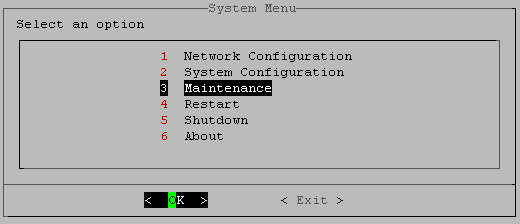
2. From the USM Anywhere Sensor console System Menu, select **Maintenance** and press **Enter**.
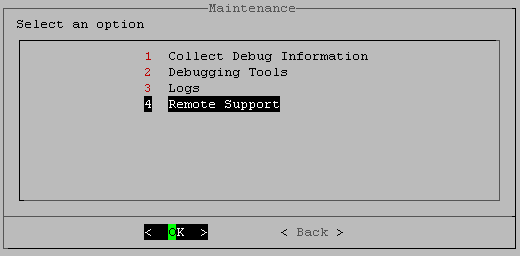
 3. From the Maintenance menu, select **Remote Support** and press **Enter**.
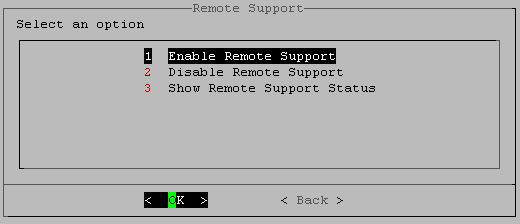
 4. From the **Remote Support** menu, select **Enable Remote Support** and press Enter ( **\< OK >** )
 5. On the **Enable Remote Support** screen, enter the eight-digit ticket number and press Enter ( **\< OK >** )
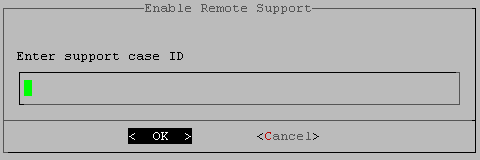 **Important:** Be careful not to enter any spaces before or after the number or the operation will fail.
A progress bar appears and your request begins processing, which may take several seconds.
When the connection is established with the Support server, the system displays a connection message.
```
Connected to LevelBlue Support. Press Enter to continue.
```
6. Press Enter.
The USM Anywhere Sensor console returns you to the to the Remote Support screen.
7. To disconnect after your session is done, select **Disable Remote Support** and press **Enter**.
The **Manage Connectivity** information screen appears and prompts you to confirm.
```
Are you sure you want to disconnect from LevelBlue Remote Support?
```
8. Select **Yes**.
The screen goes black and, after several seconds, you receive a notification that the secure connection is now disconnected. You can then back out of the previous menus and close the sensor console.
**Important:** Be careful not to enter any spaces before or after the number or the operation will fail.
A progress bar appears and your request begins processing, which may take several seconds.
When the connection is established with the Support server, the system displays a connection message.
```
Connected to LevelBlue Support. Press Enter to continue.
```
6. Press Enter.
The USM Anywhere Sensor console returns you to the to the Remote Support screen.
7. To disconnect after your session is done, select **Disable Remote Support** and press **Enter**.
The **Manage Connectivity** information screen appears and prompts you to confirm.
```
Are you sure you want to disconnect from LevelBlue Remote Support?
```
8. Select **Yes**.
The screen goes black and, after several seconds, you receive a notification that the secure connection is now disconnected. You can then back out of the previous menus and close the sensor console.