> ## Documentation Index
> Fetch the complete documentation index at: https://docs.levelblue.com/llms.txt
> Use this file to discover all available pages before exploring further.
# Add Additional Sensor for Other GCP Subscriptions
After you set up your initial USM Anywhere Sensor in your Google Cloud Platform (GCP) environment, you can generate the license key for any new sensor you intend to add for other GCP subscriptions from within the USM Anywhere web user interface (UI).
**Note:** The number of sensors that you can add to your environment depends on your USM Anywhere license. You can go to **Settings > My Subscription** to view the number of licensed sensors. See [Subscription Management](../../user-guide/subscription-management/my-subscription) for more information.
**To add an additional USM Anywhere Sensor for GCP**
1. In USM Anywhere, go to **Data Sources > Sensors**.
2. Click **New Sensor**.
The dialog box displays an authentication code for the new sensor.
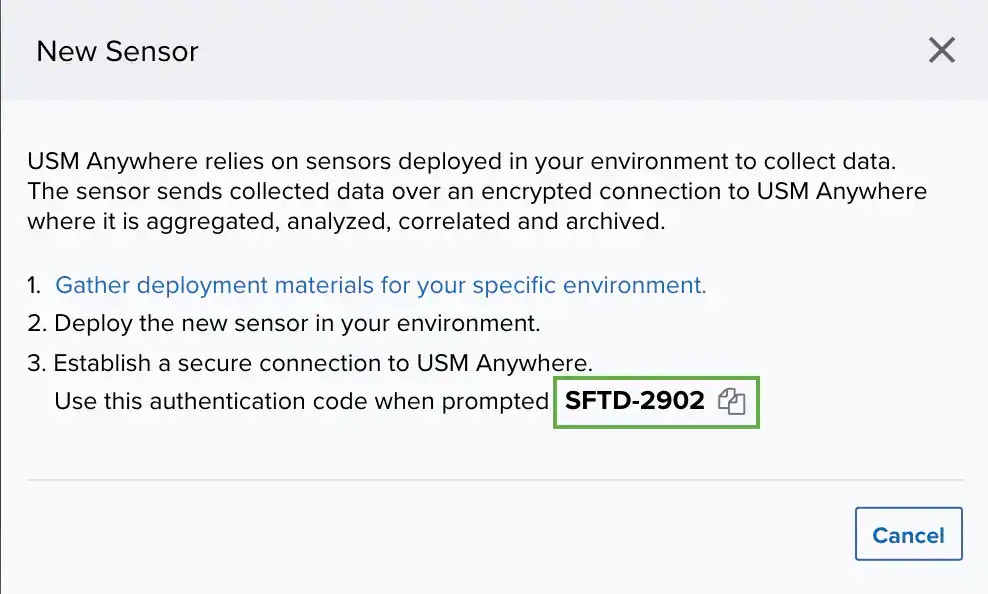 3. Click the
  icon to copy the code to your clipboard.
You should paste this code to another location for use later and keep USM Anywhere open in the background.
4. Deploy the sensor virtual machine (VM) in your GCP subscription, as described in [Deploy the GCP Sensor](manually-deploying-gcp-sensor).
5. Use the URL or public IP address to access the USM Anywhere sensor registration, as described in [Connect the GCP Sensor to USM Anywhere](gcp-sensor-setup).
6. When you get to the Welcome to USM Anywhere Sensor Setup! page, it prompts you to provide the information for registering the additional sensor with your USM Anywhere instance:
* Enter a **Sensor Name** and **Sensor Description**.
* Paste the sensor authentication code you copied into the field with the
icon to copy the code to your clipboard.
You should paste this code to another location for use later and keep USM Anywhere open in the background.
4. Deploy the sensor virtual machine (VM) in your GCP subscription, as described in [Deploy the GCP Sensor](manually-deploying-gcp-sensor).
5. Use the URL or public IP address to access the USM Anywhere sensor registration, as described in [Connect the GCP Sensor to USM Anywhere](gcp-sensor-setup).
6. When you get to the Welcome to USM Anywhere Sensor Setup! page, it prompts you to provide the information for registering the additional sensor with your USM Anywhere instance:
* Enter a **Sensor Name** and **Sensor Description**.
* Paste the sensor authentication code you copied into the field with the  icon.
* Copy the URL of your existing USM Anywhere instance and paste it into the field with the Computer (
icon.
* Copy the URL of your existing USM Anywhere instance and paste it into the field with the Computer ( ).
For example, if the subdomain with which you registered with LevelBlue was "mycompany," the URL would be `mycompany.alienvault.cloud` or `mycompany.gov.alienvault.us` (for LevelBlue TDR for Gov).
).
For example, if the subdomain with which you registered with LevelBlue was "mycompany," the URL would be `mycompany.alienvault.cloud` or `mycompany.gov.alienvault.us` (for LevelBlue TDR for Gov).
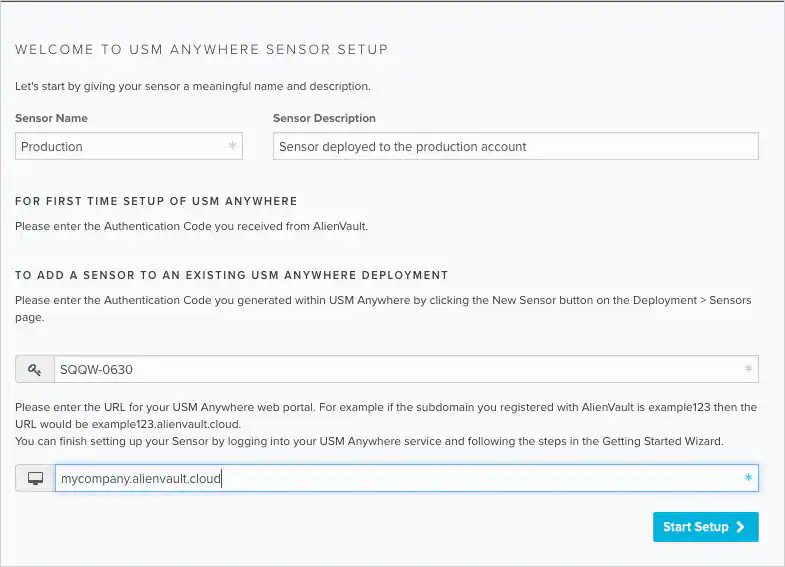 * Click **Start Setup**.
A progress dialog box displays a status message.
`Connecting USM Anywhere Sensor`
When the connection is complete, a Welcome page opens.
* Click **Start Setup**.
A progress dialog box displays a status message.
`Connecting USM Anywhere Sensor`
When the connection is complete, a Welcome page opens.
 7. Click the link to open the USM Anywhere web UI.
Upon login, this displays the USM Anywhere Sensor Configuration page with the connected sensor listed in the page.
8. Click **Configure** to [complete the sensor setup](configure-sensor-gcp).
If you do not want to complete the sensor setup immediately, you can click **Start Using USM Anywhere** at the bottom of the page. However, you must complete the sensor setup before you can use it.
**Note:** Although you can wait to configure the new sensor at a more convenient time, LevelBlue strongly recommends that you do so now.
To view other related training videos, [click here](https://cybersecurity.att.com/training/self-paced-training).
7. Click the link to open the USM Anywhere web UI.
Upon login, this displays the USM Anywhere Sensor Configuration page with the connected sensor listed in the page.
8. Click **Configure** to [complete the sensor setup](configure-sensor-gcp).
If you do not want to complete the sensor setup immediately, you can click **Start Using USM Anywhere** at the bottom of the page. However, you must complete the sensor setup before you can use it.
**Note:** Although you can wait to configure the new sensor at a more convenient time, LevelBlue strongly recommends that you do so now.
To view other related training videos, [click here](https://cybersecurity.att.com/training/self-paced-training).