> ## Documentation Index
> Fetch the complete documentation index at: https://docs.levelblue.com/llms.txt
> Use this file to discover all available pages before exploring further.
# Create the Hyper-V Virtual Machine
The first tasks in deploying the Microsoft Hyper-V Sensor are to create, configure, and start the virtual machine (VM) using either the Microsoft System Center Virtual Machine Manager (SCVMM) 2012 or Microsoft Hyper-V Manager. Before you begin these tasks, download the Hyper-V Sensor package from LevelBlue.
**To download the Hyper-V package**
1. Go to the [USM Anywhere Sensor Downloads](https://www.levelblue.com/products/usm-anywhere/sensor-downloads) page and click the icon of your specific sensor. After clicking, your browser starts to download the USM Anywhere Sensor package. Depending on your Internet connection, the download can take 30 minutes or more.
2. Extract the USM Anywhere Sensor package and place the files where they are accessible from your Hyper-V management tool.
## Create the VM with SCVMM 2012
Follow these procedures to create and start the VM using SCVMM 2012.
**To create a VM with SCVMM 2012**
1. Connect to the SCVMM 2012.
2. Select **Library > VM Templates**.
3. Select the LevelBlue VM template under VM Templates, and then click **Create Virtual Machine**.
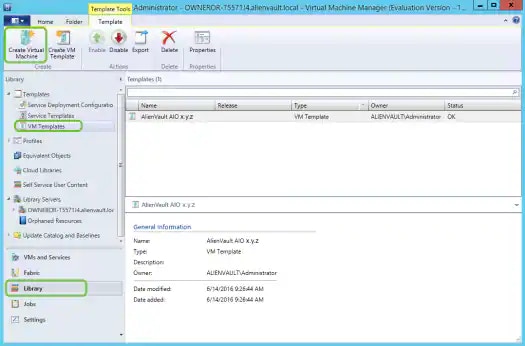 4. Enter a name for the VM, and then click **Next**.
5. In Configure Hardware, click **Next**.
6. In Select Destination, choose whether to deploy or store the VM, and then click **Next**.
7. In Select Host, select a destination for the VM, and then click **Next**.
8. In Configure Settings, review the VM settings, and then click **Next**.
9. In Add Properties, change the automatic actions if necessary, and then click **Next**.
10. In Summary, confirm the settings and then click **Next**.
The Jobs window opens and shows the VM being created.
4. Enter a name for the VM, and then click **Next**.
5. In Configure Hardware, click **Next**.
6. In Select Destination, choose whether to deploy or store the VM, and then click **Next**.
7. In Select Host, select a destination for the VM, and then click **Next**.
8. In Configure Settings, review the VM settings, and then click **Next**.
9. In Add Properties, change the automatic actions if necessary, and then click **Next**.
10. In Summary, confirm the settings and then click **Next**.
The Jobs window opens and shows the VM being created.
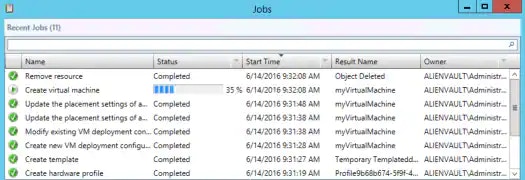 After the VM is created, you can close the window.
**To start the VM and connect**
1. Right-click the VM and select **Power On**.
This process could take a few minutes. The Virtual Machine State will display as Running when this is complete.
2. Right-click the VM and select **Connect or View > Connect via Console**.
After the VM is created, you can close the window.
**To start the VM and connect**
1. Right-click the VM and select **Power On**.
This process could take a few minutes. The Virtual Machine State will display as Running when this is complete.
2. Right-click the VM and select **Connect or View > Connect via Console**.
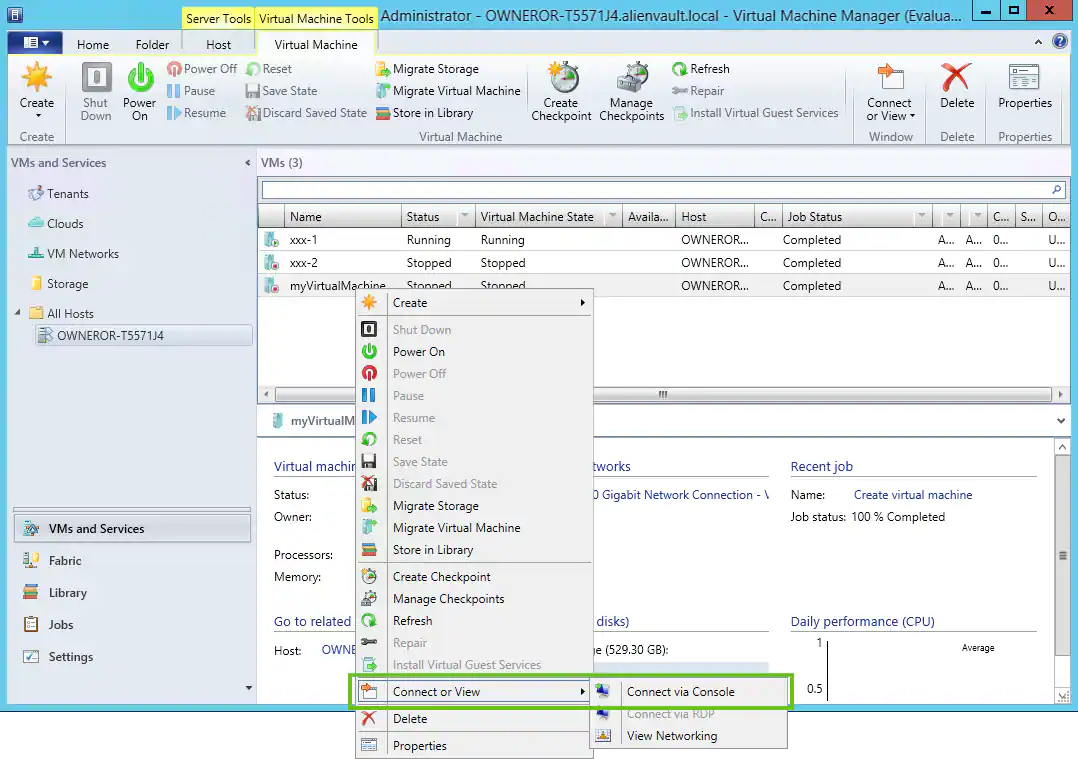 Use the information in the Welcome screen to log in to the sensor. This screen also displays the URL you can use to access USM Anywhere and register the sensor.
## Create the VM with Hyper-V Manager
Follow these procedures to create and start the VM using Hyper-V Manager.
**To create a new VM with Hyper-V Manager**
1. Open the Hyper-V Manager and connect to the server.
2. From the Actions panel, go to **New > Virtual Machine**.
The New Virtual Machine Wizard launches.
3. Click **Next**.
4. In Specify Name and Location, enter a name for the new VM, and then click Next.
Use the information in the Welcome screen to log in to the sensor. This screen also displays the URL you can use to access USM Anywhere and register the sensor.
## Create the VM with Hyper-V Manager
Follow these procedures to create and start the VM using Hyper-V Manager.
**To create a new VM with Hyper-V Manager**
1. Open the Hyper-V Manager and connect to the server.
2. From the Actions panel, go to **New > Virtual Machine**.
The New Virtual Machine Wizard launches.
3. Click **Next**.
4. In Specify Name and Location, enter a name for the new VM, and then click Next.
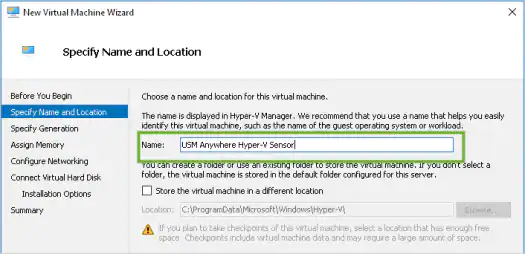 5. In Specify Generation, choose **Generation 1** for the virtual machine, and then click **Next**.
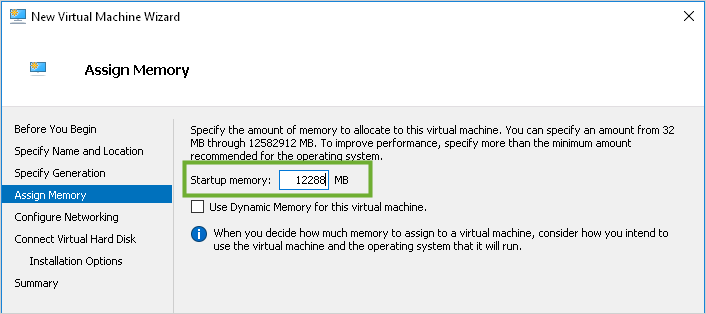
6. In Assign Memory, change the value of the Startup memory to **12288 MB**.
**Important:** Make sure that the Use Dynamic Memory option is not selected.
Click **Next** when complete.
5. In Specify Generation, choose **Generation 1** for the virtual machine, and then click **Next**.
6. In Assign Memory, change the value of the Startup memory to **12288 MB**.
**Important:** Make sure that the Use Dynamic Memory option is not selected.
Click **Next** when complete.
 7. In Configure Networking, connect the new VM to the desired network, and then click **Next**.
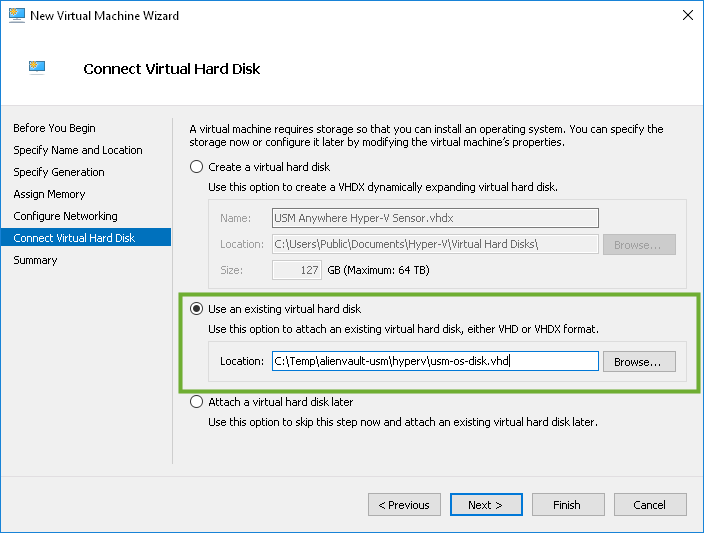
8. In Connect Virtual Hard Disk, select **Use an existing virtual hard disk**, and then click **Browse** to locate the usm-os-disk.vhd file that was extracted from the USM Anywhere Sensor package download.
**Note:** You will add the data disk later in another step because the wizard doesn't support this.
7. In Configure Networking, connect the new VM to the desired network, and then click **Next**.
8. In Connect Virtual Hard Disk, select **Use an existing virtual hard disk**, and then click **Browse** to locate the usm-os-disk.vhd file that was extracted from the USM Anywhere Sensor package download.
**Note:** You will add the data disk later in another step because the wizard doesn't support this.
 9. In Complete the New Virtual Machine Wizard, click **Next** and then **Finish**.
**To configure a VM using the Hyper-V Manager**
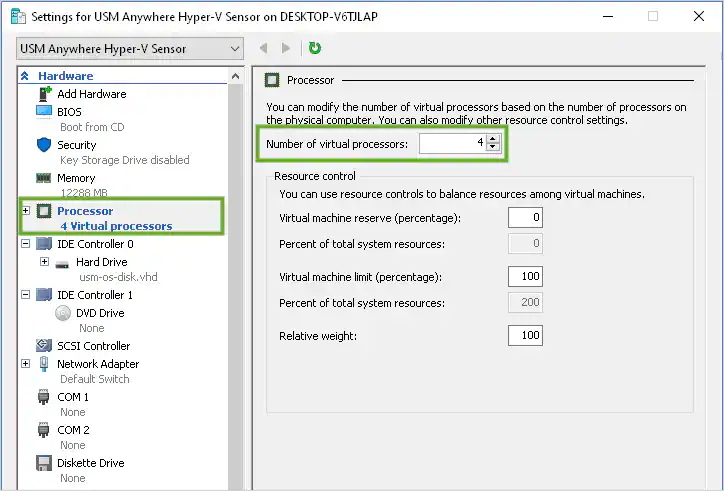
1. Select the VM you previously created, and then select **Action > Settings**.
2. In the left navigation menu of the dialog box, select **Processor**, and then set the number of virtual processors to **4**.
9. In Complete the New Virtual Machine Wizard, click **Next** and then **Finish**.
**To configure a VM using the Hyper-V Manager**
1. Select the VM you previously created, and then select **Action > Settings**.
2. In the left navigation menu of the dialog box, select **Processor**, and then set the number of virtual processors to **4**.
 3. Click **Apply**.
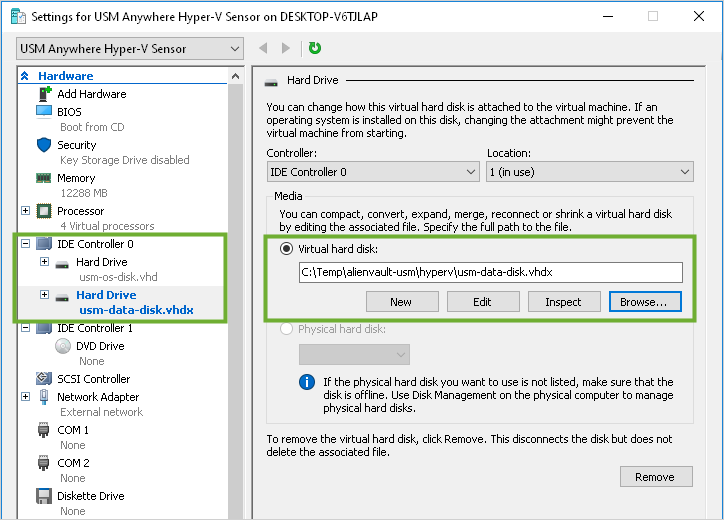
4. In the left navigation menu, select **IDE Controller 0**.
5. Select **Hard Drive**, click **Add**, and then click **Browse** to locate the `usm-data-disk.vhdx` file that was part of the USM Anywhere Sensor download.
3. Click **Apply**.
4. In the left navigation menu, select **IDE Controller 0**.
5. Select **Hard Drive**, click **Add**, and then click **Browse** to locate the `usm-data-disk.vhdx` file that was part of the USM Anywhere Sensor download.
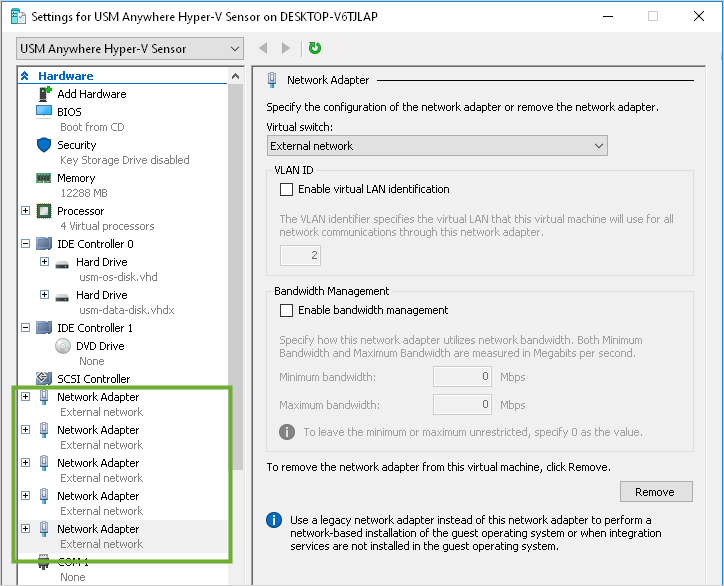
 6. In the top-left corner of the dialog box, click **Add Hardware**, and then select **Network Adapter > Add** to add additional network adapters.
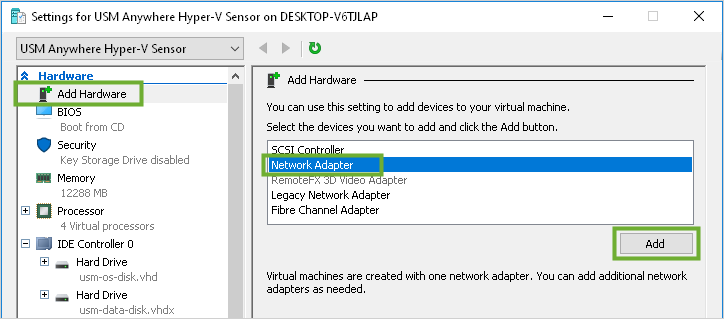 Repeat this function so that you have a total of five network adapters.
**Warning:** The Hyper-V Sensor requires \*all five network interface cards (NICs) \*to be enabled; otherwise, the USM Anywhere update will fail. The NICs can remain disconnected.
See [Configure Network Interfaces for On-Premises Sensors](../setup/configuring-network) for more information about these interfaces.
Repeat this function so that you have a total of five network adapters.
**Warning:** The Hyper-V Sensor requires \*all five network interface cards (NICs) \*to be enabled; otherwise, the USM Anywhere update will fail. The NICs can remain disconnected.
See [Configure Network Interfaces for On-Premises Sensors](../setup/configuring-network) for more information about these interfaces.
 7. Click **OK**.
8. Configure the ISO file for the datastore.
**Warning:** You must complete this step and ensure that the ISO is mounted before you start the sensor VM for the first time.
If you see REPLACEME as the initial login password in the sensor welcome screen when you connect to the VM, it is most likely that the ISO was not mounted before the sensor was started. If this happens, you must shut down the VM, complete this step so that the ISO is configured for the datastore, and then begin the deployment process anew.
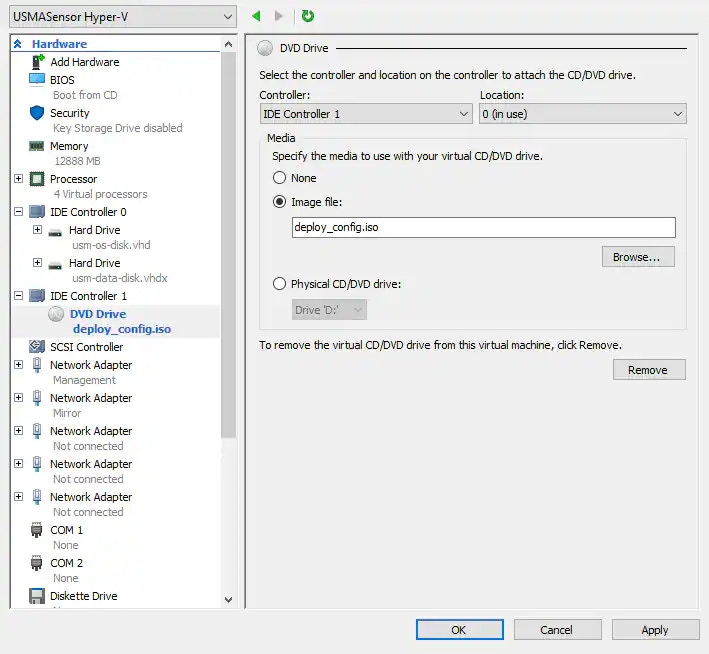
* Select **IDE Controller 1 > DVD Drive**.
* Select **Image file**, and then click **Browse** to locate the deploy\_config.iso image file that was extracted from the USM Anywhere Sensor package download.
* Click **Apply**.
7. Click **OK**.
8. Configure the ISO file for the datastore.
**Warning:** You must complete this step and ensure that the ISO is mounted before you start the sensor VM for the first time.
If you see REPLACEME as the initial login password in the sensor welcome screen when you connect to the VM, it is most likely that the ISO was not mounted before the sensor was started. If this happens, you must shut down the VM, complete this step so that the ISO is configured for the datastore, and then begin the deployment process anew.
* Select **IDE Controller 1 > DVD Drive**.
* Select **Image file**, and then click **Browse** to locate the deploy\_config.iso image file that was extracted from the USM Anywhere Sensor package download.
* Click **Apply**.
 9. Click **OK** and close the dialog box.
**To start the VM and connect**
1. Select the VM and select **Action > Start**.
This process can take a few minutes. The status displays as Running when this is complete.
2. Select your VM and select **Action > Connect**.
Use the information in the Welcome screen to log in to the sensor. This screen also displays the URL you can use to access USM Anywhere and register the sensor.
See [Set Up USM Anywhere on the Hyper-V Virtual Machine](hyperv-vm-sensor)
9. Click **OK** and close the dialog box.
**To start the VM and connect**
1. Select the VM and select **Action > Start**.
This process can take a few minutes. The status displays as Running when this is complete.
2. Select your VM and select **Action > Connect**.
Use the information in the Welcome screen to log in to the sensor. This screen also displays the URL you can use to access USM Anywhere and register the sensor.
See [Set Up USM Anywhere on the Hyper-V Virtual Machine](hyperv-vm-sensor)