> ## Documentation Index
> Fetch the complete documentation index at: https://docs.levelblue.com/llms.txt
> Use this file to discover all available pages before exploring further.
# Set Up an Amazon SNS Topic
When using Amazon Simple Notification Service (SNS), you create a topic and control access to it by defining policies that determine which publishers and subscribers can communicate with the topic. As a publisher, USM Anywhere can then send messages (notifications) to topics for which it has the needed credentials (access key).
According to the [Amazon Web Services (AWS) Documentation](https://docs.aws.amazon.com/sns/latest/dg/sns-lambda-as-subscriber.html), when an Amazon SNS topic has an AWS Lambda function subscribed to it, it invokes the AWS Lambda function with the payload of a published message. The AWS Lambda function receives the message as an input parameter. It can manipulate the information in the message, publish the message to other Amazon SNS topics, or send the message to other AWS services.
**To set up an Amazon SNS topic for USM Anywhere notifications**
The steps below are generally for the mandatory configuration of an SNS topic. Additional configuration may be done if necessary.
1. Log in to your AWS account and go to the Amazon SNS console.
2. Create a new Amazon SNS topic in the AWS [SNS dashboard](https://console.aws.amazon.com/sns/v2/home?region=us-east-1) page:
* Click **Topics**.
* Click **Create topic**.
* For **Type**, select the **Standard** option.
FIFO topics are currently not supported in USM Anywhere.
* Enter a **Name** for the topic and a **Display Name**.
* Click **Create topic**.
**To create an AWS Lambda function for USM Anywhere notifications**
1. Open the [AWS Lambda](https://console.aws.amazon.com/lambda/home?region=us-east-1#/home) page and click **Create a function**.
2. Click **Author from scratch**.
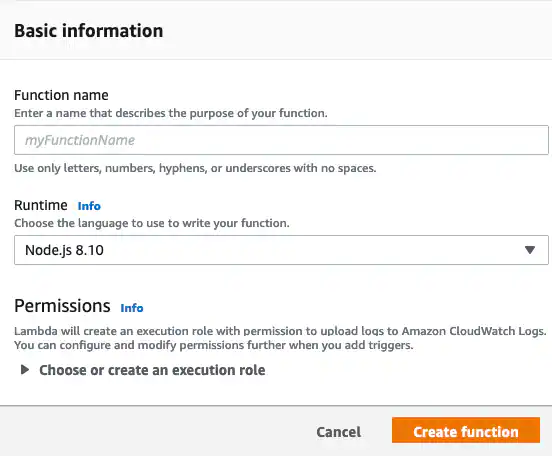
3. Create a new AWS Lambda function:
* Enter a **Function Name**.
* In the **Runtime** menu, select the current version of Python.
* In the **Execution Role** section, you may create a new role with basic AWS Lambda permissions, use an existing role, or create a new role from AWS policy templates.
* Click **Create Function**.
 4. Assign it to the Amazon SNS topic:
* Click **Add Trigger**.
* Select **SNS** from the list.
* Enter the **Amazon Resource Name** (ARN) of the Amazon SNS topic your created.
* Select **Enable Trigger**.
* Click **Add**.
5. Select the **AWS Lambda** function:
* Enter the following code to send the populated fields from an alarm or event in USM Anywhere:
```python theme={null}
import json
def lambda_handler(event, context):
message = json.loads(event['Records'][0]['Sns']['Message'])
print("JSON: " + json.dumps(message))
return message
```
**Note:** LevelBlue cannot provide a list of fields specific to Amazon SNS because the list varies depending on each data source.
* Under **Basic settings**, set **Timeout to 10 seconds**.
* Click **Save**.
If not done already, you need to [create an access key](create-aws-key) in AWS for USM Anywhere to communicate with the AWS APIs.
4. Assign it to the Amazon SNS topic:
* Click **Add Trigger**.
* Select **SNS** from the list.
* Enter the **Amazon Resource Name** (ARN) of the Amazon SNS topic your created.
* Select **Enable Trigger**.
* Click **Add**.
5. Select the **AWS Lambda** function:
* Enter the following code to send the populated fields from an alarm or event in USM Anywhere:
```python theme={null}
import json
def lambda_handler(event, context):
message = json.loads(event['Records'][0]['Sns']['Message'])
print("JSON: " + json.dumps(message))
return message
```
**Note:** LevelBlue cannot provide a list of fields specific to Amazon SNS because the list varies depending on each data source.
* Under **Basic settings**, set **Timeout to 10 seconds**.
* Click **Save**.
If not done already, you need to [create an access key](create-aws-key) in AWS for USM Anywhere to communicate with the AWS APIs.