> ## Documentation Index
> Fetch the complete documentation index at: https://docs.levelblue.com/llms.txt
> Use this file to discover all available pages before exploring further.

# Proxy Configuration on the USM Anywhere Sensor

USM Anywhere enables you to configure a proxy server on the USM Anywhere Sensor.

<Warning>
  **Important:** With this proxy configuration, you will still need to open a direct connection to your USM Anywhere instance via TCP port 7100. This connection is required to forward all events and data, and to distribute configuration changes to and from your sensor. See the [deployment requirements](../admin/usm-anywhere-deploy-reqs) for your sensor to read more about required port configurations.
</Warning>

<Danger>
  **Warning:** Even if a proxy server is configured, some scripts corresponding with netcat and traceroute tools will direct through port 443.
</Danger>

**To configure a proxy server**

1. Open your virtualization management console and connect to the USM Anywhere Sensor virtual machine (VM).

   <Warning>
     Important: Alternatively, you can open an SSH session to the sensor VM. When using an SSH session, the default username is sysadmin.

     If you are accessing a Microsoft Azure Sensor through SSH and you specified a username other than the default (sysadmin) for your SSH access, you must use the following commands at the command line to "sudo up" and access the sensor console:

     ```
     # sudo su – sysadmin
     ```
   </Warning>

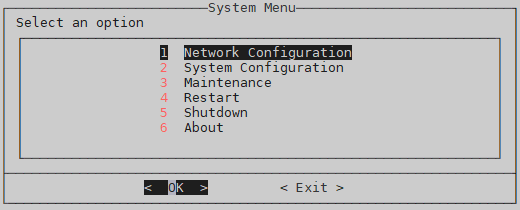
2. From the USM Anywhere Sensor console System Menu, select **Network Configuration**, and then press **Enter**.
   <Frame>
     <img src="https://mintcdn.com/levelblue-5324744e/xOkkFcWcXtj_Ev_v/images/usm-anywhere/deployment-guide/remotesupport/0systemmenu1networkconf.png?fit=max&auto=format&n=xOkkFcWcXtj_Ev_v&q=85&s=46a17fbc45e95bf33984701519354212" width="520" height="210" data-path="images/usm-anywhere/deployment-guide/remotesupport/0systemmenu1networkconf.png" />
   </Frame>

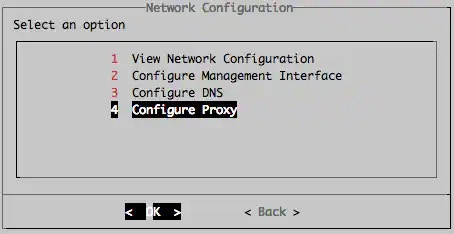
3. From the Network Configuration menu, select **Configure Proxy**, and then press **Enter**.
   <Frame>
     <img src="https://mintcdn.com/levelblue-5324744e/xOkkFcWcXtj_Ev_v/images/usm-anywhere/deployment-guide/remotesupport/configureproxy.webp?fit=max&auto=format&n=xOkkFcWcXtj_Ev_v&q=85&s=f1484f49539078d0c95e43d315358072" width="454" height="234" data-path="images/usm-anywhere/deployment-guide/remotesupport/configureproxy.webp" />
   </Frame>

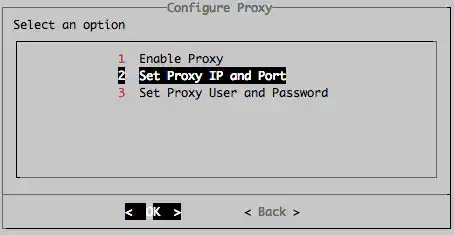
4. From the Configure Proxy menu, select **Set Proxy IP and Port**, and then press **Enter**.
   <Frame>
     <img src="https://mintcdn.com/levelblue-5324744e/AfONLtCE7tRfJ2MJ/images/usm-anywhere/deployment-guide/remotesupport/setproxyipandport.webp?fit=max&auto=format&n=AfONLtCE7tRfJ2MJ&q=85&s=a7ae53bfbb8e0c6f08998db302763fd7" width="454" height="235" data-path="images/usm-anywhere/deployment-guide/remotesupport/setproxyipandport.webp" />
   </Frame>

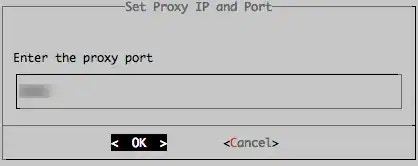
5. Enter the proxy port, and then press **Enter**.
   <Frame>
     <img src="https://mintcdn.com/levelblue-5324744e/xOkkFcWcXtj_Ev_v/images/usm-anywhere/deployment-guide/remotesupport/enterproxyport.webp?fit=max&auto=format&n=xOkkFcWcXtj_Ev_v&q=85&s=7e9cfa0659413f4d5d527b4aef53bebc" width="418" height="166" data-path="images/usm-anywhere/deployment-guide/remotesupport/enterproxyport.webp" />
   </Frame>

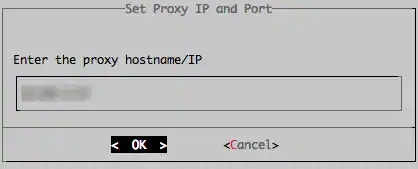
6. Enter the proxy hostname or IP address, and then press **Enter**.
   <Frame>
     <img src="https://mintcdn.com/levelblue-5324744e/xOkkFcWcXtj_Ev_v/images/usm-anywhere/deployment-guide/remotesupport/enterproxyhostnameip.webp?fit=max&auto=format&n=xOkkFcWcXtj_Ev_v&q=85&s=9e6f14f4797677727954c932c2039faa" width="418" height="169" data-path="images/usm-anywhere/deployment-guide/remotesupport/enterproxyhostnameip.webp" />
   </Frame>

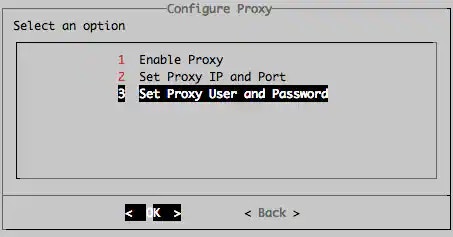
7. (Optional) Set a proxy user and password by selecting **Set Proxy User and Password**, and then pressing **Enter** from the Configure Proxy menu.
   <Frame>
     <img src="https://mintcdn.com/levelblue-5324744e/AfONLtCE7tRfJ2MJ/images/usm-anywhere/deployment-guide/remotesupport/setproxyuserandpassword.webp?fit=max&auto=format&n=AfONLtCE7tRfJ2MJ&q=85&s=a5ead5d3f6b86b87589e6f00dba50558" width="453" height="237" data-path="images/usm-anywhere/deployment-guide/remotesupport/setproxyuserandpassword.webp" />
   </Frame>

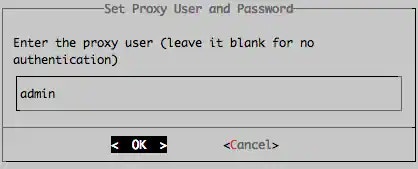
8. Enter the proxy user, and then press **Enter**.
   <Frame>
     <img src="https://mintcdn.com/levelblue-5324744e/xOkkFcWcXtj_Ev_v/images/usm-anywhere/deployment-guide/remotesupport/enterproxyuser.webp?fit=max&auto=format&n=xOkkFcWcXtj_Ev_v&q=85&s=7029ee5ba12aa24f12834b5d8cbc265b" width="418" height="169" data-path="images/usm-anywhere/deployment-guide/remotesupport/enterproxyuser.webp" />
   </Frame>

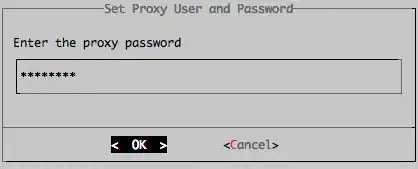
9. Enter the proxy password, and then press **Enter**.
   <Frame>
     <img src="https://mintcdn.com/levelblue-5324744e/xOkkFcWcXtj_Ev_v/images/usm-anywhere/deployment-guide/remotesupport/enterproxypassword.webp?fit=max&auto=format&n=xOkkFcWcXtj_Ev_v&q=85&s=b14dd4b6b26d9faa1afa4f20ba1c8e2b" width="418" height="169" data-path="images/usm-anywhere/deployment-guide/remotesupport/enterproxypassword.webp" />
   </Frame>

10. From the Configure Proxy menu, select **Enable Proxy**, and then press **Enter**.

    <Frame>
      <img src="https://mintlify.s3.us-west-1.amazonaws.com/levelblue-5324744e/images/usm-anywhere/deployment-guide/remotesupport/enableproxy.webp" />
    </Frame>

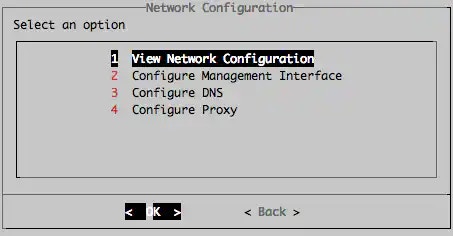
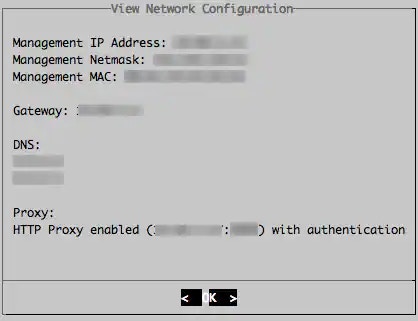
11. From the Network Configuration menu, you can check your proxy configuration by selecting **View Network Configuration**, and then pressing **Enter**.
    <Frame>
      <img src="https://mintcdn.com/levelblue-5324744e/AfONLtCE7tRfJ2MJ/images/usm-anywhere/deployment-guide/remotesupport/viewnetworkconfigurationoption.webp?fit=max&auto=format&n=AfONLtCE7tRfJ2MJ&q=85&s=12d7a1afe1e078cab867c2cfd76130ef" width="453" height="236" data-path="images/usm-anywhere/deployment-guide/remotesupport/viewnetworkconfigurationoption.webp" />
    </Frame>

    <Frame>
      <img src="https://mintcdn.com/levelblue-5324744e/AfONLtCE7tRfJ2MJ/images/usm-anywhere/deployment-guide/remotesupport/viewnetworkconfigurationproxyenabled.webp?fit=max&auto=format&n=AfONLtCE7tRfJ2MJ&q=85&s=5e9aee9c84ebc8958e12ec6528288895" width="418" height="321" data-path="images/usm-anywhere/deployment-guide/remotesupport/viewnetworkconfigurationproxyenabled.webp" />
    </Frame>
