> ## Documentation Index
> Fetch the complete documentation index at: https://docs.levelblue.com/llms.txt
> Use this file to discover all available pages before exploring further.
# Quick Start Guide for AWS Sensor
## Pre-installation Checklist
* AWS Console permission to create Identity and Access Management resources to deploy the CloudFormation template.
* Internet connection to USM Anywhere.
* Have administrative credentials for any Linux (ssh) and Windows (WinRM) instances on which you intend to run authenticated scans for vulnerabilities, software packages, and running services.
## AWS Sensor Deployment
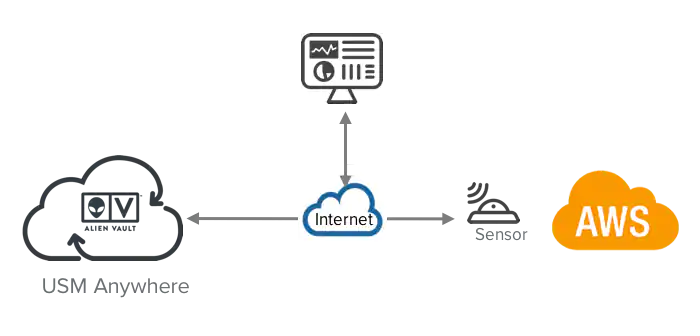 See [AWS Sensor Deployment](../deployment-guide/aws/about-usm-aws-sensor-deployment) for detailed information about how to deploy an AWS Sensor. The main steps are outlined below:
## 1. Install Sensor
See [AWS Sensor Deployment](../deployment-guide/aws/about-usm-aws-sensor-deployment) for detailed information about how to deploy an AWS Sensor. The main steps are outlined below:
## 1. Install Sensor
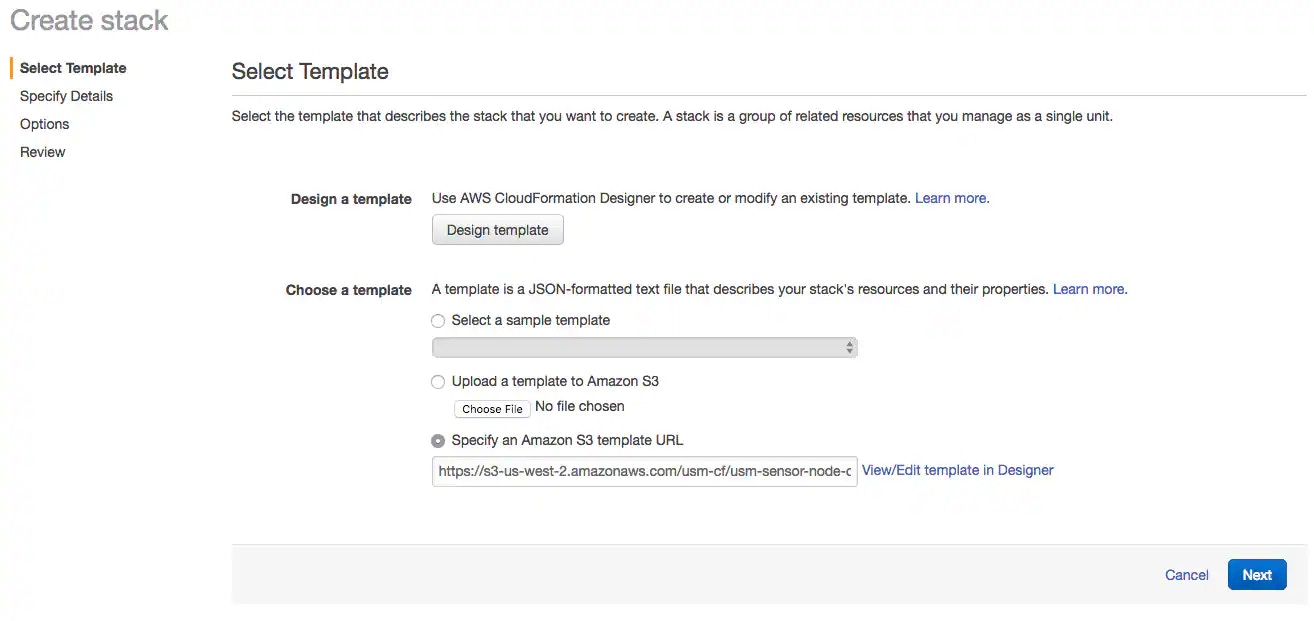 See [Deploy the AWS Sensor](../deployment-guide/aws/deploying-aws-sensor) for more information.
## 2. Connect Sensor to USM Anywhere
After deploying the sensor, you must connect it to through registration and configure the initial login credentials.
See [Deploy the AWS Sensor](../deployment-guide/aws/deploying-aws-sensor) for more information.
## 2. Connect Sensor to USM Anywhere
After deploying the sensor, you must connect it to through registration and configure the initial login credentials.
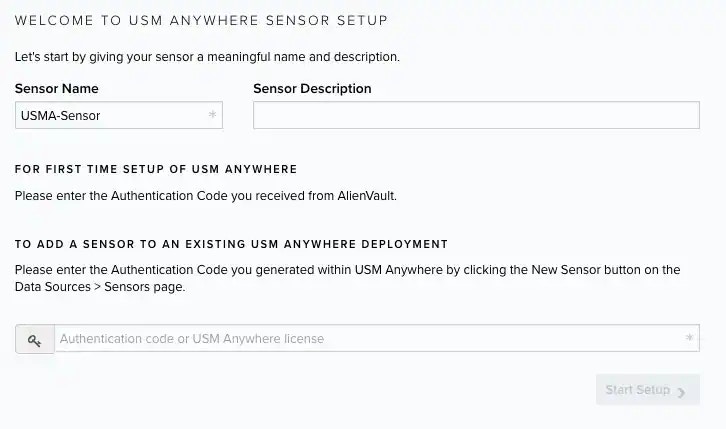 See [Connect the AWS Sensor to USM Anywhere](../deployment-guide/aws/aws-sensor-setup) for more information.
## 3. Launch the Setup Wizard
See [Connect the AWS Sensor to USM Anywhere](../deployment-guide/aws/aws-sensor-setup) for more information.
## 3. Launch the Setup Wizard
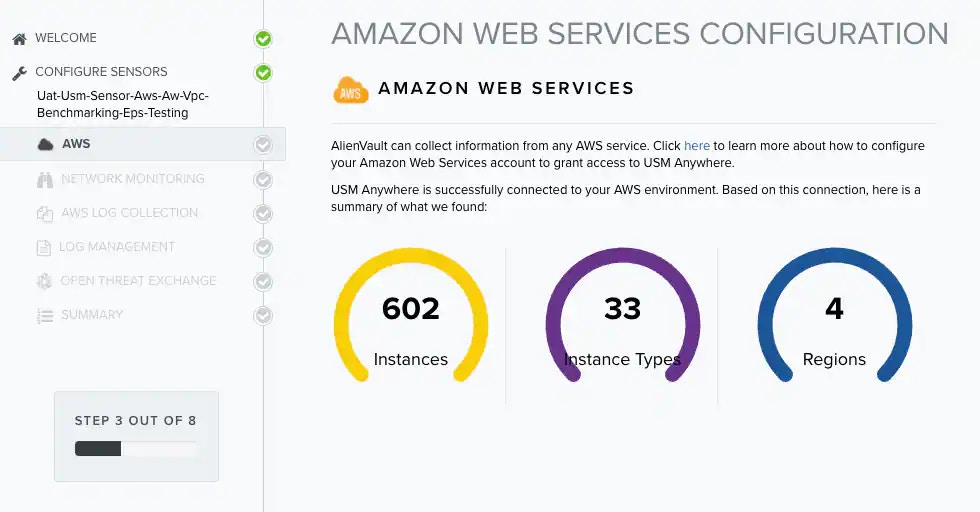 See [Complete the AWS Sensor Setup](../deployment-guide/aws/configure-sensor-aws) for more information.
## 4. Start Using USM Anywhere
See [Complete the AWS Sensor Setup](../deployment-guide/aws/configure-sensor-aws) for more information.
## 4. Start Using USM Anywhere
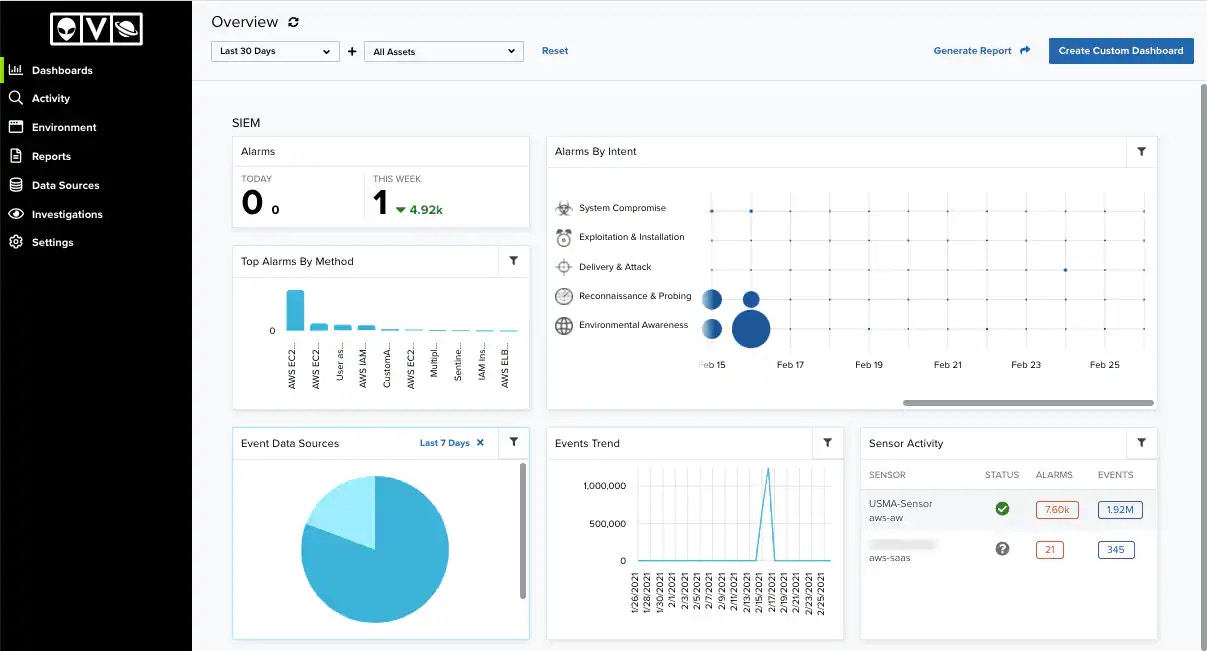 See [USM Anywhere User Guide](/documentation/usm-anywhere/user-guide/introduction) for more information.