> ## Documentation Index
> Fetch the complete documentation index at: https://docs.levelblue.com/llms.txt
> Use this file to discover all available pages before exploring further.
# Submitting a custom query
**To submit a custom query:**
1. Go to **Data Sources** > **Hunting Library**.
2. Click **Create Custom Query**. The **New Query** section appears.
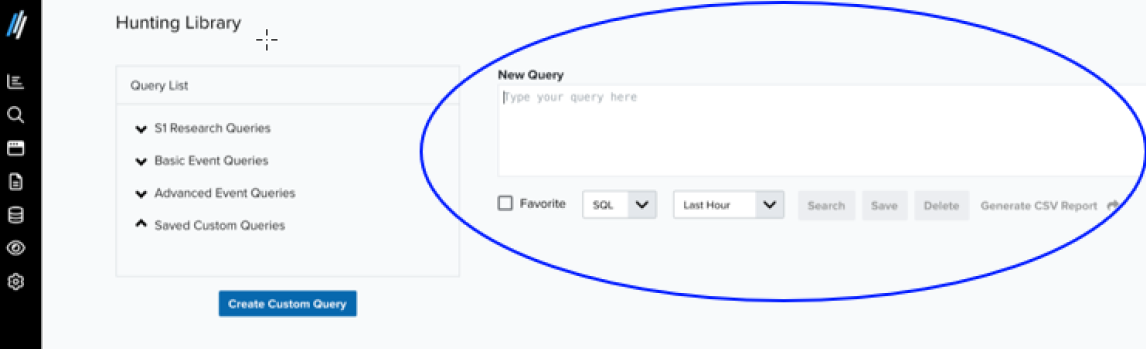 3. Enter and set your query:
* Enter your **New Query** using Structured Query Language (SQL) or Piped Processing Language (PPL) syntax.
* Select the **Favorite** checkbox for any new custom query that you want to appear at the top of the **Saved Custom Queries** list. See [Favorite a query](/documentation/usm-anywhere/user-guide/advanced-query/favorite-a-query).
* Select **SQL** or **PPL** as the query language from the dropdown list.
The selected language must match the syntax of your query; otherwise, it will not run. See [SQL Queries](/documentation/usm-anywhere/user-guide/advanced-query/sql-queries) and [PPL Queries](/documentation/usm-anywhere/user-guide/advanced-query/ppl-queries) for more information.
* Select the time range for your query. The default value is **Last Hour**.
4. Click Search to run the query. Results are displayed and can be generated in CSV format. Refer to [Generating CSV Report](/documentation/usm-anywhere/user-guide/advanced-query/generate-csv-report) for more information.
You may also save your custom query for future use. See [Saving a Query](/documentation/usm-anywhere/user-guide/advanced-query/save-a-query).
If you are unsure of a field name, refer to the [List of Fields](/documentation/usm-anywhere/user-guide/advanced-query/list-of-fields) for a complete list of available queryable fields across Events, Alarms, Vulnerabilities, and more.
3. Enter and set your query:
* Enter your **New Query** using Structured Query Language (SQL) or Piped Processing Language (PPL) syntax.
* Select the **Favorite** checkbox for any new custom query that you want to appear at the top of the **Saved Custom Queries** list. See [Favorite a query](/documentation/usm-anywhere/user-guide/advanced-query/favorite-a-query).
* Select **SQL** or **PPL** as the query language from the dropdown list.
The selected language must match the syntax of your query; otherwise, it will not run. See [SQL Queries](/documentation/usm-anywhere/user-guide/advanced-query/sql-queries) and [PPL Queries](/documentation/usm-anywhere/user-guide/advanced-query/ppl-queries) for more information.
* Select the time range for your query. The default value is **Last Hour**.
4. Click Search to run the query. Results are displayed and can be generated in CSV format. Refer to [Generating CSV Report](/documentation/usm-anywhere/user-guide/advanced-query/generate-csv-report) for more information.
You may also save your custom query for future use. See [Saving a Query](/documentation/usm-anywhere/user-guide/advanced-query/save-a-query).
If you are unsure of a field name, refer to the [List of Fields](/documentation/usm-anywhere/user-guide/advanced-query/list-of-fields) for a complete list of available queryable fields across Events, Alarms, Vulnerabilities, and more.