> ## Documentation Index
> Fetch the complete documentation index at: https://docs.levelblue.com/llms.txt
> Use this file to discover all available pages before exploring further.
# Alarms Settings
Role Availability | ✔️ Read-Only ✔️ Investigator ✔️ Analyst ✔️ Manager
The alarm settings in USM Anywhere allow you to enable the critical alarm for your events with a priority score of more than 90. Having this new priority level allows you to sort and manage your most urgent alarms and triggers. When a critical alarm is triggered, the tagged event is triaged and addressed immediately.
**To enable critical alarm priority:**
1. Go to **Settings** > **System**, and then select **Alarm Settings**.
2. Switch the **Enable Critical Priority for Alarms** toggle.
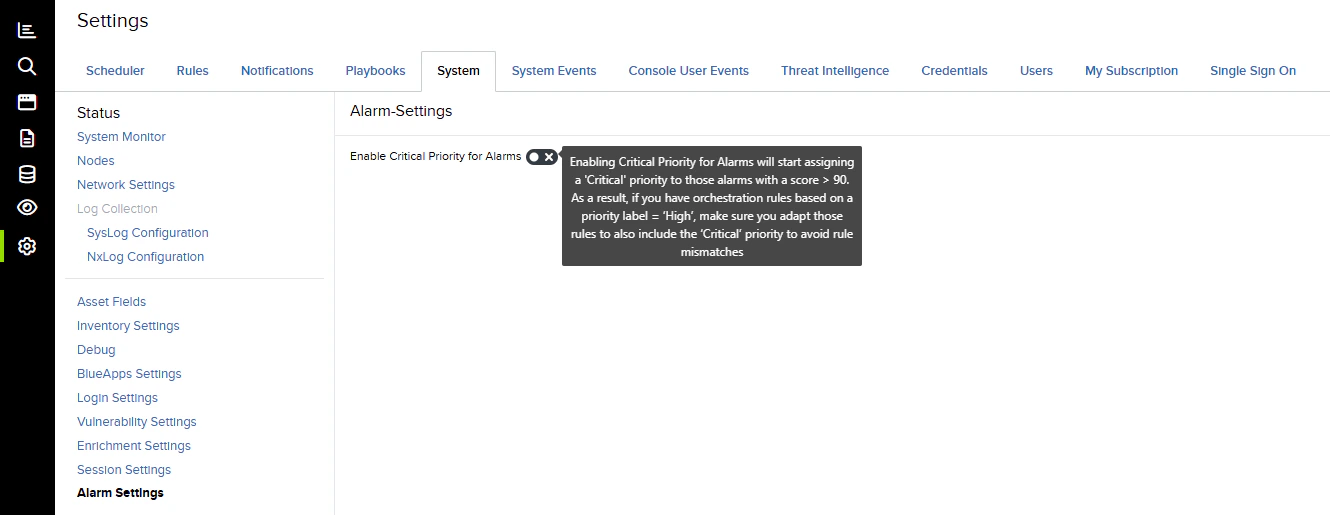 Enabling the critical alarm may affect the [Orchestration Rules](/documentation/usm-anywhere/user-guide/rules-management/orchestration-rules-navigation) you have previously configured. You may have to update your existing orchestration rules to ensure the workflow functions correctly.
* When the toggle is disabled, the priority will be those with a **High** level for events with a score of up to 100.
* When the toggle is enabled, the priority will be those with a **Critical** level for events with a score of more than 90.
See [Priority Field for Alarms](/documentation/usm-anywhere/user-guide/alarms/alarms-list-priority-field) for more information.
Enabling the critical alarm may affect the [Orchestration Rules](/documentation/usm-anywhere/user-guide/rules-management/orchestration-rules-navigation) you have previously configured. You may have to update your existing orchestration rules to ensure the workflow functions correctly.
* When the toggle is disabled, the priority will be those with a **High** level for events with a score of up to 100.
* When the toggle is enabled, the priority will be those with a **Critical** level for events with a score of more than 90.
See [Priority Field for Alarms](/documentation/usm-anywhere/user-guide/alarms/alarms-list-priority-field) for more information.