> ## Documentation Index
> Fetch the complete documentation index at: https://docs.levelblue.com/llms.txt
> Use this file to discover all available pages before exploring further.
# Alarm Status
Role Availability | ❌ Read-Only ✔️ Investigator ✔️ Analyst ✔️ Manager
USM Anywhere includes a set of statuses, which you can use to classify your alarms, track alarm status, and search alarms using statuses as a filter. See [Searching Alarms](/documentation/usm-anywhere/user-guide/alarms/searching-alarms) for more information on how to search alarms.
You can't edit or delete the set of default statuses:
* Open
* In Review
* Closed
USM Anywhere enables you to apply just one status to an alarm. You can't apply multiple statuses to the same alarm. See [Differences between Statuses and Labels](/documentation/usm-anywhere/user-guide/alarms/alarms-status#diffStatusLabel) to distinguish between label and status.
The alarms that have the "closed" status will not display in the Alarm list view.
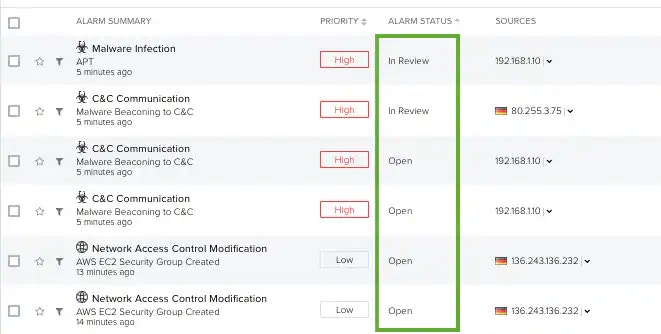 **To apply a status to an alarm from the Alarms main page**
1. Go to **Activity > Alarms**.
2. Search for the alarm you want to apply a status.
See [Searching Alarms](https://cybersecurity.att.com/documentation/usm-anywhere/user-guide/alarms/searching-alarms.htm) for more information.
3. Select the checkbox to the left of the alarm.
4. Click **Alarm Status** and select a status.
**To apply a status to an alarm from the Alarms main page**
1. Go to **Activity > Alarms**.
2. Search for the alarm you want to apply a status.
See [Searching Alarms](https://cybersecurity.att.com/documentation/usm-anywhere/user-guide/alarms/searching-alarms.htm) for more information.
3. Select the checkbox to the left of the alarm.
4. Click **Alarm Status** and select a status.
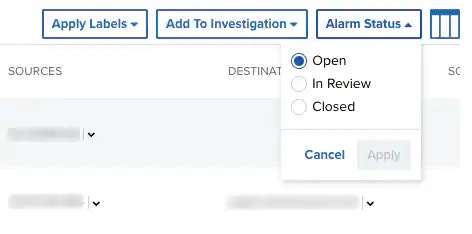 5. Click **Apply**.
**To apply a status to an alarm from the Alarms Details page**
1. Go to **Activity > Alarms**.
2. Search for the alarm you want to apply a status.
See [Searching Alarms](https://cybersecurity.att.com/documentation/usm-anywhere/user-guide/alarms/searching-alarms.htm) for more information.
3. Click the alarm.
4. In the **Status** field, click the
5. Click **Apply**.
**To apply a status to an alarm from the Alarms Details page**
1. Go to **Activity > Alarms**.
2. Search for the alarm you want to apply a status.
See [Searching Alarms](https://cybersecurity.att.com/documentation/usm-anywhere/user-guide/alarms/searching-alarms.htm) for more information.
3. Click the alarm.
4. In the **Status** field, click the  icon to edit it.
5. Select a status and click the
icon to edit it.
5. Select a status and click the  icon.
**To bulk set the alarm status**
1. Go to **Activity > Alarms**.
2. Select all of the alarms to which you want to apply a status by selecting the checkbox to the left of an alarm.
See [Searching Alarms](https://cybersecurity.att.com/documentation/usm-anywhere/user-guide/alarms/searching-alarms.htm) for more information. You can also select several alarms or select all alarms at the same time by selecting the first checkbox in the column. You can also select all the alarms in the system. See [Selecting Alarms in Alarm List View](https://cybersecurity.att.com/documentation/usm-anywhere/user-guide/alarms/selecting-alarms.htm) for more information.
3. Click **Alarm Status** and select a status.
4. Click **Apply**.
**To search for alarms having a status**
1. Go to **Activity > Alarms**.
2. Click the filter to select the name of the status on the left pane.
The alarm list displays the alarms that have the selected status.
## Differences between Statuses and Labels
USM Anywhere includes several statuses and labels you can use to classify your alarms. A status is a property of the alarm and a label is a tag you can assign to an alarm.
These are the main differences:
* You can add all the labels you need, but you are not able to create a new alarm status.
* You can apply a label to more than one alarm, but you are not able to apply more than one status to an alarm.
* Alarms that have the "Closed" status will not display in the List view in the Alarms page.
icon.
**To bulk set the alarm status**
1. Go to **Activity > Alarms**.
2. Select all of the alarms to which you want to apply a status by selecting the checkbox to the left of an alarm.
See [Searching Alarms](https://cybersecurity.att.com/documentation/usm-anywhere/user-guide/alarms/searching-alarms.htm) for more information. You can also select several alarms or select all alarms at the same time by selecting the first checkbox in the column. You can also select all the alarms in the system. See [Selecting Alarms in Alarm List View](https://cybersecurity.att.com/documentation/usm-anywhere/user-guide/alarms/selecting-alarms.htm) for more information.
3. Click **Alarm Status** and select a status.
4. Click **Apply**.
**To search for alarms having a status**
1. Go to **Activity > Alarms**.
2. Click the filter to select the name of the status on the left pane.
The alarm list displays the alarms that have the selected status.
## Differences between Statuses and Labels
USM Anywhere includes several statuses and labels you can use to classify your alarms. A status is a property of the alarm and a label is a tag you can assign to an alarm.
These are the main differences:
* You can add all the labels you need, but you are not able to create a new alarm status.
* You can apply a label to more than one alarm, but you are not able to apply more than one status to an alarm.
* Alarms that have the "Closed" status will not display in the List view in the Alarms page.