> ## Documentation Index
> Fetch the complete documentation index at: https://docs.levelblue.com/llms.txt
> Use this file to discover all available pages before exploring further.
# Labeling the Alarms
Role Availability | ❌ Read-Only ✔️ Investigator ✔️ Analyst ✔️ Manager
USM Anywhere includes a set of labels to further classify your alarms. See [Searching Alarms](/documentation/usm-anywhere/user-guide/alarms/searching-alarms) for more information.
You can't edit or delete the set of default labels:
* Closed
* False Positive
* In Progress
* Open
USM Anywhere enables you to create, edit, and delete your own labels. You can apply a label to one or more alarms. You can also apply multiple labels to the same alarm. To distinguish between labels and statuses, see [Differences between Statuses and Labels](/documentation/usm-anywhere/user-guide/alarms/alarms-status#diffStatusLabel).
Users in the Investigator role can apply and remove labels but cannot create, edit, or delete labels.
**To label an alarm from the Alarms main page**
1. Go to **Activity > Alarms**.
2. Search for the alarm or alarms to which you want to apply a label. See [Searching Alarms](/documentation/usm-anywhere/user-guide/alarms/searching-alarms), for more information.
3. Complete one of these options:
Click the  icon in the labels column of the alarm you want to label, select the label, and click **Save**.
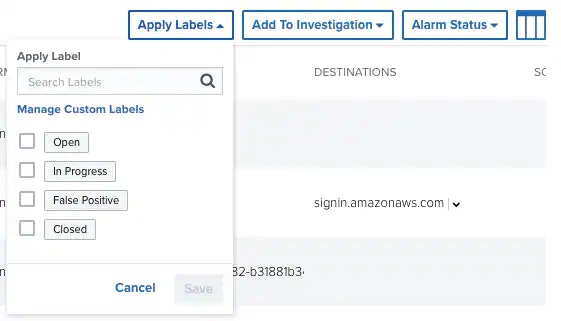
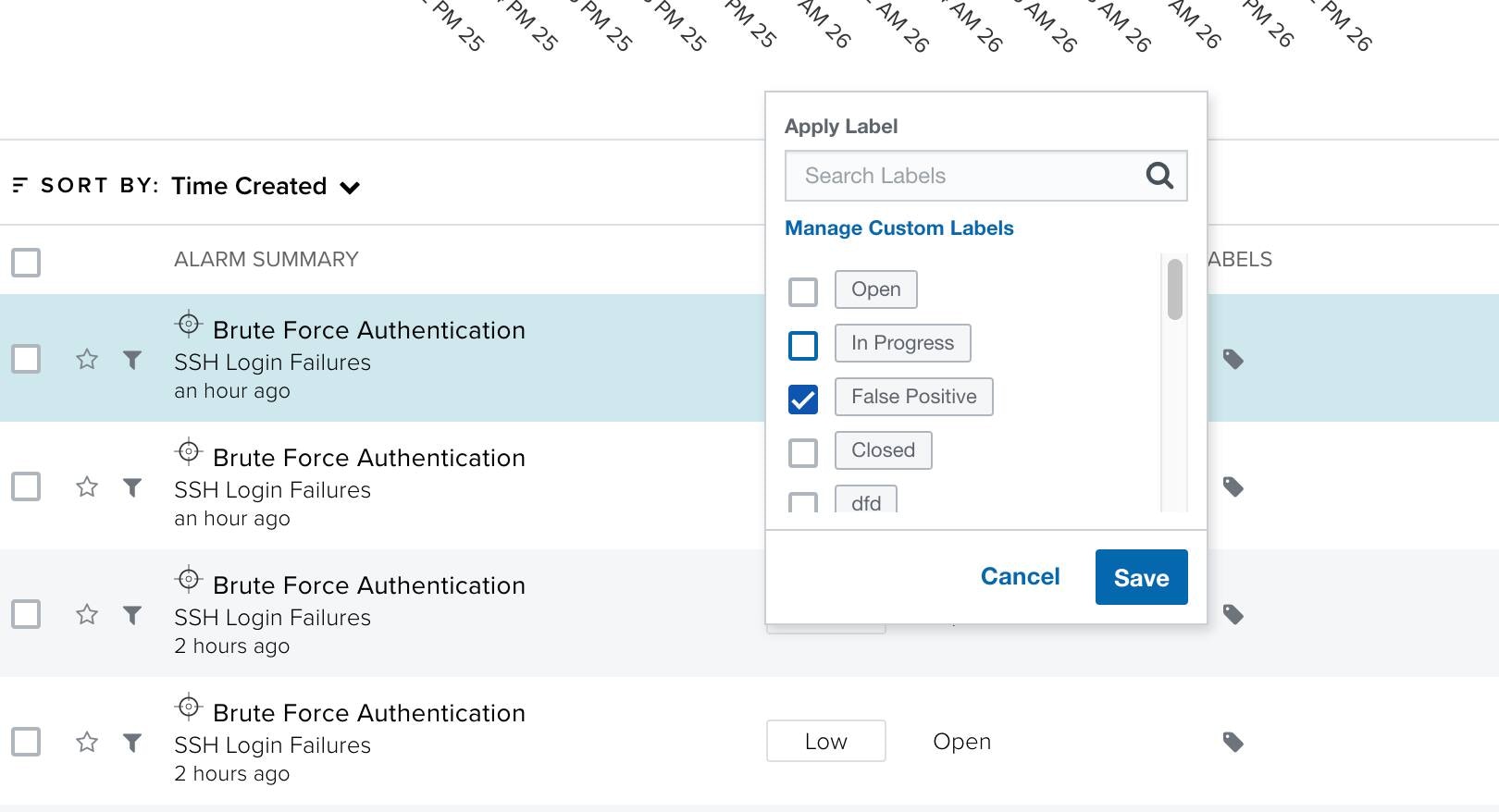 Select the checkbox to the left of an alarm, click Apply Labels, select the label, and click Save.
 **To label an alarm from the Alarms Details page**
1. Go to **Activity > Alarms**.
2. Search for the alarm to which you want to apply a label.
See [Searching Alarms](/documentation/usm-anywhere/user-guide/alarms/searching-alarms) for more information.
3. Click the alarm.
4. Click **Apply Labels** and select a label.
5. Click **Save**.
**To create a new label**
1. Go to **Activity > Alarms**.
2. Select the checkbox to the left of an alarm.
You can also select several alarms or select all alarms at the same time by selecting the first checkbox in the column.
3. Click **Apply Labels**.
4. Click **Manage Custom Labels**.
5. Click **Create New Label**.
**To label an alarm from the Alarms Details page**
1. Go to **Activity > Alarms**.
2. Search for the alarm to which you want to apply a label.
See [Searching Alarms](/documentation/usm-anywhere/user-guide/alarms/searching-alarms) for more information.
3. Click the alarm.
4. Click **Apply Labels** and select a label.
5. Click **Save**.
**To create a new label**
1. Go to **Activity > Alarms**.
2. Select the checkbox to the left of an alarm.
You can also select several alarms or select all alarms at the same time by selecting the first checkbox in the column.
3. Click **Apply Labels**.
4. Click **Manage Custom Labels**.
5. Click **Create New Label**.
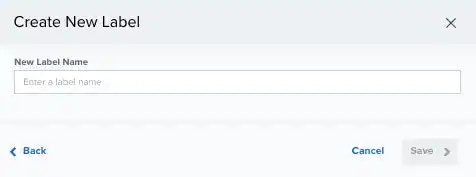 6. Enter a name for the label.
7. Click **Save**.
**To edit a label**
1. Go to Activity > Alarms.
2. Select the checkbox to the left of an alarm.
You can also select several alarms or select all alarms at the same time by selecting the first checkbox in the column.
3. Click **Apply Labels**.
4. Click **Manage Custom Labels**.
5. Click the
6. Enter a name for the label.
7. Click **Save**.
**To edit a label**
1. Go to Activity > Alarms.
2. Select the checkbox to the left of an alarm.
You can also select several alarms or select all alarms at the same time by selecting the first checkbox in the column.
3. Click **Apply Labels**.
4. Click **Manage Custom Labels**.
5. Click the  icon next to the label you want to edit.
6. Modify the name of the label.
7. Click the
icon next to the label you want to edit.
6. Modify the name of the label.
7. Click the  icon to apply the changes.
**To delete a label**
1. Go to **Activity > Alarms**.
2. Select the checkbox to the left of an alarm.
You can also select several alarms or select all alarms at the same time by selecting the first checkbox in the column.
3. Click **Apply Labels**.
4. Click **Manage Custom Labels**.
5. Click the
icon to apply the changes.
**To delete a label**
1. Go to **Activity > Alarms**.
2. Select the checkbox to the left of an alarm.
You can also select several alarms or select all alarms at the same time by selecting the first checkbox in the column.
3. Click **Apply Labels**.
4. Click **Manage Custom Labels**.
5. Click the  icon next to the label you want to delete.
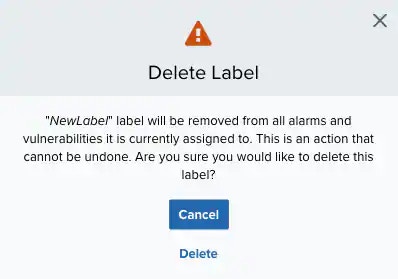 6. Click **Delete** to confirm the deletion.
**To remove a label from an alarm**
1. Go to Activity > Alarms.
2. Do one of these options:
* Select the checkbox to the left of an alarm. You can also select several alarms or select all alarms at the same time by selecting the first checkbox in the column. Then click **Remove Alarm Labels**, click the label, and click **Remove**.
* Locate the alarm from which you want to remove the label, and click the
6. Click **Delete** to confirm the deletion.
**To remove a label from an alarm**
1. Go to Activity > Alarms.
2. Do one of these options:
* Select the checkbox to the left of an alarm. You can also select several alarms or select all alarms at the same time by selecting the first checkbox in the column. Then click **Remove Alarm Labels**, click the label, and click **Remove**.
* Locate the alarm from which you want to remove the label, and click the  icon next to the label.