> ## Documentation Index
> Fetch the complete documentation index at: https://docs.levelblue.com/llms.txt
> Use this file to discover all available pages before exploring further.
# Selecting Alarms in Alarm List View
Role Availability | ❌ Read-Only ❌ Investigator ✔️ Analyst ✔️ Manager
USM Anywhere enables you to select an alarm or multiple alarms to add a label, an investigation, or a status to the selected alarms.
**To select a single alarm**
* Select the check-box to the left of the alarm.
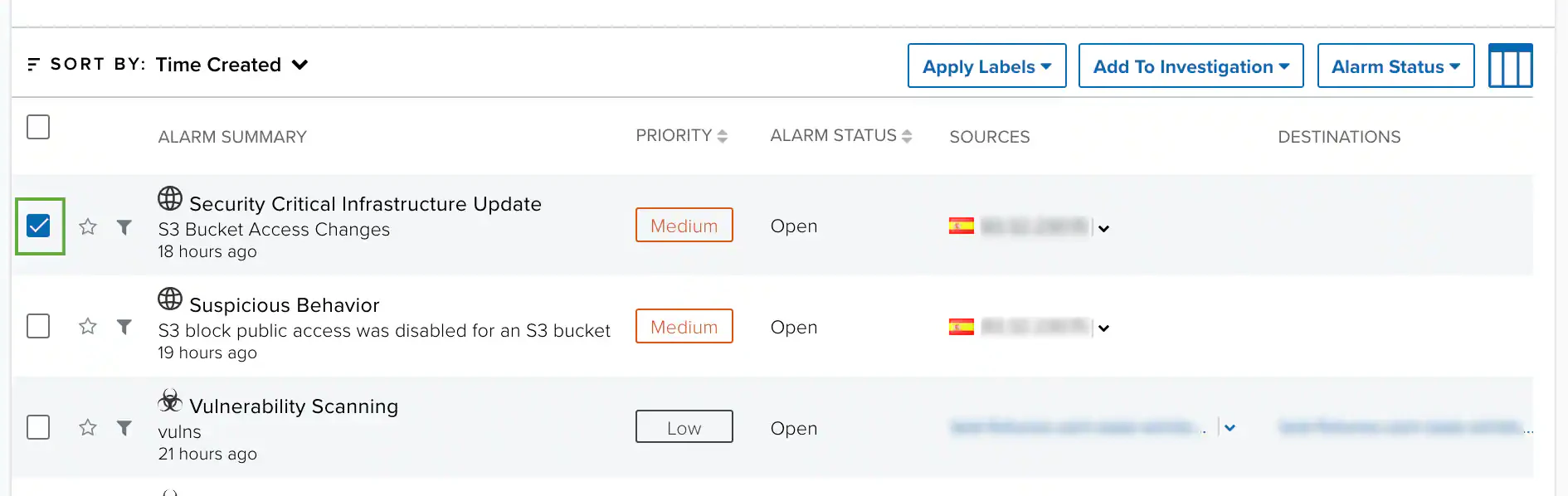 **To select multiple alarms**
* Select the check-box of each alarm that you want to include.
**To select multiple alarms**
* Select the check-box of each alarm that you want to include.
 If you go to the next page to select more alarms, USM Anywhere does not preserve the selection on the previous page.
**To select all the alarms on the same page**
* Select the check-box in the first column of the header row.
You can apply labels to all the alarms on the page, or add them to an investigation, or change their alarm status.
**To select all the alarms returned from a search or all the alarms in your environment**
1. Select all the alarms on the page.
Text similar to the following example displays above the alarm table:
```
All 20 alarms on this page are selected. Select all 3572 related to this filter
```
where
3572 is the number of alarms related to the selected filter in your environment.
If you go to the next page to select more alarms, USM Anywhere does not preserve the selection on the previous page.
**To select all the alarms on the same page**
* Select the check-box in the first column of the header row.
You can apply labels to all the alarms on the page, or add them to an investigation, or change their alarm status.
**To select all the alarms returned from a search or all the alarms in your environment**
1. Select all the alarms on the page.
Text similar to the following example displays above the alarm table:
```
All 20 alarms on this page are selected. Select all 3572 related to this filter
```
where
3572 is the number of alarms related to the selected filter in your environment.
 2. To select all the alarms, click **Select all 3572 related to this filter**.
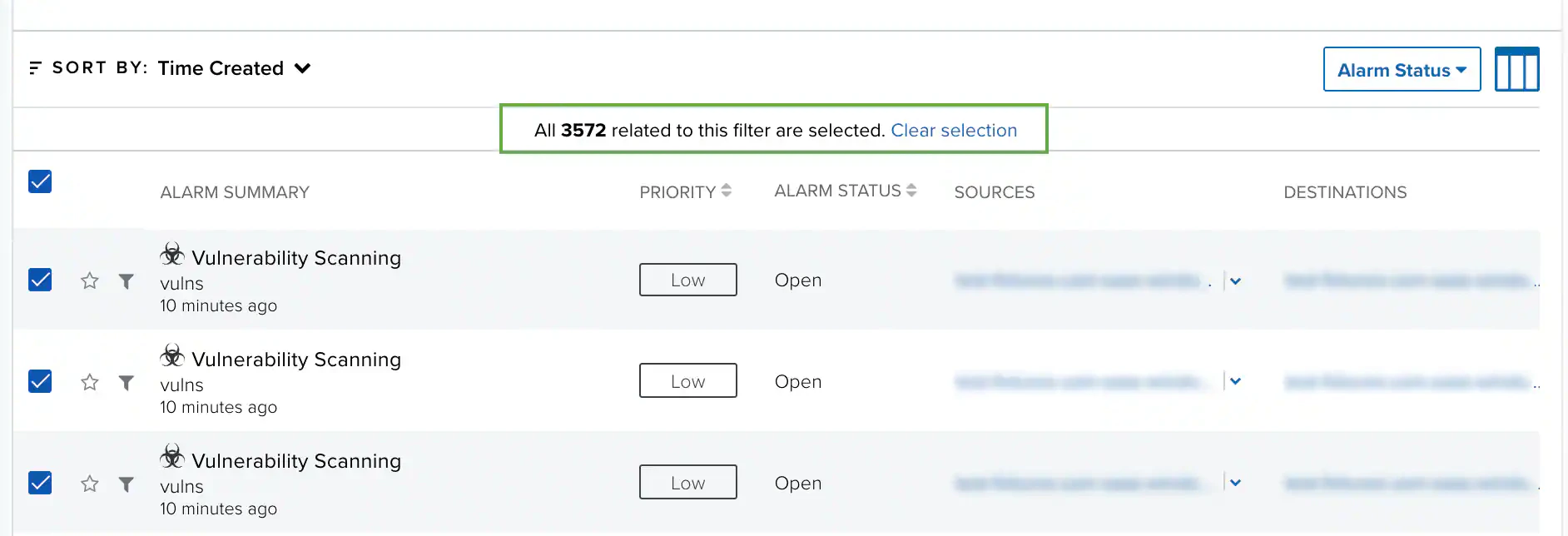 Keep in mind that when you select all the alarms in your environment, the Alarms Status button is the only active button. This means that you cannot apply the same labels to all the alarms related to the filter, nor can you add all of them to an investigation.