 4. Enter a display name.
5. (Optional.) Enter a description.
6. Select a display priority. You can choose Summary, Detail, or Hidden. Choose Hidden if you do not want to see this field in the details of the assets.
7. Select a type.
See the options in the table.
**Options in the Type field (Create an asset field)**
| **Denomination** | **Description** |
| ---------------- | ------------------------------------------------------------------------------------------------------------------------------------------------------------------------------------------------------------------------------------------------------------------------------------------------------------------------------------------------------------------------------------------------------------------------------------------------------------------------------------------------------------------------------------------------------------------------------------------------------------------------------------------------------------------------------------------------------------------------------------------------------------------------------------------------------------------------------------------------------------------------------------------------------------------------------------------------------------------------------------------------------------------------------------------------------------------------------------------------------------------------------------------------------------------------------------------------------------------------------------------------------------------------------------------------------------------------------------------------------------------------------------------------------------------------------------------------------------------------------------------------------------------------------------------------------------------------------------------------------------------------------ |
| Text | Text in the default field. |
| Select | Enter the choices. You can add more than one by clicking the
4. Enter a display name.
5. (Optional.) Enter a description.
6. Select a display priority. You can choose Summary, Detail, or Hidden. Choose Hidden if you do not want to see this field in the details of the assets.
7. Select a type.
See the options in the table.
**Options in the Type field (Create an asset field)**
| **Denomination** | **Description** |
| ---------------- | ------------------------------------------------------------------------------------------------------------------------------------------------------------------------------------------------------------------------------------------------------------------------------------------------------------------------------------------------------------------------------------------------------------------------------------------------------------------------------------------------------------------------------------------------------------------------------------------------------------------------------------------------------------------------------------------------------------------------------------------------------------------------------------------------------------------------------------------------------------------------------------------------------------------------------------------------------------------------------------------------------------------------------------------------------------------------------------------------------------------------------------------------------------------------------------------------------------------------------------------------------------------------------------------------------------------------------------------------------------------------------------------------------------------------------------------------------------------------------------------------------------------------------------------------------------------------------------------------------------------------------ |
| Text | Text in the default field. |
| Select | Enter the choices. You can add more than one by clicking the  icon. |
| Numeric | Enter a numerical data to identify the field. You can use the icon to increase or decrease the number (
icon. |
| Numeric | Enter a numerical data to identify the field. You can use the icon to increase or decrease the number ( ). |
| IP | Enter an IP address. |
| Boolean | Select one of the options: No Default, True, or False. |
8. Click **Save**.
## Modifying Asset Fields
**To modify an asset field**
1. Go to **Settings > System**.
2. In the left navigation panel, click **Asset Fields** to open the page.
3. Locate the asset field you want to modify. You can filter the search by name, user, priorities, and type of field.
4. In the line of the asset field you want to modify, click the
). |
| IP | Enter an IP address. |
| Boolean | Select one of the options: No Default, True, or False. |
8. Click **Save**.
## Modifying Asset Fields
**To modify an asset field**
1. Go to **Settings > System**.
2. In the left navigation panel, click **Asset Fields** to open the page.
3. Locate the asset field you want to modify. You can filter the search by name, user, priorities, and type of field.
4. In the line of the asset field you want to modify, click the  icon. This icon displays in the line of the editable fields that are not in the system by default.
5. Modify the information of the items that need to be modified.
6. Click **Save**.
## Deleting Asset Fields
**To delete an asset field**
1. Go to **Settings > System**.
2. In the left navigation panel, click **Asset Fields** to open the page.
3. Locate the asset field that you want to delete. You can filter the search by name, user, priorities, and type of field.
4. Click the
icon. This icon displays in the line of the editable fields that are not in the system by default.
5. Modify the information of the items that need to be modified.
6. Click **Save**.
## Deleting Asset Fields
**To delete an asset field**
1. Go to **Settings > System**.
2. In the left navigation panel, click **Asset Fields** to open the page.
3. Locate the asset field that you want to delete. You can filter the search by name, user, priorities, and type of field.
4. Click the  icon.
icon.
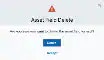 5. Click **Accept** to confirm.
## Assign Asset Fields to an Asset or Group of Assets
**To assign asset fields to an asset or group of assets**
1. Go to **Environment > Assets**.
2. Select the asset or the group of assets. See Selecting Assets in Asset List View for more information.
3. Select **Actions > Edit Fields**.
5. Click **Accept** to confirm.
## Assign Asset Fields to an Asset or Group of Assets
**To assign asset fields to an asset or group of assets**
1. Go to **Environment > Assets**.
2. Select the asset or the group of assets. See Selecting Assets in Asset List View for more information.
3. Select **Actions > Edit Fields**.
 4. Select the asset fields you want to assign the selected assets.
5. Click **Save**.
## Displaying Asset Fields from Assets
1. Go to **Environment > Assets**.
2. Next to the asset name whose asset fields you want to review, click the
4. Select the asset fields you want to assign the selected assets.
5. Click **Save**.
## Displaying Asset Fields from Assets
1. Go to **Environment > Assets**.
2. Next to the asset name whose asset fields you want to review, click the  icon and select **Full Details**.
3. Below the main data of the asset, click **More**.
icon and select **Full Details**.
3. Below the main data of the asset, click **More**.
