> ## Documentation Index
> Fetch the complete documentation index at: https://docs.levelblue.com/llms.txt
> Use this file to discover all available pages before exploring further.
# Assets List Columns
| | | | | |
| --------------------- | ------------- | ---------------- | ----------- | ----------- |
| **Role Availability** | **Read-Only** | **Investigator** | **Analyst** | **Manager** |
For each asset in the asset columns list, USM Anywhere displays useful information to help you manage that asset.
The following table lists the fields you see on the page.
**List of the Default Columns in Assets**
| **Column Field Name** | **Description** |
| ----------------------- | ---------------------------------------------------------------------------------------------------------------------------------------------------------------------------------------------------------------------------------------------------------------------------------------------------------------------------------------------------------------------------------------------------------------------------------------------------------------------------------------------- |
| Asset Name | Name of the asset. |
| Agent Type | Platform of the agent. This column displays when you open the Asset List View page from the Agents page. |
| Agent Version | Version of the agent. This column displays when you open the Asset List View page from the Agents page. |
| FQDN | Fully qualified domain name. |
| IP Addresses | IP address for the asset. |
| Sensor | USM Anywhere Sensor name associated with the asset. The type of sensor is also displayed below the sensor name. |
| Jobs | Number of scheduled jobs. This column is not displayed when you open the Asset List View page from the Agents page. |
| Asset Type | Device type that identifies the asset. Select an option from the list (see USM Accepted Asset Types for more info). |
| Alarm Counter | Number of alarms detected on the asset. |
| Event Counter | Number of events related to the asset. |
| Vulnerabilities Counter | Number of vulnerabilities detected on the asset. |
| Config Issues | Number of configuration issues related to the asset. Only available for Amazon Web Services (AWS) and Microsoft Azure sensors. |
| Updated | Date on which the asset was updated. The displayed date depends on your computer's time zone. |
**Important**: The alarm and event counts are not updated in real time, but are calculated every hour. If the counts are not updated, it can happen because new events or alarms are in your environment after the last count.
**Important**: The vulnerability and configuration issues counts are updated after every scan.
From the list of assets, you can click any individual asset row to display more information on the selected asset, including how many alarms, events, vulnerabilities, or configuration issues are related to that asset. See [Viewing Assets Details](/documentation/usm-anywhere/user-guide/asset-management/asset-administration/viewing-asset-details) for more information.
Each asset includes a check box that you can use to select it. You can select all assets in the same page by clicking the check box in the first column of the header row. You can also select all the assets in the system. See [Selecting Assets in Asset List View](/documentation/usm-anywhere/user-guide/asset-management/asset-administration/selecting-assets) for more information.
The padlock you can see next to the asset indicates whether the asset has a credential assigned ( ) or not (
 ). See [Managing Credentials in USM Anywhere](/documentation/usm-anywhere/user-guide/vulnerability-assessment/credentials) for more information.
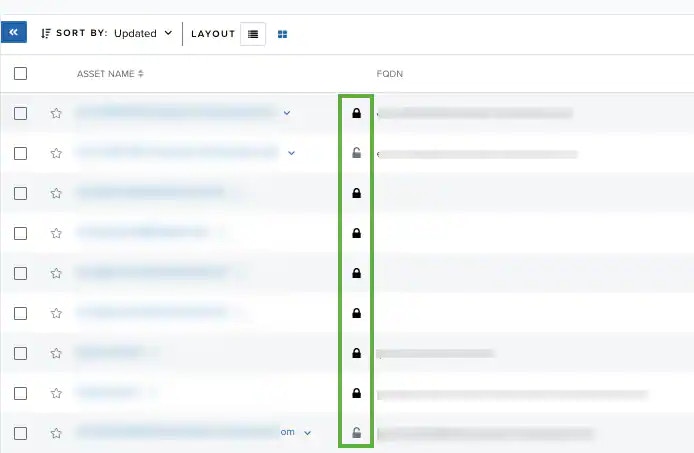 You can choose the number of items to display by selecting **20**, **50**, or **100** below the table. You can classify some columns by clicking the icons to the right side of the heading. You can sort the item information in ascending or descending order.
Click the
You can choose the number of items to display by selecting **20**, **50**, or **100** below the table. You can classify some columns by clicking the icons to the right side of the heading. You can sort the item information in ascending or descending order.
Click the  icon to bookmark an item for quick access.
**Note**: You can view your bookmarked items by going to the secondary menu and clicking the icon. This will display all of your bookmarked items and provide direct links to each of them.
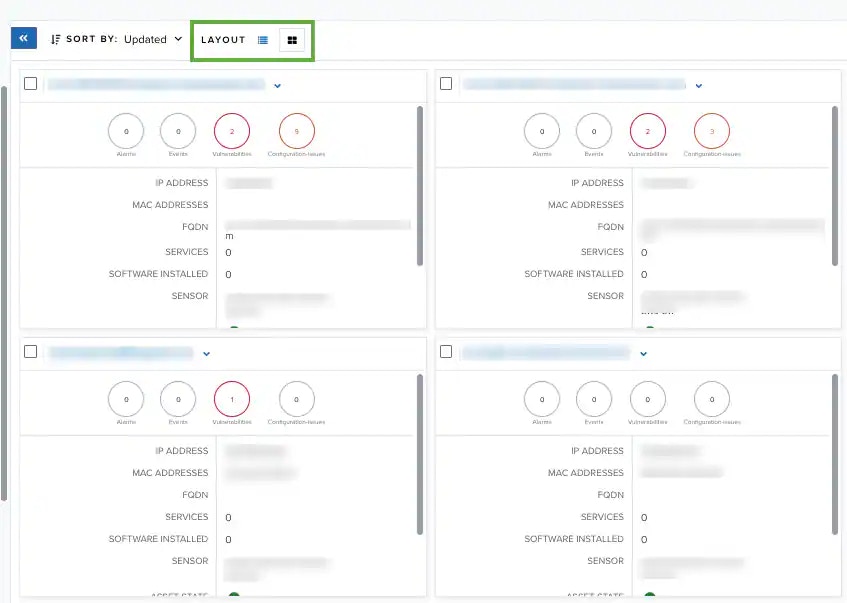
Choose the view you want in the Layout page. You can see the assets in a list view or in a grid view.
icon to bookmark an item for quick access.
**Note**: You can view your bookmarked items by going to the secondary menu and clicking the icon. This will display all of your bookmarked items and provide direct links to each of them.
Choose the view you want in the Layout page. You can see the assets in a list view or in a grid view.
 Click **Generate Report** to open the Configure Report dialog box. See [Create an Assets Report](/documentation/usm-anywhere/user-guide/asset-management/asset-administration/exporting-assets) for more information.
Click the
Click **Generate Report** to open the Configure Report dialog box. See [Create an Assets Report](/documentation/usm-anywhere/user-guide/asset-management/asset-administration/exporting-assets) for more information.
Click the  icon to access the following options. Your access to these options may vary based on your user role. See [Role-Based Access Control (RBAC) in USM Anywhere](/documentation/usm-anywhere/user-guide/user-management/rbac) for more information:
* **Find in Events**: Use this option to execute a search of the asset name in the Events page. See [Searching Events](/documentation/usm-anywhere/user-guide/events/searching-events) for more information.
* **Look up in OTX**: This option searches the IP address of the asset in the OTX page. See [Using OTX in USM Anywhere](/documentation/usm-anywhere/user-guide/otx/using-otx-in-anywhere) for more information.
* **Full Details**: See [Viewing Assets Details](/documentation/usm-anywhere/user-guide/asset-management/asset-administration/viewing-asset-details) for more information.
* **Configure Asset**: See [Editing Assets](/documentation/usm-anywhere/user-guide/asset-management/asset-administration/editing-assets) for more information.
* **Delete Asset**: See [Deleting the Assets](/documentation/usm-anywhere/user-guide/asset-management/asset-administration/deleting-assets#DeletingAssets) for more information.
* **Assign Credentials**: See [Managing Credentials in USM Anywhere](/documentation/usm-anywhere/user-guide/vulnerability-assessment/credentials) for more information.
* **Authenticated Scan**: This option displays depending on the USM Anywhere Sensor associated with the asset. See [Running Authenticated Asset Scans](/documentation/usm-anywhere/user-guide/asset-management/asset-administration/running-vuln-scan) for more information.
* **Scan with BlueApp**: This option enables you to run an asset scan through an BlueApp. See [Running Asset Scans Using a BlueApp](/documentation/usm-anywhere/user-guide/asset-management/asset-administration/scan-with-alienapp) for more information.
* **Run Scan**: This option displays depending on the USM Anywhere Sensor associated with the asset. See [Running Asset Scans](/documentation/usm-anywhere/user-guide/asset-management/asset-administration/running-asset-scan) for more information.
* Configuration Issues: This option opens the Assets Details page. The Configuration Issues tab is selected in the page. See [Viewing Assets Details](/documentation/usm-anywhere/user-guide/asset-management/asset-administration/viewing-asset-details) for more information.
* **Vulnerabilities**: This option opens the Assets Details page. The Vulnerabilities tab is selected in the page. See [Viewing Assets Details](/documentation/usm-anywhere/user-guide/asset-management/asset-administration/viewing-asset-details) for more information.
* **Alarms**: This option opens the Assets Details page. The Alarms tab is selected in the page. See [Viewing Assets Details](/documentation/usm-anywhere/user-guide/asset-management/asset-administration/viewing-asset-details) for more information.
* **Events**: This option opens the Assets Details page. The Events tab is selected in the page. See [Viewing Assets Details](/documentation/usm-anywhere/user-guide/asset-management/asset-administration/viewing-asset-details) for more information.
In the upper-left corner of the page, there is the **Actions** button.
icon to access the following options. Your access to these options may vary based on your user role. See [Role-Based Access Control (RBAC) in USM Anywhere](/documentation/usm-anywhere/user-guide/user-management/rbac) for more information:
* **Find in Events**: Use this option to execute a search of the asset name in the Events page. See [Searching Events](/documentation/usm-anywhere/user-guide/events/searching-events) for more information.
* **Look up in OTX**: This option searches the IP address of the asset in the OTX page. See [Using OTX in USM Anywhere](/documentation/usm-anywhere/user-guide/otx/using-otx-in-anywhere) for more information.
* **Full Details**: See [Viewing Assets Details](/documentation/usm-anywhere/user-guide/asset-management/asset-administration/viewing-asset-details) for more information.
* **Configure Asset**: See [Editing Assets](/documentation/usm-anywhere/user-guide/asset-management/asset-administration/editing-assets) for more information.
* **Delete Asset**: See [Deleting the Assets](/documentation/usm-anywhere/user-guide/asset-management/asset-administration/deleting-assets#DeletingAssets) for more information.
* **Assign Credentials**: See [Managing Credentials in USM Anywhere](/documentation/usm-anywhere/user-guide/vulnerability-assessment/credentials) for more information.
* **Authenticated Scan**: This option displays depending on the USM Anywhere Sensor associated with the asset. See [Running Authenticated Asset Scans](/documentation/usm-anywhere/user-guide/asset-management/asset-administration/running-vuln-scan) for more information.
* **Scan with BlueApp**: This option enables you to run an asset scan through an BlueApp. See [Running Asset Scans Using a BlueApp](/documentation/usm-anywhere/user-guide/asset-management/asset-administration/scan-with-alienapp) for more information.
* **Run Scan**: This option displays depending on the USM Anywhere Sensor associated with the asset. See [Running Asset Scans](/documentation/usm-anywhere/user-guide/asset-management/asset-administration/running-asset-scan) for more information.
* Configuration Issues: This option opens the Assets Details page. The Configuration Issues tab is selected in the page. See [Viewing Assets Details](/documentation/usm-anywhere/user-guide/asset-management/asset-administration/viewing-asset-details) for more information.
* **Vulnerabilities**: This option opens the Assets Details page. The Vulnerabilities tab is selected in the page. See [Viewing Assets Details](/documentation/usm-anywhere/user-guide/asset-management/asset-administration/viewing-asset-details) for more information.
* **Alarms**: This option opens the Assets Details page. The Alarms tab is selected in the page. See [Viewing Assets Details](/documentation/usm-anywhere/user-guide/asset-management/asset-administration/viewing-asset-details) for more information.
* **Events**: This option opens the Assets Details page. The Events tab is selected in the page. See [Viewing Assets Details](/documentation/usm-anywhere/user-guide/asset-management/asset-administration/viewing-asset-details) for more information.
In the upper-left corner of the page, there is the **Actions** button.
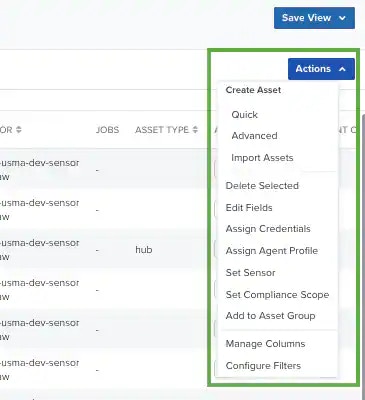 **Important**: You need to select one or more assets if you want to activate the options of the Actions button. Some options can be gray if there isn't any asset selected. See [Selecting Assets in Asset List View](/documentation/usm-anywhere/user-guide/asset-management/asset-administration/selecting-assets) for more information.
The **Actions** button includes the following options. Your access to these options may vary based on your user role. See [Role-Based Access Control (RBAC) in USM Anywhere](/documentation/usm-anywhere/user-guide/user-management/rbac) for more information:
* **Quick**: Use this option to add the asset name and either an IP address or FQDN, and then select a USM Anywhere Sensor. See [Adding Assets in the UI](/documentation/usm-anywhere/user-guide/asset-management/asset-administration/adding-assets#Adding2) for more information.
* **Advanced**: Use this option to add an asset. This method requires more data related to the asset that you are adding. See [Adding Assets in the UI](/documentation/usm-anywhere/user-guide/asset-management/asset-administration/adding-assets#Adding2) for more information.
* **Import Assets**: Use this option to add several assets through a CSV file. See [Importing Assets from a CSV File](/documentation/usm-anywhere/user-guide/asset-management/asset-administration/importing-assets) for more information
* **Delete selected**: See [Deleting the Assets](/documentation/usm-anywhere/user-guide/asset-management/asset-administration/deleting-assets) for more information.
* **Edit Fields**: See [To assign asset fields to an asset](/documentation/usm-anywhere/user-guide/asset-management/asset-administration/asset-fields#assignAssetFields) or group of assets for more information.
* **Assign Credentials**: See [Managing Credentials in USM Anywhere](/documentation/usm-anywhere/user-guide/vulnerability-assessment/credentials) for more information.
* **Assign Agent Profile**: See [Assign LevelBlue Agent Configuration Profiles to Assets](/documentation/usm-anywhere/agents/agent-configuration-profiles#agentProfileToAssets) for more information. This option is available for users whose role is Manager.
* **Set Sensor**: See [To assign a sensor to an asset](/documentation/usm-anywhere/user-guide/sensor-management/assigning-sensors#assignSensorAssets) or a set of assets for more information.
* **Set Compliance Scope**: See [Working with Assets and PCI DSS](/documentation/usm-anywhere/user-guide/compliance/assets-pci) for more information.
* **Add to Asset Group**: See [Creating an Asset Group](/documentation/usm-anywhere/user-guide/asset-management/asset-groups/creating-asset-group) for more information.
* **Manage Columns**: See [Configuring Columns on Assets](/documentation/usm-anywhere/user-guide/asset-management/asset-administration/assets-list-conf-columns) for more information.
* **Configure Filters**: See [Managing Filters](/documentation/usm-anywhere/user-guide/asset-management/asset-administration/managing-filters) for more information.
**Important**: You need to select one or more assets if you want to activate the options of the Actions button. Some options can be gray if there isn't any asset selected. See [Selecting Assets in Asset List View](/documentation/usm-anywhere/user-guide/asset-management/asset-administration/selecting-assets) for more information.
The **Actions** button includes the following options. Your access to these options may vary based on your user role. See [Role-Based Access Control (RBAC) in USM Anywhere](/documentation/usm-anywhere/user-guide/user-management/rbac) for more information:
* **Quick**: Use this option to add the asset name and either an IP address or FQDN, and then select a USM Anywhere Sensor. See [Adding Assets in the UI](/documentation/usm-anywhere/user-guide/asset-management/asset-administration/adding-assets#Adding2) for more information.
* **Advanced**: Use this option to add an asset. This method requires more data related to the asset that you are adding. See [Adding Assets in the UI](/documentation/usm-anywhere/user-guide/asset-management/asset-administration/adding-assets#Adding2) for more information.
* **Import Assets**: Use this option to add several assets through a CSV file. See [Importing Assets from a CSV File](/documentation/usm-anywhere/user-guide/asset-management/asset-administration/importing-assets) for more information
* **Delete selected**: See [Deleting the Assets](/documentation/usm-anywhere/user-guide/asset-management/asset-administration/deleting-assets) for more information.
* **Edit Fields**: See [To assign asset fields to an asset](/documentation/usm-anywhere/user-guide/asset-management/asset-administration/asset-fields#assignAssetFields) or group of assets for more information.
* **Assign Credentials**: See [Managing Credentials in USM Anywhere](/documentation/usm-anywhere/user-guide/vulnerability-assessment/credentials) for more information.
* **Assign Agent Profile**: See [Assign LevelBlue Agent Configuration Profiles to Assets](/documentation/usm-anywhere/agents/agent-configuration-profiles#agentProfileToAssets) for more information. This option is available for users whose role is Manager.
* **Set Sensor**: See [To assign a sensor to an asset](/documentation/usm-anywhere/user-guide/sensor-management/assigning-sensors#assignSensorAssets) or a set of assets for more information.
* **Set Compliance Scope**: See [Working with Assets and PCI DSS](/documentation/usm-anywhere/user-guide/compliance/assets-pci) for more information.
* **Add to Asset Group**: See [Creating an Asset Group](/documentation/usm-anywhere/user-guide/asset-management/asset-groups/creating-asset-group) for more information.
* **Manage Columns**: See [Configuring Columns on Assets](/documentation/usm-anywhere/user-guide/asset-management/asset-administration/assets-list-conf-columns) for more information.
* **Configure Filters**: See [Managing Filters](/documentation/usm-anywhere/user-guide/asset-management/asset-administration/managing-filters) for more information.