> ## Documentation Index
> Fetch the complete documentation index at: https://docs.levelblue.com/llms.txt
> Use this file to discover all available pages before exploring further.
# Events Created When an Asset Stops Sending Data
| | | | | |
| --------------------- | --------- | ------------ | ----------- | ----------- |
| **Role Availability** | Read-Only | Investigator | **Analyst** | **Manager** |
USM Anywhere gives you the option of configuring a threshold after which asset inactivity is a concern. When your environment is not receiving events from an asset within the configured period of time, USM Anywhere generates monitoring events that display in the Events List View page. Since these events are not tied to any USM Anywhere Sensor that you have deployed, you will see a new sensor with the name of your USM Anywhere subdomain listed for these events. USM Anywhere will generate new monitoring events until the asset starts reporting again. You can see two types of monitoring events:
* **Event from asset not received**: Event details include the asset name, the total disconnected time, and when the last message was received.
**Warning:** Currently, the Event from asset not received event is generated
at the same time as the regular event and system event. Soon, this event
will be generated only as a system event. See [Regular Events and System
Events](/documentation/usm-anywhere/user-guide/system-events/rules-for-system-events)
and [Orchestration Rule for the "Event from asset not received" System
Event](/documentation/usm-anywhere/user-guide/system-events/rules-for-system-events)
for more information.
* **Event from asset received:** Event details include the asset name
**Warning:** Monitoring events are generated when your environment is not
receiving events from an asset either because the asset is not sending
events or because of a filtering rule. If you have a rule that filters
events coming from an asset, from the perspective of USM Anywhere that asset
is not sending events.
**Note:** If your sensor is collecting logs using anything other than syslog
(like scheduled log scans), your logs may not include enough data to inform
these events. To ensure that you are receiving events when your asset stops
sending data, ensure that the Reporting Device field is present and populating
accurately.
**To configure the period of time for a single asset**
1. Go to **Environment > Assets**.
2. Next to the asset name whose details you want to review, click the  icon.
3. Select **Full Details**.
4. In the upper-left side of the page, set a period of time in the Create Event If Asset Stops Sending Data field by clicking the
icon.
3. Select **Full Details**.
4. In the upper-left side of the page, set a period of time in the Create Event If Asset Stops Sending Data field by clicking the  icon.
You can select a predefined value between None, 1 hour, 6, 12, 24, or 72 hours, 1 week, or 2 weeks.
**Note:** By default, this field is configured to None.
**Important:** The Create event if asset stops sending data field is based on
the Reporting Device Address field, not the Source field. When a device
reports information about its state, the Reporting Device Address field will
display the same data as the Source or Destination fields. If the device
reports information that is different from its state, for example issues in
its network, the Reporting Device Address field will display different
information from the Source or Destination fields.
5. Click the icon to set the value.
The events are displayed in the [Events List View](/documentation/usm-anywhere/user-guide/events/events-list-view) page.
**To configure the period of time for multiple assets**
1. Go to **Environment > Assets**.
2. Select the checkbox of each asset you want to include.
3. Select **Actions > Edit Fields**.
icon.
You can select a predefined value between None, 1 hour, 6, 12, 24, or 72 hours, 1 week, or 2 weeks.
**Note:** By default, this field is configured to None.
**Important:** The Create event if asset stops sending data field is based on
the Reporting Device Address field, not the Source field. When a device
reports information about its state, the Reporting Device Address field will
display the same data as the Source or Destination fields. If the device
reports information that is different from its state, for example issues in
its network, the Reporting Device Address field will display different
information from the Source or Destination fields.
5. Click the icon to set the value.
The events are displayed in the [Events List View](/documentation/usm-anywhere/user-guide/events/events-list-view) page.
**To configure the period of time for multiple assets**
1. Go to **Environment > Assets**.
2. Select the checkbox of each asset you want to include.
3. Select **Actions > Edit Fields**.
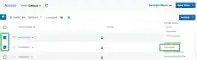 4. At the bottom of the Configure Assets dialog box, set a period of time in the Create Event If Asset
Stops Sending Data field by clicking the icon.
You can select a predefined value between None, 1 hour, 6, 12, 24, 72 hours, 1 week, or 2 weeks.
**Note:** By default, this field is configured to None.
**Important:** The Create event if asset stops sending data field is based
on the Reporting Device Address field, not the Source field. When a device
reports information about its state, the Reporting Device Address field
will display the same data as the Source or Destination fields. If the
device reports information that is different from its state, for example
issues in its network, the Reporting Device Address field will display
different information from the Source or Destination fields.
4. At the bottom of the Configure Assets dialog box, set a period of time in the Create Event If Asset
Stops Sending Data field by clicking the icon.
You can select a predefined value between None, 1 hour, 6, 12, 24, 72 hours, 1 week, or 2 weeks.
**Note:** By default, this field is configured to None.
**Important:** The Create event if asset stops sending data field is based
on the Reporting Device Address field, not the Source field. When a device
reports information about its state, the Reporting Device Address field
will display the same data as the Source or Destination fields. If the
device reports information that is different from its state, for example
issues in its network, the Reporting Device Address field will display
different information from the Source or Destination fields.
 5. Click the icon to set the value.
The events are displayed in the [Events List View](/documentation/usm-anywhere/user-guide/events/events-list-view.htm) page.
**To see events created when an asset stops sending data**
1. Go to **Activity > Events.**
2. Locate the Event Name filter, and then select the filter Event from Asset Not Received.
5. Click the icon to set the value.
The events are displayed in the [Events List View](/documentation/usm-anywhere/user-guide/events/events-list-view.htm) page.
**To see events created when an asset stops sending data**
1. Go to **Activity > Events.**
2. Locate the Event Name filter, and then select the filter Event from Asset Not Received.
 The result displays with the filtered events.
3. Click the event to see its details.
The result displays with the filtered events.
3. Click the event to see its details.
