> ## Documentation Index
> Fetch the complete documentation index at: https://docs.levelblue.com/llms.txt
> Use this file to discover all available pages before exploring further.
# Scheduling Authenticated Asset Scans from Assets
| | | | | |
| --------------------- | --------- | ------------ | ----------- | ----------- |
| **Role Availability** | Read-Only | Investigator | **Analyst** | **Manager** |
USM Anywhere provides a simple way to include authenticated scans for scheduling using its web user interface (UI). See [USM Anywhere Scheduler](/documentation/usm-anywhere/user-guide/scheduler/scheduler) for more information.
**To schedule an authenticated asset scan job from the asset details window**
1. Go to **Environment > Assets.**
2. Next to the asset name that you want to include in an asset scan, click the icon and select **Full Details**.
3. Select **Actions > Schedule Scan Job**.
The Schedule New Job dialog box opens.
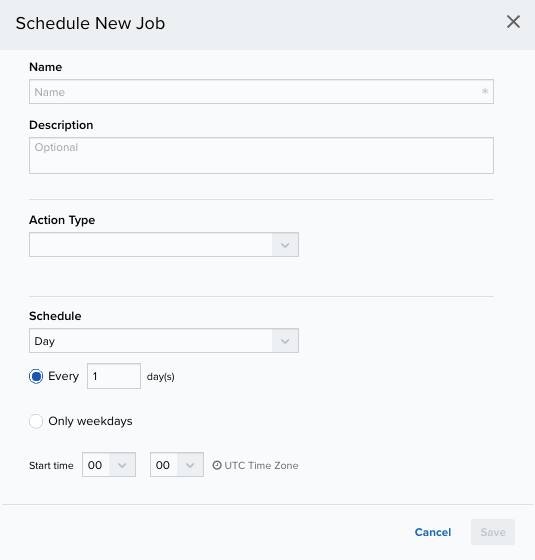 4. Enter the name and description for the job.
The description is optional, but it is a best practice to provide this information so that others can easily understand what it does.
5. In the Action Type field, select **Authenticated Asset Scanner**.
Depending on the USM Anywhere Sensor that you have installed, this field can include different options.
6. Select a sensor in case you have more than one installed.
7. In the App Action field, Scan is the default option. This option discovers services, operating systems, hostnames, IP and MAC addresses, and vulnerabilities of known hosts.
8. The Asset field displays the name of the asset to scan. You can't modify this field.
9. In the Schedule section, specify when USM Anywhere runs the job:
a. Select the increment as Minute, Hour, Day, Week, Month, or Year.
**Warning:** After a frequency change, monitor the system to check its
performance. For example, you can check the system load and CPU. See [USM
Anywhere
System](/documentation/usm-anywhere/user-guide/system-status/system-monitor.htm)
Monitor for more information.
b. Set the interval options for the increment.
The selected increment determines the available options. For example, on a weekly increment, you can select the days of the week to run the job.
4. Enter the name and description for the job.
The description is optional, but it is a best practice to provide this information so that others can easily understand what it does.
5. In the Action Type field, select **Authenticated Asset Scanner**.
Depending on the USM Anywhere Sensor that you have installed, this field can include different options.
6. Select a sensor in case you have more than one installed.
7. In the App Action field, Scan is the default option. This option discovers services, operating systems, hostnames, IP and MAC addresses, and vulnerabilities of known hosts.
8. The Asset field displays the name of the asset to scan. You can't modify this field.
9. In the Schedule section, specify when USM Anywhere runs the job:
a. Select the increment as Minute, Hour, Day, Week, Month, or Year.
**Warning:** After a frequency change, monitor the system to check its
performance. For example, you can check the system load and CPU. See [USM
Anywhere
System](/documentation/usm-anywhere/user-guide/system-status/system-monitor.htm)
Monitor for more information.
b. Set the interval options for the increment.
The selected increment determines the available options. For example, on a weekly increment, you can select the days of the week to run the job.
 Or on a monthly increment, you can specify a date or a day of the week that occurs within the month.
 **Important:** USM Anywhere restarts the schedule on the first day of the
month if the option "Every x days" is selected.
c. Set the start time.
This is the time that the job starts at the specified interval. It uses the time zone configured for your USM Anywhere instance (the default is Coordinated Universal Time \[UTC]).
10. Click **Save**.
The job now displays in the job scheduler list.
**Note:** See [USM Anywhere
Scheduler](/documentation/usm-anywhere/user-guide/scheduler/scheduler.htm) for
more information.
**Important:** USM Anywhere restarts the schedule on the first day of the
month if the option "Every x days" is selected.
c. Set the start time.
This is the time that the job starts at the specified interval. It uses the time zone configured for your USM Anywhere instance (the default is Coordinated Universal Time \[UTC]).
10. Click **Save**.
The job now displays in the job scheduler list.
**Note:** See [USM Anywhere
Scheduler](/documentation/usm-anywhere/user-guide/scheduler/scheduler.htm) for
more information.