> ## Documentation Index
> Fetch the complete documentation index at: https://docs.levelblue.com/llms.txt
> Use this file to discover all available pages before exploring further.
# Standard advanced modes
| | | | | |
| --------------------- | ------------- | ---------------- | ----------- | ----------- |
| **Role Availability** | **Read-Only** | **Investigator** | **Analyst** | **Manager** |
USM Anywhere enables you to toggle the mode of search. The available modes are **Standard** and **Advanced**.\
You can change from one mode to the other by clicking the  icon or clicking the
  icon located in the upper-left corner of the page.
## Standard Mode
This mode enables you to select **one value per filter at the same time**, and then the search is automatically performed.\
This mode is on by default.
## To activate the standard mode when the advanced mode is on:
1. Go to **Environment > Assets**.
2. In the upper-left corner of the page, click the icon.
3. This turns the icon gray, .
**Note:** If you exit the advanced mode and the selected filters are not
compatible with the standard mode, a warning dialog box opens to inform you
the current filters will be removed.
## Advanced Mode
Advanced mode enables you to select more than one value per filter at the same time. This mode is off by default.
**To activate the advanced mode**
1. Go to **Environment > Assets.**
2. In the upper-left corner of the page, click the icon to activate the advanced mode.
This turns the icon green, .
To perform a search in the advanced mode
1. Go to **Environment > Assets.**
2. In the upper-left corner of the page, click the . icon to activate the advanced mode.
This turns the icon green, .
3. Click the filters that you want to select.
The selected filters display inside a dashed rectangle.
icon located in the upper-left corner of the page.
## Standard Mode
This mode enables you to select **one value per filter at the same time**, and then the search is automatically performed.\
This mode is on by default.
## To activate the standard mode when the advanced mode is on:
1. Go to **Environment > Assets**.
2. In the upper-left corner of the page, click the icon.
3. This turns the icon gray, .
**Note:** If you exit the advanced mode and the selected filters are not
compatible with the standard mode, a warning dialog box opens to inform you
the current filters will be removed.
## Advanced Mode
Advanced mode enables you to select more than one value per filter at the same time. This mode is off by default.
**To activate the advanced mode**
1. Go to **Environment > Assets.**
2. In the upper-left corner of the page, click the icon to activate the advanced mode.
This turns the icon green, .
To perform a search in the advanced mode
1. Go to **Environment > Assets.**
2. In the upper-left corner of the page, click the . icon to activate the advanced mode.
This turns the icon green, .
3. Click the filters that you want to select.
The selected filters display inside a dashed rectangle.
 4. In the lower-left corner of the page, click **Apply Filters**. Or in the upper side of the page, click **Apply**.
 The result of your search displays.
**To search using the NOT operator**
1. Go to **Environment > Assets.**
2. In the upper-left corner of the page, click the icon to activate the advanced mode.
3. Click the filter that you want to exclude.
4. In the filter group, click **Not**.
**Important:** You have to select a filter to see this operator.
**Note:** The selected filter displays the icon and the filter chiclet is
labeled in red.
The result of your search displays.
**To search using the NOT operator**
1. Go to **Environment > Assets.**
2. In the upper-left corner of the page, click the icon to activate the advanced mode.
3. Click the filter that you want to exclude.
4. In the filter group, click **Not**.
**Important:** You have to select a filter to see this operator.
**Note:** The selected filter displays the icon and the filter chiclet is
labeled in red.
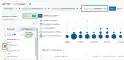


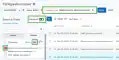

 **Important:** Some filters don't include the NOT operator (for example,
Services or Software).
5. Click **Apply**.
**To search all values of a filter**
Go to **Environment > Assets.**
In the upper-left corner of the page, click the icon to activate the advanced mode.
Select a filter title to select all filters below that title.
**Important:** Some filters don't include the NOT operator (for example,
Services or Software).
5. Click **Apply**.
**To search all values of a filter**
Go to **Environment > Assets.**
In the upper-left corner of the page, click the icon to activate the advanced mode.
Select a filter title to select all filters below that title.