> ## Documentation Index
> Fetch the complete documentation index at: https://docs.levelblue.com/llms.txt
> Use this file to discover all available pages before exploring further.
# Asset Group List View
| | | | | |
| --------------------- | ------------- | ---------------- | ----------- | ----------- |
| **Role Availability** | **Read-Only** | **Investigator** | **Analyst** | **Manager** |
USM Anywhere provides a centralized view of managing your asset groups. Go to **Environment > Asset Groups** to see this centralized view. It has the same look and feel as the asset list view and the functionalities are the same as well. The difference is that in this view, you are managing asset groups instead of assets.
By default, LevelBlue creates these dynamic asset groups:
* **Assets with Agents:** Asset group containing assets with agents.
* **Assets with Alarms:** Asset group containing assets with alarms.
* **Assets with Vulnerabilities:** Asset group containing assets with vulnerabilities.
* **Database Servers:** Asset group containing database servers.
* **HIPAA:** Asset group containing Health Insurance Portability and Accountability Act (HIPAA) assets. HIPAA is a standard for protecting sensitive patient data.
* **Linux Assets:** Asset group containing Linux systems.
* **PCI DSS:** Asset group containing Payment Card Industry (PCI) assets.
* **Web Servers:** Asset group containing web servers.
* **Windows Assets:** Asset group containing Microsoft Windows systems.
USM Anywhere also creates a default asset group for each Amazon Web Services (AWS) Elastic Load Balancing (ELB) instance in your environment. The AWS Sensor ELB group includes the ELB instance and any AWS Sensor instance connected to the load balancer and registered with the ELB service. USM Anywhere automatically discovers and enables you to collect ELB access logs if you have ELB access logging enabled.
It is not possible to edit or delete a dynamic asset group created by default.
The asset groups page displays asset groups inventory and information on those asset groups. On the left you can find the search and filter options. In the upper side of the page, you can see any filters you have applied, and you have the option to create and select different views of the asset groups. The main part of the page is the actual list of asset groups. Each row describes an individual asset group.
If you want to analyze the data, you can maximize the screen and hide the filter pane. Click the  icon to hide the filter pane. Click the
  icon to expand the filter pane.
USM Anywhere creates by default static and dynamic asset groups. See [Creating an Asset Group](documentation/usm-anywhere/user-guide/asset-management/asset-groups/creating-asset-group.htm).
#### Asset Group List field descriptions
## Column Field Name - Description
| Column Field Name | Description |
| ----------------- | --------------------------------------------------------------------------------------------------- |
| Group Name | Name of the group. |
| Group Description | Text identifying the group. |
| Assets | Number of assets in the group. |
| Asset Grouping | Type of asset grouping: static or dynamic. |
| Created | Exact date of creation of the asset group. The displayed date depends on your computer's time zone. |
Next to the asset group name, click the
icon to expand the filter pane.
USM Anywhere creates by default static and dynamic asset groups. See [Creating an Asset Group](documentation/usm-anywhere/user-guide/asset-management/asset-groups/creating-asset-group.htm).
#### Asset Group List field descriptions
## Column Field Name - Description
| Column Field Name | Description |
| ----------------- | --------------------------------------------------------------------------------------------------- |
| Group Name | Name of the group. |
| Group Description | Text identifying the group. |
| Assets | Number of assets in the group. |
| Asset Grouping | Type of asset grouping: static or dynamic. |
| Created | Exact date of creation of the asset group. The displayed date depends on your computer's time zone. |
Next to the asset group name, click the  icon to access the following options. Your access to these options may vary based on your user role. See [Role-Based Access Control (RBAC) in USM Anywhere](documentation/usm-anywhere/user-guide/user-management/rbac.htm) for more information:
* **Full Details:** See [Viewing Assets Details](documentation/usm-anywhere/user-guide/asset-management/asset-administration/viewing-asset-details.htm) for more information.
* **Asset Group Scan:** This option displays depending on the USM Anywhere Sensor associated with the asset. See [Running Asset Groups Scans](documentation/usm-anywhere/user-guide/asset-management/asset-groups/running-asset-groups-scan.htm) for more information.
* **Assign Credentials:** See [Managing Credentials in USM Anywhere](documentation/usm-anywhere/user-guide/vulnerability-assessment/credentials.htm) for more information.
* **Authenticated Scan:** This option displays depending on the USM Anywhere Sensor associated with the asset. See [Running Authenticated Asset Scans](documentation/usm-anywhere/user-guide/asset-management/asset-administration/running-vuln-scan.htm) for more information.
* **Configuration Issues:** This option opens the Asset Group Details page. The Configuration Issues tab is selected in the page. See [Viewing Assets Details](documentation/usm-anywhere/user-guide/asset-management/asset-administration/viewing-asset-details.htm) for more information.
* **Vulnerabilities:** This option opens the Asset Group Details page. The Vulnerabilities tab is selected in the page. See [Viewing Assets Details](documentation/usm-anywhere/user-guide/asset-management/asset-administration/viewing-asset-details.htm) for more information.
* **Alarms:** This option opens the Asset Group Details page. The Alarms tab is selected in the page. See [Viewing Assets Details](documentation/usm-anywhere/user-guide/asset-management/asset-administration/viewing-asset-details.htm) for more information.
* **Events:** This option opens the Asset Group Details page. The Events tab is selected in the page. See [Viewing Assets Details](documentation/usm-anywhere/user-guide/asset-management/asset-administration/viewing-asset-details.htm) for more information.
You can choose the number of items to display by selecting **20, 50, or 100** below the table. You can classify some columns by clicking the icons to the right side of the heading. You can sort the item information in ascending or descending order.
Click **Generate Report** to open the Configure Report dialog box. The management of this feature is similar to the one for assets, see [Create an Assets Report](documentation/usm-anywhere/user-guide/asset-management/asset-administration/exporting-assets.htm) for more details.
Select **Actions > Static or Actions > Dynamic** to create an asset group. See [Creating a Static Asset Group](documentation/usm-anywhere/user-guide/asset-management/asset-groups/creating-asset-group.htm#creatingStatic) and [Creating a Dynamic Asset Group](documentation/usm-anywhere/user-guide/asset-management/asset-groups/creating-asset-group.htm#creatingDynamic) for more details.
Click the
icon to access the following options. Your access to these options may vary based on your user role. See [Role-Based Access Control (RBAC) in USM Anywhere](documentation/usm-anywhere/user-guide/user-management/rbac.htm) for more information:
* **Full Details:** See [Viewing Assets Details](documentation/usm-anywhere/user-guide/asset-management/asset-administration/viewing-asset-details.htm) for more information.
* **Asset Group Scan:** This option displays depending on the USM Anywhere Sensor associated with the asset. See [Running Asset Groups Scans](documentation/usm-anywhere/user-guide/asset-management/asset-groups/running-asset-groups-scan.htm) for more information.
* **Assign Credentials:** See [Managing Credentials in USM Anywhere](documentation/usm-anywhere/user-guide/vulnerability-assessment/credentials.htm) for more information.
* **Authenticated Scan:** This option displays depending on the USM Anywhere Sensor associated with the asset. See [Running Authenticated Asset Scans](documentation/usm-anywhere/user-guide/asset-management/asset-administration/running-vuln-scan.htm) for more information.
* **Configuration Issues:** This option opens the Asset Group Details page. The Configuration Issues tab is selected in the page. See [Viewing Assets Details](documentation/usm-anywhere/user-guide/asset-management/asset-administration/viewing-asset-details.htm) for more information.
* **Vulnerabilities:** This option opens the Asset Group Details page. The Vulnerabilities tab is selected in the page. See [Viewing Assets Details](documentation/usm-anywhere/user-guide/asset-management/asset-administration/viewing-asset-details.htm) for more information.
* **Alarms:** This option opens the Asset Group Details page. The Alarms tab is selected in the page. See [Viewing Assets Details](documentation/usm-anywhere/user-guide/asset-management/asset-administration/viewing-asset-details.htm) for more information.
* **Events:** This option opens the Asset Group Details page. The Events tab is selected in the page. See [Viewing Assets Details](documentation/usm-anywhere/user-guide/asset-management/asset-administration/viewing-asset-details.htm) for more information.
You can choose the number of items to display by selecting **20, 50, or 100** below the table. You can classify some columns by clicking the icons to the right side of the heading. You can sort the item information in ascending or descending order.
Click **Generate Report** to open the Configure Report dialog box. The management of this feature is similar to the one for assets, see [Create an Assets Report](documentation/usm-anywhere/user-guide/asset-management/asset-administration/exporting-assets.htm) for more details.
Select **Actions > Static or Actions > Dynamic** to create an asset group. See [Creating a Static Asset Group](documentation/usm-anywhere/user-guide/asset-management/asset-groups/creating-asset-group.htm#creatingStatic) and [Creating a Dynamic Asset Group](documentation/usm-anywhere/user-guide/asset-management/asset-groups/creating-asset-group.htm#creatingDynamic) for more details.
Click the  icon to bookmark an item for quick access.
You can view your bookmarked items by going to the secondary menu and clicking the icon. This will display all of your bookmarked items and provide direct links to each of them.
## Views
You can configure the view you want for the list of items in the page.
### To create a view configuration
1. From the list view, select the filters you want to apply.
2. Go to **Save View > Save As.**
The Save Current View dialog box opens.
icon to bookmark an item for quick access.
You can view your bookmarked items by going to the secondary menu and clicking the icon. This will display all of your bookmarked items and provide direct links to each of them.
## Views
You can configure the view you want for the list of items in the page.
### To create a view configuration
1. From the list view, select the filters you want to apply.
2. Go to **Save View > Save As.**
The Save Current View dialog box opens.
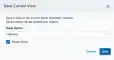 3. Enter a name for the view.
4. (Optional.) Select **Share View** if you want to share your view with other users.
5. Click **Save**
The created view is already selected.
### To select a configured view
1. From the ist view, click **View** above the filters.
2. Click **Saved Views**, and then select the view you want to see.
A shared view includes the
3. Enter a name for the view.
4. (Optional.) Select **Share View** if you want to share your view with other users.
5. Click **Save**
The created view is already selected.
### To select a configured view
1. From the ist view, click **View** above the filters.
2. Click **Saved Views**, and then select the view you want to see.
A shared view includes the  icon next to its name.
3. Click **Apply.**
### To delete a configured view
1. From the Asset Groups list view, click **View** above the filters.
2. Click **Saved Views**, and then click the
icon next to its name.
3. Click **Apply.**
### To delete a configured view
1. From the Asset Groups list view, click **View** above the filters.
2. Click **Saved Views**, and then click the  icon next to the saved view you want to delete.
A Settings Delete dialog box opens to confirm the deletion.
3. Click **Accept.**
The icon does not display if the view is selected.
You can only delete the views you have created .
icon next to the saved view you want to delete.
A Settings Delete dialog box opens to confirm the deletion.
3. Click **Accept.**
The icon does not display if the view is selected.
You can only delete the views you have created .