> ## Documentation Index
> Fetch the complete documentation index at: https://docs.levelblue.com/llms.txt
> Use this file to discover all available pages before exploring further.
# Deleting an Asset Group
| | | | | |
| --------------------- | ------------- | ---------------- | ----------- | ----------- |
| **Role Availability** | **Read-Only** | **Investigator** | **Analyst** | **Manager** |
There are two ways to delete an asset group:
* From the asset groups list view
* From the edit asset group details page
**Note:** It is not possible to edit or delete a dynamic asset group created by default.
**To delete an asset group from the list view**
1. Go to **Environment > Asset Groups**.
2. Next to the asset group you want to delete, click the  icon.
3. Select **Delete Asset Group** to display a new window and confirm the deletion.
icon.
3. Select **Delete Asset Group** to display a new window and confirm the deletion.
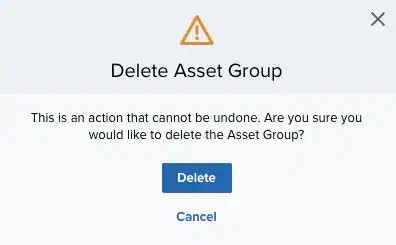 4. Click **Delete**.
**To delete an asset group from the edit asset group details page**
1. Go to **Environment > Asset Groups**.
2. Click the icon you want to delete and select **Full Details**.
3. Select **Actions > Delete Asset Group** to open a new window and confirm the deletion.
4. Click **Delete**.
4. Click **Delete**.
**To delete an asset group from the edit asset group details page**
1. Go to **Environment > Asset Groups**.
2. Click the icon you want to delete and select **Full Details**.
3. Select **Actions > Delete Asset Group** to open a new window and confirm the deletion.
4. Click **Delete**.