> ## Documentation Index
> Fetch the complete documentation index at: https://docs.levelblue.com/llms.txt
> Use this file to discover all available pages before exploring further.
# How to Create a PCI Dynamic Asset Group
| | | | | |
| --------------------- | ------------- | ---------------- | ----------- | ----------- |
| **Role Availability** | **Read-Only** | **Investigator** | **Analyst** | **Manager** |
In this example we are going to create a PCI Dynamic Asset Group for tagging instances in AWS as PCI compliant. This asset group helps you to tag all instances automatically. You do not have to mark them manually; the compliance scanners work with auto-scaling.
### To create a PCI Dynamic Asset Group for tagging instances in AWS
1. Go to **Environment > Asset Groups.**
2. Select **Actions > Dynamic.**
3. Enter the name of the asset group, for example **PCI Dynamic Asset Group.**
4. (Optional) Enter a description for identifying this group.
5. Add the search criteria for the assets you want to be part of this group. Select **AWS Tag aws:autoscaling:groupName.**
6. Select **Equal** and enter **PCI.**
7. Click the  icon.
8. Click **Apply Criteria.**
icon.
8. Click **Apply Criteria.**
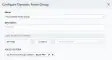 9. Click **Save.**