> ## Documentation Index
> Fetch the complete documentation index at: https://docs.levelblue.com/llms.txt
> Use this file to discover all available pages before exploring further.

# Searching Asset Groups

|                       |               |                  |             |             |
| --------------------- | ------------- | ---------------- | ----------- | ----------- |
| **Role Availability** | **Read-Only** | **Investigator** | **Analyst** | **Manager** |

USM Anywhere includes the option of searching items of interest on the page. There are several filters displayed by default. You can either filter your search or enter what you are looking for in the search field.

### Filters Displayed by Default in the Main Asset Groups Page

| Filter Name       | Meaning                                                                                                                                                                                                                                      |
| ----------------- | -------------------------------------------------------------------------------------------------------------------------------------------------------------------------------------------------------------------------------------------- |
| Asset Grouping    | Filter <Tooltip tip="Asset groups are administratively created objects that group similar assets for specific purposes.">asset groups</Tooltip> by "Static" and "Dynamic".                                                                   |
| Advanced Search   | Use this filter to search for a specific value of a field. The advanced search is similar to that for assets. See [Advanced Search Filter](../asset-administration/advanced-search-filter) for more information.                             |
| Sensor            | Filter asset groups by the associated <Tooltip tip="An IP-addressable host, including but not limited to network devices, virtual servers, and physical servers.">sensor</Tooltip>.                                                          |
| Asset Origin Type | Filter asset groups by who added the asset group to the system.                                                                                                                                                                              |
| Instance Type     | (Only for the AWS Sensor). Filter asset groups by <Tooltip tip="Suite of cloud computing services from Amazon that make up an on-demand computing platform.">AWS</Tooltip> instance type.                                                    |
| Region            | (Only for the AWS Sensor). Filter asset groups by <Tooltip tip="Suite of cloud computing services from Amazon that make up an on-demand computing platform.">AWS</Tooltip> region.                                                           |
| Operating System  | Filter asset groups by <Tooltip tip="Software that manages computer hardware resources and provides common services for computer programs. Examples include Microsoft Windows, Macintosh OS X, UNIX, and Linux.">Operating System</Tooltip>. |
| Asset Type        | Filter asset groups by asset type. See [USM Accepted Asset Types](../asset-administration/editing-assets) for more information.                                                                                                              |
| Associated Plugin | Filter asset groups by assets that have plugins manually enabled.                                                                                                                                                                            |
| Service           | Filter asset groups by service.                                                                                                                                                                                                              |
| Software          | Filter asset groups by software.                                                                                                                                                                                                             |

<Note>
  Keep in mind that the "Enter search phrase" box and the "Asset Grouping" filter make the search in the asset groups. The rest of the filters make the search in the members of the asset group. So long as a member of the asset group matches the selected filter, USM Anywhere will display the asset group, even if there is only a member matching that filter.
</Note>

The number between brackets displayed by each filter indicates the number of items that matches the filter. You can also use the filter controls to provide a method of organizing your search and filtered results.

The following table shows the icons displayed with each filter box.

### Icons Next to the Filter Title

## Icon - Meaning

<table>
  <thead>
    <tr>
      <th>Icon</th>
      <th>Meaning</th>
    </tr>
  </thead>

  <tbody>
    <tr>
      <td>
        <img src="https://mintcdn.com/levelblue-5324744e/jTImDFBjBH7kNNGB/images/central-any-app/buttons/sort-alpha-asc.svg?fit=max&auto=format&n=jTImDFBjBH7kNNGB&q=85&s=7cb55f7ecd7936765a88f3298fddf96d" style={{ height: "1em", verticalAlign: "middle", display: "inline-block", margin: "0 0.25em" }} width="20" height="20" data-path="images/central-any-app/buttons/sort-alpha-asc.svg" />

        <img src="https://mintcdn.com/levelblue-5324744e/jTImDFBjBH7kNNGB/images/central-any-app/buttons/sort-alpha-desc.svg?fit=max&auto=format&n=jTImDFBjBH7kNNGB&q=85&s=6024542985b835334e761ed37bdfc4fb" style={{ height: "1em", verticalAlign: "middle", display: "inline-block", margin: "0 0.25em" }} width="20" height="20" data-path="images/central-any-app/buttons/sort-alpha-desc.svg" />
      </td>

      <td>Sort the filters alphabetically.</td>
    </tr>

    <tr>
      <td>
        <img src="https://mintcdn.com/levelblue-5324744e/jTImDFBjBH7kNNGB/images/central-any-app/buttons/sort-amount-asc.svg?fit=max&auto=format&n=jTImDFBjBH7kNNGB&q=85&s=0dd9a01cc13a3c3c0f0cce006920e206" style={{ height: "1em", verticalAlign: "middle", display: "inline-block", margin: "0 0.25em" }} width="20" height="20" data-path="images/central-any-app/buttons/sort-amount-asc.svg" />

        <img src="https://mintcdn.com/levelblue-5324744e/jTImDFBjBH7kNNGB/images/central-any-app/buttons/sort-amount-desc.svg?fit=max&auto=format&n=jTImDFBjBH7kNNGB&q=85&s=780286a19b1b4ed56a9eea002a46ad67" style={{ height: "1em", verticalAlign: "middle", display: "inline-block", margin: "0 0.25em" }} width="20" height="20" data-path="images/central-any-app/buttons/sort-amount-desc.svg" />
      </td>

      <td>Sort the filters by number of items that matches them.</td>
    </tr>
  </tbody>
</table>

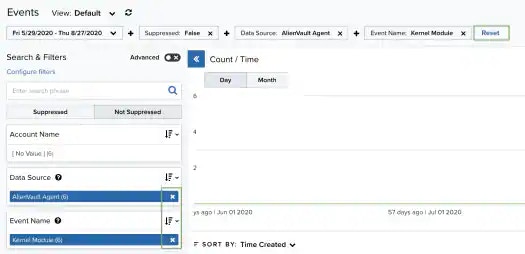
In the upper-left side of the page, you can see any filters you have applied. Remove filters by clicking the <img src="https://mintcdn.com/levelblue-5324744e/T1hrc0hK0aza_DCc/images/central-any-app/buttons/close-thin.svg?fit=max&auto=format&n=T1hrc0hK0aza_DCc&q=85&s=1d2d6b2ae071f316dba3f3059125e393" style={{ height: "1em", verticalAlign: "middle", display: "inline-block", margin: "0 0.25em" }} width="24" height="24" data-path="images/central-any-app/buttons/close-thin.svg" /> icon next to the filter. Or clear all filters by clicking **Reset**.
<Frame>
  <img src="https://mintcdn.com/levelblue-5324744e/fC92IJE7ax567GE5/images/usm-anywhere/user-guide/events/resetfilters_525x254.webp?fit=max&auto=format&n=fC92IJE7ax567GE5&q=85&s=ce63859da00b0c89028f757f01d635eb" width="525" height="254" data-path="images/usm-anywhere/user-guide/events/resetfilters_525x254.webp" />
</Frame>

<Note>
  **Note:** When applying filters, the search uses the logical AND operator if the used filters are different. However, when the filter is of the same type, the search uses the logical OR operator.
</Note>

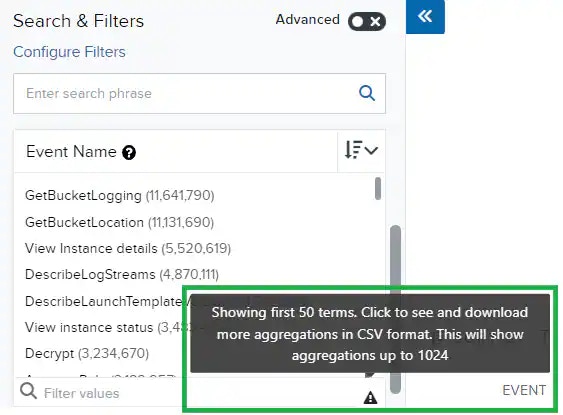
Those filters that have more than 10 options include a Filter Values search field for writing text and making the search easier. If there are more than 50 search results, a <img src="https://mintcdn.com/levelblue-5324744e/L0uo3frxKf03lkfc/images/central-any-app/buttons/warning-black.svg?fit=max&auto=format&n=L0uo3frxKf03lkfc&q=85&s=9ede78b59fab0b37a3cf04fa55b8b7b3" style={{ height: "1em", verticalAlign: "middle", display: "inline-block", margin: "0 0.25em" }} width="20" height="20" data-path="images/central-any-app/buttons/warning-black.svg" /> icon appears to the right of the **Filter Values** search field. Click this icon to download a CSV containing up to 1024 results.
<Frame>
  <img src="https://mintcdn.com/levelblue-5324744e/cTvy_WdX_rVxbBkS/images/usm-anywhere/user-guide/alarms/searchfieldwarning.webp?fit=max&auto=format&n=cTvy_WdX_rVxbBkS&q=85&s=d6b078c4b0822ce7269b0217bdd382b1" width="563" height="415" data-path="images/usm-anywhere/user-guide/alarms/searchfieldwarning.webp" />
</Frame>

## Standard Mode

This mode enables you to select one value per filter at the same time, and then the search is automatically performed. This mode is on by default.

**To activate the standard mode when the advanced mode is on**

1. Go to **Activity > Alarms**.
2. In the upper-left corner of the page, click the <img src="https://mintcdn.com/levelblue-5324744e/9HhQ6wK11ydctaHc/images/usm-anywhere/toggle-on-new.svg?fit=max&auto=format&n=9HhQ6wK11ydctaHc&q=85&s=b0ecf1b6c804d5cf5eac9ea50b41480d" className="inline m-0" width="32" height="16" data-path="images/usm-anywhere/toggle-on-new.svg" /> icon.
3. This turns the icon gray, <img src="https://mintcdn.com/levelblue-5324744e/9HhQ6wK11ydctaHc/images/usm-anywhere/toggle-off-new.svg?fit=max&auto=format&n=9HhQ6wK11ydctaHc&q=85&s=bed00ce5e148a8148e763548ae6c8199" className="inline m-0" width="32" height="16" data-path="images/usm-anywhere/toggle-off-new.svg" />.

   <Note>
     If you exit the advanced mode and the selected filters are not compatible with the standard mode, a warning dialog box opens to inform you the current filters will be removed.
   </Note>

## Advanced Mode

Advanced mode enables you to select more than one value per filter at the same time. This mode is off by default.

**To activate the advanced mode**

1. Go to **Activity > Alarms**.
2. In the upper-left corner of the page, click the <img src="https://mintcdn.com/levelblue-5324744e/9HhQ6wK11ydctaHc/images/usm-anywhere/toggle-off-new.svg?fit=max&auto=format&n=9HhQ6wK11ydctaHc&q=85&s=bed00ce5e148a8148e763548ae6c8199" className="inline m-0" width="32" height="16" data-path="images/usm-anywhere/toggle-off-new.svg" /> icon to activate the advanced mode.

   This turns the icon green, <img src="https://mintcdn.com/levelblue-5324744e/9HhQ6wK11ydctaHc/images/usm-anywhere/toggle-on-new.svg?fit=max&auto=format&n=9HhQ6wK11ydctaHc&q=85&s=b0ecf1b6c804d5cf5eac9ea50b41480d" className="inline m-0" width="32" height="16" data-path="images/usm-anywhere/toggle-on-new.svg" />.

### To search all values of a filter

1. Go to **Environment > Asset Groups.**

2. In the upper-left corner of the page, click the <img src="https://mintcdn.com/levelblue-5324744e/9HhQ6wK11ydctaHc/images/usm-anywhere/toggle-off-new.svg?fit=max&auto=format&n=9HhQ6wK11ydctaHc&q=85&s=bed00ce5e148a8148e763548ae6c8199" className="inline m-0" width="32" height="16" data-path="images/usm-anywhere/toggle-off-new.svg" /> icon to activate the advanced mode.

3. Select a filter title to select all filters below that title.

## Searching Asset Groups by Using the Search Field

Use the search field to enter queries and refine your search. You can enter free text, use wildcards, and use advanced search syntax. When searching, keep in mind the accepted query string syntax list in this table.

### Accepted Query String Syntax

| **Type of Query**                                                   | **Meaning**                                                                                                                                                                                                                                                                                                                                                                                                          | **Example**                    |
| ------------------------------------------------------------------- | -------------------------------------------------------------------------------------------------------------------------------------------------------------------------------------------------------------------------------------------------------------------------------------------------------------------------------------------------------------------------------------------------------------------- | ------------------------------ |
| Standard query with a blank space between terms                     | By default, a space between query terms is considered an implicit “OR”.                                                                                                                                                                                                                                                                                                                                              | denylist malicious             |
| Literal, using double quotes                                        | Matches fields that contain the full term. Literal searches are case-sensitive.<br /><br /><Note>This type of query will not match any searches in the raw log because raw logs are tokenized.</Note><br /><br /><Note>IP addresses and FQDNs are considered literal searches, so they don't require quotation marks.</Note>                                                                                         | Event from asset not received  |
| Boolean operators or using parentheses<br /><br />AND, OR, NOT, ( ) | Including AND or OR between two search terms will search for results that match both of those terms.<br /><br />Including NOT between two search terms will exclude results that match the second term, even though they otherwise match your query.<br /><br />Parentheses can be used to group terms for higher precedence relative to the rest of your query. Parentheses are also used to designate subsearches. | (http OR tcp) AND ftp          |
| Wildcards, asterisk<br /><br />\*                                   | Appending an asterisk to the end of a term within your query will search for results that begin with your search term.<br /><br />An asterisk cannot be used at the beginning of a search query.                                                                                                                                                                                                                     | instance\*                     |
| Wildcards, question mark<br /><br />?                               | Embedding a question mark in the middle of a term will search for results that otherwise match your query, no matter the value in the position held by the question mark in your search term.<br /><br />A question mark cannot be used at the beginning of a search query.                                                                                                                                          | qu?ck                          |
| Regular expression (regex), using /expression/                      | Regular expression inside forward slash characters. A dialog box opens to confirm the search.<br /><br /><Note>The characters ", \*, ?, (, and ) are special characters included in expressions. If you want to search by these characters, you need to manually escape them by preceding them with a backslash.</Note>                                                                                              | /Describe.\*Instances/         |
| OTX pulse                                                           | Pulses are collections of Indicators of Compromise (IOCs). You need to insert the word pulse followed by a colon and the pulse ID or URL.                                                                                                                                                                                                                                                                            | pulse:59432536c1970e343ce61bf0 |

Any characters may be used in a query, but certain characters are reserved and must be escaped. The reserved characters are these:

* * \= & | > \< ! { } \[ ] ^ " \~ : \ /

Use a backslash (for example, ">") to escape any reserved character (including a backslash).

### To search for Asset Groups using the search field

1. Go to **Environment > Asset Groups.**

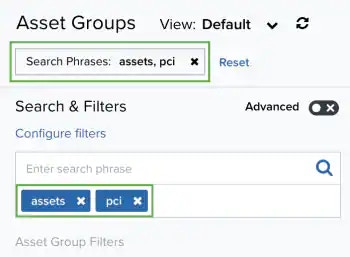
2. Enter your query in the search field.

   If you want to search for an exact phrase having two or more words, you need to put quotation marks around the words in the phrase. This includes email addresses (for example, "[bob@mycompany.com](mailto:bob@mycompany.com)").

   <Note>
     Wildcard characters are considered as literal characters.
   </Note>

   3. Click the  icon.

   <img src="https://mintcdn.com/levelblue-5324744e/cTvy_WdX_rVxbBkS/images/usm-anywhere/user-guide/asset-group/searching-image5.webp?fit=max&auto=format&n=cTvy_WdX_rVxbBkS&q=85&s=f249da993cce02182eba0e0906203cff" alt="" width="350" height="257" data-path="images/usm-anywhere/user-guide/asset-group/searching-image5.webp" />

The result of your search displays with the items identified.

## Advanced Search Filter on Asset Groups

The Advanced Search filter enables you to enter a search value on a selected field.

The following table shows the filter fields that you can find in the first drop-down list.

### Advanced Search Fields (First Drop-Down List)

| **Filter Name**             | **Meaning**                                                                                                                                                                                                                                                                                                                                                                                             |
| --------------------------- | ------------------------------------------------------------------------------------------------------------------------------------------------------------------------------------------------------------------------------------------------------------------------------------------------------------------------------------------------------------------------------------------------------- |
| Name                        | Filter asset groups by the name of the asset.                                                                                                                                                                                                                                                                                                                                                           |
| Description                 | Filter asset groups by the asset description.                                                                                                                                                                                                                                                                                                                                                           |
| UUID                        | Filter asset groups by the universally unique identifier (UUID).                                                                                                                                                                                                                                                                                                                                        |
| IP/CIDR                     | Filter asset groups by IP and Classless Inter-Domain Routing (CIDR). This is a method for allocating IP addresses and routing IP packets. It is the range of IP addresses that define the network.                                                                                                                                                                                                      |
| FQDN                        | Filter asset groups by Fully Qualified Domain Name (FQDN).                                                                                                                                                                                                                                                                                                                                              |
| Asset Type                  | Filter asset groups by asset type.                                                                                                                                                                                                                                                                                                                                                                      |
| Instance Type               | Filter asset groups by instance type.                                                                                                                                                                                                                                                                                                                                                                   |
| Region                      | Filter asset groups by region.                                                                                                                                                                                                                                                                                                                                                                          |
| Operating System            | Filter asset groups by operating system.                                                                                                                                                                                                                                                                                                                                                                |
| Service                     | Filter asset groups by service.                                                                                                                                                                                                                                                                                                                                                                         |
| Software                    | Filter asset groups by software.                                                                                                                                                                                                                                                                                                                                                                        |
| Associated Plugin           | Filter asset groups by the plugin associated to the asset.                                                                                                                                                                                                                                                                                                                                              |
| Alarm Counter               | Filter asset groups by the number of alarms.                                                                                                                                                                                                                                                                                                                                                            |
| Event Counter               | Filter asset groups by the number of events.                                                                                                                                                                                                                                                                                                                                                            |
| Vulnerability Counter       | Filter asset groups by the number of vulnerabilities.                                                                                                                                                                                                                                                                                                                                                   |
| Configuration Issue Counter | Filter asset groups by the number of configuration issues.                                                                                                                                                                                                                                                                                                                                              |
| PCI Asset                   | Filter asset groups by Payment Card Industry (PCI) Asset, if the asset is included or not in the PCI Data Security Standards (DSS) Asset Group. See [Asset Group List View](documentation/usm-anywhere/user-guide/asset-management/asset-groups/asset-group-list-view.htm) and [Working with Assets and PCI DSS](documentation/usm-anywhere/user-guide/compliance/assets-pci.htm) for more information. |
| HIPAA Asset                 | Filter asset groups by Health Insurance Portability and Accountability Act (HIPAA) Asset, whether the asset is included in the HIPAA Asset Group. See [Asset Group List View](documentation/usm-anywhere/user-guide/asset-management/asset-groups/asset-group-list-view.htm) for more information.                                                                                                      |
| Custom User Fields          | Filter asset groups by the fields you have created. If you have not created fields, this filter does not display.                                                                                                                                                                                                                                                                                       |
<Note>
  The result of a search when you use the Alarm Counter filter or the Event Counter filter depends on if an alarm or an event can identify the source or destination as an asset in the inventory. Your environment can have alarms or events associated with assets both included in the inventory and those not included in the inventory.
</Note>

The following table shows the operators that you can find in the second drop-down list.

### Advanced Search Fields (Second Drop-Down List)

| **Operator** | **Meaning**                                                                                                            |
| ------------ | ---------------------------------------------------------------------------------------------------------------------- |
| >            | Greater than.                                                                                                          |
| >=           | Greater than or equal to.                                                                                              |
| \<           | Less than.                                                                                                             |
| \<=          | Less than or equal to.                                                                                                 |
| Equal        | Equal to.                                                                                                              |
| IP Range     | Range of IP addresses.                                                                                                 |
| Is Empty     | Include assets with no IP addresses. This operator is available only for IP/CIDR.                                      |
| Is Not Empty | Include assets with IP addresses. This operator is available only for IP/CIDR.                                         |
| Like         | Search for the specified pattern.                                                                                      |
| Not Equal    | Not equal to.<br /><br /><Info>Some filters don't include the NOT operator (for example, Services or Software).</Info> |
| Not Like     | Not true.                                                                                                              |

The following table shows the operators that you can include in your query string.

Use the search field to enter queries and refine your search. You can enter free text, use wildcards, and use advanced search syntax. When searching, keep in mind the accepted query string syntax list in this table.

### Accepted Query String Syntax

| **Type of Query**                                                   | **Meaning**                                                                                                                                                                                                                                                                                                                                                                                                          | **Example**                    |
| ------------------------------------------------------------------- | -------------------------------------------------------------------------------------------------------------------------------------------------------------------------------------------------------------------------------------------------------------------------------------------------------------------------------------------------------------------------------------------------------------------- | ------------------------------ |
| Standard query with a blank space between terms                     | By default, a space between query terms is considered an implicit “OR”.                                                                                                                                                                                                                                                                                                                                              | denylist malicious             |
| Literal, using double quotes<br /><br />' '                         | Matches fields that contain the full term. Literal searches are case-sensitive.<br /><br /><Note>This type of query will not match any searches in the raw log because raw logs are tokenized.</Note><br /><br /><Note>IP addresses and FQDNs are considered literal searches, so they don't require quotation marks.</Note>                                                                                         | Event from asset not received  |
| Boolean operators or using parentheses<br /><br />AND, OR, NOT, ( ) | Including AND or OR between two search terms will search for results that match both of those terms.<br /><br />Including NOT between two search terms will exclude results that match the second term, even though they otherwise match your query.<br /><br />Parentheses can be used to group terms for higher precedence relative to the rest of your query. Parentheses are also used to designate subsearches. | (http OR tcp) AND ftp          |
| Wildcards, asterisk<br /><br />\*                                   | Appending an asterisk to the end of a term within your query will search for results that begin with your search term.<br /><br />An asterisk cannot be used at the beginning of a search query.                                                                                                                                                                                                                     | instance\*                     |
| Wildcards, question mark<br /><br />?                               | Embedding a question mark in the middle of a term will search for results that otherwise match your query, no matter the value in the position held by the question mark in your search term.<br /><br />A question mark cannot be used at the beginning of a search query.                                                                                                                                          | qu?ck                          |
| Regular expression (regex), using /expression/                      | Regular expression inside forward slash characters. A dialog box opens to confirm the search.<br /><br /><Note>The characters ", \*, ?, (, and ) are special characters included in expressions. If you want to search by these characters, you need to manually escape them by preceding them with a backslash.</Note>                                                                                              | /Describe.\*Instances/         |
| OTX pulse                                                           | Pulses are collections of Indicators of Compromise (IOCs). You need to insert the word pulse followed by a colon and the pulse ID or URL.                                                                                                                                                                                                                                                                            | pulse:59432536c1970e343ce61bf0 |

Any characters may be used in a query, but certain characters are reserved and must be escaped. The reserved characters are these:

* * \= & | > \< ! { } \[ ] ^ " \~ : \ /

Use a backslash (for example, ">") to escape any reserved character (including a backslash).

### To search asset groups using the advanced search filter

1. Go to **Environment > Asset Groups.**

2. Below Advanced Search filter, click **Add Filter.**

   <img src="https://mintcdn.com/levelblue-5324744e/cTvy_WdX_rVxbBkS/images/usm-anywhere/user-guide/asset-group/searching-image6.webp?fit=max&auto=format&n=cTvy_WdX_rVxbBkS&q=85&s=7c18407499d2efcbd7c907dc3fab5b5f" alt="" width="107" height="60" data-path="images/usm-anywhere/user-guide/asset-group/searching-image6.webp" />

3. Select a field from the first drop-down list.

   <img src="https://mintcdn.com/levelblue-5324744e/cTvy_WdX_rVxbBkS/images/usm-anywhere/user-guide/asset-group/searching-image7.webp?fit=max&auto=format&n=cTvy_WdX_rVxbBkS&q=85&s=450be094b692fd7e200c0f76241342f4" alt="" width="57" height="60" data-path="images/usm-anywhere/user-guide/asset-group/searching-image7.webp" />

   See [Advanced Search Fields (First Drop-Down List)](documentation/usm-anywhere/user-guide/asset-management/asset-groups/searching-asset-groups.htm?tocpath=Documentation%7CUSM%20Anywhere%E2%84%A2%7CUSM%20Anywhere%20User%20Guide%7CAsset%20Management%7CAsset%20Groups%20Administration%7C_____3#fields) for more information.

4. Select an operator from the drop-down list.

   <Info>
     Depending on the field you have chosen in the first drop-down list, the operators vary.
   </Info>

   <img src="https://mintcdn.com/levelblue-5324744e/cTvy_WdX_rVxbBkS/images/usm-anywhere/user-guide/asset-group/searching-image8.webp?fit=max&auto=format&n=cTvy_WdX_rVxbBkS&q=85&s=ff51f34f3db56c75883976f128e9b6d9" alt="" width="85" height="60" data-path="images/usm-anywhere/user-guide/asset-group/searching-image8.webp" />

5. Enter the search value.

   If you want to search for an exact phrase having two or more words, you need to put quotation marks around the words in the phrase. This includes email addresses (for example, "[bob@mycompany.com](mailto:bob@mycompany.com)").

6. Click the  icon.

7. Click **Add Filter** if you want to add a new search.

8. Click the  icon.

9. Click **Apply.**

The result of your search displays with the assets identified.
