> ## Documentation Index
> Fetch the complete documentation index at: https://docs.levelblue.com/llms.txt
> Use this file to discover all available pages before exploring further.
# Downloading an Existing AWS Cloud Connector Template
| | | | | |
| --------------------- | --------- | ------------ | ----------- | ----------- |
| **Role Availability** | Read-Only | Investigator | **Analyst** | **Manager** |
USM Anywhere helps you in generating an Amazon Web Services (AWS) CloudFormation template that you need for gathering data from your Amazon Simple Storage Service (S3) buckets.
**To download an AWS Cloud Connector template from the Cloud Connectors main page**
1. Go to **Data Sources > Cloud Connectors**.
2. Click the  icon to expand the specific information about the AWS Cloud Connector whose template you want to download.
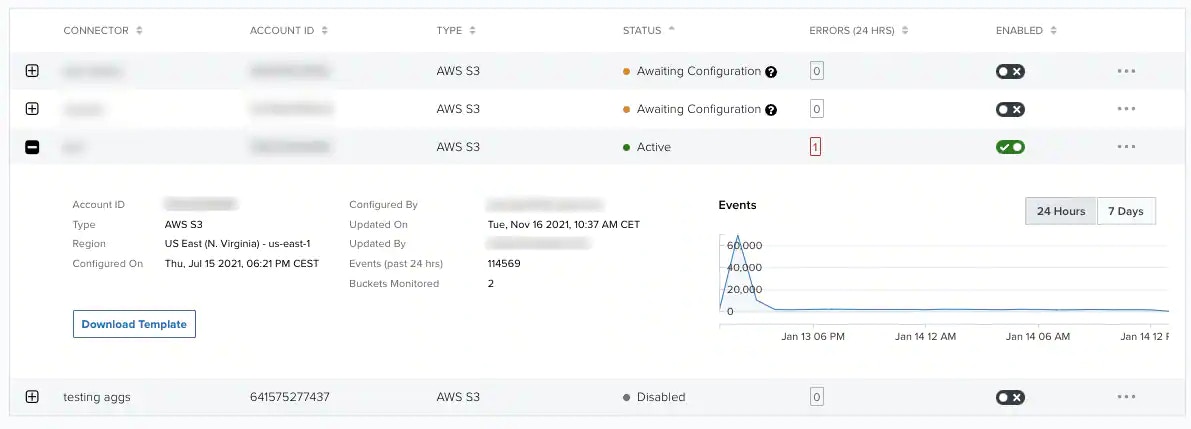 3. Click **Download Template**.
The `InventoryConnector-template.json` or `s3connector-template.json` file downloads. This is the default name of the file depending on your connector type, but you can change it.
4. Open your AWS Management Console page, and then upload the template.
See [Uploading AWS CloudFormation Templates](/documentation/usm-anywhere/deployment-guide/cloud-connector/aws/uploading-cloud-formation-template) for more information.
**To download an AWS Cloud Connector template from the details page of a Cloud Connector**
1. Go to **Data Sources > Cloud Connectors**.
2. Click the
3. Click **Download Template**.
The `InventoryConnector-template.json` or `s3connector-template.json` file downloads. This is the default name of the file depending on your connector type, but you can change it.
4. Open your AWS Management Console page, and then upload the template.
See [Uploading AWS CloudFormation Templates](/documentation/usm-anywhere/deployment-guide/cloud-connector/aws/uploading-cloud-formation-template) for more information.
**To download an AWS Cloud Connector template from the details page of a Cloud Connector**
1. Go to **Data Sources > Cloud Connectors**.
2. Click the  icon of the sensor for which you want to download the template, and then select **View Connector**.
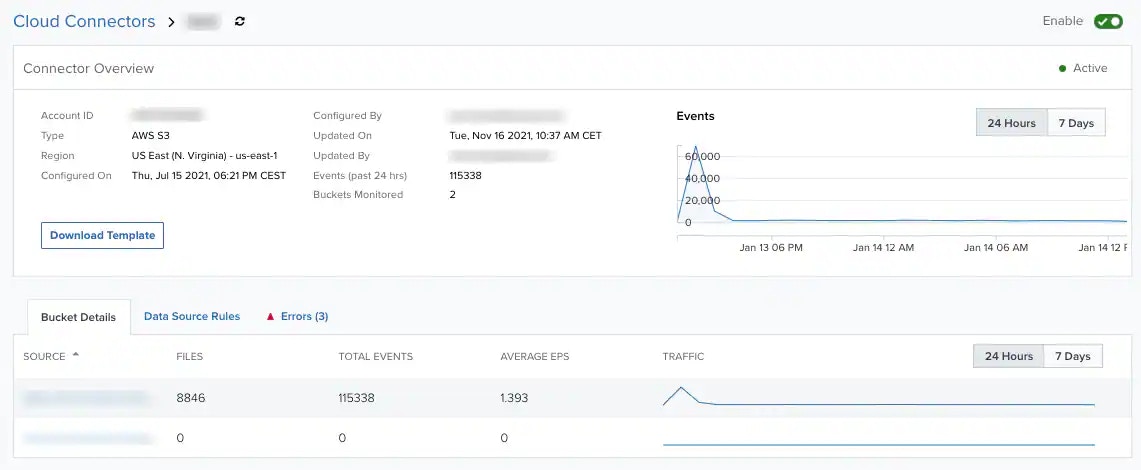 3. Click **Download Template**.
The `InventoryConnector-template.json` or `s3connector-template.json` file downloads. This is the default name of the file depending on your connector type, but you can change it.
4. Open your AWS Management Console page, and then upload the template.
See [Uploading AWS CloudFormation Templates](/documentation/usm-anywhere/deployment-guide/cloud-connector/aws/uploading-cloud-formation-template) for more information.
**To download an AWS Cloud Connector template when you add a Cloud Connector**
1. Go to **Data Sources > Cloud Connectors**.
2. Click **Add Connector**.
The Add New Connector dialog box opens.
3. Select the AWS Cloud Connector type.
4. Enter your AWS account identifier (ID).
5. Select the region where you want to deploy the AWS CloudFormation template.
6. (Optional.) Enter a name for your AWS Cloud Connector.
7. Click **Next**.
3. Click **Download Template**.
The `InventoryConnector-template.json` or `s3connector-template.json` file downloads. This is the default name of the file depending on your connector type, but you can change it.
4. Open your AWS Management Console page, and then upload the template.
See [Uploading AWS CloudFormation Templates](/documentation/usm-anywhere/deployment-guide/cloud-connector/aws/uploading-cloud-formation-template) for more information.
**To download an AWS Cloud Connector template when you add a Cloud Connector**
1. Go to **Data Sources > Cloud Connectors**.
2. Click **Add Connector**.
The Add New Connector dialog box opens.
3. Select the AWS Cloud Connector type.
4. Enter your AWS account identifier (ID).
5. Select the region where you want to deploy the AWS CloudFormation template.
6. (Optional.) Enter a name for your AWS Cloud Connector.
7. Click **Next**.
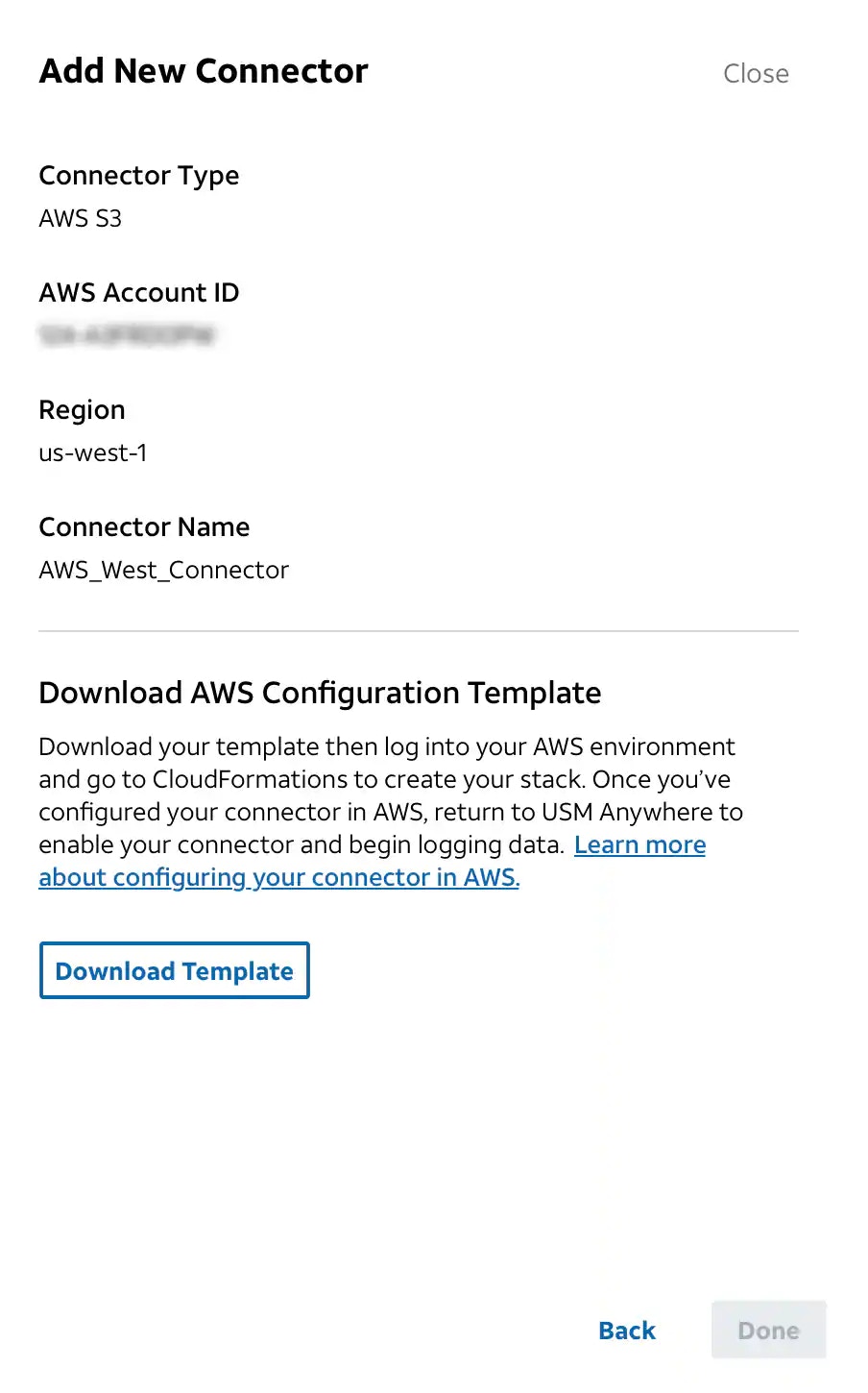 8. Click **Download Template**.
The `InventoryConnector-template.json` or `s3connector-template.json` file downloads. This is the default name of the file depending on your connector type, but you can change it.
9. Open your AWS Management Console page, and then upload the template.
See [Uploading AWS CloudFormation Templates](/documentation/usm-anywhere/deployment-guide/cloud-connector/aws/uploading-cloud-formation-template) for more information.
8. Click **Download Template**.
The `InventoryConnector-template.json` or `s3connector-template.json` file downloads. This is the default name of the file depending on your connector type, but you can change it.
9. Open your AWS Management Console page, and then upload the template.
See [Uploading AWS CloudFormation Templates](/documentation/usm-anywhere/deployment-guide/cloud-connector/aws/uploading-cloud-formation-template) for more information.