> ## Documentation Index
> Fetch the complete documentation index at: https://docs.levelblue.com/llms.txt
> Use this file to discover all available pages before exploring further.
# Editing a Data Source Rule
| | | | | |
| --------------------- | --------- | ------------ | ----------- | ----------- |
| **Role Availability** | Read-Only | Investigator | **Analyst** | **Manager** |
This option enables you to change the data source rule name, the Filenames Matching With field, and the Data Sources field.
**To edit a rule**
1. Go to **Data Sources > Cloud Connectors** to open the Cloud Connectors main page.
2. Click the  icon of the Cloud Connector for which you want to edit the rule, and then select View Connector.
3. Click the **Data Source Rules** tab.
4. Click the
icon of the Cloud Connector for which you want to edit the rule, and then select View Connector.
3. Click the **Data Source Rules** tab.
4. Click the  icon of the connector source you want to edit the rule.
 The Edit Data Source Rule dialog box opens.
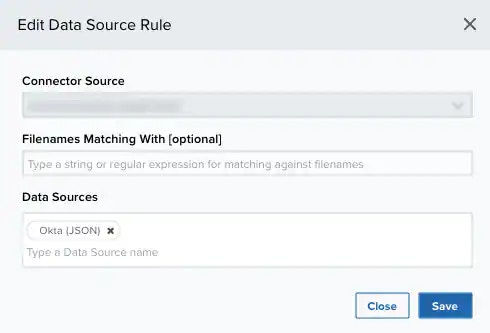 5. Modify the data of the items that need to be modified.
6. Click **Save**.
5. Modify the data of the items that need to be modified.
6. Click **Save**.