> ## Documentation Index
> Fetch the complete documentation index at: https://docs.levelblue.com/llms.txt
> Use this file to discover all available pages before exploring further.
# Searching Configuration Issues
Role Availability | ✔️ Read-Only ✔️ Investigator ✔️ Analyst ✔️ Manager
USM Anywhere includes several filters displayed by default. These filters enable you to search for your items of interest. You can either filter your search, or enter what you are looking for in the search field, which is in the upper-left corner of the page.
This table shows the filters displayed by default in the main Configuration Issues page.
**Filters Displayed by Default in the Main Configuration Issues Page**
| Filter Name | Meaning |
| --------------- | ----------------------------------------------------------------------------------------------------------------------------------------------------------------------------------------------------------------------------------------------------------------------------------------------------------------------------------------------------------------------------------------------------------------------------------------------------------------------------------------------------------------------------------------------------------------------------------------------------------------------------------------------------------------------------------------------- |
| Last 24 Hours | Filter configuration Issues triggered in the last hour, the last 24 hours, last 7 days, or last 30 days. You can also configure your own period of time by clicking the **Custom Range** option. This option enables you to customize a range. When you click **Custom Range**, a calendar opens. You can choose the first and last day to delimit your search by clicking the days on the calendar or entering the days directly. Then select the hours, minutes, and seconds by clicking the specific box. Finally, select **AM** or **PM**. |
| Active/Inactive | Filter the active or inactive configuration issues. |
| Category | Filter configuration issues by category of configuration issue. Issues with similar impacts have the same category. |
| Subcategory | Filter configuration issues by sub-category of the configuration issue. The sub-category explains the detail of the issue. |
| Severity | Filter configuration issues by severity of the issue. Values are Low, Medium, or High. |
| Asset | Filter configuration issues by asset associated with the configuration issue. |
| Asset Groups | Filter configuration issues by asset group. |
The number between brackets displayed by each filter indicates the number of items that matches the filter. You can also use the filter controls to provide a method of organizing your search and filtered results.
The following table shows the icons displayed with each filter box.
**Icons Next to the Filter Title**
| Icon | Meaning |
| ------------------------------------------------------------------------------------------------------------------------------------------------------------------------------------------------------------------------------------------------------------------------------------------------------------------------------------------------------------------------------------------------------------------------------------------------------------------------------------------------------------------------------------------------------------------------------------------------------------------------------------------------------------------------------------------------------------------------------------------------------------------------------------------------------------------------------------------------------------------------------------------------------------------------------------------------------------------------------------------------------------------------------------------------------------------------------------------------------------------------------------------------------------------------------------------------------------------------------------------------------------------------------------------------------------------------------------------------------------------------------------------------------------------------------------------------------------------------------------------------------------------------------------------------------------------------------------------------------------------------------------------------------------------------------------------------------------------------------------------------------------------------------------------------------------------------------------------------------------------------------------------------------------------------------------------------------------------------------------------------------------------------------------------------------------------------------------------------------------------------------------------------------------------------------------------------------------------------------------------------------------------------------------------------------------------------------------------------------------------------------------------------------------------------------------------------------------------------------------------------------------------------------------------------------------------------------------------------------------------------------------------------------------------------------------------------------------------------------------------------------------------------------------------------------------------------------------------------------------------------------------------------------------------------------------------------------------------------------------------------------------------------------------------------------------------------------------------------------ | ----------------------------------------------------- |
| 
 | Sort the filters alphabetically. |
|
| Sort the filters alphabetically. |
| 
 | Sort the filters by number of items that matches them |
In the upper-left side of the page, you can see any filters you have applied. Remove filters by clicking the
| Sort the filters by number of items that matches them |
In the upper-left side of the page, you can see any filters you have applied. Remove filters by clicking the  icon next to the filter. Or clear all filters by clicking **Reset**.
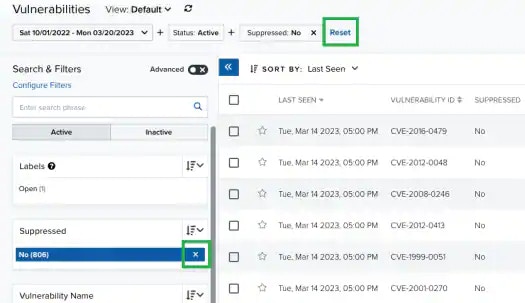 **Note:** When applying filters, the search uses the logical AND operator if the used filters are different. However, when the filter is of the same type, the search uses the logical OR operator.
Those filters that have more than 10 options include a Filter Values search field for writing text and making the search easier. If there are more than 50 search results, a
**Note:** When applying filters, the search uses the logical AND operator if the used filters are different. However, when the filter is of the same type, the search uses the logical OR operator.
Those filters that have more than 10 options include a Filter Values search field for writing text and making the search easier. If there are more than 50 search results, a  icon appears to the right of the **Filter Values** search field. Click this icon to download a CSV containing up to 1024 results.
USM Anywhere enables you to toggle the mode of search. The available modes are Standard and Advanced. You can change from one mode to the other by clicking the
icon appears to the right of the **Filter Values** search field. Click this icon to download a CSV containing up to 1024 results.
USM Anywhere enables you to toggle the mode of search. The available modes are Standard and Advanced. You can change from one mode to the other by clicking the  icon or clicking the
  icon located in the upper left corner of the page.
## Standard Mode
This mode enables you to select one value per filter at the same time, and then the search is automatically performed. This mode is on by default.
**To activate the standard mode when the advanced mode is on**
1. Go to **Activity > System Events**.
2. In the upper-left corner of the page, click the icon.
3. This turns the icon gray, .
If you exit the advanced mode and the selected filters are not compatible with the standard mode, a warning dialog box opens to inform you the current filters will be removed.
## Advanced Mode
Advanced mode enables you to select more than one value per filter at the same time. This mode is off by default.
**To activate the advanced mode**
1. Go to **Activity > System Events**.
2. In the upper-left corner of the page, click the icon to activate the advanced mode.
This turns the icon green, .
**To perform a search in the advanced mode**
1. Go to **Activity > Alarms**.
2. In the upper-left corner of the page, click the icon to activate the advanced mode.
This turns the icon green, .
3. Click the filters that you want to select.
The selected filters display inside a dashed rectangle.
icon located in the upper left corner of the page.
## Standard Mode
This mode enables you to select one value per filter at the same time, and then the search is automatically performed. This mode is on by default.
**To activate the standard mode when the advanced mode is on**
1. Go to **Activity > System Events**.
2. In the upper-left corner of the page, click the icon.
3. This turns the icon gray, .
If you exit the advanced mode and the selected filters are not compatible with the standard mode, a warning dialog box opens to inform you the current filters will be removed.
## Advanced Mode
Advanced mode enables you to select more than one value per filter at the same time. This mode is off by default.
**To activate the advanced mode**
1. Go to **Activity > System Events**.
2. In the upper-left corner of the page, click the icon to activate the advanced mode.
This turns the icon green, .
**To perform a search in the advanced mode**
1. Go to **Activity > Alarms**.
2. In the upper-left corner of the page, click the icon to activate the advanced mode.
This turns the icon green, .
3. Click the filters that you want to select.
The selected filters display inside a dashed rectangle.
 4. In the lower-left corner of the page, click **Apply Filters**. Or in the upper side of the page, click **Apply**.
 The result of your search displays.
**To search using the NOT operator**
1. Go to **Activity > Alarms**.
2. In the upper-left corner of the page, click the icon to activate the advanced mode.
3. Click the filter that you want to exclude.
4. In the filter group, click **Not**.
You have to select a filter to see this operator.
he selected filter displays the
The result of your search displays.
**To search using the NOT operator**
1. Go to **Activity > Alarms**.
2. In the upper-left corner of the page, click the icon to activate the advanced mode.
3. Click the filter that you want to exclude.
4. In the filter group, click **Not**.
You have to select a filter to see this operator.
he selected filter displays the  icon and the filter chiclet is labeled in red.
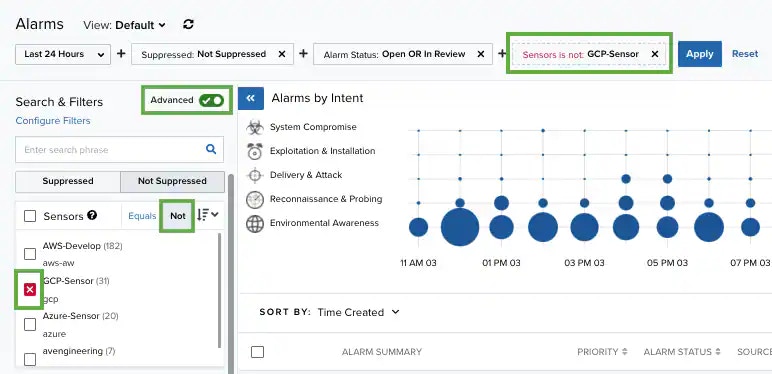
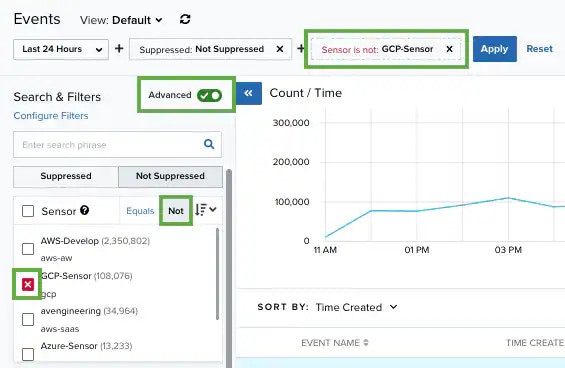
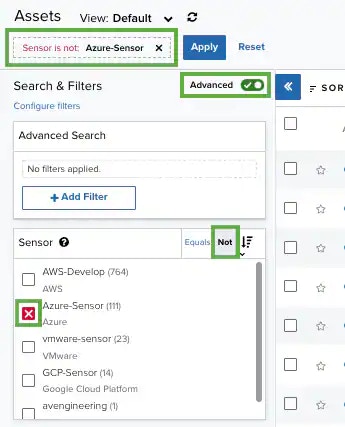
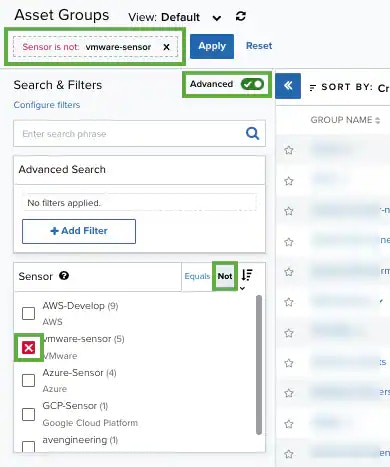
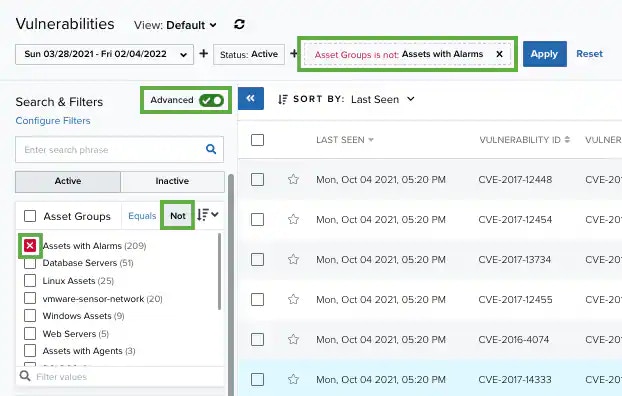
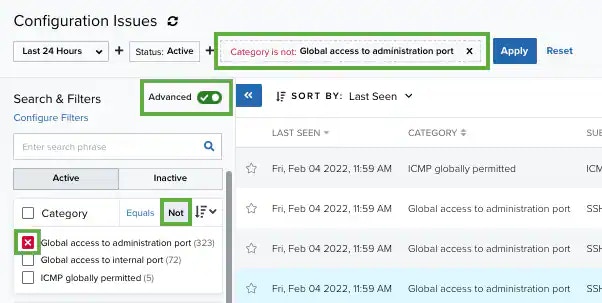
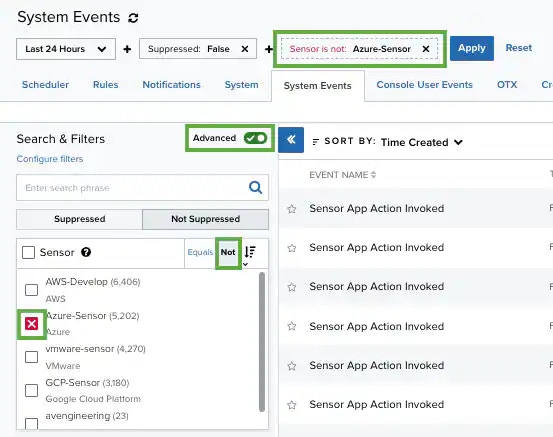
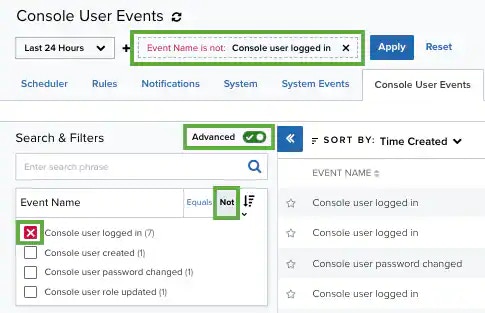 Some filters don't include the NOT operator (for example, Services or Software).
5. Click **Apply**.
**To search all values of a filter**
1. Go to **Settings > System Events**.
2. In the upper-left corner of the page, click the icon to activate the advanced mode.
3. Select a filter title to select all filters below that title.
## Searching System Events by Using the Search Field
**To search for System Events using the search field**
1. Go to **Settings > System Events**.
2. Enter your query in the search field.
If you want to search for an exact phrase having two or more words, you need to put quotation marks around the words in the phrase. This includes email addresses (for example, "[bob@mycompany.com](mailto:bob@mycompany.com)").
Wildcard characters are considered as literal characters.
3. Click the
Some filters don't include the NOT operator (for example, Services or Software).
5. Click **Apply**.
**To search all values of a filter**
1. Go to **Settings > System Events**.
2. In the upper-left corner of the page, click the icon to activate the advanced mode.
3. Select a filter title to select all filters below that title.
## Searching System Events by Using the Search Field
**To search for System Events using the search field**
1. Go to **Settings > System Events**.
2. Enter your query in the search field.
If you want to search for an exact phrase having two or more words, you need to put quotation marks around the words in the phrase. This includes email addresses (for example, "[bob@mycompany.com](mailto:bob@mycompany.com)").
Wildcard characters are considered as literal characters.
3. Click the  icon.
icon.
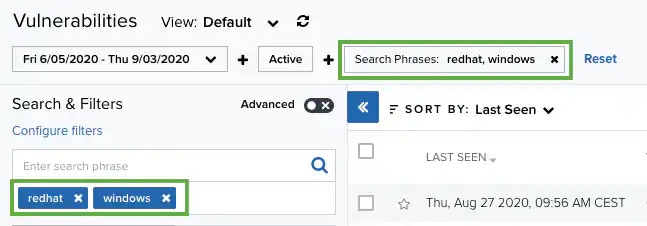 The result of your search displays with the items identified.