> ## Documentation Index
> Fetch the complete documentation index at: https://docs.levelblue.com/llms.txt
> Use this file to discover all available pages before exploring further.
# USM Anywhere Console User Events List View
Role Availability | ✔️ Read-Only ✔️ Investigator ✔️ Analyst ✔️ Manager
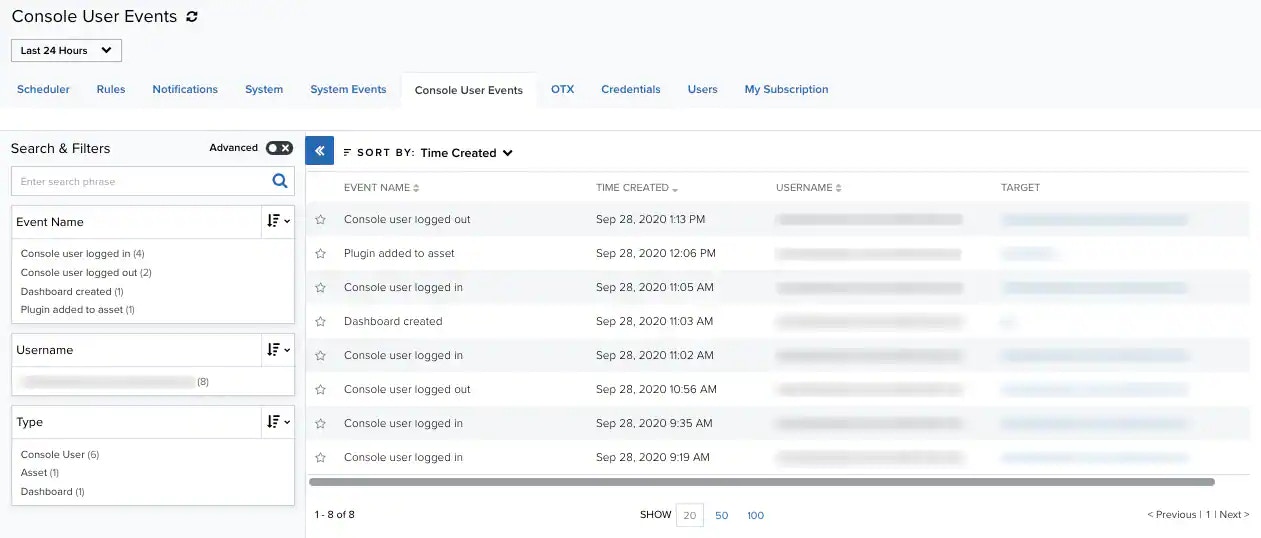
USM Anywhere provides a centralized view of your console user events. Go to **Settings > Console User Events**.
The console user events page displays information on any actions generated within your environment by the user. On the left you can find the search and filters options. At the top of the page, you can see any filters you have applied. The main part of the page is the actual list of console user events. Each row describes an individual console user event.
If you want to analyze the data, you can maximize the screen and hide the filter pane. Click the  icon to hide the filter pane. Click the
  icon to expand the filter pane.
Console User Events are retained for 12 months.
This table includes the list of the default columns in the console user events page.
**List of the Default Columns in the Console User Events page**
| Column Field Name | Description |
| ----------------- | -------------------------------------------------------------------------------------------------------- |
| Event Name | Name of the event. |
| Time Created | The date and time of the creation of the event. The displayed date depends on your computer's time zone. |
| Username | Email account associated with the person who triggered the event. |
| Target | Identification of the modified object. |
Click the
icon to expand the filter pane.
Console User Events are retained for 12 months.
This table includes the list of the default columns in the console user events page.
**List of the Default Columns in the Console User Events page**
| Column Field Name | Description |
| ----------------- | -------------------------------------------------------------------------------------------------------- |
| Event Name | Name of the event. |
| Time Created | The date and time of the creation of the event. The displayed date depends on your computer's time zone. |
| Username | Email account associated with the person who triggered the event. |
| Target | Identification of the modified object. |
Click the  icon to bookmark an item for quick access.
**Note:** You can view your bookmarked items by going to the secondary menu and clicking the icon. This will display all of your bookmarked items and provide direct links to each of them.
You can choose the number of items to display by selecting **20**, **50**, or **100** below the table. You can classify some columns by clicking the icons to the right side of the heading. You can sort the item information in ascending or descending order.
Above the list, you also have a filter to sort the list by a specific column.
icon to bookmark an item for quick access.
**Note:** You can view your bookmarked items by going to the secondary menu and clicking the icon. This will display all of your bookmarked items and provide direct links to each of them.
You can choose the number of items to display by selecting **20**, **50**, or **100** below the table. You can classify some columns by clicking the icons to the right side of the heading. You can sort the item information in ascending or descending order.
Above the list, you also have a filter to sort the list by a specific column.