> ## Documentation Index
> Fetch the complete documentation index at: https://docs.levelblue.com/llms.txt
> Use this file to discover all available pages before exploring further.
# Clone the Executive Dashboard
| | | | | |
| --------------------- | ------------- | ---------------- | ----------- | ----------- |
| **Role Availability** | **Read-Only** | **Investigator** | **Analyst** | **Manager** |
USM Anywhere enables you to clone the executive dashboard and customize the cloned dashboard with the widgets and content you need.
### To clone the Executive Dashboard
1. Go to **Dashboards > Executive.**
2. Click **Actions > Clone Dashboard.**
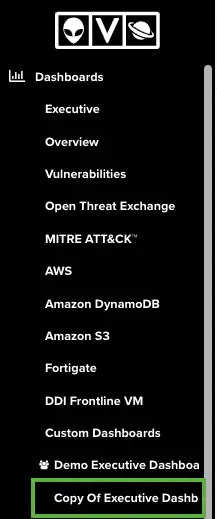
The new dashboard displays in the navigation menu, below Custom Dashboards.
 ### To edit your cloned executive dashboard
1. In the navigation menu, click your cloned executive dashboard.
2. Click **Actions > Edit Dashboard.**
The Edit Executive Dashboard dialog box opens.
### To edit your cloned executive dashboard
1. In the navigation menu, click your cloned executive dashboard.
2. Click **Actions > Edit Dashboard.**
The Edit Executive Dashboard dialog box opens.
 ### To change the name of your cloned executive dashboard
1. In the navigation menu, click your cloned executive dashboard.
2. Click **Actions > Edit Dashboard.**
The Edit Executive Dashboard dialog box opens.
### To change the name of your cloned executive dashboard
1. In the navigation menu, click your cloned executive dashboard.
2. Click **Actions > Edit Dashboard.**
The Edit Executive Dashboard dialog box opens.
 3. Modify the title of the dashboard.
4. Click **Save.**
### To change the group name of your cloned executive dashboard
1. In the navigation menu, click your cloned executive dashboard.
2. Click **Actions > Edit Dashboard.**
The Edit Executive Dashboard dialog box opens.
3. Modify the title of the dashboard.
4. Click **Save.**
### To change the group name of your cloned executive dashboard
1. In the navigation menu, click your cloned executive dashboard.
2. Click **Actions > Edit Dashboard.**
The Edit Executive Dashboard dialog box opens.
 3. Click the icon next to the group name you want to change.
4. Modify the group name.
5. Click icon to save the group name or the icon to cancel the change.
6. Click **Save.**
### To remove a group of your cloned executive dashboard
1. In the navigation menu, click your cloned executive dashboard.
2. Click **Actions > Edit Dashboard.**
The Edit Executive Dashboard dialog box opens.
3. Click the icon next to the group name you want to change.
4. Modify the group name.
5. Click icon to save the group name or the icon to cancel the change.
6. Click **Save.**
### To remove a group of your cloned executive dashboard
1. In the navigation menu, click your cloned executive dashboard.
2. Click **Actions > Edit Dashboard.**
The Edit Executive Dashboard dialog box opens.
 3. Click the **Remove Group** link next to the group name you want to remove.
4. Click **Save.**
### To modify the widget order of your cloned executive dashboard
1. In the navigation menu, click your cloned executive dashboard.
2. Click **Actions > Edit Dashboard.**
The Edit Executive Dashboard dialog box opens.
3. Click the **Remove Group** link next to the group name you want to remove.
4. Click **Save.**
### To modify the widget order of your cloned executive dashboard
1. In the navigation menu, click your cloned executive dashboard.
2. Click **Actions > Edit Dashboard.**
The Edit Executive Dashboard dialog box opens.
 3. Click the icon and drag the widget to the desired place.
4. Click **Save.**
### To modify the widget row height of your cloned executive dashboard
1. In the navigation menu, click your cloned executive dashboard.
2. Click **Actions > Edit Dashboard.**
The Edit Executive Dashboard dialog box opens.
3. Click the icon and drag the widget to the desired place.
4. Click **Save.**
### To modify the widget row height of your cloned executive dashboard
1. In the navigation menu, click your cloned executive dashboard.
2. Click **Actions > Edit Dashboard.**
The Edit Executive Dashboard dialog box opens.
 3. Click one of these icons and change the widget row height.
The values are small, medium, and large.
4. Click **Save.**
### To delete a widget of your cloned executive dashboard
1. In the navigation menu, click your cloned executive dashboard.
2. Click **Actions > Edit Dashboard.**
The Edit Executive Dashboard dialog box opens.
3. Click one of these icons and change the widget row height.
The values are small, medium, and large.
4. Click **Save.**
### To delete a widget of your cloned executive dashboard
1. In the navigation menu, click your cloned executive dashboard.
2. Click **Actions > Edit Dashboard.**
The Edit Executive Dashboard dialog box opens.
 3. Click the icon next to the widget you want to delete.
4. Click **Save.**
### To add a widget in your cloned executive dashboard
1. In the navigation menu, click your cloned executive dashboard.
2. Click **Actions > Edit Dashboard.**
The Edit Executive Dashboard dialog box opens.
3. Click the icon next to the widget you want to delete.
4. Click **Save.**
### To add a widget in your cloned executive dashboard
1. In the navigation menu, click your cloned executive dashboard.
2. Click **Actions > Edit Dashboard.**
The Edit Executive Dashboard dialog box opens.
 3. Click the **Add Widget** link in the group where you want to add the widget.
4. Select the data you want to add to that widget.
5. Click **Save.**
3. Click the **Add Widget** link in the group where you want to add the widget.
4. Select the data you want to add to that widget.
5. Click **Save.**