> ## Documentation Index
> Fetch the complete documentation index at: https://docs.levelblue.com/llms.txt
> Use this file to discover all available pages before exploring further.
# Refreshing and Filtering Data from the USM Anywhere Dashboards
| | | | | |
| --------------------- | ------------- | ---------------- | ----------- | ----------- |
| **Role Availability** | **Read-Only** | **Investigator** | **Analyst** | **Manager** |
USM Anywhere gives you the option of refreshing dashboards automatically in a period of time that you can configure.
You can also filter your search in the upper left corner of the dashboards page. When you select one or more filters, the dashboard restricts the views to the selected filters. If you export the dashboard as an HTML report, it preserves the selected filters. See [Exporting Data from the USM Anywhere Dashboards](/documentation/usm-anywhere/user-guide/dashboards/exporting-data) for more information.
## Refreshing Dashboards
You can configure a period of time for refreshing the data on your dashboards. See [Managing Your Profile Settings](/documentation/usm-anywhere/user-guide/user-management/profile-settings) for more information.
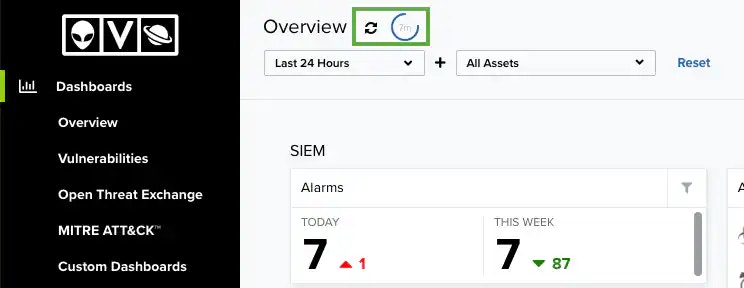
Following the name of the dashboard, you can click the icon to stop the auto-refresh countdown and refresh the page manually.
There is an auto-refresh countdown that refreshes the page at a regular interval. The number inside the blue circle indicates the remaining time until the next refresh. See [Managing Your Profile Settings](/documentation/usm-anywhere/user-guide/user-management/profile-settings) to configure this interval.
 ## General Filters
All dashboards include two filters:
Use this filter for identifying data created during the last hour, last 24 hours, last 7 days, or last 30 days. You can also configure your own period of time by clicking the **Custom Range** option. This option enables you to customize a range. When you click **Custom Range**, a calendar opens. You can choose the first and last day to delimit your search by clicking the days on the calendar or entering the days directly. Then select the hours, minutes, and seconds by clicking the specific box. Finally, select **AM** or **PM**.
**To apply one or more filters to a dashboard**
1. Select the dashboard on which you want to display data.
2. Select the filter. You can select both filters option.
3. Click **Apply**.
## Widgets Filters
There are some widgets that include the icon to filter data on that widget. Use this filter for identifying data created during the last hour, last 24 hours, last 7 days, or last 30 days.
## General Filters
All dashboards include two filters:
Use this filter for identifying data created during the last hour, last 24 hours, last 7 days, or last 30 days. You can also configure your own period of time by clicking the **Custom Range** option. This option enables you to customize a range. When you click **Custom Range**, a calendar opens. You can choose the first and last day to delimit your search by clicking the days on the calendar or entering the days directly. Then select the hours, minutes, and seconds by clicking the specific box. Finally, select **AM** or **PM**.
**To apply one or more filters to a dashboard**
1. Select the dashboard on which you want to display data.
2. Select the filter. You can select both filters option.
3. Click **Apply**.
## Widgets Filters
There are some widgets that include the icon to filter data on that widget. Use this filter for identifying data created during the last hour, last 24 hours, last 7 days, or last 30 days.
