> ## Documentation Index
> Fetch the complete documentation index at: https://docs.levelblue.com/llms.txt
> Use this file to discover all available pages before exploring further.
# Creating Alarm Rules from the Events Page
USM Anywhere enables you to easily identify existing and emerging threats, which are of interest. Through alarm rules on events that match the rule. These events will be neither correlated nor stored. Through these rules, you can define which event data you are going to store in USM Anywhere. You will pay for the data you use.
**To create an alarm rule from the Events page**
1. Go to **Activity > Events**.
2. Search the events which you want to include in the alarm rule.
See [Searching Events](searching-events) for more information.
3. Click one of them.
4. Select **Create Rule > Create Alarm Rule**.
5. Select a Boolean operator.
The options are AND, OR, AND NOT, and OR NOT.
6. Select a packet type in the Match drop-down list.
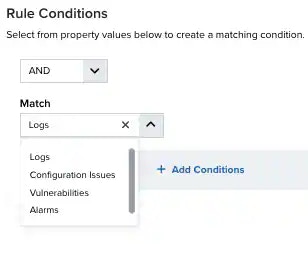 * **Logs**: Use this packet type for event-based rules.
* **Configuration Issues**: Use this packet type for configuration issues-based rules¹.
* **Vulnerabilities**: Use this packet type for vulnerabilities-based rules.
* **Alarms**: Use this packet type for console user alarms-based rules.
* **Console User Events**: Use this packet type for console user events-based rules.
7. You have already suggested property values to create a matching condition. If you want to add new property values, click **Add Condition**.
\*\*Note: \*\*Less common parameters will appear as paired *Custom Header N* and *Custom Field N* rows with the parameter's name and value. *N* represents the number that is automatically given to the parameter.
**Note:** If the field is related to the name of a country, you should use the country code defined by the [ISO 3166](https://www.iso.org/iso-3166-country-codes.html).
**Note:** The Sources or Destinations field needs to match the universally unique identifier (UUID) of the event or alarm. You can use the Source Name or Destination Name field instead.
**Important:** Instead of using the `equals` and `equals`, `case insensitive` operators for array fields, LevelBlue recommends the use of the `in` or `contains` operators.
**Note:** If you need to add a property value that maps with a property key, you need to know the mapping of the field. See [Determining the Mapping of a Field](../rules-management/mapping-field) for more information.
8. (Optional) Click **Add Group** to group your conditions.
**Note:** See [Operators in the Orchestration Rules](../rules-management/orchestration-rules-operators) for more information.
9. In the **Occurrences** text box, enter the number of event occurrences that you want to produce a match on the conditional expression to trigger the rule.
You can enter the number of occurrences or use the arrows to scroll the value up or down. You can enter a number between 1 and 100.
Note: The current rule box shows you the syntax of your rule, and the rule verification box reviews that syntax before saving the rule.
10. Click **Next**.
* **Logs**: Use this packet type for event-based rules.
* **Configuration Issues**: Use this packet type for configuration issues-based rules¹.
* **Vulnerabilities**: Use this packet type for vulnerabilities-based rules.
* **Alarms**: Use this packet type for console user alarms-based rules.
* **Console User Events**: Use this packet type for console user events-based rules.
7. You have already suggested property values to create a matching condition. If you want to add new property values, click **Add Condition**.
\*\*Note: \*\*Less common parameters will appear as paired *Custom Header N* and *Custom Field N* rows with the parameter's name and value. *N* represents the number that is automatically given to the parameter.
**Note:** If the field is related to the name of a country, you should use the country code defined by the [ISO 3166](https://www.iso.org/iso-3166-country-codes.html).
**Note:** The Sources or Destinations field needs to match the universally unique identifier (UUID) of the event or alarm. You can use the Source Name or Destination Name field instead.
**Important:** Instead of using the `equals` and `equals`, `case insensitive` operators for array fields, LevelBlue recommends the use of the `in` or `contains` operators.
**Note:** If you need to add a property value that maps with a property key, you need to know the mapping of the field. See [Determining the Mapping of a Field](../rules-management/mapping-field) for more information.
8. (Optional) Click **Add Group** to group your conditions.
**Note:** See [Operators in the Orchestration Rules](../rules-management/orchestration-rules-operators) for more information.
9. In the **Occurrences** text box, enter the number of event occurrences that you want to produce a match on the conditional expression to trigger the rule.
You can enter the number of occurrences or use the arrows to scroll the value up or down. You can enter a number between 1 and 100.
Note: The current rule box shows you the syntax of your rule, and the rule verification box reviews that syntax before saving the rule.
10. Click **Next**.
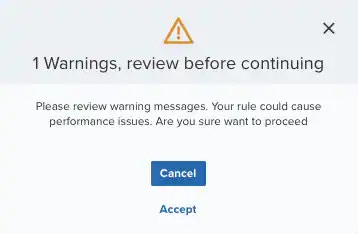 **Important:** A dialog box opens if there are warning messages. Click **Cancel** to review the warning messages, or click **Accept** to continue creating the rule.
11. Enter a name for the rule and, if desired, a description to clarify its use in the Description field.
12. Select an intent.
The intent describes the context of the behavior that is being observed. These intents roughly map to the stages of the intrusion kill chains but are collapsed to ensure that each is discrete. See [Intent](../rules-management/correlation-rules) for more information about the available threat categories.
13. Enter a method.
If known, it is the method of attack or infiltration associated with the indicator that generated the alarm.
**Note:** This is a required field; if you do not complete this field, the Save button remains inactive.
14. Select a strategy.
The strategy describes the broad-based strategy or behavior that is detected. The intention is to describe the malicious user's strategy to achieve their goal.
15. Enter a priority.
See [Priority Field for Alarms](../alarms/alarms-list-priority-field) for more information.
16. Configure a mute duration set in seconds, minutes, and hours.
You can use the mute value to set the period of time during which, once an alarm is createdUSM Anywhere will not create a new alarm based on the same conditions.
**Note:** Take care to set a mute duration that is long enough to cover the span of time in which matching events will occur to maximize the efficacy of your mute.
**Important:** If your USM Anywhere™ is restarted when one of your alarm mutes is active, or if there is an update or hotfix, the alarm mute will be canceled.
17. In the **Length** text box, specify the timespan that you want to use to identify a match for multiple occurrences. Enter the number in the text box, and then use the drop-down menu to select a value of seconds, minutes, or hours.
This duration identifies the amount of time that transpires from the beginning to the end of the occurrence. If the number of occurrences is not met within this period, the rule is not a match.
Note: Your defined length and occurrences function together to specify the number of occurrences within a time period that will produce a match for the rule. For example, you can define a rule to trigger an alarm for an unauthorized access attempt when a failed SSH login occurs three times within a five-minute window.
18. (Optional) Select the fields that you want to display in the generated alarm.
You can select or remove the fields you want to include in the details of the alarm. A field passes from one column to the other by clicking it.
19. Click **Save**.
The created rule displays in the list of rules. You can see it from **Settings > Rules**. See [Orchestration Rules](../rules-management/orchestration-rules) for more information.
**Important:** It takes a few minutes for an orchestration rule to become active.
**Important:** A dialog box opens if there are warning messages. Click **Cancel** to review the warning messages, or click **Accept** to continue creating the rule.
11. Enter a name for the rule and, if desired, a description to clarify its use in the Description field.
12. Select an intent.
The intent describes the context of the behavior that is being observed. These intents roughly map to the stages of the intrusion kill chains but are collapsed to ensure that each is discrete. See [Intent](../rules-management/correlation-rules) for more information about the available threat categories.
13. Enter a method.
If known, it is the method of attack or infiltration associated with the indicator that generated the alarm.
**Note:** This is a required field; if you do not complete this field, the Save button remains inactive.
14. Select a strategy.
The strategy describes the broad-based strategy or behavior that is detected. The intention is to describe the malicious user's strategy to achieve their goal.
15. Enter a priority.
See [Priority Field for Alarms](../alarms/alarms-list-priority-field) for more information.
16. Configure a mute duration set in seconds, minutes, and hours.
You can use the mute value to set the period of time during which, once an alarm is createdUSM Anywhere will not create a new alarm based on the same conditions.
**Note:** Take care to set a mute duration that is long enough to cover the span of time in which matching events will occur to maximize the efficacy of your mute.
**Important:** If your USM Anywhere™ is restarted when one of your alarm mutes is active, or if there is an update or hotfix, the alarm mute will be canceled.
17. In the **Length** text box, specify the timespan that you want to use to identify a match for multiple occurrences. Enter the number in the text box, and then use the drop-down menu to select a value of seconds, minutes, or hours.
This duration identifies the amount of time that transpires from the beginning to the end of the occurrence. If the number of occurrences is not met within this period, the rule is not a match.
Note: Your defined length and occurrences function together to specify the number of occurrences within a time period that will produce a match for the rule. For example, you can define a rule to trigger an alarm for an unauthorized access attempt when a failed SSH login occurs three times within a five-minute window.
18. (Optional) Select the fields that you want to display in the generated alarm.
You can select or remove the fields you want to include in the details of the alarm. A field passes from one column to the other by clicking it.
19. Click **Save**.
The created rule displays in the list of rules. You can see it from **Settings > Rules**. See [Orchestration Rules](../rules-management/orchestration-rules) for more information.
**Important:** It takes a few minutes for an orchestration rule to become active.