> ## Documentation Index
> Fetch the complete documentation index at: https://docs.levelblue.com/llms.txt
> Use this file to discover all available pages before exploring further.
# Creating Filtering Rules from the Events Page
USM Anywhere enables you to make the sensor drops future events that match the rule. These events will be neither correlated nor stored. Through these rules, you can define which event data you are going to store in USM Anywhere. You will pay for the data you use.
\*\*Note: \*\*Filtering rules is not retroactive. The rule applies to future items, but not to to previous items, even if those items follow the rule.
**Important:** You can't use a correlation list when you create a filtering rule.
**To create a filtering rule from the Events page**
1. Go to **Activity > Events**.
2. Search the events which you want to include in the filtering rule.
See [Searching Events](searching-events) for more information.
3. Click one of them.
4. Select **Create Rule > Create Filtering Rule**.
5. Select a Boolean operator.
The options are AND, OR, AND NOT, and OR NOT.
6. Select a packet type in the Match drop-down list.
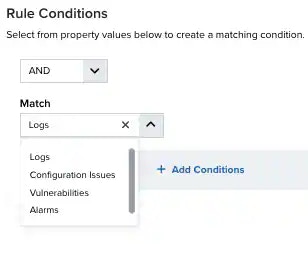 * **Logs**: Use this packet type for event-based rules.
* **Configuration Issues**: Use this packet type for configuration issues-based rules¹.
* **Vulnerabilities**: Use this packet type for vulnerabilities-based rules.
* **Alarms**: Use this packet type for console user alarms-based rules.
7. You have already suggested property values to create a matching condition. If you want to add new property values, click **Add Condition**.
\*\*Note: \*\*Less common parameters will appear as paired *Custom Header N* and *Custom Field N* rows with the parameter's name and value. *N* represents the number that is automatically given to the parameter.
**Note:** If the field is related to the name of a country, you should use the country code defined by the [ISO 3166](https://www.iso.org/iso-3166-country-codes.html).
**Note:** The Sources or Destinations field needs to match the universally unique identifier (UUID) of the event or alarm. You can use the Source Name or Destination Name field instead.
**Important:** Instead of using the `equals` and `equals`, `case insensitive` operators for array fields, LevelBlue recommends the use of the `in` or `contains` operators.
**Note:** If you need to add a property value that maps with a property key, you need to know the mapping of the field. See [Determining the Mapping of a Field](../rules-management/mapping-field) for more information.
8. (Optional) Click **Add Group** to group your conditions.
**Note:** See [Operators in the Orchestration Rules](../rules-management/orchestration-rules-operators) for more information.
9. In the **Occurrences** text box, enter the number of event occurrences that you want to produce a match on the conditional expression to trigger the rule.
You can enter the number of occurrences or use the arrows to scroll the value up or down. You can enter a number between 1 and 100.
Note: The current rule box shows you the syntax of your rule, and the rule verification box reviews that syntax before saving the rule.
10. Click **Next**.
* **Logs**: Use this packet type for event-based rules.
* **Configuration Issues**: Use this packet type for configuration issues-based rules¹.
* **Vulnerabilities**: Use this packet type for vulnerabilities-based rules.
* **Alarms**: Use this packet type for console user alarms-based rules.
7. You have already suggested property values to create a matching condition. If you want to add new property values, click **Add Condition**.
\*\*Note: \*\*Less common parameters will appear as paired *Custom Header N* and *Custom Field N* rows with the parameter's name and value. *N* represents the number that is automatically given to the parameter.
**Note:** If the field is related to the name of a country, you should use the country code defined by the [ISO 3166](https://www.iso.org/iso-3166-country-codes.html).
**Note:** The Sources or Destinations field needs to match the universally unique identifier (UUID) of the event or alarm. You can use the Source Name or Destination Name field instead.
**Important:** Instead of using the `equals` and `equals`, `case insensitive` operators for array fields, LevelBlue recommends the use of the `in` or `contains` operators.
**Note:** If you need to add a property value that maps with a property key, you need to know the mapping of the field. See [Determining the Mapping of a Field](../rules-management/mapping-field) for more information.
8. (Optional) Click **Add Group** to group your conditions.
**Note:** See [Operators in the Orchestration Rules](../rules-management/orchestration-rules-operators) for more information.
9. In the **Occurrences** text box, enter the number of event occurrences that you want to produce a match on the conditional expression to trigger the rule.
You can enter the number of occurrences or use the arrows to scroll the value up or down. You can enter a number between 1 and 100.
Note: The current rule box shows you the syntax of your rule, and the rule verification box reviews that syntax before saving the rule.
10. Click **Next**.
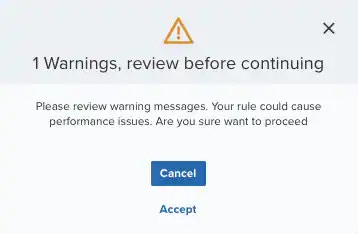 **Important:** A dialog box opens if there are warning messages. Click **Cancel** to review the warning messages, or click **Accept** to continue creating the rule.
11. Enter a name for the rule.
12. (Optional) Enter a description for identifying this rule.
13. Click **Save**.
The created rule displays in the list of rules. You can see it from **Settings > Rules**. See [Orchestration Rules](../rules-management/orchestration-rules) for more information.
**Important:** It takes a few minutes for an orchestration rule to become active.
**Important:** A dialog box opens if there are warning messages. Click **Cancel** to review the warning messages, or click **Accept** to continue creating the rule.
11. Enter a name for the rule.
12. (Optional) Enter a description for identifying this rule.
13. Click **Save**.
The created rule displays in the list of rules. You can see it from **Settings > Rules**. See [Orchestration Rules](../rules-management/orchestration-rules) for more information.
**Important:** It takes a few minutes for an orchestration rule to become active.