> ## Documentation Index
> Fetch the complete documentation index at: https://docs.levelblue.com/llms.txt
> Use this file to discover all available pages before exploring further.
# Standard and Advanced Modes on Events
USM Anywhere enables you to toggle the mode of search. The available modes are Standard and Advanced. You can change from one mode to the other by clicking the  icon or clicking the
  icon located in the upper left corner of the page.
## Standard Mode
This mode enables you to select one value per filter at the same time, and then the search is automatically performed. This mode is on by default.
**To activate the standard mode when the advanced mode is on**
1. Go to **Activity > Events**.
2. In the upper-left corner of the page, click the icon.
3. This turns the icon gray, .
**Note:** If you exit the advanced mode and the selected filters are not compatible with the standard mode, a warning dialog box opens to inform you the current filters will be removed.
## Advanced Mode
Advanced mode enables you to select more than one value per filter at the same time. This mode is off by default.
**To activate the advanced mode**
1. Go to **Activity > Events**.
2. In the upper-left corner of the page, click the icon to activate the advanced mode.
This turns the icon green, .
**To perform a search in the advanced mode**
1. Go to **Activity > Events**.
2. In the upper-left corner of the page, click the icon to activate the advanced mode.
This turns the icon green, .
3. Click the filters that you want to select.
The selected filters display inside a dashed rectangle.
icon located in the upper left corner of the page.
## Standard Mode
This mode enables you to select one value per filter at the same time, and then the search is automatically performed. This mode is on by default.
**To activate the standard mode when the advanced mode is on**
1. Go to **Activity > Events**.
2. In the upper-left corner of the page, click the icon.
3. This turns the icon gray, .
**Note:** If you exit the advanced mode and the selected filters are not compatible with the standard mode, a warning dialog box opens to inform you the current filters will be removed.
## Advanced Mode
Advanced mode enables you to select more than one value per filter at the same time. This mode is off by default.
**To activate the advanced mode**
1. Go to **Activity > Events**.
2. In the upper-left corner of the page, click the icon to activate the advanced mode.
This turns the icon green, .
**To perform a search in the advanced mode**
1. Go to **Activity > Events**.
2. In the upper-left corner of the page, click the icon to activate the advanced mode.
This turns the icon green, .
3. Click the filters that you want to select.
The selected filters display inside a dashed rectangle.
 4. In the lower-left corner of the page, click **Apply Filters**. Or in the upper side of the page, click **Apply**.
 The result of your search displays.
**To search using the NOT operator**
1. Go to Activity > Events.
2. In the upper-left corner of the page, click the icon to activate the advanced mode.
3. Click the filter that you want to exclude.
4. In the filter group, click **Not**.
**Important:** You have to select a filter to see this operator.
**Note:** The selected filter displays the
The result of your search displays.
**To search using the NOT operator**
1. Go to Activity > Events.
2. In the upper-left corner of the page, click the icon to activate the advanced mode.
3. Click the filter that you want to exclude.
4. In the filter group, click **Not**.
**Important:** You have to select a filter to see this operator.
**Note:** The selected filter displays the  icon and the filter chiclet is labeled in red.
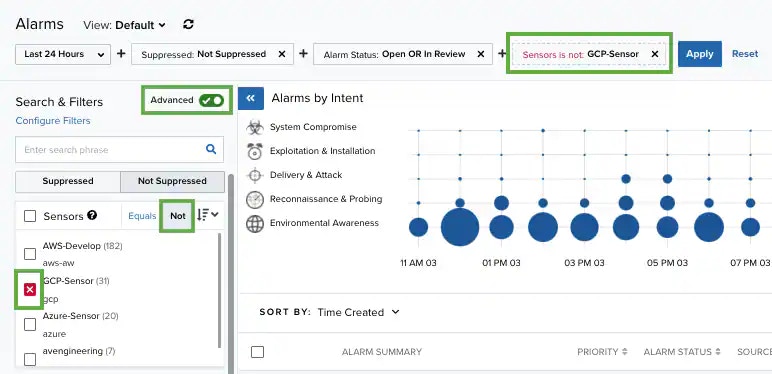

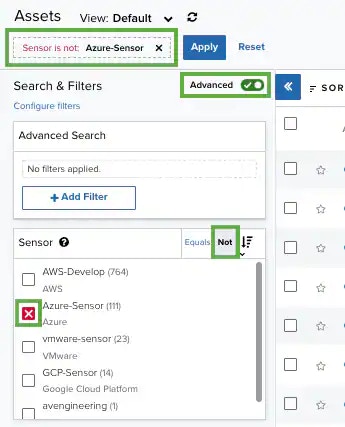
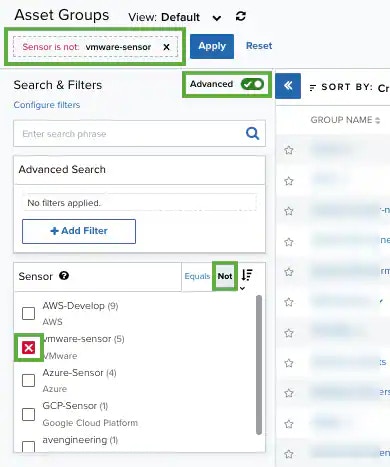
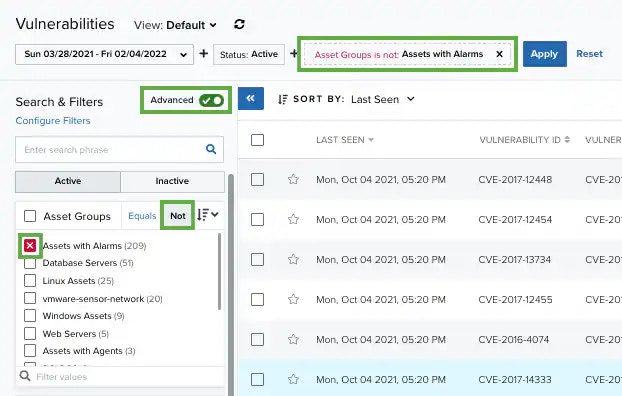
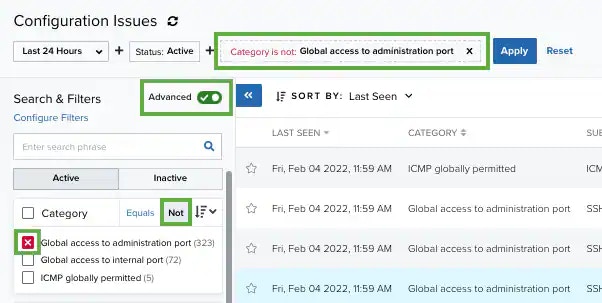
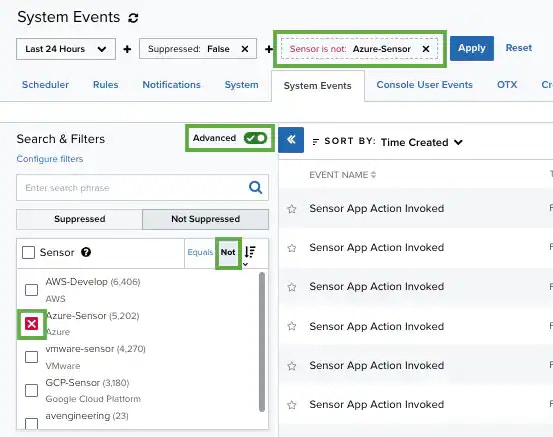
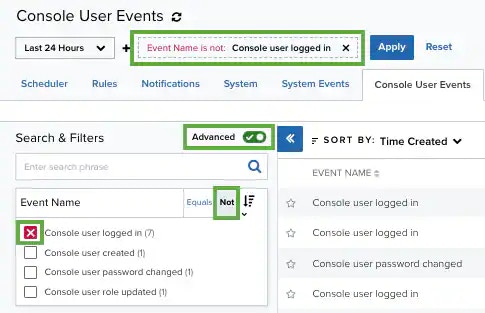 **Important:** Some filters don't include the NOT operator (for example, Services or Software).
5. Click **Apply**.
**To search all values of a filter**
1. Go to **Activity > Events**.
2. In the upper-left corner of the page, click the icon to activate the advanced mode.
3. Select a filter title to select all filters below that title.
**Note:** This option searches all filter values that are not empty. If the filter includes the **\[No Value]**, this value will not be checked not displayed. See [Searching Events](searching-events) for more information.
**Important:** Some filters don't include the NOT operator (for example, Services or Software).
5. Click **Apply**.
**To search all values of a filter**
1. Go to **Activity > Events**.
2. In the upper-left corner of the page, click the icon to activate the advanced mode.
3. Select a filter title to select all filters below that title.
**Note:** This option searches all filter values that are not empty. If the filter includes the **\[No Value]**, this value will not be checked not displayed. See [Searching Events](searching-events) for more information.